 EveryGen AI
AI UGC Video Generator in EveryGen AI for creator-style scene concepts
An adult creator lifts an item, notices one feature and lets the gesture settle. The AI UGC Video Generator in EveryGen AI develops a short concept from your uploaded opening frame. MiniMax H3 Max Turbo begins in image mode at five seconds and 480P. Review the person, product and native sound as an AI creative portrayal, without inventing a real customer experience.
Video workspace
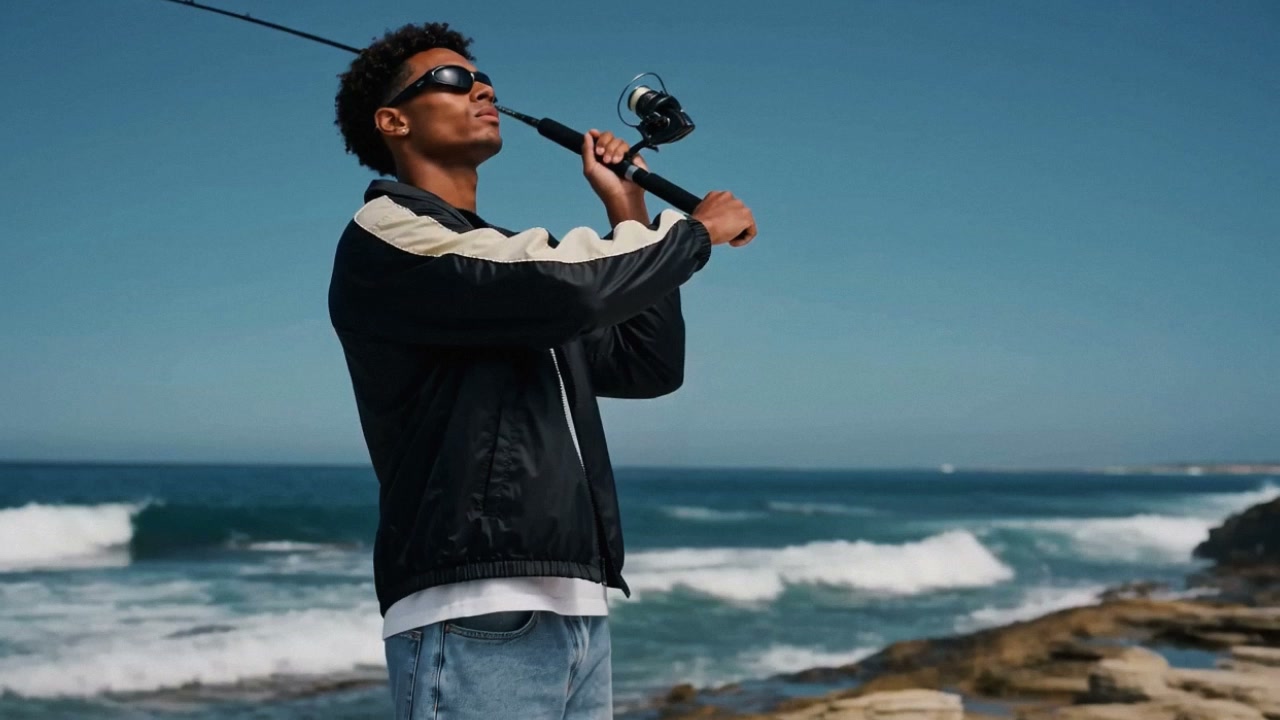
A natural look at the fishing gear
9/10View prompt
Use the uploaded seaside image of the adult man holding a fishing rod as the opening frame. Create a casual five-second shot as he adjusts his grip and gently angles the existing equipment into view. Keep his appearance, clothing, coastline, and rod recognizable. Add subtle wind and water ambience, with observational body language and no spoken endorsement.
Introduction
Give the AI UGC Video Generator a relatable moment
Give the AI UGC Video Generator in EveryGen AI one everyday interaction, with an adult subject, a relevant item, and a clear final pose.
Choose a familiar interaction
A creator lifts an item from a desk, looks at one feature, and returns it gently. This gives the AI UGC Video Generator in EveryGen AI an everyday moment to interpret.
Make the concept’s status clear
Creator-style describes a visual approach, not proof that someone bought or endorsed the item. Build the AI UGC Video Generator in EveryGen AI brief around an authorized adult subject or a fictional adult concept. Do not assign a real person an experience or opinion they never provided.
Start with the supported workflow
Start the AI UGC Video Generator in EveryGen AI at Turbo image mode, five seconds, 480P and one output. Upload a required opening frame and optionally a compatible ending image. Choose integer durations from five to fifteen seconds and 480P, 768P or 1080P. The last requests refinement/upscaling of native 768P generation, not a native 1080P claim.
How to use
How to use the AI UGC Video Generator in EveryGen AI
- Input
 Reference image 1STEP 1
Prepare the first frame
Select MiniMax H3 Max Turbo image mode in the AI UGC Video Generator in EveryGen AI and upload an authorized adult creator-style reference image.
- ModelMiniMax H3 Max Turbo480P16:95sPromptOutputSTEP 2
Describe a natural gesture
Give the AI UGC Video Generator in EveryGen AI one modest action involving the existing subject and item, with relaxed expression and consistent surroundings.
- First frameLast frame
 0.0s
0.0s 2.6s
2.6s 4.7sSTEP 3
Generate a brief scene
Start the AI UGC Video Generator in EveryGen AI at five seconds and 480P, review the displayed credits, and generate your creator-style concept.
- STEP 4
Review the complete portrayal
Check AI UGC Video Generator faces in EveryGen AI, hands, product details, and sound before using the result as a clearly identified creative concept.
Features
Prepare a useful AI UGC Video Generator opening image
Prepare an AI UGC Video Generator source in EveryGen AI that already places the adult subject, item, and surroundings in a useful composition.
Show the intended adult subject
Choose an authorized adult image with a visible face and natural posture. The AI UGC Video Generator in EveryGen AI can develop a small gesture from that frame. A heavily cropped face leaves less guidance for body position, hand placement, or the item being discussed.
- Use an EveryGen AI opening source that supports the intended camera distance.
- Keep AI UGC Video Generator faces in EveryGen AI clear of foreground clutter.
Include the relevant product relationship
When the subject will hold an item, show a believable grip in the opening image. If it rests on a desk, make the contact clear. The AI UGC Video Generator in EveryGen AI should begin from a useful arrangement instead of inventing every detail of a complicated pickup.
Prepare the framing before uploading
Prepare a vertical first frame with room for the adult’s head, hands and featured object when that is your destination. Image mode has no separate ratio selector in the AI UGC Video Generator in EveryGen AI. A source guides composition but does not lock pixels or guarantee an unsuitable crop becomes a complete portrait.

Direct AI UGC Video Generator gestures without overacting
Give the AI UGC Video Generator in EveryGen AI a readable sequence of attention, action, and pause rather than constant exaggerated enthusiasm.
Use a believable change of attention
Ask the subject to look from the camera toward the item before moving it slightly. This gives the AI UGC Video Generator in EveryGen AI a reason for the gesture. Keep the expression relaxed rather than requesting an exaggerated reaction that overwhelms the object or situation.
- Let the gaze show what viewers should notice next in your EveryGen AI scene.
- Give the AI UGC Video Generator in EveryGen AI one expression change per short shot.
Keep hand movements modest
A small lift, gentle turn, or brief pointing gesture is easier to assess than a sequence of opening and assembling. Tell the AI UGC Video Generator in EveryGen AI which hand moves and where it finishes. Watch fingers and the object together when their edges overlap.
Leave time after the gesture
A pause lets viewers recognize the item and the completed action. Give the AI UGC Video Generator in EveryGen AI a settled ending instead of continuous motion until the last frame.
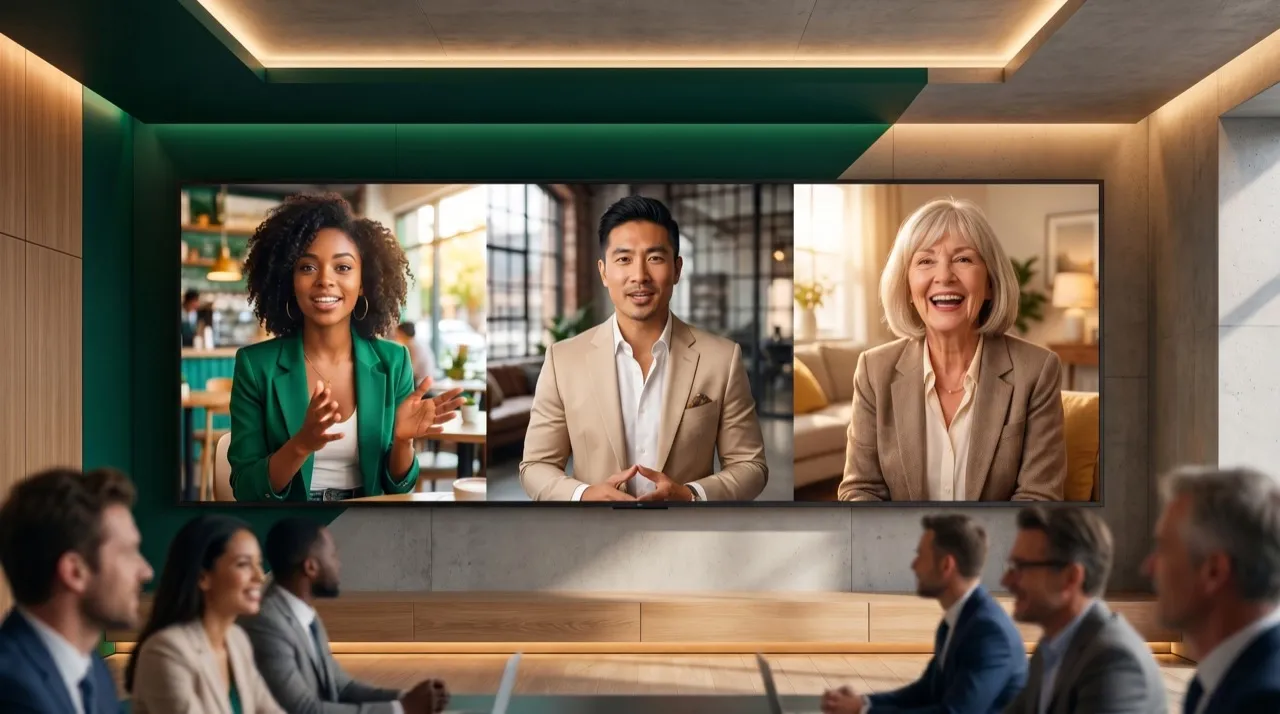
Keep AI UGC Video Generator storytelling grounded
Direct the AI UGC Video Generator in EveryGen AI toward observable interactions and accurate products, keeping creator-style concepts separate from actual customer testimony.
Show the object instead of claiming an outcome
Let the subject present a visible feature already supported by the reference. The AI UGC Video Generator in EveryGen AI should not be asked to invent a before-and-after result, personal purchase story, or measured improvement. The visual can explain what is present without pretending to prove more.
- Base visible product details in your EveryGen AI brief on approved source material.
- Keep AI UGC Video Generator concepts from EveryGen AI distinct from actual customer statements.
Use surroundings that support the moment
A simple desk or quiet room can make the gesture easy to follow. Keep the AI UGC Video Generator in EveryGen AI setting consistent with the source rather than adding an elaborate lifestyle fantasy.
Keep separate messages in separate shots
A greeting, close-up, and final invitation are different visual jobs. Choose one for each AI UGC Video Generator in EveryGen AI request. Assemble selected moments separately rather than asking one short generation to perform every part of a complete creator video.

Give the AI UGC Video Generator a considered casual look
Use AI UGC Video Generator framing in EveryGen AI, light, and sound to support a natural gesture without making the scene unnecessarily busy.
Keep the camera easy to follow
A steady eye-level view can feel direct without constant handheld movement. Ask the AI UGC Video Generator in EveryGen AI for a subtle camera drift only when it serves the reference. Excessive motion may hide hand errors or make a simple presentation unnecessarily difficult to watch.
Use soft light that fits the room
Describe gentle window light or another plausible source matching the opening image. The AI UGC Video Generator in EveryGen AI should not make the subject appear under studio spotlights while the room remains softly lit. Check facial highlights and shadows on the product together.
Keep audio demands proportionate
Turbo native audio is always on in the AI UGC Video Generator in EveryGen AI, without a silent-generation switch or audio-reference upload for this model here. Describe restrained room atmosphere and listen for unintended speech. Exact scripts, voices and mouth timing are not guaranteed; handle essential wording through your separately controlled production workflow.
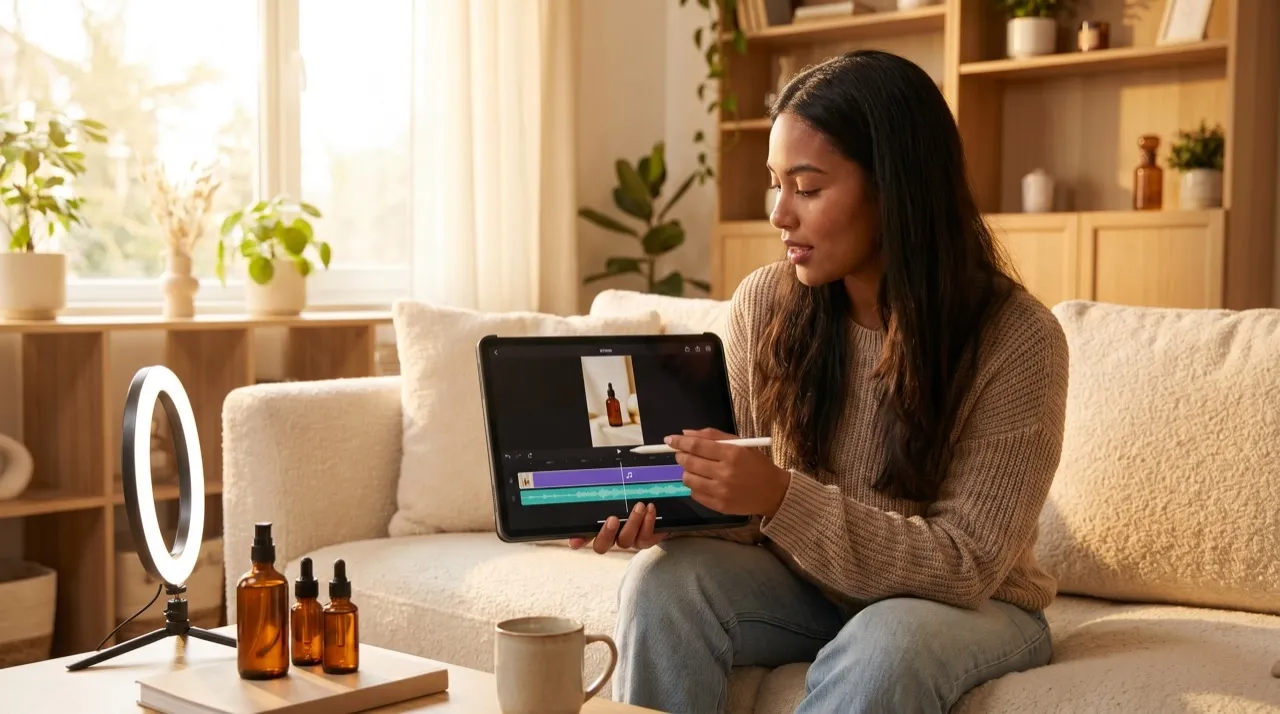
Review AI UGC Video Generator results in EveryGen AI as complete scenes
Inspect AI UGC Video Generator output in EveryGen AI for consistent subject details, accurate products, and a natural performance throughout the clip.
Check faces and hands in motion
Watch the eyes, mouth, fingers, and hair as the person changes direction. The AI UGC Video Generator in EveryGen AI may reinterpret those details during movement. Compare with the source, especially when a hand crosses the face or the subject looks down at the item.
Verify the featured item
Inspect the shape, label, and relationship between the hand and object throughout the clip. AI UGC Video Generator output in EveryGen AI can make a product look plausible while changing a meaningful detail. Reject candidates where the item no longer matches what the scene is intended to present.
Refine and prepare for your own publishing
Sign in with sufficient credits and review the current AI UGC Video Generator quote in EveryGen AI before cloud processing. Turbo needs a prompt of up to 50,000 characters and produces one output per request. Inputs and results are saved to your account. Download selected concepts, then complete final copy, context-appropriate identification and publishing yourself.

Example prompts
A relaxed product presentation
Use the uploaded opening image for the authorized adult subject, featured item, and setting. Over five seconds, the subject looks briefly toward the item, lifts it slightly, and settles into a relaxed pose. Keep the grip simple, face visible, and camera steady. Aim to retain recognizable appearance and product details. Quiet room ambience, no spoken testimonials, added claims, captions, or new objects.
A small detail receives attention
Use the supplied first frame and optional last frame for one five-second creator-style concept. The existing adult subject makes one gentle pointing gesture toward a visible feature of the existing item, then rests the hand. Maintain the intended composition and soft lighting, with minimal camera movement. Subdued contact sounds and room atmosphere. No invented personal experience, narration, logos, or scene cuts.
Workflow examples
Illustrative ways to plan, generate, and review your work.
EveryGen AI workflow examples
Begin with a product photograph and a focused image-editing brief. Compare the draft with the original for shape, labels, and proportions before placing it into a listing. Add approved logos and exact copy in your design application.
Choose a video model and describe one small action, such as a careful object turn. Review the available duration, resolution, and credits. Check the completed take for object continuity and sound before using it in a larger edit.
Give the image workspace a subject, viewpoint, and visual metaphor that supports your article. Preview the result inside the intended layout. Adjust the crop or composition when it competes with the headline or obscures an important detail.
Sign in and use Compress Image when a picture has the right dimensions but a large file size. Compression runs in the browser; input and output images are saved to your account. Compare the result before downloading individual files or a ZIP.
Paste a draft into Humanize AI and select Natural, Friendly, or Professional tone. Review the rewrite for meaning, names, figures, and technical terms. Copy or download the version you have checked; detector scores and publication outcomes are not guaranteed.
Record the palette, viewpoint, lighting, and subject scale in a reusable brief. Supply relevant references where the selected image model supports them. Compare the images together, then revise specific differences instead of assuming automatic campaign-wide consistency.
EveryGen AI Pricing and Credit Plans
Cancel anytime
Lite
50% off0.025 / credit
Billed $ yearly179· Save $179.8
Video Models


Image Models



- Includes MiniMax H3 and all premium models
- Up to 1 batch generation task
- Standard generation speed
- Standard generation success rate
- Standard customer support
- Commercial Use License
Standard
50% off0.017 / credit
Billed $ yearly299· Save $299.8
Video Models
Image Models
- Includes MiniMax H3 and all premium models
- Up to 4 batch generation tasks
- Priority processing speed
- High generation success rate
- Priority customer support
- Commercial Use License
Pro
50% off0.014 / credit
Billed $ yearly599· Save $599.8
Video Models
Image Models
- Includes MiniMax H3 and all premium models
- Up to 10 batch generation tasks
- Fastest generation speed
- High generation success rate
- Dedicated account manager
- Commercial Use License
Max
50% off0.012 / credit
Billed $ yearly1,199· Save $1,199.8
Video Models
Image Models
- Includes MiniMax H3 and all premium models
- Up to 10 batch generation tasks
- Fastest generation speed
- High generation success rate
- Dedicated account manager
- Commercial Use License
Pay safely and securely with























FAQ
Frequently asked questions
Does the AI UGC Video Generator create real customer testimonials?
The AI UGC Video Generator in EveryGen AI produces an AI creator-style scene, not a verified customer testimonial. Keep fictional portrayals distinct from actual purchase experiences and endorsements. Use real customer material when that is your message, and review the generated performance so a casual visual style does not imply unsupported personal history.
What image should I give the AI UGC Video Generator?
Choose an authorized adult image showing the intended person and item in a useful composition for the AI UGC Video Generator in EveryGen AI. Clear hands, natural posture and crop margins help you evaluate the gesture. The uploaded reference guides the scene but does not guarantee exact faces, labels or hand contact throughout.
Can I make the subject say my script exactly?
The AI UGC Video Generator in EveryGen AI includes Turbo native audio but does not guarantee exact narration, voices or mouth timing. Listen to each completed take for unintended statements and distracting sounds. The selected model exposes no audio-reference upload or silent-generation switch here; produce wording requiring precision in your own production process.
Is a final image necessary?
The AI UGC Video Generator in EveryGen AI requires an opening frame and accepts an optional ending image, at most two frames. Choose a reachable final pose or describe a pause after the gesture. Check the transition and product grip through the middle, rather than treating matching endpoints as proof of an accurate portrayal.
Can I generate and publish a complete campaign here?
The AI UGC Video Generator in EveryGen AI makes individual five-to-fifteen-second shots, with one output per Turbo request. It has no account posting, campaign scheduling or automatic assembly of a complete creator video. Review and download useful clips, then arrange, identify and publish them through your own workflow without assuming audience response.
CTA
Give the AI UGC Video Generator in EveryGen AI a relatable action
Choose an authorized opening image and one everyday gesture. Check AI UGC Video Generator settings and credits in EveryGen AI, then inspect the complete portrayal for faces, hands, product details and sound before using it as an identified AI creator-style concept.
Create a creator-style concept