 EveryGen AI
EveryGen AI for your next image, video, and creative draft
Create images and videos from a prompt or reference, prepare assets, and refine your writing in one place.
0/50000
Examples
1 / 33Trending
Drag to compare · Choose a template
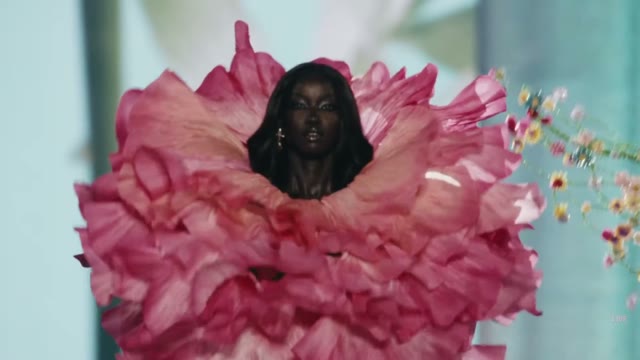
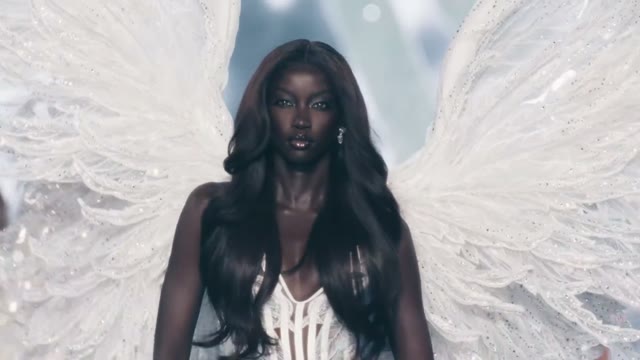
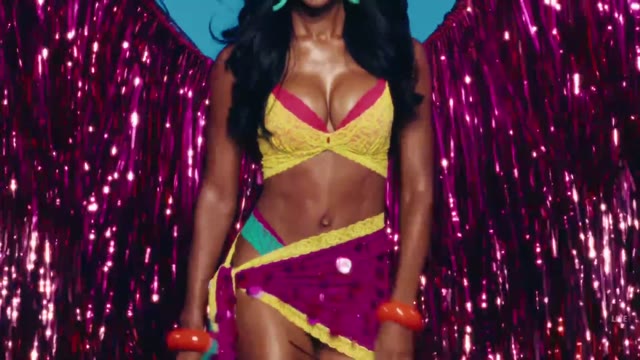
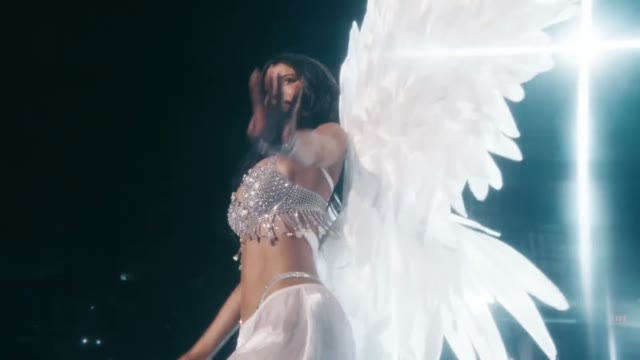
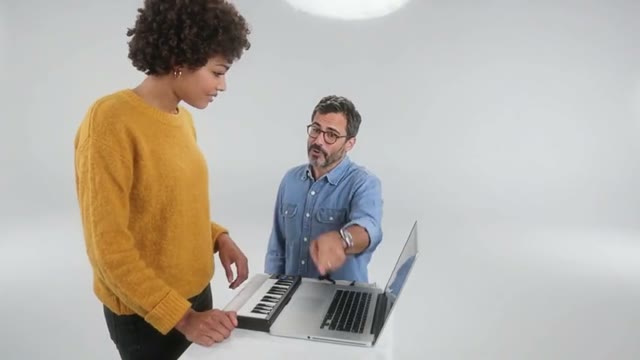
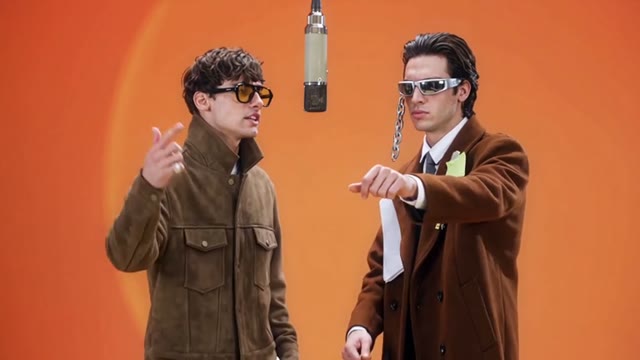





01
Connect the parts of your project with EveryGen AI
A product launch might need a clean still, a short clip, and a description that sounds right. EveryGen AI brings those starting points together, while leaving you in control of which tool belongs in the project and which results are worth taking further.
The homepage opens in Video with MiniMax H3 Max Turbo selected. You can switch to Image or choose another available model in EveryGen AI. Make that selection before shaping the request, because the supported inputs and settings are not identical.
Public examples offer a way to explore prompts before writing your own. Use or copy an example in EveryGen AI, then check the source inputs and visible settings. Borrow a useful direction rather than assuming a preview promises an identical result.
A generated draft still needs your judgment. Review the subject, composition, wording, and important details before choosing a result from EveryGen AI. Download suitable work and continue in your own editing process when it needs typography, assembly, or another production step.
MiniMax H3 Max · 768P · Native Audio
Faster renders. Sharper direction.
H3 Max is a fal post-trained variant of the open-weight H3 base, built for fast text-to-video, first-to-last-frame animation, and structured long prompts with native synchronized audio. When testing H3 Max, record the inputs, duration, and review criteria together. EveryGen AI is an independent tool, not an official MiniMax or fal website.
Text to VideoImage to Video768P5–15sNative Audio
≈2.5sbackend inference for a 5s 768P clip; queue and prompt expansion add to total wait time.
02
Build a clearer creative brief in EveryGen AI
Begin with the outcome rather than a long list of effects. Tell EveryGen AI what the asset is for, what should lead the composition, and what needs to remain recognizable. Those decisions make the first result easier to assess.
Keep the next decision manageable: a wider frame, a calmer background, or a friendlier paragraph. Across EveryGen AI, reviewing one meaningful change is more useful than changing everything and losing track of which choice improved the draft.
- STEP 1
Choose the task and workspace
Start in the homepage video workspace, switch to Image, or open a dedicated tool. Choose your route through EveryGen AI according to the result you need, not just an appealing example.
- STEP 2
Prepare the input that matters
Write a focused prompt, add a supported reference, or supply the text or picture your chosen tool needs. In EveryGen AI, explain what should change and what the source is meant to guide.
- STEP 3
Check settings before submitting
For a generation request, inspect the selected model, available settings, and displayed credits in EveryGen AI. Resolution, duration, outputs, and audio depend on the model; browser editing follows a different workflow.
- STEP 4
Review and take the next step
Compare the result with your brief before downloading or continuing. Keep a useful draft from EveryGen AI, revise the weakest detail, or move a selected image into video after checking the new settings.
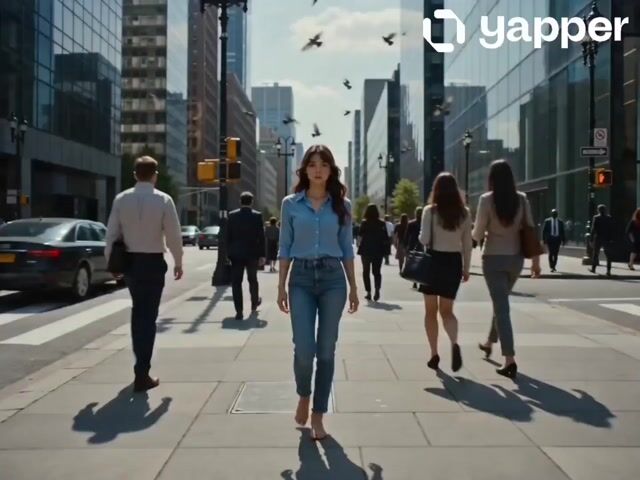
Input
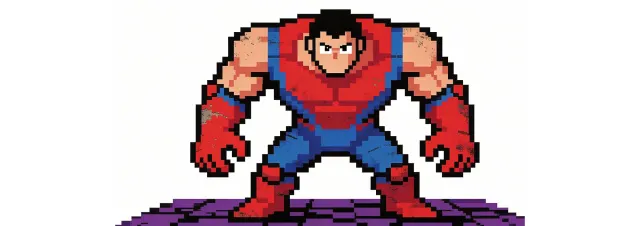
Image 1
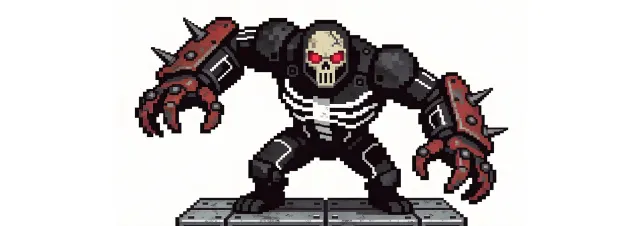
Image 2

Image 3
Video 1
Audio 1
Output
Prompt:Using the character actions and camera language from @Video 1, generate a combat sequence featuring the characters from @Image 1 and @Image 2, set against the background of @Image 3. The fight choreography and visual style should emulate the pixel-art, side-scrolling combat of the classic game Contra, including retro movement rhythms and arcade-style impact beats. Apply the background music from @Audio 1, and synchronize additional combat sound effects—hits, jumps, and weapon actions—with the on-screen fighting motions to enhance intensity and immersion.
03
Five ways to move a project forward with EveryGen AI
Explore a video direction in EveryGen AI
A short video starts with a readable scene and a reason for movement. Use EveryGen AI to describe a new shot with text, or begin with a supported image input when you already have a visual direction worth developing.
MiniMax H3 Max and H3 Max Turbo support text or a first frame with an optional last frame. Their EveryGen AI controls offer 5-15 seconds and synchronized audio. H3 Max supports 480P and 768P; Turbo also offers 1080P refinement from a native 768P source. Check the chosen model, because these options do not describe every available video model.
Keep the action, camera movement, and scene relationships clear. Before submitting in EveryGen AI, check the chosen model's actual controls rather than assuming it supports multiple references, existing-video editing, or a resolution available elsewhere. Review generated motion and sound before using the clip.
Develop a still before adding motion
Switch to Image for a scene, illustration, or reference-based draft. The image workspace in EveryGen AI defaults to GPT Image 2 and supports text and image modes. Explain the subject and destination, then give each reference a clear purpose.
GPT Image 2 offers 1K, 2K, or 4K and one to four outputs in EveryGen AI, with JPEG results. Choose settings for the stage of your project, review the displayed credits, and compare important details against any supplied source.
A chosen still can become the starting point for a separate video request through EveryGen AI. Follow the image-to-video entry, then review the next model's settings and credits. The handoff does not guarantee that every visible detail will remain unchanged.
Start with the task, not just the model
A portrait, product image, and creative scene ask different questions. Dedicated pages in EveryGen AI help frame those tasks alongside the AI image generator and AI video generator, so your brief begins with an intended use rather than a model name alone.
For a product, identify the shape or finish that matters. For a portrait, explain framing and lighting while using authorized references. Give EveryGen AI those priorities explicitly, then inspect the result instead of assuming that recognizable details have been preserved.
Treat task pages as focused starting points, not promises of a finished asset. An example from EveryGen AI can suggest composition or mood, but your own brief should describe the real destination, required space, and details that need careful review.
Prepare images with browser tools
Sometimes the picture already exists and needs practical preparation rather than generation. EveryGen AI includes Compress, Resize, Convert, Rotate, Crop, Watermark, and background tools for those jobs. Select the operation that addresses the file or layout problem in front of you.
These image utilities process pictures in the browser, rather than treating every adjustment as a paid generation request. Some AI background tools in EveryGen AI need a model download, so browser processing does not mean every task works without a network connection.
Check the edited file at its intended display size. With browser tools from EveryGen AI, consider whether a smaller file still looks clear, a crop preserves the subject, or a watermark covers an important detail before using the exported image.
Shape the wording for your audience
An image or clip often needs words around it. Humanize AI in EveryGen AI uses Gemini 2.5 Flash to rewrite supplied text, offering Natural, Friendly, and Professional tones. Choose a tone for the audience rather than making every sentence sound more promotional.
Begin with text whose meaning you understand, then compare the revision with the original. Use EveryGen AI to explore phrasing while checking names, facts, qualifications, and emphasis yourself. A smoother paragraph is not automatically a more accurate or appropriate one.
Keep responsibility for the final wording, especially when it describes a product or makes a factual claim. Humanize AI on EveryGen AI is a rewriting tool, not a guarantee of bypassing detection. Accept changes because they improve communication, not because they promise a score.
Camera moves you can direct
Two stills become one shot
The same character, shot after shot
Sound generated with the picture
One look held across every shot
It hits the beats in order
One continuous take, no cuts
Playable-looking game footage
A line to camera, lip synced
Claymation frog with pancakes
Hummingbird at a trumpet flower
Espresso, macro
04
Workflow examples
Illustrative ways to plan, generate, and review your work.
01
Product image draft
Illustrative workflow
Begin with a product photograph and a focused image-editing brief. Compare the draft with the original for shape, labels, and proportions before placing it into a listing. Add approved logos and exact copy in your design application.
02
One short product clip
Illustrative workflow
Choose a video model and describe one small action, such as a careful object turn. Review the available duration, resolution, and credits. Check the completed take for object continuity and sound before using it in a larger edit.
03
Editorial illustration
Illustrative workflow
Give the image workspace a subject, viewpoint, and visual metaphor that supports your article. Preview the result inside the intended layout. Adjust the crop or composition when it competes with the headline or obscures an important detail.
04
Lighter image attachments
Illustrative workflow
Sign in and use Compress Image when a picture has the right dimensions but a large file size. Compression runs in the browser; input and output images are saved to your account. Compare the result before downloading individual files or a ZIP.
05
A clearer text draft
Illustrative workflow
Paste a draft into Humanize AI and select Natural, Friendly, or Professional tone. Review the rewrite for meaning, names, figures, and technical terms. Copy or download the version you have checked; detector scores and publication outcomes are not guaranteed.
06
A visual series
Illustrative workflow
Record the palette, viewpoint, lighting, and subject scale in a reusable brief. Supply relevant references where the selected image model supports them. Compare the images together, then revise specific differences instead of assuming automatic campaign-wide consistency.
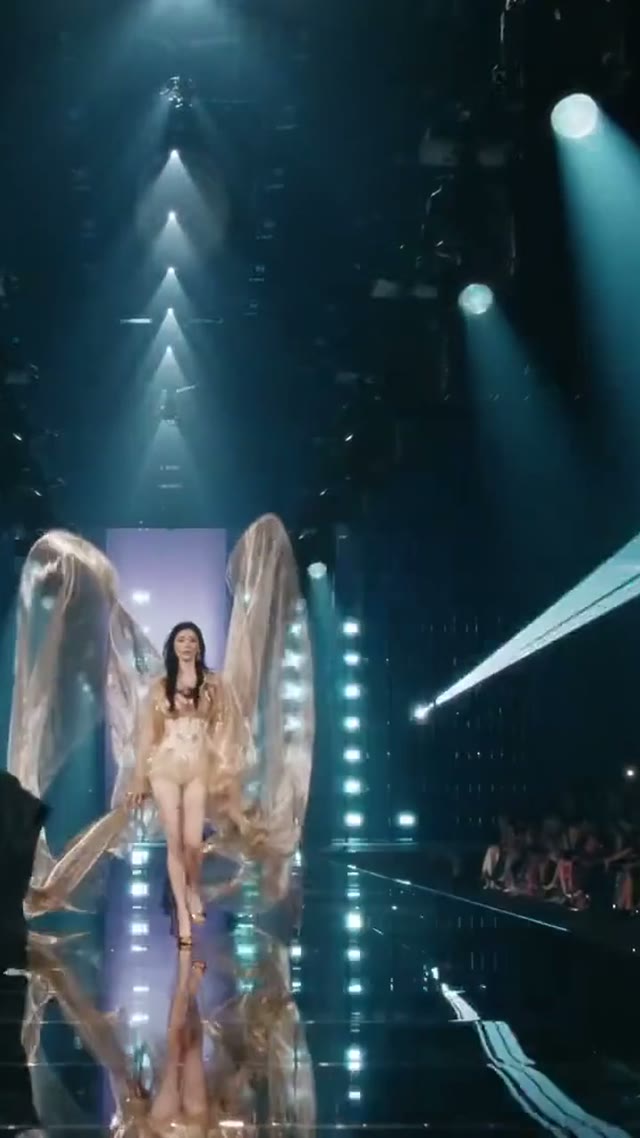
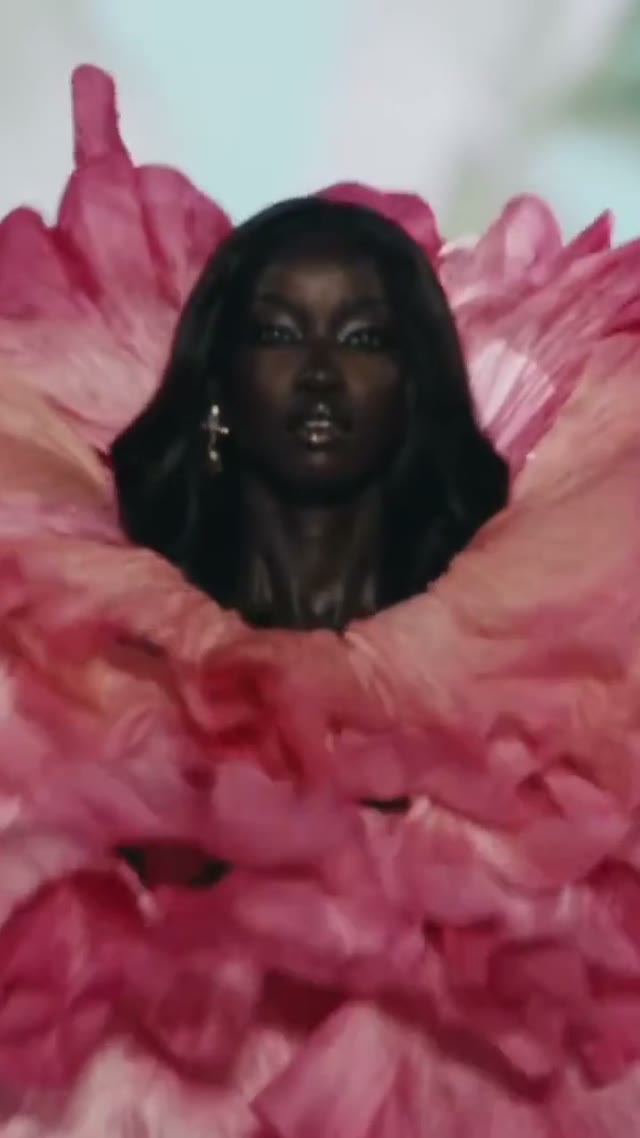
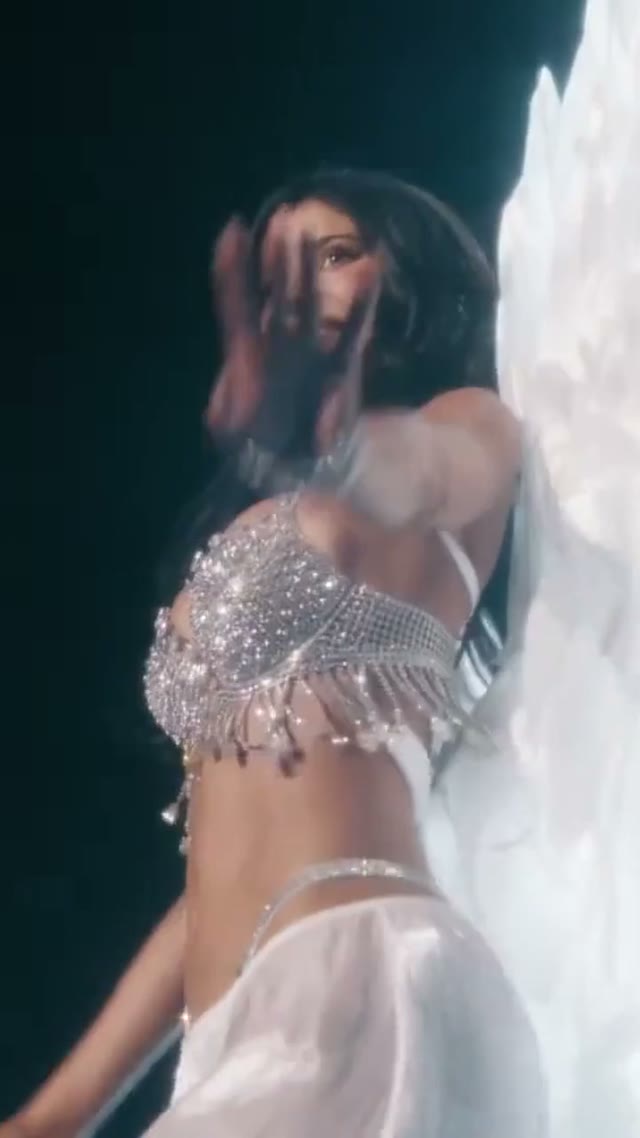
TRENDING
Browse all ↗More Trending Templates








EveryGen AI Pricing and Credit Plans
Cancel anytime
Trending face-swap templates cost 300 Credits per video, including full-length Bad Times and every available format. Other tools keep their own quotes. Existing MV tickets remain usable until their original expiry; new tickets are no longer sold.
Pay once annually; receive 1/12 of your annual Credits each month. The first allocation arrives after payment, followed by monthly subscription anniversaries. Unused Credits accumulate; all allocations expire at the end of the paid annual period.
Lite
50% off0.025 / credit
$358.8$179 / year50% off
$14.9/month equivalent · Billed $179· Save $179.8
Annual total: 7,200 credits, issued monthly
600/month
Video Models
MiniMaxSeedanceWanGrok ImagineKling


Image Models
SeedreamGPT ImageNano Banana


- Includes MiniMax H3 and all premium models
- Up to 1 batch generation task
- Standard generation speed
- Standard generation success rate
- Standard customer support
- Commercial Use License
Standard
50% off0.017 / credit
$598.8$299 / year50% off
$24.9/month equivalent · Billed $299· Save $299.8
Annual total: 18,000 credits, issued monthly
1,500/month
Video Models
MiniMaxSeedanceWanGrok ImagineKling
Image Models
SeedreamGPT ImageNano Banana
- Includes MiniMax H3 and all premium models
- Up to 4 batch generation tasks
- Priority processing speed
- High generation success rate
- Priority customer support
- Commercial Use License
Pro
50% off0.014 / credit
$1198.8$599 / year50% off
$49.9/month equivalent · Billed $599· Save $599.8
Annual total: 43,200 credits, issued monthly
3,600/month
Video Models
MiniMaxSeedanceWanGrok ImagineKling
Image Models
SeedreamGPT ImageNano Banana
- Includes MiniMax H3 and all premium models
- Up to 10 batch generation tasks
- Fastest generation speed
- High generation success rate
- Dedicated account manager
- Commercial Use License
Max
50% off0.012 / credit
$2398.8$1,199 / year50% off
$99.9/month equivalent · Billed $1,199· Save $1,199.8
1x
1x2x3x4x5x
Annual total: 96,000 credits, issued monthly
8,000/month
Video Models
MiniMaxSeedanceWanGrok ImagineKling
Image Models
SeedreamGPT ImageNano Banana
- Includes MiniMax H3 and all premium models
- Up to 10 batch generation tasks
- Fastest generation speed
- High generation success rate
- Dedicated account manager
- Commercial Use License
Pay safely and securely with























05
FAQ
Inputs, outputs, credits, boundaries.
FAQ
Questions before you start with EveryGen AI
Match the tool to your input, check the settings, and leave room for review. These answers explain how to approach EveryGen AI without assuming every model or task behaves the same way.
EveryGen AI is a creative platform for image and video generation, focused task pages, browser image tools, and text rewriting. You can begin with a prompt, use supported visual references, prepare an existing picture, or revise supplied writing. The right workflow depends on the task; generated results still need your review.
Use text for new scenes, references for existing images, browser tools for files, or Humanize AI for writing. Generation inputs depend on the selected model.
EveryGen AI displays credits before generation; requirements vary with model and settings. Check the quote before submitting. Browser image processing uses a separate workflow.
Yes. Choose image-to-video on a result; confirm the image, model, duration, resolution, audio, and credits. Describe motion and review the output; details may change.
No. Image processing runs in your browser, but AI background tasks may require model downloads. Check network requirements and review your output.
EveryGen AI is independent, with no implied provider endorsement. Model names identify integrated options; check supported inputs and settings, which may differ from provider capabilities.
EveryGen AI support: hi@everygenai.app
06
CTA
Turn evidence into generation.
Start creating
Bring your next creative decision to EveryGen AI
Choose one thing to make clearer: the scene, the framing, the movement, or the message. Start with a focused brief in EveryGen AI and judge the first draft against that purpose before adding more complexity.
Explore an example, bring your own input, and choose the tool that fits. With EveryGen AI, take a useful result into your next editing step and keep the final creative decisions in your hands.
Start creatingReview the selected model
Check credits before generation
Inspect your result