 EveryGen AI
EveryGen AI · HappyHorse 1.0 for Focused Visual Stories from Text or Images
A useful shot has something specific to show. Create with HappyHorse 1.0 on H3 Max to explore a place, animate a product arrangement, or develop a quiet character moment without turning a short clip into an entire production.
Video workspace
The wooden elevator opens
28/33View prompt
Five-second continuous frontal shot of closed wooden elevator doors opening slowly to reveal one adult woman standing inside. Keep the camera fixed at eye level and the woman relaxed, facing forward. Preserve a simple, balanced composition with warm wood grain and soft interior light. End with the doors open and the woman still standing.
Introduction
What Is HappyHorse 1.0?
HappyHorse 1.0 is an Alibaba video generation model with separate services for turning a written description into video and animating a supplied opening image.
Start with an idea or an established appearance
The official Happy Horse text and image routes identify this version as HappyHorse 1.0. A text request describes the scene to be created; an image request begins from a particular visual arrangement. Choose between them according to what is already decided. A finished product photograph and an imagined landscape call for different starting information.
The HappyHorse 1.0 workspace
On H3 Max, both modes offer 720p or 1080p and whole-second durations from 3 to 15 seconds. HappyHorse 1.0 also has a seed control and five text-mode aspect ratios. Image mode accepts one picture. Build the shot around those choices and inspect the result before making it part of a finished presentation.
How to use
How to Make a HappyHorse 1.0 Video
- PromptSTEP 1
Choose text or image
Open HappyHorse 1.0 on H3 Max. Choose text for a new scene or image mode for a picture you want to animate. Prepare one clear source image when needed.
- ModelHappyHorse 1.01080p16:95sPromptSTEP 2
Describe the shot
Write the subject, action, and intended ending for HappyHorse 1.0. Include a camera instruction only when it serves the scene. Identify the important details that should remain recognizable.
- First frameLast frame
 0.0s
0.0s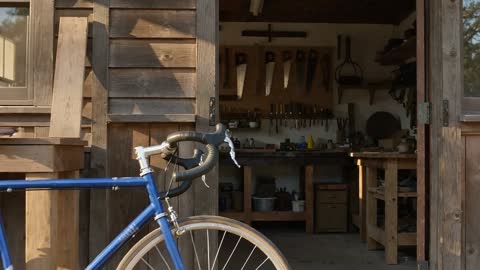 2.6s
2.6s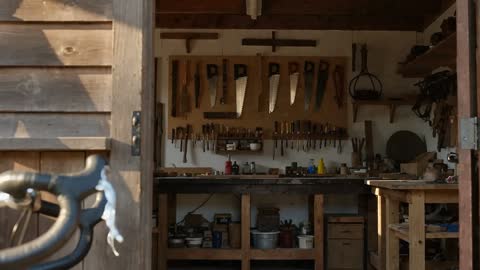 4.6sSTEP 3
Review the settings
Set HappyHorse 1.0 to 720p or 1080p and choose 3–15 seconds. Select a text-mode ratio when applicable, record the seed, and review the credits shown before submitting.
- Text mode: A blue bicycle stands beside an open woodworking workshop. Warm afternoon light falls across the frame. The camera moves gently toward the doorway while the bicycle stays still. Keep the wheels, frame, and tools coherent. One continuous shot ending in a quiet hold; no added signs or text.DownloadSTEP 4
Inspect the result
Generate the HappyHorse 1.0 clip, then watch it from beginning to end. Compare important details with your brief or picture. Revise one issue rather than rewriting every instruction at once.
Features
Develop a HappyHorse 1.0 Scene from a Clear Brief
Text generation gives you room to establish the subject, surroundings, and movement together. Give HappyHorse 1.0 a small scene with a visible point.
Write what the viewer needs to notice
Begin with the main subject and its immediate setting: a bicycle beside a workshop door, not an inventory of the whole neighborhood. Tell HappyHorse 1.0 what changes during the shot and what remains still. Add lighting and atmosphere only when they help that action read, rather than burying the intention beneath decorative adjectives.
Separate an establishing shot from an action shot
A setting can be introduced through a slow reveal, while a closer view may concentrate on one gesture. Decide which role HappyHorse 1.0 should serve before writing the prompt. Combining distant scenery, a sudden close-up, and several character actions can make a brief less useful for evaluating the particular shot you actually need.
Animate One Picture with HappyHorse 1.0
A supplied image gives the request a concrete beginning. HappyHorse 1.0 then needs a motion brief that respects the picture’s arrangement.
Choose a source that supports the action
A mug photographed from above may support a light change better than an ambitious orbit. Examine the visible geometry and leave room around moving elements before using HappyHorse 1.0. A single picture does not reveal every hidden surface. Keep your motion request proportionate to the information the source actually contains.
Keep HappyHorse 1.0 revisions visually specific
Name the elements to retain, such as the mug’s handle, the cloth beneath it, and the direction of the shadow. Then request one change. HappyHorse 1.0 can be directed with ordinary language, but each generated result still needs comparison with the original. Reject alterations that would misrepresent a real product rather than overlooking them because the movement looks polished.
Place HappyHorse 1.0 Subjects Within Five Canvases
Choose the frame around the scene’s job. HappyHorse 1.0 text mode offers familiar landscape, portrait, and square shapes without requiring a later crop.
Match the layout to the viewing context
The available text ratios are 16:9, 9:16, 1:1, 4:3, and 3:4. A landscape scene can leave room for movement across the frame; a portrait composition can emphasize height. Describe the position of the HappyHorse 1.0 subject in that canvas, including any empty area needed for graphics added separately after generation.
Avoid important detail at vulnerable edges
Moving objects can cross the boundary of an otherwise attractive composition. Plan enough clearance around hands, wheels, and clothing, especially in tighter frames. Ask HappyHorse 1.0 to keep the main action visible. For image generation, prepare the opening photograph with that same care instead of expecting missing space to be recovered automatically.
Give HappyHorse 1.0 a Beginning and a Finish
The 3–15 second duration range invites different kinds of moments. Give HappyHorse 1.0 a deliberate brief rather than events competing for time.
Make a brief shot self-contained
For a short clip, show the subject immediately and give the viewer one event to follow. A folded card opening halfway is clearer than a sequence that introduces a person, a room, and a package. Direct HappyHorse 1.0 toward the required visual beat, with no surprise transition that distracts from the purpose of the shot.
Plan the HappyHorse 1.0 ending
A measured finish can be as important as the opening. Describe a camera settling, a hand returning to rest, or a moving subject slowing into position. HappyHorse 1.0 has no second image input in this workspace, so the ending is a written intention rather than an uploaded keyframe. Review how naturally the action reaches it.
Compare HappyHorse 1.0 Takes with a Consistent Recipe
Keep a clear record of what you asked for. HappyHorse 1.0 provides output-size and seed choices that can help organize visual comparisons.
Separate resolution from the creative decision
Choose 720p or 1080p for the output you need. Assess whether the scene communicates clearly before treating a larger frame as an improvement. A HappyHorse 1.0 result still needs stable proportions, readable motion, and a suitable ending. Inspect fine details where they matter, then return to normal playback to judge the complete impression.
Change one instruction between comparisons
Record the prompt, seed, duration, size, and source image when present. Use the next HappyHorse 1.0 request to test a specific revision, such as a gentler camera movement. A saved seed does not promise an identical take. Check the new credit quote and retain the configuration that best supports your actual visual goal.
Example prompts
Workshop doorway reveal
Text mode: A blue bicycle stands beside an open woodworking workshop. Warm afternoon light falls across the frame. The camera moves gently toward the doorway while the bicycle stays still. Keep the wheels, frame, and tools coherent. One continuous shot ending in a quiet hold; no added signs or text.
A ceramic cup in window light
Image mode: Begin with the uploaded still life. Preserve the ceramic cup, its handle, the linen cloth, and their arrangement. Let the window light move subtly over the cup while the camera makes a restrained approach. No new objects, label changes, or scene cuts.
A coat settling after a turn
Image mode: Use the supplied portrait as the opening frame. The subject makes one small turn and pauses while the coat fabric settles. Keep the appearance, garment details, and background recognizable. Maintain a steady viewpoint and consistent soft lighting.
User reviews
EveryGen AI video creator feedback.
EveryGen AI creator reviews

I made a full character PV for my game with MiniMax H3 in one afternoon. The menu UI stayed readable in every frame and the character never went off-model. That used to cost me a contractor and three weeks.

We tested every AI video generator on the market for stylized work. H3 is the only one that held our anime style across cuts. We now use it for pitch reels and animatics on every project.

I uploaded four product photos and got a listing video with music and a voiceover the same day. My click-through rate on the new listings is up 38%. H3 even got the label text on my packaging right.

I ship five vertical videos a week for three brands. MiniMax H3 gets me from brief to draft in under an hour, with sound already synced. My old workflow needed a videographer and two review rounds.

The editing side is what sold me. A client wanted the background of an interview changed — I typed one sentence into MiniMax H3 and the lighting on the subject matched the new scene automatically.

I previsualized my entire short film in MiniMax H3 before we shot a single frame. Rack focus, match cuts, even the title cards — it understands director language, not just keywords.
EveryGen AI · MiniMax H3 Max Pricing and Credit Plans
Cancel anytime
Lite
50% off0.025 / credit
Billed $ yearly179· Save $179.8
Video Models


Image Models



- Includes MiniMax H3 and all premium models
- Up to 1 batch generation task
- Standard generation speed
- Standard generation success rate
- Standard customer support
- Commercial Use License
Standard
50% off0.017 / credit
Billed $ yearly299· Save $299.8
Video Models
Image Models
- Includes MiniMax H3 and all premium models
- Up to 4 batch generation tasks
- Priority processing speed
- High generation success rate
- Priority customer support
- Commercial Use License
Pro
50% off0.014 / credit
Billed $ yearly599· Save $599.8
Video Models
Image Models
- Includes MiniMax H3 and all premium models
- Up to 10 batch generation tasks
- Fastest generation speed
- High generation success rate
- Dedicated account manager
- Commercial Use License
Max
50% off0.012 / credit
Billed $ yearly1,199· Save $1,199.8
Video Models
Image Models
- Includes MiniMax H3 and all premium models
- Up to 10 batch generation tasks
- Fastest generation speed
- High generation success rate
- Dedicated account manager
- Commercial Use License
Pay safely and securely with























FAQ
Frequently asked questions
How does HappyHorse 1.0 work on H3 Max?
It creates a short video from a text description or one supplied image. The workspace provides duration, output-size, and seed choices. Start from the material you already have and describe the movement you need.
What duration options does HappyHorse 1.0 offer?
Choose an integer duration from 3 to 15 seconds. Keep the scene proportionate to that selection. A brief insert needs an immediately readable event; a longer shot can allow a gradual reveal and a settled ending.
Which resolutions can HappyHorse 1.0 output?
The current HappyHorse 1.0 workspace supports 720p and 1080p. These are output selections, not guarantees about physical accuracy, native rendering, or preservation of fine detail. Inspect the delivered video at its intended viewing size.
Can HappyHorse 1.0 use an ending image?
No ending-image input is provided here. Image mode uses one opening picture. Describe a desired finishing state in the motion brief, but do not treat that instruction as the same control as supplying a second frame.
Does HappyHorse 1.0 include audio tools?
This HappyHorse 1.0 page does not provide an audio switch or an audio-reference upload. Its supported workflow is visual generation from text or one image. Do not plan a recording-driven task around controls that are not offered.
Can I reuse a HappyHorse 1.0 seed?
You can record and reuse the seed when comparing requests. Keep other settings consistent to make the comparison meaningful. Reusing a seed is not a promise that every frame or movement will be identical.
What should I check before keeping HappyHorse 1.0 footage?
Watch for changing shapes, disappearing details, and motion that distracts from the subject. Judge the ending as carefully as the opening. Review workspace credits before another request and keep your chosen brief alongside the selected result.
CTA
Create a Focused HappyHorse 1.0 Shot
Choose one scene and decide what should change. Configure HappyHorse 1.0, check the credits, and evaluate the movement before selecting your take.
Open HappyHorse 1.0