 EveryGen AI
EveryGen AI · AI banner generator for a clear horizontal visual
A banner should support a message, not fight with it. Use the EveryGen AI AI banner generator for a focal point, quiet text space, and flexible crops. Begin with GPT Image 2 text mode at 16:9 and 1K. Direct the AI banner generator toward imagery that supports separately editable website copy.
Image workspace
Sample Image
 21 / 30
AI-generated illustration of an unbranded skincare studio scene.
Introduction
Give the AI banner generator a clear job
Choose whether the AI banner generator should establish atmosphere, illustrate a topic, or support a separate message.
Name the page and its message
A workshop landing page might need a welcoming scene of tools ready for use; a reading app might need a quiet imaginative landscape. Give the AI banner generator that context. Avoid asking for a beautiful wide image without explaining what sits beside or over it.
- Describe the visitor’s first impression in one sentence.
- Tie the AI banner generator scene to the page topic.
Choose one point of attention
Decide whether a person, object, or landscape feature should lead the eye. Tell the AI banner generator where that subject belongs. Several equally detailed subjects spread across a wide frame can make the banner feel busy before any website text is added.
Decide what stays outside the artwork
Keep headlines, buttons, prices, and navigation in the website interface when they need to remain editable. Ask the AI banner generator for the image underneath. A picture of a button is not an interactive control, and generated lettering does not become live page text.
How to use
How to use the AI banner generator
- PromptSTEP 1
Define the placement
Select GPT Image 2 text mode in the AI banner generator and describe the page purpose, main subject, and visual message.
- ModelGPT Image 21K16:9PromptSTEP 2
Reserve text space
Give the AI banner generator a quiet headline area and a separate focal point, keeping important objects away from crop edges.
- Layout preview
 Creative WorkshopLayout preview onlySTEP 3
Create the composition
Choose wide framing and 1K in the AI banner generator, review the displayed credits, and generate an uncluttered horizontal composition.
- Create a wide editorial photograph for a creative workshop website. On the right third, show an orderly wooden workbench with a few unbranded hand tools, folded fabric, and one unfinished wooden object. Warm side-window light, natural materials, welcoming but uncluttered atmosphere. Keep the left half as a quiet softly shaded wall with minimal texture and no bright highlights, reserved for separately added light-colored website text. Leave expendable scenery near the edges. Single continuous 16:9 composition. No people, lettering, logos, buttons, interface mockups, or collage panels.DownloadSTEP 4
Preview the layout
Check AI banner generator artwork in desktop and mobile layouts, adding editable webpage text separately and revising crops that lose the subject.
Features
Build hierarchy in the AI banner generator
Give the AI banner generator a focal area, supporting environment, and a quieter region for the page content.
Place the subject off the text area
For a left-aligned headline, try a subject on the right third with open space across the left. Give the AI banner generator this arrangement explicitly. The quiet region should be visually simple, not merely empty of large objects while filled with bright texture.
- Reserve a region for the headline and action button.
- Check AI banner generator details behind the intended text block.
Use depth to guide attention
A soft foreground edge and a quieter distance can frame the main subject. Ask the AI banner generator for depth without too many objects along the horizon. The most detailed region should support the message rather than pull attention away from it.
Keep edges expendable
Place important faces, hands, products, or symbolic details away from the outer boundaries. The AI banner generator should leave scenery that can be cropped without changing the idea. A composition that depends on both extreme corners is difficult to reuse in narrower containers.
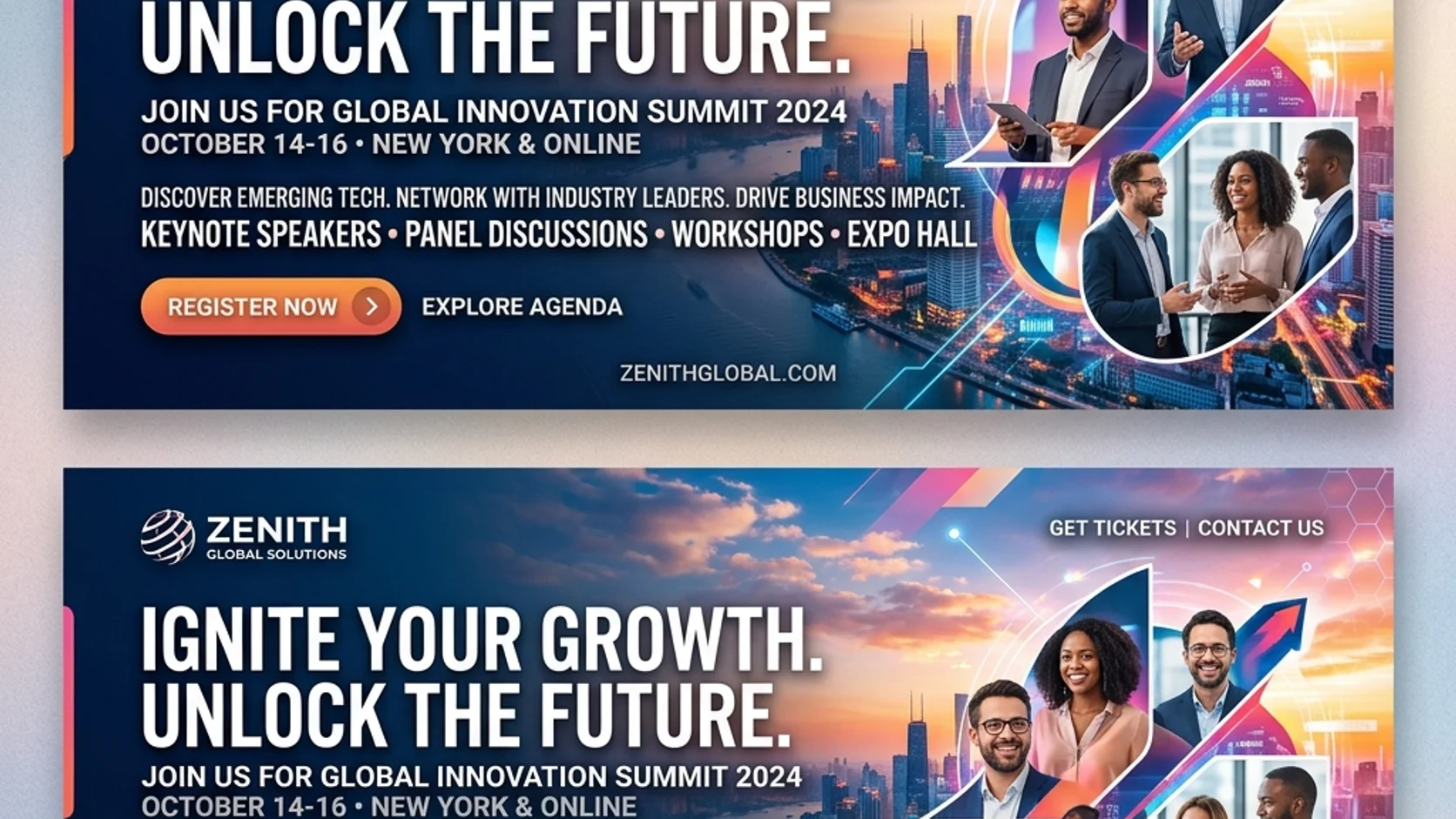
Make AI banner generator images easier to crop
Keep essential AI banner generator details visible across the desktop and mobile containers where the image will appear.
Identify the protected visual area
Choose a central region that contains the essential subject or meaning. Tell the AI banner generator to keep critical details inside it while allowing background space to extend outward. This provides options when a layout displays only part of the original wide frame.
- Preview the image in the intended desktop and mobile containers.
- Keep AI banner generator focal details away from uncertain edges.
Recompose when cropping loses the idea
If a narrow crop removes the relationship between subjects, create a separate composition rather than forcing the original to fit. The AI banner generator can explore another ratio. A mobile version may need a different subject position, not simply a larger crop of the face.
Check headers and overlays together
Place the banner beneath the actual navigation and text in your design preview. Review whether overlays cover important details. The AI banner generator cannot determine every layout interaction from a scene prompt; the final container, alignment, and responsive behavior must be checked separately.
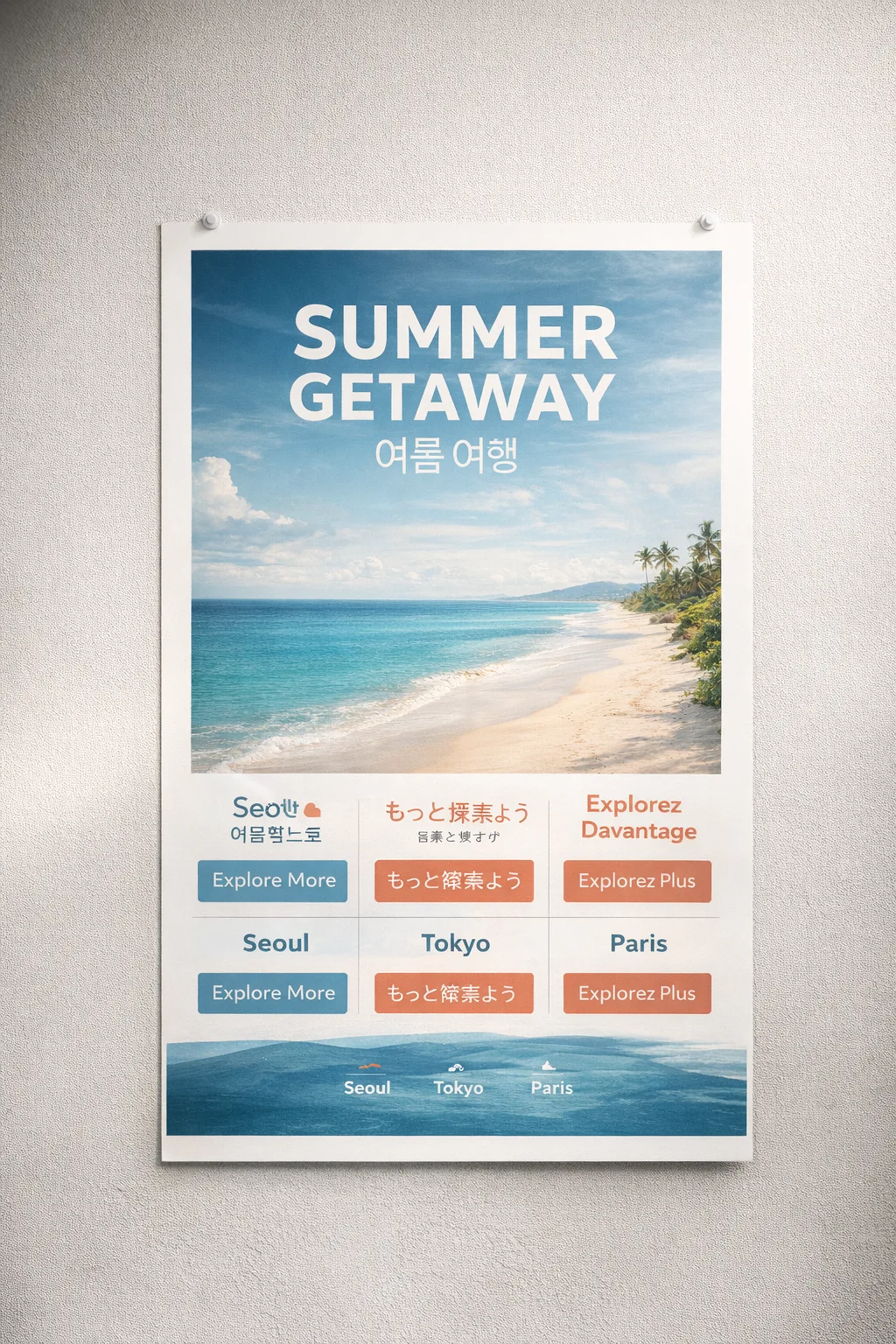
Use color deliberately in the AI banner generator
Give the AI banner generator a palette and lighting direction that work with the surrounding interface and actual text.
Keep the text region calm
For light text, request a restrained darker area without bright highlights behind the letters. For dark text, try a quiet lighter region. The AI banner generator can explore that tonal layout, but check the actual text pairing after placing it on the page.
- Use the real headline when reviewing the tonal background.
- Avoid AI banner generator detail that crosses through letterforms.
Coordinate rather than match everything
A restrained accent can connect the image with a brand color without tinting the entire scene. Tell the AI banner generator where that accent belongs. Natural materials and skin tones should not become implausible simply to make every pixel match the interface palette.
Avoid distracting light effects
Lens flares, bright windows, and strong glowing edges may compete with a call to action. Ask the AI banner generator for controlled illumination and a clear visual hierarchy. Save dramatic highlights for the focal subject when they contribute something meaningful to the message.

Work through an AI banner generator brief
Use the AI banner generator to resolve subject placement and text space before refining smaller decorative details.
Choose the wide starting setup
Select GPT Image 2 text mode at 16:9 and 1K, with one output. Describe the scene, focal point, empty region, and light. Review the AI banner generator configuration and displayed credits before submitting so the request matches your intended experiment.
- Name the side that should hold the main subject.
- Tell the AI banner generator which region should remain quiet.
Use references for visual direction
Switch to image mode when a source scene or approved visual should guide the next version. The AI banner generator supports up to sixteen references there. Explain whether each source defines the subject, palette, or mood instead of expecting an uploaded collection to organize itself.
Revise composition before resolution
If the focal point overlaps the headline, correct its placement first. The AI banner generator offers multiple ratios, 1K, 2K, or 4K, and one to four outputs. Higher resolution does not solve an arrangement that leaves nowhere useful to put the page content.
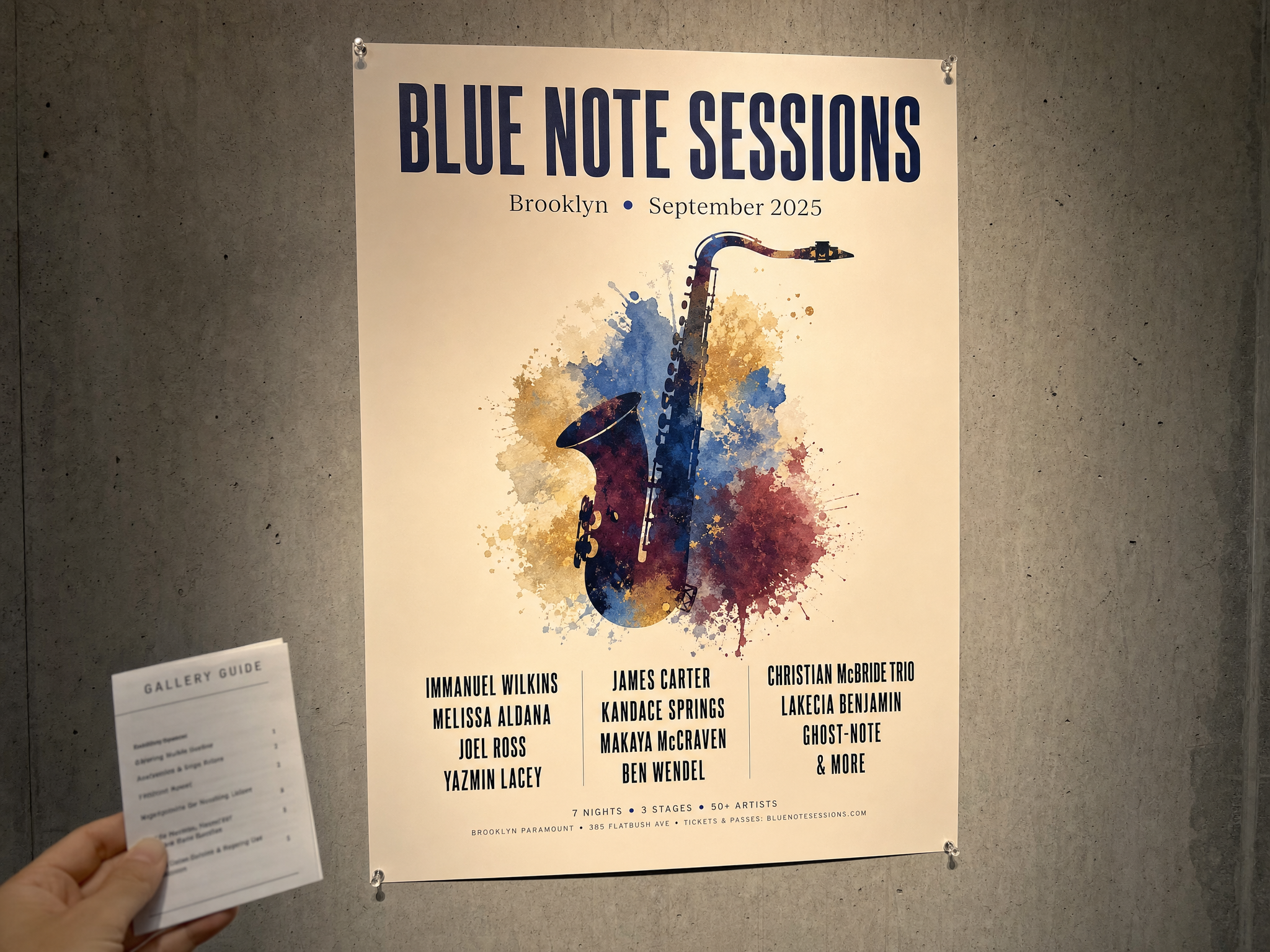
Place AI banner generator artwork in its final layout
Review AI banner generator artwork with the actual crop, copy, and surrounding sections, not only as a standalone image.
Keep page text separate
Add the headline and action button through the website rather than baking them into the photograph. The AI banner generator returns a JPEG raster image, not editable web components. Keeping content separate makes wording and layout changes possible without regenerating the background.
- Do not mistake pictured controls for functional interface elements.
- Use AI banner generator artwork as the visual layer only.
Inspect the exported image
Check faces, edges, object relationships, and smooth color areas at the size the banner will be displayed. An AI banner generator candidate may contain small defects that disappear in a thumbnail. Review the actual JPEG rather than approving only a reduced preview.
Review the full page rhythm
Compare the banner with the sections immediately above and below it. A strongly textured image may feel heavy beside an already busy workspace. Choose an AI banner generator direction that gives the page breathing room instead of treating the hero as an isolated poster.
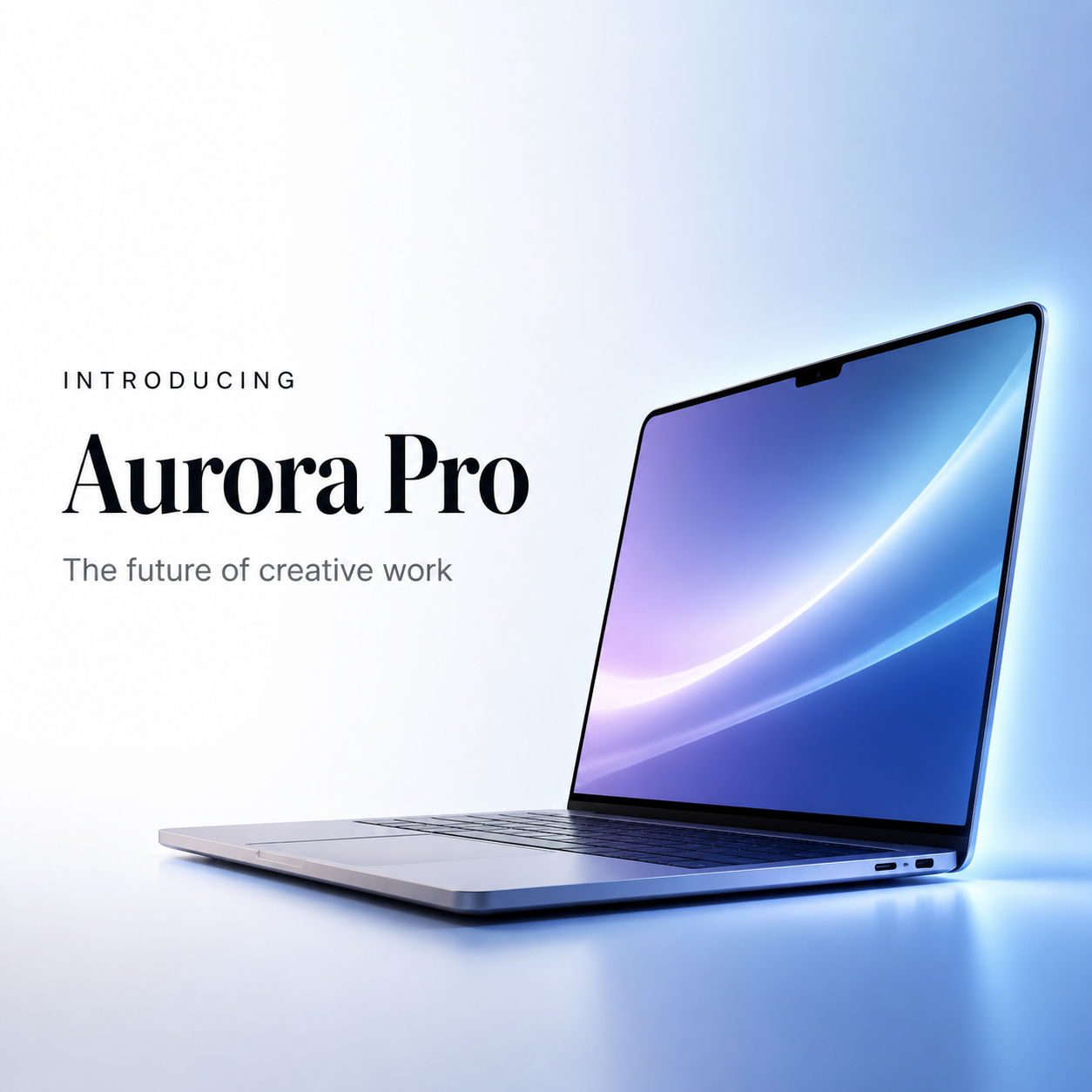
Example prompts
A welcoming workshop website banner
Create a wide editorial photograph for a creative workshop website. On the right third, show an orderly wooden workbench with a few unbranded hand tools, folded fabric, and one unfinished wooden object. Warm side-window light, natural materials, welcoming but uncluttered atmosphere. Keep the left half as a quiet softly shaded wall with minimal texture and no bright highlights, reserved for separately added light-colored website text. Leave expendable scenery near the edges. Single continuous 16:9 composition. No people, lettering, logos, buttons, interface mockups, or collage panels.
A quiet landscape for a reading product
Create a calm wide illustration of a small illuminated reading cabin beside a dark blue lake at dusk. Place the cabin slightly right of center within the middle portion of the frame, with distant mountains and a restrained warm window accent. Keep the left region low-detail and gently dark for a headline added later in the website. Atmospheric depth, simple shapes, soft transitions, no busy foreground branches. Important elements should survive a moderate crop. 16:9 composition, no text, logos, screens, borders, or embedded controls.
User reviews
EveryGen AI video creator feedback.
EveryGen AI creator reviews

I made a full character PV for my game with MiniMax H3 in one afternoon. The menu UI stayed readable in every frame and the character never went off-model. That used to cost me a contractor and three weeks.

We tested every AI video generator on the market for stylized work. H3 is the only one that held our anime style across cuts. We now use it for pitch reels and animatics on every project.

I uploaded four product photos and got a listing video with music and a voiceover the same day. My click-through rate on the new listings is up 38%. H3 even got the label text on my packaging right.

I ship five vertical videos a week for three brands. MiniMax H3 gets me from brief to draft in under an hour, with sound already synced. My old workflow needed a videographer and two review rounds.

The editing side is what sold me. A client wanted the background of an interview changed — I typed one sentence into MiniMax H3 and the lighting on the subject matched the new scene automatically.

I previsualized my entire short film in MiniMax H3 before we shot a single frame. Rack focus, match cuts, even the title cards — it understands director language, not just keywords.
EveryGen AI · MiniMax H3 Max Pricing and Credit Plans
Cancel anytime
Lite
50% off0.025 / credit
Billed $ yearly179· Save $179.8
Video Models


Image Models



- Includes MiniMax H3 and all premium models
- Up to 1 batch generation task
- Standard generation speed
- Standard generation success rate
- Standard customer support
- Commercial Use License
Standard
50% off0.017 / credit
Billed $ yearly299· Save $299.8
Video Models
Image Models
- Includes MiniMax H3 and all premium models
- Up to 4 batch generation tasks
- Priority processing speed
- High generation success rate
- Priority customer support
- Commercial Use License
Pro
50% off0.014 / credit
Billed $ yearly599· Save $599.8
Video Models
Image Models
- Includes MiniMax H3 and all premium models
- Up to 10 batch generation tasks
- Fastest generation speed
- High generation success rate
- Dedicated account manager
- Commercial Use License
Max
50% off0.012 / credit
Billed $ yearly1,199· Save $1,199.8
Video Models
Image Models
- Includes MiniMax H3 and all premium models
- Up to 10 batch generation tasks
- Fastest generation speed
- High generation success rate
- Dedicated account manager
- Commercial Use License
Pay safely and securely with
























FAQ
Frequently asked questions
Does the AI banner generator create a complete webpage?
No. The AI banner generator creates a JPEG visual. Navigation, headlines, buttons, and responsive page behavior remain part of your website implementation. Use the image as a background or illustration and keep important copy separately editable in the page.
Can the AI banner generator leave space for a headline?
Yes. Specify where the subject belongs and which region should stay visually quiet. Describe the desired background tone as well as the empty space. Then preview the returned image with the actual headline, because small textures or highlights may still interfere.
How do I adapt an AI banner generator result for mobile?
Preview it in the mobile container and check which details disappear. Keep essential content away from uncertain edges. When a narrow crop loses the idea, generate a separately composed version in a more suitable ratio rather than relying on cropping alone.
Can I use a reference with the AI banner generator?
Yes. Switch to GPT Image 2 image mode and upload a source you can use. Explain its role and the changes you want. Up to sixteen references are supported, but a clear primary image usually makes the intended composition easier to describe.
Which AI banner generator resolution should I choose?
Begin at 1K while exploring placement and tone. You can choose 2K or 4K and another supported ratio when the composition is settled. Check the displayed credits and review the resulting image in the actual layout instead of assuming a resolution label guarantees a perfect fit.
CTA
Build a useful visual with the AI banner generator
Choose a focal point and reserve space for your message. Use the AI banner generator to explore the image, then preview it with live page text and the crops your layout actually uses.
Create a banner concept