 EveryGen AI
EveryGen AI · Veo 3.1 for Short Scenes with Picture and Sound
Create a short, clearly staged scene with Veo 3.1 on H3 Max. Describe the picture from scratch or animate one starting image, then decide whether sound belongs in the result. Veo 3.1 brings duration, framing, output resolution, and seed choices into a focused text or image workflow.
Video workspace
The wooden elevator opens
28/33View prompt
Five-second continuous frontal shot of closed wooden elevator doors opening slowly to reveal one adult woman standing inside. Keep the camera fixed at eye level and the woman relaxed, facing forward. Preserve a simple, balanced composition with warm wood grain and soft interior light. End with the doors open and the woman still standing.
Introduction
What Is Veo 3.1?
Veo 3.1 is a Google video generation model whose text and image endpoints on fal support creating clips with optional generated audio.
Turn a written scene or a still into video
In Veo 3.1 text mode, the prompt establishes the subject, setting, and action. Image mode animates a supplied starting picture according to written motion directions. Veo 3.1 exposes an audio option in both routes, allowing you to describe picture and sound together. The result is a newly generated clip, not simply a still picture with a soundtrack attached.
A defined short-scene workspace
H3 Max offers Veo 3.1 in text and single-image modes, with four-, six-, and eight-second clips and 720p, 1080p, or 4K output choices. Text framing is landscape or portrait; image mode also has Auto within the supported formats. Configure audio and seed, then check the credits. Image mode uses one picture, not two endpoint frames or a multimodal reference collection.
How to use
How to Make a Video with Veo 3.1
- PromptSTEP 1
Choose text or one image
Select Veo 3.1 and choose the starting mode. Write a new scene for text generation, or upload one clear picture prepared for landscape or portrait animation.
- ModelVeo 3.1720p16:98sPromptSTEP 2
Write a short scene brief
Describe the subject, visible action, and desired finish for Veo 3.1. Add concise ambience or dialogue instructions when generating audio, keeping the event suitable for a short clip.
- First frameLast frame
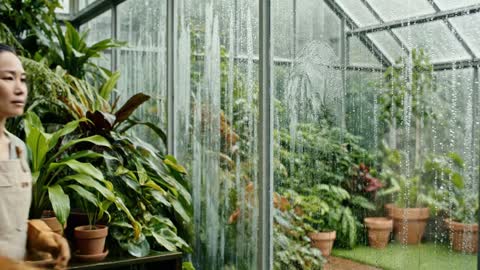 0.0s
0.0s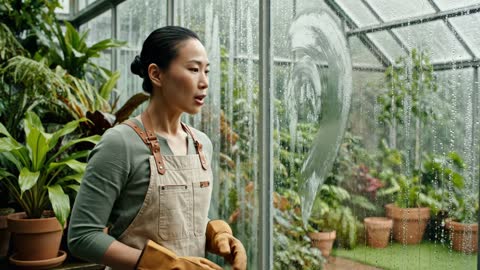 4.0s
4.0s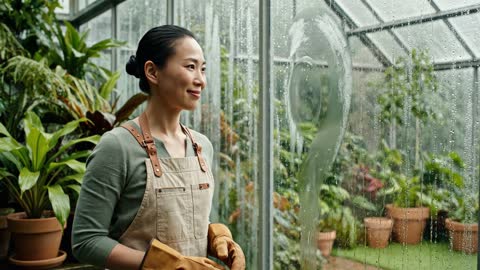 7.2sSTEP 3
Review the output settings
Choose four, six, or eight seconds, the supported framing, and an available resolution. Set audio and seed, then check the Veo 3.1 workspace credits before submission.
- Create an eight-second landscape shot inside a quiet greenhouse during light rain. An adult gardener gently clears a small patch of condensation from a glass pane, looks through it, and says, "The rain is easing." Keep the camera movement restrained and the plants still. Soft rain and a light brushing sound, no music, subtitles, extra people, or scene cuts.DownloadSTEP 4
Evaluate picture and sound
Watch the Veo 3.1 result from beginning to end. Check framing, movement, important details, and any generated speech. Revise the smallest useful issue while preserving the decisions that already work.
Features
Stage an Understandable Scene for Veo 3.1
A Veo 3.1 text prompt should make the subject, action, and surroundings clear before adding elaborate camera or atmosphere instructions.
Specify what the Veo 3.1 camera should see
For a greenhouse scene, identify a person beside a fogged pane, their hand clearing a small patch, and the plants visible beyond it. Give Veo 3.1 a concrete arrangement instead of asking for an evocative mood alone. Tell Veo 3.1 where the attention belongs, how the main event unfolds, and which background elements should stay quiet. Keep optional visual flourishes subordinate to that central action.
Keep the scale of the idea manageable
Four to eight seconds is a brief window. A small change of expression or a single physical action can communicate more clearly than several locations and multiple speakers. With Veo 3.1, write a scene that can be understood without captions explaining what happened. Evaluate whether the result expresses the intended moment, and simplify the action when camera movement or background activity distracts from it.
Animate One Starting Image with Veo 3.1
Image mode gives Veo 3.1 a visible starting composition, while your prompt defines the movement that should develop from it.
Prepare the picture for its intended motion
Use a clear picture in the landscape or portrait format you intend to generate. Leave room for the subject's movement, and keep essential details away from the edges. Veo 3.1 image animation should begin from a composition that already serves the brief. Describe a gentle gesture, a camera approach, or a small environmental change rather than asking the model to replace everything in the supplied scene.
Describe the Veo 3.1 ending without another frame
This image workflow accepts one image, so a desired finish belongs in the written brief. Ask Veo 3.1 to settle on the cleared glass, hold a subject's gaze, or let a moving detail come to rest. Those are creative directions, not an uploaded last-frame constraint. Review the complete Veo 3.1 result for unwanted object changes or an ending that no longer resembles the supplied starting scene.
Give Veo 3.1 Sound a Clear Role
Use the Veo 3.1 audio option when generated sound should contribute to the scene, or disable it for a separate soundtrack.
Choose a dominant audible event
A hand brushing glass can sit above gentle rain and a quiet indoor background. Describe that hierarchy so the scene does not become crowded with unrelated effects. Veo 3.1 can be prompted for sound that accompanies the visible action. Keep dialogue concise, identify the speaker, and leave space for the line. Ask Veo 3.1 for only the sounds that help the audience understand the moment.
Check Veo 3.1 language and timing after generation
Listen for unrequested voices, effects that happen at the wrong time, or words that differ from the brief. A convincing picture should not distract from an unsuitable soundtrack. With Veo 3.1, review speech rather than assuming exact delivery. Choose audio off when a recorded voice or a coordinated music track will be added elsewhere, and judge the silent picture on whether its action still reads clearly.
Choose the Veo 3.1 Canvas for the Scene
Veo 3.1 offers landscape and portrait framing alongside output-size choices, so composition and delivery can be considered separately.
Understand landscape, portrait, and Auto
Text mode supports 16:9 and 9:16. Image mode adds Auto, which selects within those supported formats rather than preserving every possible source ratio. Veo 3.1 may crop an incompatible input to fit. Prepare a picture that places the important action safely within the intended frame, and inspect the result for lost edges, cut-off hands, or a subject whose position no longer supports the composition.
Select output size without overreading the label
The workspace provides 720p, 1080p, and 4K output choices for Veo 3.1. These labels describe the selected output, not a promise that every generated detail will be accurate. Review fine textures and object relationships as well as overall framing. A Veo 3.1 take with clear action and coherent space is more useful than a larger output whose subject changes shape during an important moment.
Refine a Short Veo 3.1 Take
Use the duration and seed controls to organize Veo 3.1 requests, then make creative decisions from the actual result.
Budget the seconds around the main event
Four seconds can suit a brief reveal; six or eight can give a gesture a visible preparation and response. Tell Veo 3.1 what happens first and where the clip should finish. Avoid adding another action just because time remains. Leave a short settled ending when useful, and make sure a spoken line fits comfortably inside the selected duration rather than competing with the visible movement.
Keep a revision focused
Retain the source image and other settings when testing motion or sound. A seed documents the configuration, but Veo 3.1 does not promise identical repeats here. Review each new take. Before the next Veo 3.1 request, check the credits and confirm that mode, framing, duration, resolution, and audio still match the decision being tested.
Example prompts
Text: a brief greenhouse moment
Create an eight-second landscape shot inside a quiet greenhouse during light rain. An adult gardener gently clears a small patch of condensation from a glass pane, looks through it, and says, "The rain is easing." Keep the camera movement restrained and the plants still. Soft rain and a light brushing sound, no music, subtitles, extra people, or scene cuts.
Image: animate the supplied interior
Animate the supplied greenhouse image into a six-second shot. Keep the existing layout, plants, window frames, and lighting recognizable. Make a very gentle camera approach toward the center pane while raindrops move down the outside glass. End with a brief settled view. Quiet rain ambience without speech, music, new objects, or changes of location.
Text: portrait reveal in four seconds
Create a four-second portrait shot of a small unmarked watering can on a stone greenhouse ledge. A single droplet forms at the spout, falls onto the ledge, and leaves a small wet mark. Keep the can and camera still, with soft green shapes in the background. One quiet drop sound and low room ambience. No hands, captions, logos, or cuts.
User reviews
EveryGen AI video creator feedback.
EveryGen AI creator reviews

I made a full character PV for my game with MiniMax H3 in one afternoon. The menu UI stayed readable in every frame and the character never went off-model. That used to cost me a contractor and three weeks.

We tested every AI video generator on the market for stylized work. H3 is the only one that held our anime style across cuts. We now use it for pitch reels and animatics on every project.

I uploaded four product photos and got a listing video with music and a voiceover the same day. My click-through rate on the new listings is up 38%. H3 even got the label text on my packaging right.

I ship five vertical videos a week for three brands. MiniMax H3 gets me from brief to draft in under an hour, with sound already synced. My old workflow needed a videographer and two review rounds.

The editing side is what sold me. A client wanted the background of an interview changed — I typed one sentence into MiniMax H3 and the lighting on the subject matched the new scene automatically.

I previsualized my entire short film in MiniMax H3 before we shot a single frame. Rack focus, match cuts, even the title cards — it understands director language, not just keywords.
EveryGen AI · MiniMax H3 Max Pricing and Credit Plans
Cancel anytime
Lite
50% off0.025 / credit
Billed $ yearly179· Save $179.8
Video Models


Image Models



- Includes MiniMax H3 and all premium models
- Up to 1 batch generation task
- Standard generation speed
- Standard generation success rate
- Standard customer support
- Commercial Use License
Standard
50% off0.017 / credit
Billed $ yearly299· Save $299.8
Video Models
Image Models
- Includes MiniMax H3 and all premium models
- Up to 4 batch generation tasks
- Priority processing speed
- High generation success rate
- Priority customer support
- Commercial Use License
Pro
50% off0.014 / credit
Billed $ yearly599· Save $599.8
Video Models
Image Models
- Includes MiniMax H3 and all premium models
- Up to 10 batch generation tasks
- Fastest generation speed
- High generation success rate
- Dedicated account manager
- Commercial Use License
Max
50% off0.012 / credit
Billed $ yearly1,199· Save $1,199.8
Video Models
Image Models
- Includes MiniMax H3 and all premium models
- Up to 10 batch generation tasks
- Fastest generation speed
- High generation success rate
- Dedicated account manager
- Commercial Use License
Pay safely and securely with























FAQ
Frequently asked questions
What can I use as input for Veo 3.1?
Choose text mode for a scene described in words, or image mode with one starting picture. The image prompt explains the intended animation. This workspace does not provide a last-frame input or a collection of multimodal references.
Which video lengths are available?
Veo 3.1 offers four, six, and eight seconds on H3 Max. Choose enough time for the important action and any requested dialogue. Keep the brief concentrated on a single understandable moment rather than several unrelated events.
Can Veo 3.1 generate sound?
Yes. Enable audio to request generated sound, including the ambience, effects, or brief speech described in your prompt. You can disable audio when the soundtrack will be produced separately. Review any generated speech and synchronization before use.
Does Auto keep any image aspect ratio?
No. Veo 3.1 image mode supports Auto alongside 16:9 and 9:16, but the resulting format remains within the supported landscape or portrait choices. An incompatible input may be cropped. Prepare the image with that framing in mind.
Can I choose 4K output with Veo 3.1?
The workspace includes 720p, 1080p, and 4K output options. Select the available configuration and review its credits before generating. The output label does not establish native rendering or guarantee that every small visual detail will be correct.
Is an ending picture supported on this page?
No. Veo 3.1 image mode here uses one starting image. Explain the desired finish in the prompt instead of expecting a second-frame upload. Check whether the generated ending remains consistent with the starting subject and scene.
How should I use the seed and credit display?
Keep the Veo 3.1 seed with the prompt and settings to track experiments, without expecting guaranteed identical repeats. Check the workspace credits for each configured request. Reassess the quote after changing settings or preparing another variation.
CTA
Bring Your Next Short Scene to Veo 3.1
Start with a clear action or one well-framed image, decide on sound, and review the credits. Create with Veo 3.1 on H3 Max and inspect the complete scene before choosing it.
Open Veo Workspace