 EveryGen AI
EveryGen AI · Opus 5.5 Video Generator for animated ideas and clear messages
Build animated text, shapes, and image layouts with the EveryGen AI Opus 5.5 Video Generator. Preview the project, request a revision, then export a video. Start with one message: the Opus 5.5 Video Generator opens in Prompt mode with Sketch styling, twenty seconds, and a wide composition.
Video workspace
Images are placed as graphic elements, not animated first frames. Other model drafts are kept.
x1 · Silent animation · MP4 export at 720p or 1080p
Geometric motion showreel
31/33View prompt
Create a 15-second geometric motion-design showreel. Animate bold original typography, circles and rectangular color blocks with confident rhythmic transitions. Use a restrained coral, black and cream palette. Build from sparse shapes to a balanced closing composition. Keep everything inside the frame and render a silent animation.
Introduction
What is the Opus 5.5 Video Generator?
The Opus 5.5 Video Generator creates controlled animation scenes with typography, shapes, and approved images, rather than newly filmed action.
Animate the message, not a fictional camera
Use the Opus 5.5 Video Generator for an opening title, explanation, or product introduction. A heading can appear and an image can settle beside supporting text. These are designed visual elements, not simulated live-action footage.
Work with a structured scene
The Opus 5.5 Video Generator describes permitted objects and timing in a scene document. EveryGen AI draws it with a controlled renderer instead of executing arbitrary generated scripts. The preview remains an animation project until exported as video.
Start with a small creative assignment
The initial Opus 5.5 Video Generator setup is one twenty-second, 16:9 Sketch project without native audio. Sign in before creating. Choose a task such as introducing a repair workshop, then review the sequence before expanding it.

How to use
How to use the Opus 5.5 Video Generator
- STEP 1
Choose your starting point
Open the Opus 5.5 Video Generator, sign in, and enter a focused prompt or review information from a public URL.
- STEP 2
Set the visual direction
Give the Opus 5.5 Video Generator a short message, choose Sketch or Motion, and confirm duration, framing, and approved image elements.
- STEP 3
Create and inspect
Review the Opus 5.5 Video Generator reservation limit, create one project, and inspect the full preview before requesting a specific revision.
- STEP 4
Export the chosen version
Select your preferred Opus 5.5 Video Generator version and export a silent 720p or 1080p MP4 without another LLM generation charge.

Features
Give the Opus 5.5 Video Generator one readable message
Give the Opus 5.5 Video Generator one headline, a supporting detail, and a quiet ending rather than competing claims.
Build three simple beats
For a repair workshop, introduce keeping useful objects, show a simple joining motion, and finish with an invitation. Give the Opus 5.5 Video Generator that sequence explicitly. Each beat should add information rather than repeat the opening.
- Choose one takeaway that remains understandable without sound.
- Keep the Opus 5.5 Video Generator sequence centered on that takeaway.
Keep words short enough to read
Use a brief headline and only essential supporting words. Tell the Opus 5.5 Video Generator which phrases must appear exactly. Prefer readable lines over shrinking a paragraph into a box; watch at the size viewers will see.
Choose a restrained visual vocabulary
Limit the palette and repeat a shape language. Cream paper, dark outlines, and one coral accent can make Sketch scenes coherent. The Opus 5.5 Video Generator does not need new decorations in every beat to sustain interest.

Start the Opus 5.5 Video Generator from a prompt or URL
Choose the Opus 5.5 Video Generator starting point: a written brief supplies direction, while a reviewed webpage supplies information.
Write the intended visual sequence
In Prompt mode, describe the audience, exact wording, palette, and order of events. Ask the Opus 5.5 Video Generator for a paced explanation rather than competing effects. Include a final hold so the closing idea remains visible.
- Specify which words are essential and which details are optional.
- Give the Opus 5.5 Video Generator clear instructions about visual emphasis.
Review extracted webpage information
In URL mode, submit a public webpage and review the extracted information. Correct outdated descriptions or irrelevant images before creating. The Opus 5.5 Video Generator uses confirmed material; it is not a way to access private accounts.
Use images as layout elements
An authorized photograph can sit beside a headline or move into position. Tell the Opus 5.5 Video Generator its layout role. This does not make photographed people speak or reveal product surfaces absent from the original image.

Direct Opus 5.5 Video Generator spacing and timing
Give the Opus 5.5 Video Generator room to breathe. Movement should guide attention without obscuring words or crowding images.
Reserve space around important content
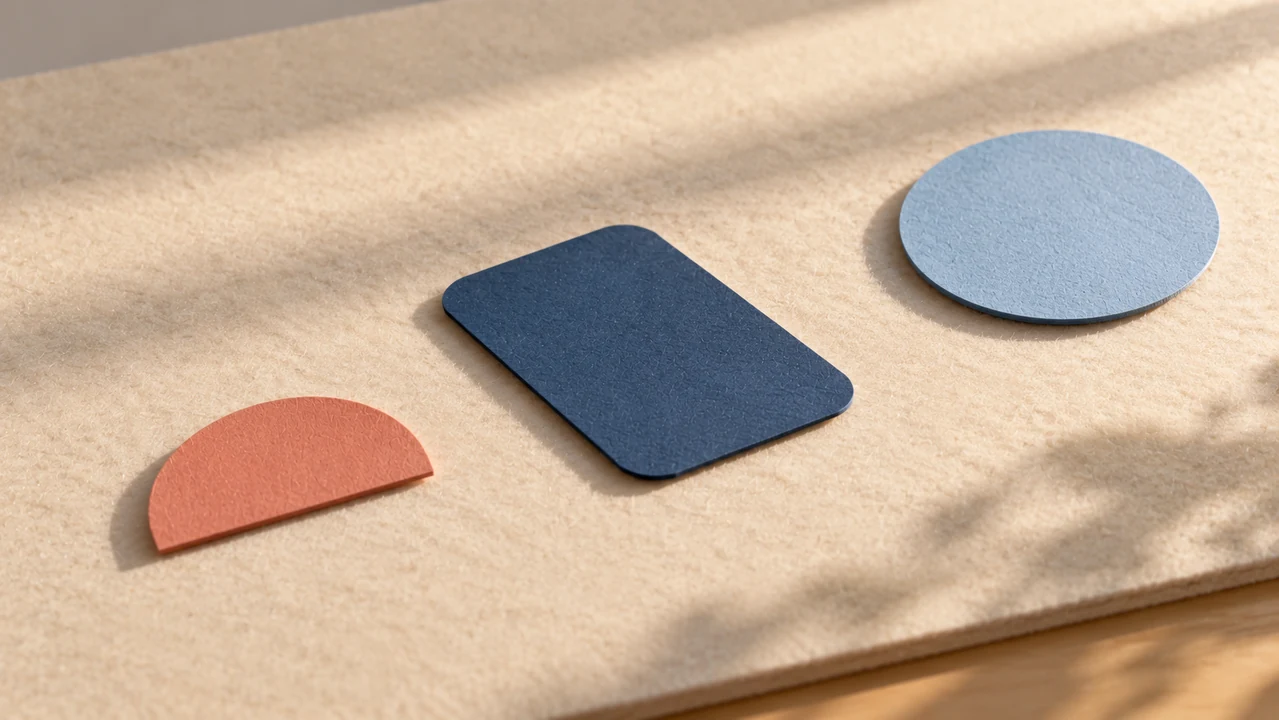
Keep headings and images comfortably inside the composition. Separated paper-cut shapes offer a useful planning reference. Direct the Opus 5.5 Video Generator to preserve those gaps during movement, particularly where a headline appears beside an image.
- Preview the entire sequence, not only its most attractive frame.
- Keep Opus 5.5 Video Generator text away from busy moving elements.
Give each movement a purpose
Ask one shape to slide into position, then reveal accompanying words after it settles. The Opus 5.5 Video Generator can organize attention through this order. Simultaneous entrances may obscure an explanation even when individual elements look appealing.
Leave time for the final idea
Choose ten, fifteen, twenty, or thirty seconds according to reading time. In the Opus 5.5 Video Generator, longer is not automatically clearer. Trim repetitive beats and request a still ending that lets the final message register.
Refine a saved Opus 5.5 Video Generator version
Use the Opus 5.5 Video Generator preview to identify improvements, then select the saved version you want to revise.
Describe one meaningful change
Request a slower opening, shorter headline, or more space around an image. Give the Opus 5.5 Video Generator the change and the successful details to retain. A focused request makes the resulting improvement easier to judge.
Keep earlier decisions available
A modification creates another version rather than replacing the earlier one. Compare Opus 5.5 Video Generator versions for timing and readability, then select one to export. A failed revision leaves your last usable result available.
Review the next credit reservation
Before submitting an Opus 5.5 Video Generator creation or modification, review the displayed reservation limit. A successful request is settled against its actual model usage within that cap, with unused reserved credits released. Failed generation releases the reservation; exported copies do not trigger another model-generation charge.

Review and export your Opus 5.5 Video Generator project
Check Opus 5.5 Video Generator wording, transitions, and image placement before exporting your chosen version.
Watch without relying on sound
These animations have no native audio. The Opus 5.5 Video Generator should communicate visually, so check that every beat makes sense silently. Add music, narration, or final campaign assembly afterward in your separate editing workflow.
Choose the appropriate MP4 size
Export the selected Opus 5.5 Video Generator version as a 720p or 1080p MP4 in a supported browser. Preview and export use the same scene timeline. Wait for encoding to finish before treating the project as a downloadable video; the scene document itself is not an MP4.
Reuse the approved version
Keep the project in history and download its export. Re-exporting the same Opus 5.5 Video Generator version does not require another LLM generation fee. Check the actual video, especially small text and the final frame.

Example prompts
A repair workshop introduction
Create a twenty-second Sketch motion graphic in 16:9. Warm cream background, dark outlines, one coral accent. Open with the exact heading “Keep good things going.” Let two simple outlined pieces slide together, then reveal “Repair. Reuse. Repeat.” Finish with a quiet held frame reading “Start with one small fix.” Use readable text and generous spacing. No photographs, audio, invented statistics, or company logos.
A calm three-step studio reminder
Create a twenty-second Motion animation in 16:9 using navy, pale blue, and warm white. Present three short text beats: “Choose one idea”, “Make room for it”, and “Share it clearly”. Pair them with one circle, one rounded rectangle, and three simple lines. Introduce each element with a gentle slide or fade, then hold the final message for several seconds. Keep the composition uncluttered and silent.
User reviews
EveryGen AI video creator feedback.
EveryGen AI creator reviews

I made a full character PV for my game with MiniMax H3 in one afternoon. The menu UI stayed readable in every frame and the character never went off-model. That used to cost me a contractor and three weeks.

We tested every AI video generator on the market for stylized work. H3 is the only one that held our anime style across cuts. We now use it for pitch reels and animatics on every project.

I uploaded four product photos and got a listing video with music and a voiceover the same day. My click-through rate on the new listings is up 38%. H3 even got the label text on my packaging right.

I ship five vertical videos a week for three brands. MiniMax H3 gets me from brief to draft in under an hour, with sound already synced. My old workflow needed a videographer and two review rounds.

The editing side is what sold me. A client wanted the background of an interview changed — I typed one sentence into MiniMax H3 and the lighting on the subject matched the new scene automatically.

I previsualized my entire short film in MiniMax H3 before we shot a single frame. Rack focus, match cuts, even the title cards — it understands director language, not just keywords.
EveryGen AI · MiniMax H3 Max Pricing and Credit Plans
Cancel anytime
Lite
50% off0.025 / credit
Billed $ yearly179· Save $179.8
Video Models


Image Models



- Includes MiniMax H3 and all premium models
- Up to 1 batch generation task
- Standard generation speed
- Standard generation success rate
- Standard customer support
- Commercial Use License
Standard
50% off0.017 / credit
Billed $ yearly299· Save $299.8
Video Models
Image Models
- Includes MiniMax H3 and all premium models
- Up to 4 batch generation tasks
- Priority processing speed
- High generation success rate
- Priority customer support
- Commercial Use License
Pro
50% off0.014 / credit
Billed $ yearly599· Save $599.8
Video Models
Image Models
- Includes MiniMax H3 and all premium models
- Up to 10 batch generation tasks
- Fastest generation speed
- High generation success rate
- Dedicated account manager
- Commercial Use License
Max
50% off0.012 / credit
Billed $ yearly1,199· Save $1,199.8
Video Models
Image Models
- Includes MiniMax H3 and all premium models
- Up to 10 batch generation tasks
- Fastest generation speed
- High generation success rate
- Dedicated account manager
- Commercial Use License
Pay safely and securely with























FAQ
Frequently asked questions
Does the Opus 5.5 Video Generator create realistic people or cinematic footage?
This workspace creates motion graphics from text, shapes, and approved image elements. Choose a pixel-video model elsewhere in the shared workspace for newly generated people or physical scenes. Existing photographs can appear in an animation, but their contents are not automatically animated.
Can the Opus 5.5 Video Generator start from a website?
Use URL mode for a public page, then review the extracted information before creation. Confirm the wording and any approved images. A URL is a source for your brief, not permission to copy every asset or access a private account.
Can I change the Opus 5.5 Video Generator result after creating it?
Select the saved version and describe the change you need. The new request creates a separate version, with its own displayed reservation limit. Review the result against the selected starting version; requesting preservation does not replace that comparison.
Does the Opus 5.5 Video Generator include voiceovers or music?
No native audio is generated in this workflow. Make the animated message readable without sound. Add licensed music, recorded narration, or other finishing elements in a separate editor when the intended placement calls for them.
Is exporting charged like another Opus 5.5 Video Generator request?
No additional LLM generation fee applies to exporting an existing version. Creation and natural-language revisions use reserved credits and actual usage settlement. An interrupted local export can be retried from the same version without asking the model to regenerate the scene.
CTA
Make your next idea clear with the Opus 5.5 Video Generator
Bring a focused brief or a public page worth summarizing. Confirm the source material, sign in, and review the reservation limit before creating an animation you can inspect, revise, and export.
Create a motion graphic