 EveryGen AI
EveryGen AI · AI Video Face Swap for an authorized person-replacement concept
Explore how another authorized adult appearance fits a short source performance. EveryGen AI AI Video Face Swap uses PixVerse Person Swap with one portrait image and one video. Its person mode can change the broader subject, not just the face. Use AI Video Face Swap for a reviewed visual concept rather than assuming a precise identity transfer.
Video workspace
Upload one portrait image and one MP4/MOV video up to 8 seconds. Videos longer than 5 seconds use the second price tier.
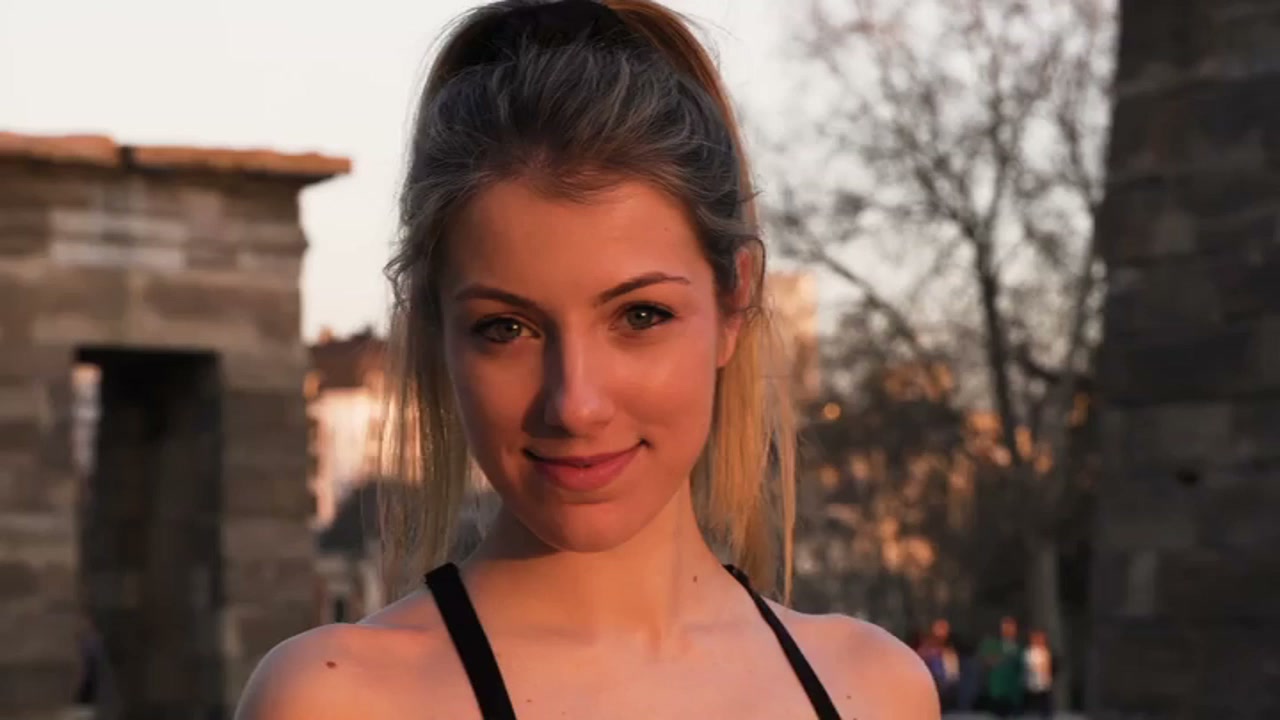
Pair the two adult portrait references
11/18View prompt
Prepare the authorized adult woman’s portrait video and a clear portrait image of the other authorized adult woman. Use the image as the replacement-person reference and the video as the source performance, keeping the video within eight seconds. Load both files, then review facial resemblance, hair, clothing, body changes, and the retained source audio in the result.
Introduction
Use AI Video Face Swap as person replacement
This AI Video Face Swap workflow changes the visual subject using PixVerse Person Swap. Set expectations for the whole person, not an isolated facial patch.
Know what the model changes
Person mode may alter hair, clothing, and other visible features alongside the face. Review AI Video Face Swap as a whole-subject change. Facial resemblance alone is insufficient when the outfit or body no longer fits the scene.
Prepare the two required inputs
Provide one portrait image and one source video up to eight seconds long. The portrait supplies the replacement appearance; the video supplies the performance to reinterpret. Keep those AI Video Face Swap roles distinct when choosing assets, rather than treating both uploads as interchangeable references.
Choose a legitimate creative use
Use fictional adults or authorized participants for a casting or presentation concept. Keep the AI Video Face Swap purpose clear when showing collaborators the result. Do not invent an endorsement or present the altered performance as an original recording.
How to use
How to use AI Video Face Swap
- InputReference video 1
 Reference image 2STEP 1
Choose authorized inputs
Prepare AI Video Face Swap with one authorized adult portrait and one source video no longer than eight seconds, keeping both roles clear.
- Example settingsPixVerse Person Swap720p5s
 OutputSTEP 2
Select the output
Choose 720p, 540p, or 360p for AI Video Face Swap; person mode may change clothing and body appearance alongside facial features.
- Illustrative preview
 BeforeAfter
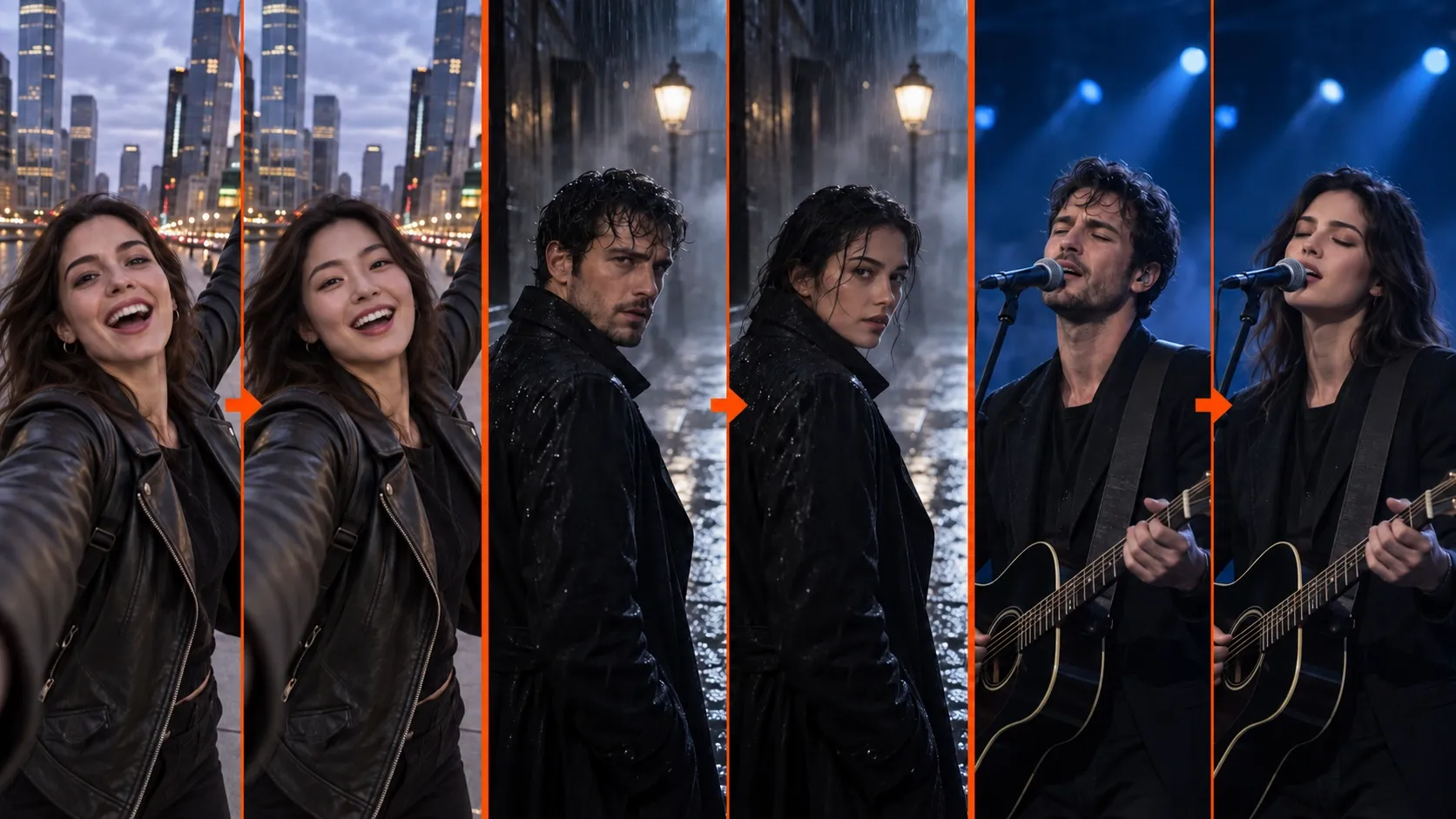
Use a reference portrait to change the person in an existing clip. Check identity and moving edges.
STEP 3Check and process
Review the AI Video Face Swap Create quote for your clip’s duration, then submit the two inputs without a written prompt.
- STEP 4
Inspect the whole result
Compare AI Video Face Swap facial features, clothing, movement, and retained source audio before approving the concept with the participating people.
Features
Give AI Video Face Swap a readable portrait
The portrait should show the replacement person clearly. Choose an AI Video Face Swap reference for visible facial information rather than dramatic editing or elaborate surroundings.
Keep the face unobstructed
Choose a photograph with the eyes, nose, mouth, and face outline visible. Heavy filters, deep shadows, or hands covering the face make comparison harder. Give AI Video Face Swap a reference that lets you inspect the result against actual visible features instead of guessing.
- Prefer a clear adult portrait over a crowded group photograph.
- Keep the AI Video Face Swap reference available during your review.
Consider the angle in the video
A forward-facing portrait is easier to compare with a mostly frontal performance than with an extreme profile. Choose AI Video Face Swap inputs that support the visible head positions. Review turns carefully because a single portrait does not document every angle of the replacement person.
Separate appearance from styling expectations
Note the portrait’s defining facial traits and hairstyle before processing. AI Video Face Swap has no prompt for locking selected features. Choose readable inputs and inspect the result instead of writing instructions the interface cannot accept.
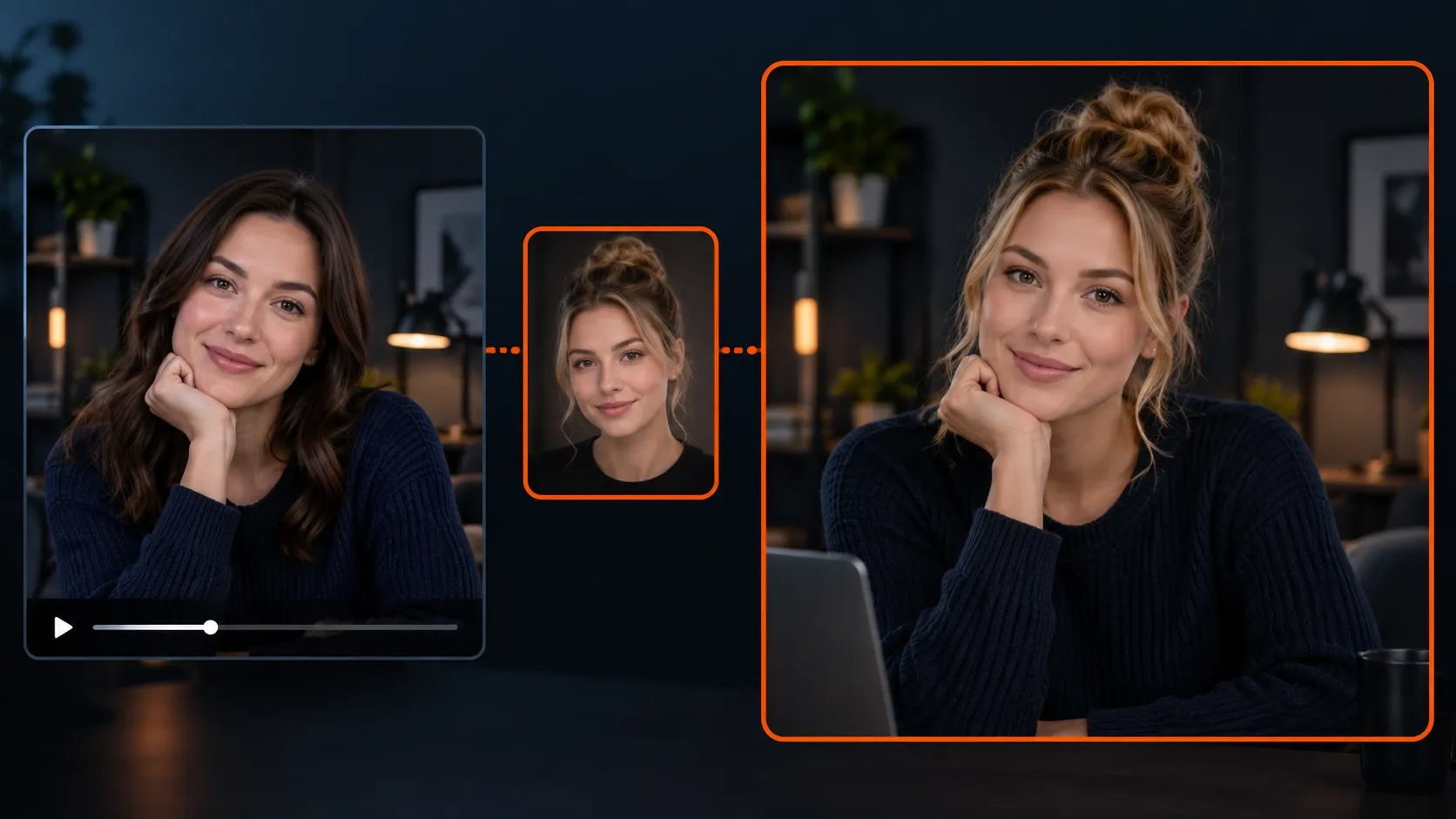
Prepare AI Video Face Swap footage for clear comparison
Select a source whose main subject remains readable. AI Video Face Swap is easier to evaluate when movement, framing, and identity are not obscured by avoidable distractions.
Use one clearly visible adult
Choose a clip focused on one adult subject rather than a crowded exchange with several similar faces. The AI Video Face Swap page has no face-selection brush or region control. Prepare the source itself so the intended performance is clear before uploading.
- Keep the relevant head and upper body within the frame.
- Preview AI Video Face Swap sources for repeated occlusions or sudden cuts.
Start with modest head movement
A small turn, a smile, or a short presentation gesture gives you useful motion to inspect without overwhelming the comparison. AI Video Face Swap review becomes harder when the face repeatedly leaves the frame or changes from frontal to extreme profile in rapid succession.
Choose an intentional duration
The maximum source length is eight seconds. Keep the AI Video Face Swap clip long enough to show the gesture you need, without extra lead-in material. A duration beyond five seconds enters another pricing band, so check the quote for the actual uploaded file.
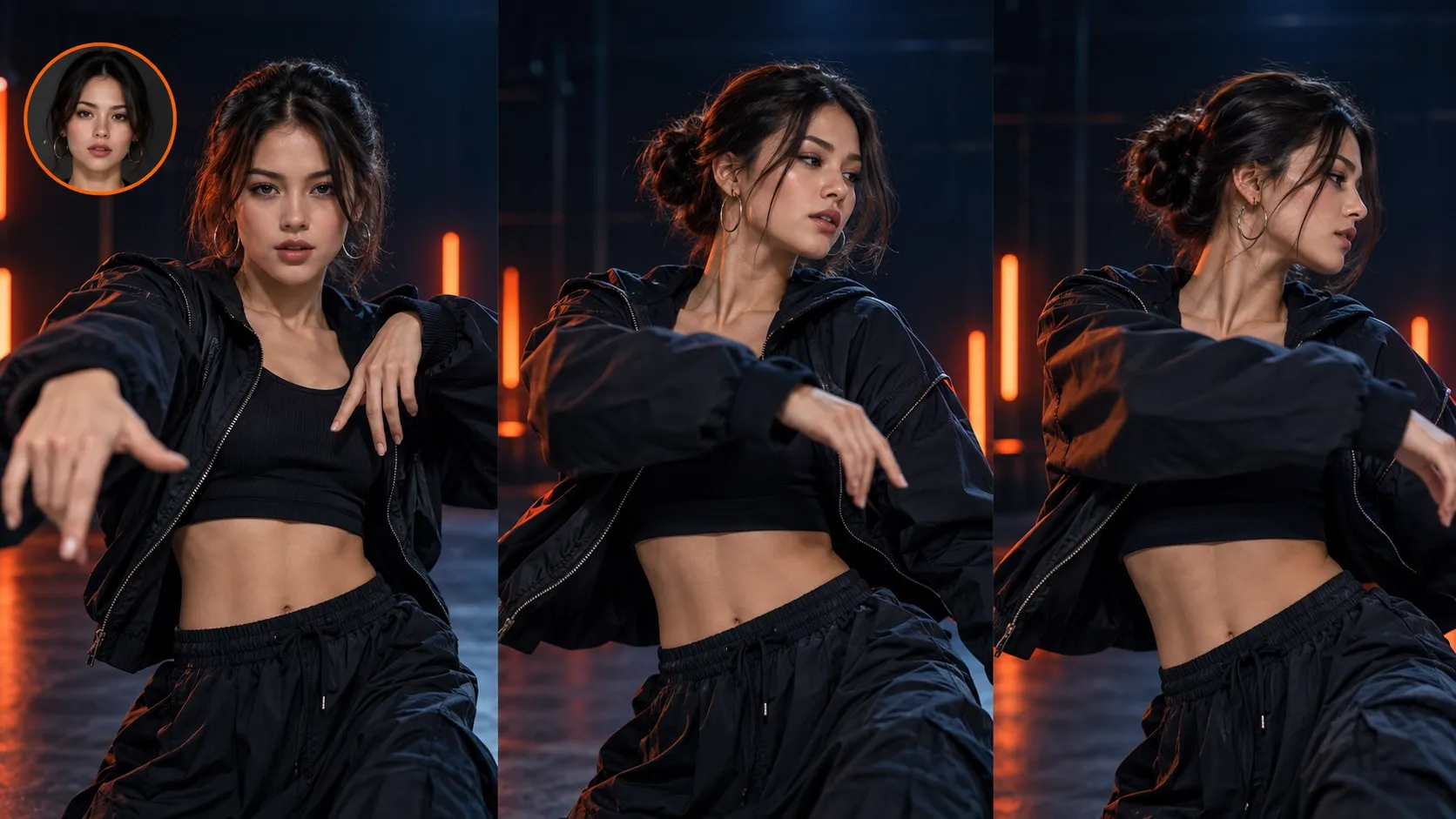
Use the AI Video Face Swap controls that are available
This is an upload-driven workflow. AI Video Face Swap takes the portrait, source video, and supported output setting; it does not use written editing prompts.
Begin with the default output
The AI Video Face Swap resolution starts at 720p, with 360p and 540p also available. Choose the setting for your review or destination. Output size does not establish resemblance, so inspect facial appearance and broader subject changes before deciding a version is useful.
- Compare inputs before submitting a new replacement request.
- Review the AI Video Face Swap quote after choosing the actual source.
Do not invent preservation switches
There is no prompt box for requesting an exact facial lock or a clothing-preservation instruction. AI Video Face Swap can change more than the face in person mode. Select appropriate inputs, then reject outputs whose broader appearance changes do not serve the intended concept.
Keep the audio role clear
The source video’s audio is retained. AI Video Face Swap changes visual appearance; it does not turn that soundtrack into the portrait subject’s voice. Review whether the original sound is appropriate for the new visual concept before sharing or including it in another edit.
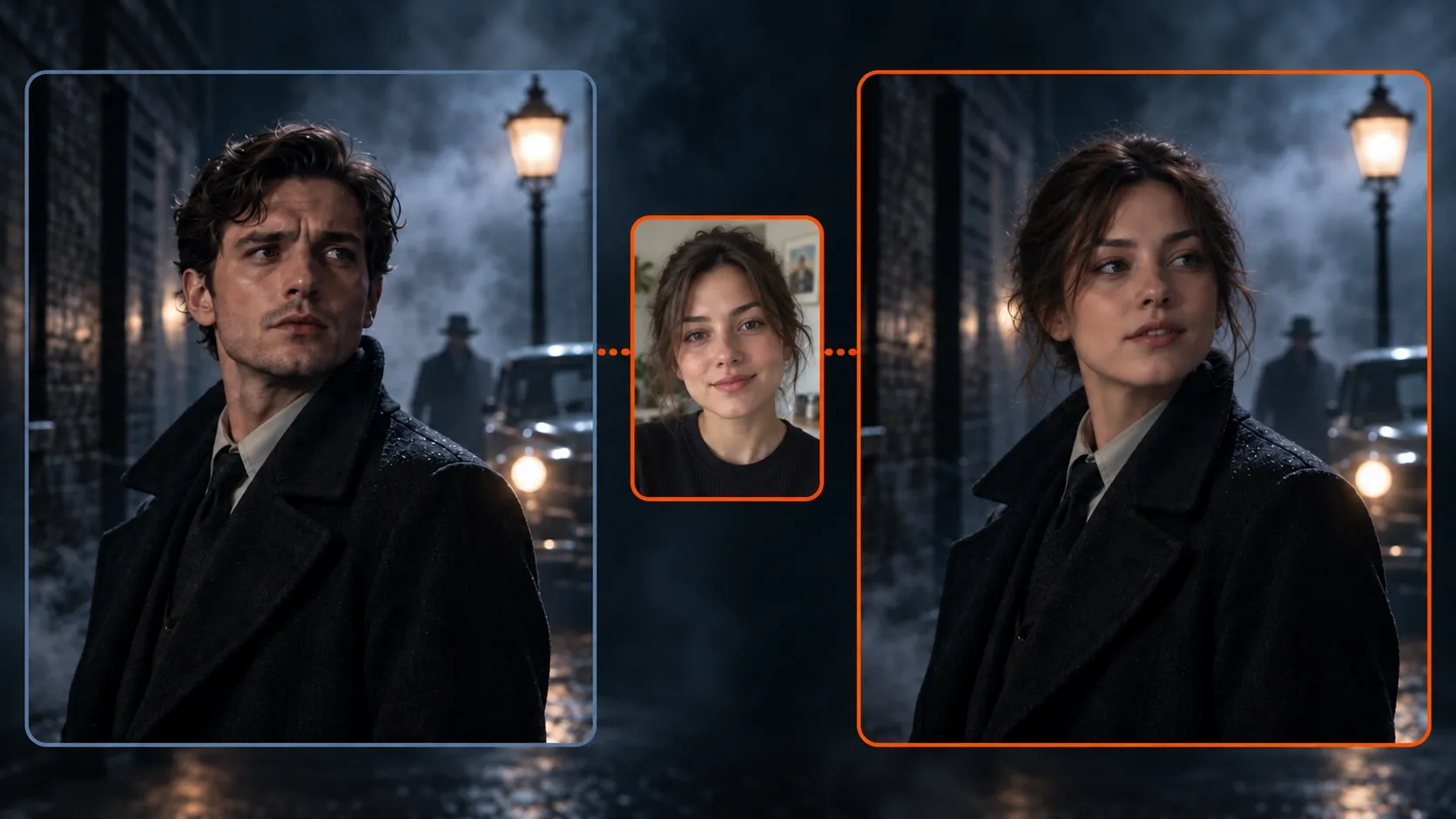
Inspect AI Video Face Swap beyond the facial resemblance
Watch the complete result before selecting it. AI Video Face Swap review needs to cover expression, body appearance, clothing, and the relationship between the subject and surroundings.
Compare the face during movement
Inspect the eyes, jawline, mouth, hairline, and expression at several points. An AI Video Face Swap result may resemble the reference in one pose and drift in another. Compare moving and paused views instead of judging the identity from the opening thumbnail alone.
Check the outfit and body
Look at collars, sleeves, shoulders, hands, and the way clothing meets the neck. Person replacement can affect these areas. AI Video Face Swap review should establish whether the subject still belongs in the scene, rather than treating a changed face as the only relevant outcome.
Inspect overlap and return
When a hand crosses the face or the head passes behind an object, check what happens as it becomes visible again. AI Video Face Swap can introduce changes around these transitions. Look for unstable hair, altered accessories, and shifting edges that distract from the performance.
Finish AI Video Face Swap review with context
A useful AI Video Face Swap concept is both visually coherent and clearly understood by its audience. Select and describe it accordingly when moving into your project.
Review with the participating people
Ask the participating adults to review the replacement and retained soundtrack for the agreed use. AI Video Face Swap does not establish that the new visible person recorded the performance. Keep that distinction clear when approving the result.
Change inputs instead of adding instructions
Choose better source material when an unsuitable angle or obstruction weakens AI Video Face Swap. The interface does not accept written repair instructions. A clearer portrait and performance pairing gives you a stronger basis for the next attempt.
Keep the approved assets together
Keep the portrait, source, selected result, and intended-use note together. These records make AI Video Face Swap revisions easier to discuss. Recheck appearance and audio when repurposing a clip rather than assuming an earlier approval covers another context.

Example prompts
Source preparation: alternate adult portrait
Choose one clear authorized adult portrait image and a short video of the other authorized adult subject. Keep the source performance within eight seconds, with a readable face and modest head movement. Load the portrait and video in their respective controls, select the resolution, and review the full person-replacement output.
Source preparation: restrained presentation gesture
Prepare an authorized adult portrait and a source clip showing a small head turn or relaxed presentation gesture. Avoid face-covering props and multiple prominent people. Keep the source at most eight seconds. Compare the output’s hair, clothing, body details, and retained source audio before choosing a usable concept.
User reviews
EveryGen AI video creator feedback.
EveryGen AI creator reviews

I made a full character PV for my game with MiniMax H3 in one afternoon. The menu UI stayed readable in every frame and the character never went off-model. That used to cost me a contractor and three weeks.

We tested every AI video generator on the market for stylized work. H3 is the only one that held our anime style across cuts. We now use it for pitch reels and animatics on every project.

I uploaded four product photos and got a listing video with music and a voiceover the same day. My click-through rate on the new listings is up 38%. H3 even got the label text on my packaging right.

I ship five vertical videos a week for three brands. MiniMax H3 gets me from brief to draft in under an hour, with sound already synced. My old workflow needed a videographer and two review rounds.

The editing side is what sold me. A client wanted the background of an interview changed — I typed one sentence into MiniMax H3 and the lighting on the subject matched the new scene automatically.

I previsualized my entire short film in MiniMax H3 before we shot a single frame. Rack focus, match cuts, even the title cards — it understands director language, not just keywords.
EveryGen AI · MiniMax H3 Max Pricing and Credit Plans
Cancel anytime
Lite
50% off0.025 / credit
Billed $ yearly179· Save $179.8
Video Models


Image Models



- Includes MiniMax H3 and all premium models
- Up to 1 batch generation task
- Standard generation speed
- Standard generation success rate
- Standard customer support
- Commercial Use License
Standard
50% off0.017 / credit
Billed $ yearly299· Save $299.8
Video Models
Image Models
- Includes MiniMax H3 and all premium models
- Up to 4 batch generation tasks
- Priority processing speed
- High generation success rate
- Priority customer support
- Commercial Use License
Pro
50% off0.014 / credit
Billed $ yearly599· Save $599.8
Video Models
Image Models
- Includes MiniMax H3 and all premium models
- Up to 10 batch generation tasks
- Fastest generation speed
- High generation success rate
- Dedicated account manager
- Commercial Use License
Max
50% off0.012 / credit
Billed $ yearly1,199· Save $1,199.8
Video Models
Image Models
- Includes MiniMax H3 and all premium models
- Up to 10 batch generation tasks
- Fastest generation speed
- High generation success rate
- Dedicated account manager
- Commercial Use License
Pay safely and securely with
























FAQ
Frequently asked questions
Does AI Video Face Swap change only the face?
Not necessarily. PixVerse Person Swap runs in person mode here and can change the wider subject, including clothing or body appearance. Review the whole person rather than treating this as an exact replacement of a selected facial region.
What inputs does AI Video Face Swap require?
Use one portrait image and one video no longer than eight seconds. Choose authorized adult subjects and clearly readable materials. The interface does not offer a written prompt or a face-region selection tool.
Will AI Video Face Swap replace the voice too?
No voice replacement is promised. This workflow retains the source video’s audio. A different visible person does not mean the soundtrack becomes that person’s voice, so check whether the combination fits your intended and authorized use.
Which resolutions does AI Video Face Swap support?
The default is 720p, with 360p and 540p available. Inspect the result for resemblance and coherent movement at the intended viewing size. A larger output is not a guarantee of more consistent identity.
Why can the AI Video Face Swap quote change?
The task uses duration bands, and a source longer than five seconds enters the second band. Check Create after loading the actual file and resolution. Do not assume two clips have the same cost simply because both fit the eight-second limit.
CTA
Prepare a considered AI Video Face Swap concept
Choose a clear authorized portrait and a short performance, review the current quote, and process the pairing. Check the complete person and soundtrack before sharing the selected result.
Create a person-replacement concept