 EveryGen AI
EveryGen AI · AI Animation Generator for small stories told through movement
A character notices a sound, a paper bird opens its wings, or a tiny machine completes a task. The EveryGen AI AI Animation Generator uses MiniMax H3 Max Turbo for short scenes from text or an opening image. Direct the AI Animation Generator around a readable action with a coherent visual treatment.
Video workspace
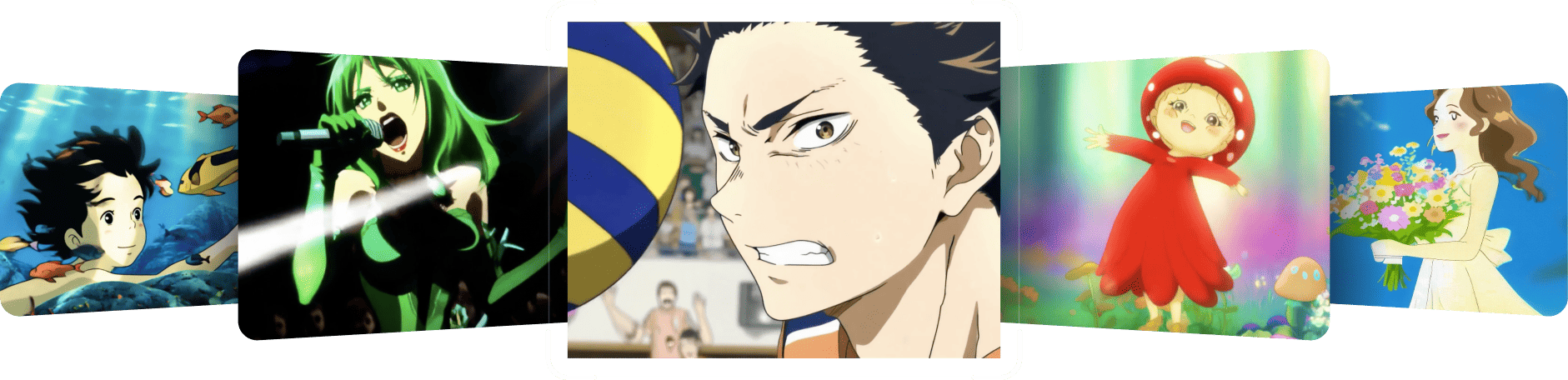
Multi-panel 2D animation showcase
30/33View prompt
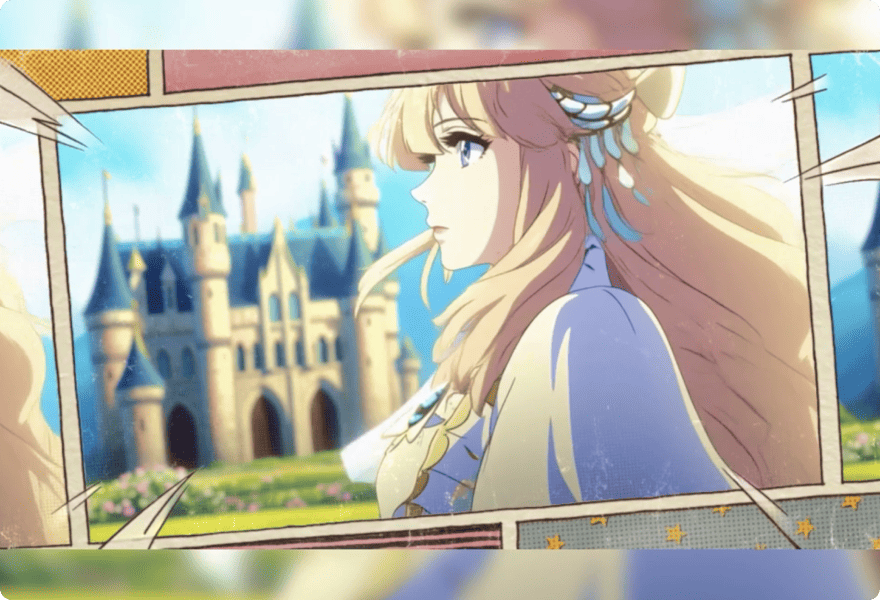
Create a five-second multi-panel 2D animation showcase arranged as a clean collage of smaller scenes. Include tranquil natural landscapes, an original adult female character walking along a cherry-blossom path, a glowing sunset, and expressive character close-ups. Keep panel boundaries stable, with subtle motion inside each scene, coordinated colors, and consistent hand-drawn styling. No text, logos, or recognizable franchise characters.
Introduction
Give the AI Animation Generator one story beat
Begin with a change the audience can understand. The AI Animation Generator needs a clear event before it needs a complicated world or a long list of visual effects.
Find a compact emotional idea
A curious character leans toward a glowing seed, then relaxes when it opens. This gives the AI Animation Generator a small emotional progression. You do not need a complete plot to explore surprise, hesitation, satisfaction, or another readable response through movement.
Choose text or a starting illustration
Use text mode to invent the character and scene together. Choose image mode when an approved illustration should establish the opening. The AI Animation Generator can work from either starting point, but the task remains one short scene rather than an automatically assembled episode.
Begin with the simple setup
The AI Animation Generator starts with MiniMax H3 Max Turbo, five seconds, and 480P. Text mode begins at 16:9. Use that first draft to judge staging and action before adding duration, increasing resolution, or making the environment more elaborate.
How to use
How to use the AI Animation Generator
- PromptSTEP 1
Choose your starting point
Select MiniMax H3 Max Turbo in the AI Animation Generator, using text for a new scene or an image for an established design.
- ModelMiniMax H3 Max Turbo480P16:95sPromptSTEP 2
Describe one story beat
Give the AI Animation Generator a readable gesture, simple staging, a material treatment, and relevant sounds that fit the short action.
- First frameLast frame
 0.0s
0.0s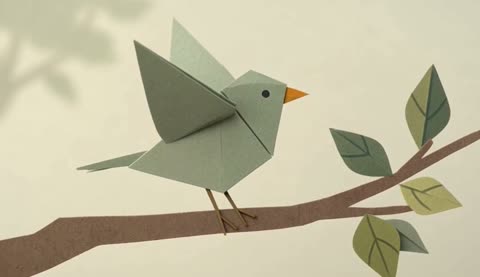 2.6s
2.6s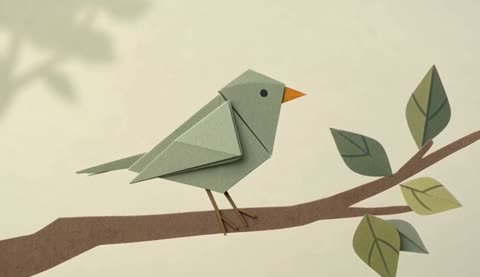 4.7sSTEP 3
Generate a short draft
Start the AI Animation Generator at five seconds and 480P, review framing and the displayed credits, then generate your animated moment.
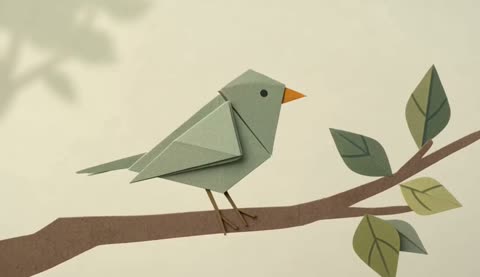
- Five-second original animated scene. A small folded-paper bird on a cardboard branch tilts its head, opens both wings once, then settles into a relaxed pose. Clean silhouette, muted sage and cream palette, softly textured paper, steady medium view. Gentle paper rustle and quiet forest ambience. No lettering, extra characters, rapid cuts, or complicated camera movement.DownloadSTEP 4
Review movement and shape
Watch AI Animation Generator timing, silhouettes, changing details, and audio before revising one issue or downloading the clip you prefer.
Features
Make AI Animation Generator characters easy to read
An animated subject needs a clear shape during movement. Give the AI Animation Generator a recognizable silhouette, a limited visual vocabulary, and an uncluttered place to act.
Design the main silhouette
A round body with long ears or a square robot with short arms creates a readable outline. Ask the AI Animation Generator for distinctive proportions rather than many tiny accessories. Check that the pose remains understandable when the subject turns or reaches.
- Keep the face and acting limbs separate from the background.
- Give the AI Animation Generator one defining accessory rather than several.
Choose one material language
Describe folded paper, matte clay, soft felt, or clean illustrated shapes as the dominant treatment. The AI Animation Generator can explore the appearance through your prompt. Combining shiny plastic, watercolor, metal, and fuzzy fabric without hierarchy makes the intended style harder to evaluate.
Stage only the necessary props
A small lever gives a character something to operate; a single seedling gives it something to notice. Build the AI Animation Generator scene around that useful object. Extra furniture and decorative machinery can obscure the gesture or introduce competing movements you did not need.
Give AI Animation Generator movement a readable rhythm
An action should have a clear progression. Tell the AI Animation Generator how the character prepares, moves, and settles without turning the prompt into a long sequence of events.
Allow a short preparation
A slight lean before reaching or a glance toward the destination helps explain the next movement. Describe this preparation in the AI Animation Generator brief. Keep it brief enough that the main action still has time to happen and become visible.
- Choose a small setup that points toward the main gesture.
- Let the AI Animation Generator resolve one event before adding another.
Describe direction and weight
A light paper wing can open with a gentle lift; a heavy wooden lid needs a slower, grounded movement. Give the AI Animation Generator that distinction in ordinary words. Review the result for a convincing relationship between the object’s appearance and its movement.
End with a readable reaction
After the action, let the character pause, look pleased, or watch the result. The AI Animation Generator should have a clear destination for the performance. An ending that settles is easier to use than a clip that stops while the main action remains unresolved.
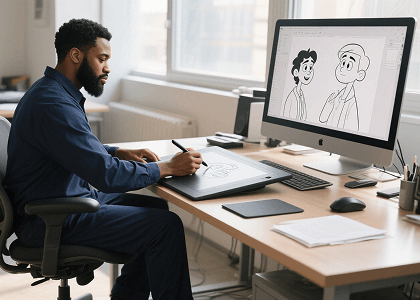
Stage AI Animation Generator scenes for the camera
Camera movement should support the performance. Give the AI Animation Generator a useful distance and a stable sense of space before asking for a dramatic viewpoint change.
Keep the gesture visible
Choose a medium view when hands and facial expression both matter. A wide environment shot may make a small gesture disappear. Direct the AI Animation Generator so the acting area remains clear, including enough room around the character for the intended movement.
- Check the full outline at the beginning and end of the action.
- Keep AI Animation Generator props outside the path of important limbs.
Use one camera idea
Try a steady viewpoint or a gentle push toward the character’s reaction. The AI Animation Generator does not need a camera orbit to make a scene engaging. A simple view can make timing and silhouette easier to assess than constant perspective changes.
Use compatible image endpoints
In image mode, upload one opening image and optionally an ending frame showing a reachable change. Explain the journey to the AI Animation Generator. Two extreme poses do not guarantee a convincing transition, so inspect what happens between them as carefully as the endpoints.
Give the AI Animation Generator a fitting soundscape
Native audio can help establish the animated world. Tell the AI Animation Generator which sounds accompany the action and which should remain quietly in the background.
Match sound to the action
A paper wing suggests a faint rustle, while a wooden wheel suggests a gentle creak. Give the AI Animation Generator a small number of material-specific sounds. Listen to whether the generated result supports the visible movement rather than treating every action as a dramatic impact.
Keep the environment quieter
A workshop can have a low room ambience while one click marks the character completing its task. Describe that balance in the AI Animation Generator. The surroundings should make the scene feel situated without drowning out the sound that explains the important event.
Choose mood without relying on speech
A curious pause, a soft sound, and a clear reaction can communicate an idea without dialogue. For an initial AI Animation Generator scene, this avoids making exact words or mouth timing essential to the concept. Add complexity only when the simpler version communicates successfully.
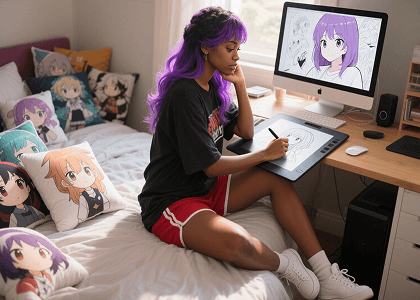
Develop AI Animation Generator concepts through review
Watch for character changes as well as attractive styling. AI Animation Generator review should establish whether the action, design, and atmosphere remain coherent throughout the short scene.
Inspect shape during motion
Check hands, feet, accessories, and the character’s outline when it turns or touches a prop. The AI Animation Generator may reinterpret these details during movement. A convincing opening design is not enough when the face or body changes during the central action.
Keep a useful series brief
Record the palette, material treatment, character proportions, and preferred camera distance for related clips. Reuse that direction in the AI Animation Generator, then compare each result. Shared descriptions can guide a series, but they do not guarantee identical characters across separate requests.
Choose the next production step
The AI Animation Generator supports five to fifteen seconds and 480P, 768P, or 1080P with Turbo. Review the displayed credits before submitting. Save approved clips with their briefs, then assemble your chosen moments in a separate editing workflow.

Example prompts
A folded paper bird wakes up
Five-second original animated scene. A small folded-paper bird on a cardboard branch tilts its head, opens both wings once, then settles into a relaxed pose. Clean silhouette, muted sage and cream palette, softly textured paper, steady medium view. Gentle paper rustle and quiet forest ambience. No lettering, extra characters, rapid cuts, or complicated camera movement.
Image mode: a small workshop discovery
Use the uploaded illustration as the opening frame. Over five seconds, the original clay-like character reaches toward one small wooden wheel, turns it gently, and pauses as a nearby warm lamp lights up. Keep the workshop layout simple and the camera steady. Soft wooden creak, one quiet click, and subdued room ambience. No dialogue or captions.
User reviews
EveryGen AI video creator feedback.
EveryGen AI creator reviews

I made a full character PV for my game with MiniMax H3 in one afternoon. The menu UI stayed readable in every frame and the character never went off-model. That used to cost me a contractor and three weeks.

We tested every AI video generator on the market for stylized work. H3 is the only one that held our anime style across cuts. We now use it for pitch reels and animatics on every project.

I uploaded four product photos and got a listing video with music and a voiceover the same day. My click-through rate on the new listings is up 38%. H3 even got the label text on my packaging right.

I ship five vertical videos a week for three brands. MiniMax H3 gets me from brief to draft in under an hour, with sound already synced. My old workflow needed a videographer and two review rounds.

The editing side is what sold me. A client wanted the background of an interview changed — I typed one sentence into MiniMax H3 and the lighting on the subject matched the new scene automatically.

I previsualized my entire short film in MiniMax H3 before we shot a single frame. Rack focus, match cuts, even the title cards — it understands director language, not just keywords.
EveryGen AI · MiniMax H3 Max Pricing and Credit Plans
Cancel anytime
Lite
50% off0.025 / credit
Billed $ yearly179· Save $179.8
Video Models


Image Models



- Includes MiniMax H3 and all premium models
- Up to 1 batch generation task
- Standard generation speed
- Standard generation success rate
- Standard customer support
- Commercial Use License
Standard
50% off0.017 / credit
Billed $ yearly299· Save $299.8
Video Models
Image Models
- Includes MiniMax H3 and all premium models
- Up to 4 batch generation tasks
- Priority processing speed
- High generation success rate
- Priority customer support
- Commercial Use License
Pro
50% off0.014 / credit
Billed $ yearly599· Save $599.8
Video Models
Image Models
- Includes MiniMax H3 and all premium models
- Up to 10 batch generation tasks
- Fastest generation speed
- High generation success rate
- Dedicated account manager
- Commercial Use License
Max
50% off0.012 / credit
Billed $ yearly1,199· Save $1,199.8
Video Models
Image Models
- Includes MiniMax H3 and all premium models
- Up to 10 batch generation tasks
- Fastest generation speed
- High generation success rate
- Dedicated account manager
- Commercial Use License
Pay safely and securely with























FAQ
Frequently asked questions
Which styles can I explore with the AI Animation Generator?
Describe the look directly, such as folded paper, matte clay-like characters, or illustrated shapes with soft shading. These are creative instructions for Turbo, not separate guaranteed presets or dedicated animation models selected automatically by the page.
Does the AI Animation Generator require a reference image?
No. Text mode can start with your written character and scene. Image mode uses one opening picture and an optional ending frame. Choose the starting point that best communicates the design and movement you want to explore.
Does the AI Animation Generator provide frame controls or rigs?
The AI Animation Generator creates footage from instructions; it does not expose frame-by-frame animation controls or supply a rig. Use the resulting clip as a concept or selected shot, then handle precise production work in appropriate separate software.
Can a short clip tell a useful story?
Yes. Give the AI Animation Generator a simple setup, action, and reaction: a small machine activates, a light appears, and the character notices. Focus on a single readable event instead of compressing an entire plot into the available duration.
Will characters stay identical in a series?
The AI Animation Generator does not guarantee exact continuity between requests. Keep a concise visual brief and use approved opening images when helpful. Compare the design, proportions, accessories, and motion in every clip before treating them as a coherent series.
CTA
Create one clear moment with the AI Animation Generator
Choose a character, a useful prop, and an action with a natural ending. Review your setup and displayed credits, then explore how the design communicates through movement and sound.
Develop an animated moment