 EveryGen AI
EveryGen AI · Grok Imagine 1.5 for Visual Moments with Native Sound
Start with a compact idea, choose a useful frame, and let the action carry the scene. Grok Imagine 1.5 on H3 Max creates video from text or a single image, with native audio and durations that range from a brief visual accent to a longer take.
Video workspace
The wooden elevator opens
28/33View prompt
Five-second continuous frontal shot of closed wooden elevator doors opening slowly to reveal one adult woman standing inside. Keep the camera fixed at eye level and the woman relaxed, facing forward. Preserve a simple, balanced composition with warm wood grain and soft interior light. End with the doors open and the woman still standing.
Introduction
What Is Grok Imagine 1.5?
Grok Imagine 1.5 is an xAI video generation model. Its fal text and image endpoints create moving scenes with audio from a written prompt or a supplied picture.
A video model with sound built into the result
The text route creates the scene from a description, while the image route uses a single starting picture and motion instructions. Grok Imagine 1.5 includes generated sound as part of the video experience. Describe the audible environment alongside the visual action, then review both together rather than treating a soundtrack as evidence that the scene is already finished.
The Grok Imagine 1.5 workspace choices
H3 Max offers durations from 1 to 15 seconds and output at 480p, 720p, or 1080p. Text mode provides seven aspect ratios; image mode uses one supplied picture. Bring Grok Imagine 1.5 a focused scene brief and select the visible settings around the result you need. Review the credits before submitting a request.
How to use
How to Create with Grok Imagine 1.5
- PromptSTEP 1
Choose a scene or starting image
Open Grok Imagine 1.5 on H3 Max and select text or image mode. Prepare one image when its subject and arrangement should establish the visual starting point.
- ModelGrok Imagine 1.5720p16:91sPromptSTEP 2
Write the picture and sound brief
Give Grok Imagine 1.5 one main action, an intended ending, and a clear sound direction. Keep speech brief and connect any important sound effect to the visible event.
- First frameLast frame
 0.0s
0.0s 0.5s
0.5s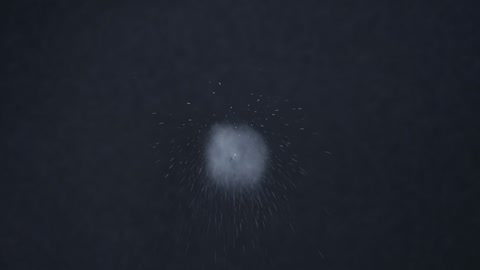 0.9sSTEP 3
Set duration and output size
Choose a Grok Imagine 1.5 duration from 1 to 15 seconds and select 480p, 720p, or 1080p. In text mode, choose the aspect ratio and check credits.
- Create a one-second close shot of a single soap bubble floating against a simple dark background and popping once. Keep the framing steady and the event immediately readable. A tiny soft pop, no speech or music, no other bubbles, no text, and no scene change.DownloadSTEP 4
Review the complete moment
Watch the Grok Imagine 1.5 clip and listen to its soundtrack. Inspect the motion, framing, and any speech, then refine the most important issue while preserving the useful creative direction.
Features
Give Grok Imagine 1.5 the Right Length of Moment
A quick accent and a scene with a gradual reveal need different pacing. Use the Grok Imagine 1.5 duration range to support the event rather than add unnecessary action.
Make brief Grok Imagine 1.5 moments readable
A one-second visual cannot depend on a long introduction. Begin with the subject already readable and ask for an immediate change, such as a bubble popping or a small light switching on. Give Grok Imagine 1.5 an action that can complete within the chosen interval. Reserve longer durations for moments that require anticipation or a change of attention.
Let a longer take develop without losing focus
For a slower scene, describe the progression and its resting point. A paper mobile might begin still, move gently, and settle again. With Grok Imagine 1.5, keep the main visual idea intact instead of adding an unrelated event whenever more time is available. A purposeful final hold gives the viewer room to understand what has changed.
Compose Grok Imagine 1.5 Text Scenes for Seven Canvases
Text generation lets you select the frame before the scene exists. Choose the Grok Imagine 1.5 aspect ratio around the direction of movement and the intended viewing space.
Use the full range of text-mode shapes
The choices are 16:9, 4:3, 3:2, 1:1, 2:3, 3:4, and 9:16. A wide scene can show lateral travel, while a tall composition can follow a rising object. Describe where the subject sits in the Grok Imagine 1.5 frame and leave space in the direction it will move. The ratio should support the event rather than crowd it.
Protect the subject from accidental edge pressure
Keep the important action away from the boundary unless approaching that edge is intentional. A portrait composition may need empty space above a hand or behind a turning shoulder. State those relationships in the Grok Imagine 1.5 prompt. Review the entire clip for unwanted cropping, not just the opening picture, because a subject can become cramped as the motion develops.
Extend a Single Picture into Grok Imagine 1.5 Motion
An existing image can provide a distinct subject and visual style. Use Grok Imagine 1.5 to explore a movement that belongs to that source rather than replacing its identity.
Prepare a Grok Imagine 1.5 source for movement
Choose a picture with a clear silhouette and room for the intended action. An illustration with a readable pose may suit a slight gesture; a tightly framed object may suit a small shift of viewpoint. Give Grok Imagine 1.5 a restrained motion brief and identify the details that matter most, such as the outline, surface pattern, or relationship to the background.
Describe a destination without a second image
This workflow takes one picture, not an uploaded final frame. Explain how the motion should finish in the prompt: the subject returns to rest, the camera pauses, or the light settles. Keep the Grok Imagine 1.5 ending compatible with the source. Large transformations can require invented information, so inspect the intermediate frames before accepting an appealing result.
Give Grok Imagine 1.5 a Coherent Sound Direction
Native audio makes sound part of the creative brief. Tell Grok Imagine 1.5 what should be heard and how it relates to the visible event, without overloading the scene.
Name a dominant sound and a quieter environment
A light chime can mark a small movement, while subdued room tone keeps the setting present. Describe that hierarchy instead of requesting several equally prominent effects. In a Grok Imagine 1.5 scene, the main sound should help the audience understand the action. Listen for noises or musical elements that distract from the intended moment and revise the sound description when necessary.
Treat dialogue as something to inspect
For speech, identify the speaker and use a line short enough for the chosen duration. Leave room for the words to finish before the clip ends. The Grok Imagine 1.5 result should be checked for the actual wording and timing, even when the voice sounds plausible. A written sound direction is not a voice-selection tool or a guarantee of exact delivery.
Choose a Usable Grok Imagine 1.5 Output
Three output sizes let you configure the request for its destination. Review the Grok Imagine 1.5 result for communication, continuity, and sound before concentrating only on fine detail.
Match the size to the viewing task
Select 480p, 720p, or 1080p, then examine the returned video at a realistic display size. A Grok Imagine 1.5 clip with a clear silhouette and understandable motion may communicate better than a complicated scene with distracting errors. Resolution alone does not certify accurate lettering, materials, or facial features. Check the content of the image as well as its dimensions.
Make the next revision answer one question
Choose the change you need to test: an earlier action, a slower turn, or a quieter sound environment. Keep the useful parts of the Grok Imagine 1.5 brief stable so the comparison has meaning. Save the selected inputs and settings with a promising result, then review the credits again before generating another candidate.
Example prompts
Text: an immediate visual accent
Create a one-second close shot of a single soap bubble floating against a simple dark background and popping once. Keep the framing steady and the event immediately readable. A tiny soft pop, no speech or music, no other bubbles, no text, and no scene change.
Image: a gentle illustrated motion
Animate the supplied illustration for eight seconds. Let the visible paper kite lift slightly and sway before settling. Preserve the illustration’s outlines, colors, and composition. Keep the movement small and the background stable. Include a quiet breeze and a light paper rustle. No dialogue, new characters, cuts, or added lettering.
Text: a tall composition with a small reveal
Create a seven-second portrait shot of a folded paper flower on a narrow pedestal. The petals open slowly while the camera stays steady, with space above the flower throughout. Warm soft lighting, a restrained paper rustle, and quiet room ambience. End with the flower open and still. No hands, speech, music, labels, or additional objects.
User reviews
EveryGen AI video creator feedback.
EveryGen AI creator reviews

I made a full character PV for my game with MiniMax H3 in one afternoon. The menu UI stayed readable in every frame and the character never went off-model. That used to cost me a contractor and three weeks.

We tested every AI video generator on the market for stylized work. H3 is the only one that held our anime style across cuts. We now use it for pitch reels and animatics on every project.

I uploaded four product photos and got a listing video with music and a voiceover the same day. My click-through rate on the new listings is up 38%. H3 even got the label text on my packaging right.

I ship five vertical videos a week for three brands. MiniMax H3 gets me from brief to draft in under an hour, with sound already synced. My old workflow needed a videographer and two review rounds.

The editing side is what sold me. A client wanted the background of an interview changed — I typed one sentence into MiniMax H3 and the lighting on the subject matched the new scene automatically.

I previsualized my entire short film in MiniMax H3 before we shot a single frame. Rack focus, match cuts, even the title cards — it understands director language, not just keywords.
EveryGen AI · MiniMax H3 Max Pricing and Credit Plans
Cancel anytime
Lite
50% off0.025 / credit
Billed $ yearly179· Save $179.8
Video Models


Image Models



- Includes MiniMax H3 and all premium models
- Up to 1 batch generation task
- Standard generation speed
- Standard generation success rate
- Standard customer support
- Commercial Use License
Standard
50% off0.017 / credit
Billed $ yearly299· Save $299.8
Video Models
Image Models
- Includes MiniMax H3 and all premium models
- Up to 4 batch generation tasks
- Priority processing speed
- High generation success rate
- Priority customer support
- Commercial Use License
Pro
50% off0.014 / credit
Billed $ yearly599· Save $599.8
Video Models
Image Models
- Includes MiniMax H3 and all premium models
- Up to 10 batch generation tasks
- Fastest generation speed
- High generation success rate
- Dedicated account manager
- Commercial Use License
Max
50% off0.012 / credit
Billed $ yearly1,199· Save $1,199.8
Video Models
Image Models
- Includes MiniMax H3 and all premium models
- Up to 10 batch generation tasks
- Fastest generation speed
- High generation success rate
- Dedicated account manager
- Commercial Use License
Pay safely and securely with























FAQ
Frequently asked questions
What input modes does Grok Imagine 1.5 offer here?
The Grok Imagine 1.5 workspace offers text-to-video and single-image animation. Use text to establish a new scene, or provide one picture when its appearance should guide the action. This is not a multi-reference workflow.
How short or long can Grok Imagine 1.5 clips be?
Select a duration from 1 to 15 seconds for Grok Imagine 1.5. Very brief clips need an immediately readable event. Longer takes give an action more room to develop and reach a deliberate stopping point.
Which Grok Imagine 1.5 resolutions are available?
Grok Imagine 1.5 offers 480p, 720p, and 1080p output in this workspace. Choose the size for the assignment and check the displayed credits. No resolution label guarantees that every detail will be correct.
Which aspect ratios does Grok Imagine 1.5 text mode support?
Grok Imagine 1.5 text mode offers 16:9, 4:3, 3:2, 1:1, 2:3, 3:4, and 9:16. Select the shape before composing the scene so the subject has appropriate space for its planned movement.
Can Grok Imagine 1.5 use a first and last image pair?
Not in this workflow. Grok Imagine 1.5 image mode uses one starting picture. Describe the finishing state in words and inspect the resulting transition rather than preparing a second image for an ending-frame control.
Does Grok Imagine 1.5 include native audio?
Yes. Grok Imagine 1.5 generates video with audio. Describe the environment, sound effects, or brief speech the scene needs. Audio uploads and an audio on/off switch are not part of this workflow.
How should I assess a Grok Imagine 1.5 result?
Check the whole Grok Imagine 1.5 clip at normal speed, then inspect important details. Listen for unwanted sound and inaccurate speech. Use a specific revision objective instead of approving the take from a single attractive frame.
CTA
Create a Clear Moment with Grok Imagine 1.5
Choose a scene, give its motion and sound a purpose, and review your settings and credits. Bring Grok Imagine 1.5 a focused brief on H3 Max and judge the complete result.
Open the Video Generator