 EveryGen AI
EveryGen AI · AI Lip Sync for a short recording and an existing performance
Pair a clear portrait video with the recording you want it to speak. EveryGen AI AI Lip Sync uses Sync Lip Sync 2 standard to generate a short audio-driven result from your two files. Prepare the performance and recording carefully, then inspect the mouth movement throughout. AI Lip Sync starts with uploaded speech, not typed dialogue or a voice-generation menu.
Video workspace
Upload one MP4/MOV video and one WAV/M4A audio file, each under 30 seconds. Credits follow audio duration.
Pair the portrait with recorded male speech
14/18View prompt
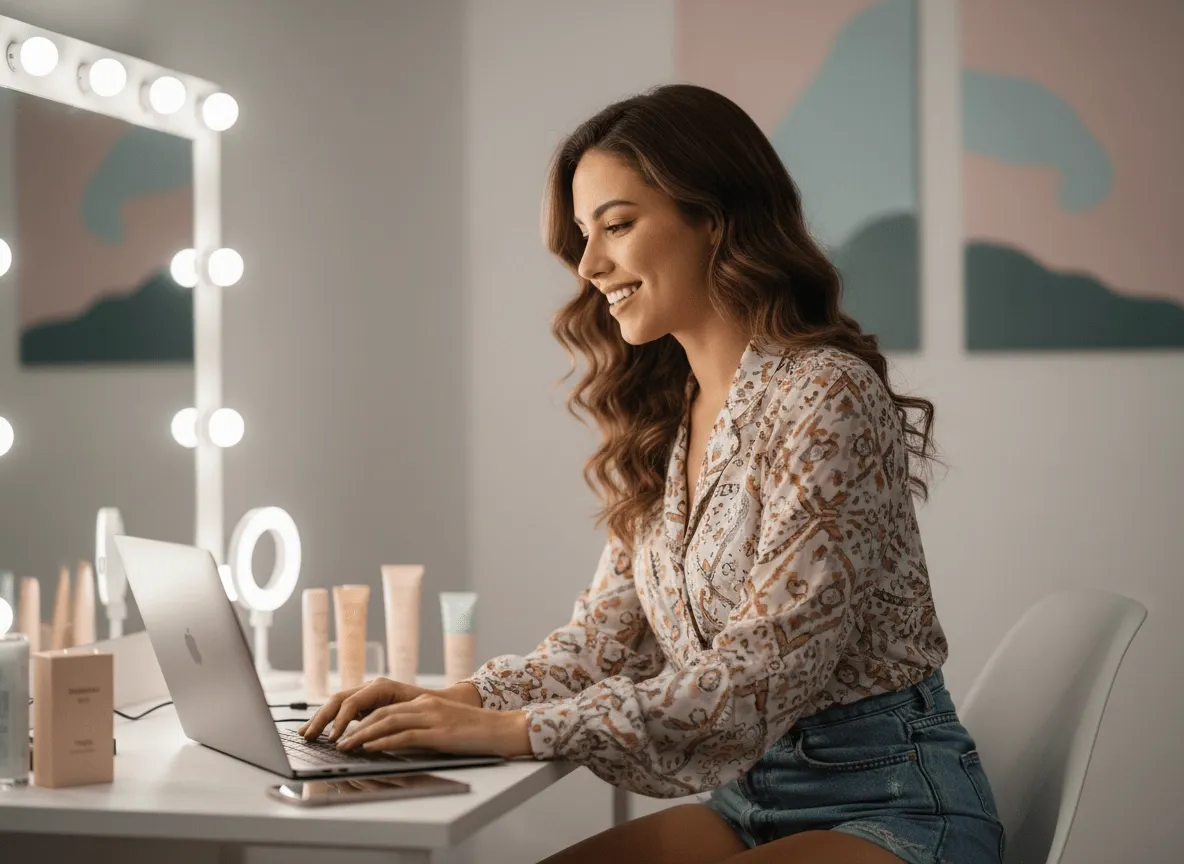
Prepare the authorized adult woman’s portrait video in MP4 or MOV and the provided male speech recording in WAV or M4A, each shorter than thirty seconds. Keep the face and mouth clearly visible. Load Video Input and Audio Reference, then review the audio-length output for mouth timing, natural facial detail, and any repeated movement from loop mode.
Introduction
Give AI Lip Sync a clear audiovisual pairing
Use AI Lip Sync when an existing visual performance needs to follow a prepared recording. The source video and audio each have a distinct role.
Choose the message before processing
Prepare one introduction, revised explanation, or authorized alternate recording before using AI Lip Sync. The workflow takes finished audio; it does not turn a written script into speech. Choose a message with a complete ending.
Understand the two required files
AI Lip Sync requires one MP4 or MOV video and one WAV or M4A audio file, each shorter than thirty seconds. Choose a single clear recording and a suitable portrait performance. The page does not ask for a transcript, language selection, or text prompt.
Keep participation intentional
Use authorized video and audio, including when the visible person and voice differ. AI Lip Sync creates an altered performance, not evidence of an original utterance. Keep the intended presentation clear to the people participating in the task.
How to use
How to use AI Lip Sync
- InputReference video 1STEP 1
Prepare the source pair
Upload one MP4 or MOV video and one WAV or M4A recording to AI Lip Sync, each shorter than thirty seconds.
- Example settingsSync Lip Sync 2source5s
 OutputSTEP 2
Check the performance
Preview AI Lip Sync inputs for a visible mouth, clear speech, and body movement that remains suitable through the recording’s duration.
- Illustrative preview
The recording guides mouth movement in an existing video. Listen to the input, then inspect the mouth positions.
STEP 3Review and synchronize
Choose Sync Lip Sync 2 standard, review the AI Lip Sync Create quote, and process the files without entering text instructions.
- STEP 4
Inspect the spoken result
Watch AI Lip Sync timing, facial detail, and loop transitions, confirming that the audio-length result presents the complete message before downloading.
Features
Select AI Lip Sync footage with a readable mouth
The face needs to remain understandable while the recording plays. Give AI Lip Sync a source that supports visible speech rather than repeated obstructions or abrupt cuts.
Choose a stable facial view
Choose a mostly frontal or gently angled face with a readable mouth. An AI Lip Sync source dominated by fast turns or extreme profiles is harder to inspect. Prefer a steady performance with visible lips and jaw.
- Keep the mouth large enough to judge at the intended viewing size.
- Preview the AI Lip Sync source through every head movement.
Avoid avoidable obstructions
Hands, microphones, scarves, or objects crossing the mouth can conceal the area that needs review. Choose AI Lip Sync footage where the relevant features stay visible. If several source takes exist, prefer the one with fewer interruptions rather than the most elaborate camera movement.
Keep one clear speaker in view
The page has no face-region selection control. Prepare AI Lip Sync with footage focused on one intended adult speaker instead of relying on an unavailable selection tool. Inspect the full clip so the subject does not disappear just as the important part of the recording begins.

Give AI Lip Sync a finished recording
The uploaded audio establishes the spoken content and pacing. Make your recording ready for AI Lip Sync before generating, rather than expecting the page to rewrite or perform it.
Record a concise, complete message
Choose a sentence or short passage that can finish naturally within the supported duration. Listen to the take before using AI Lip Sync and confirm the opening and final words are intact. A complete performance is easier to judge than an abruptly interrupted recording.
- Use one WAV or M4A file with clear, audible speech.
- Keep AI Lip Sync source audio shorter than thirty seconds.
Reduce distractions in the source
Select a recording where speech is not overwhelmed by music, another speaker, or room noise. AI Lip Sync is not presented here as an audio-cleanup workflow. A clearer recording gives you a better basis for comparing visible articulation with what the listener actually hears.
Finalize pauses before uploading
Long leading silence or an unnecessary tail changes how much screen time the result needs. Trim those parts in your own audio workflow before AI Lip Sync, while leaving natural breaths and sentence pauses. Do not remove timing that gives the spoken message its meaning.
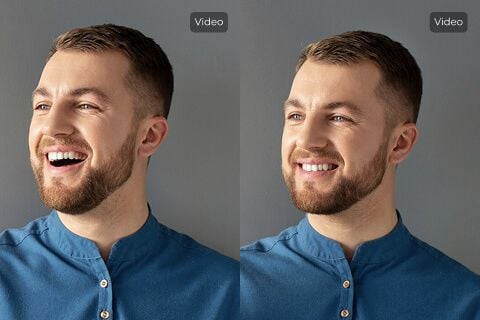
Plan AI Lip Sync around the audio duration
This AI Lip Sync workflow uses loop mode, and the output follows the audio length. Choose the source performance with that relationship in mind.
Compare the two lengths first
Check whether the recording is shorter or longer than the visible source performance. When AI Lip Sync needs to cover more audio than one pass of the video, repeated visual motion can become noticeable. Choose source movement that remains appropriate for the whole message.
- Listen to the complete recording while previewing the chosen visual source.
- Check AI Lip Sync loop transitions where a gesture returns to its beginning.
Prefer repeatable body language
A calm posture is easier to reuse than a dramatic gesture followed by leaving the frame. Choose AI Lip Sync footage whose body language suits the whole recording, then check whether repeated motion distracts from later words.
Let the recording define the ending
Do not assume the result will preserve the source video’s original running time. AI Lip Sync follows the uploaded audio length in this configuration. Keep the final sentence complete and inspect the closing moment so the finished clip does not feel unexpectedly cut short or visually unresolved.
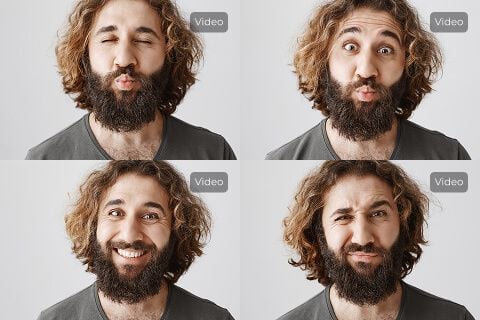
Use AI Lip Sync through its actual file controls
Keep preparation separate from processing. AI Lip Sync uses the source video and Audio Reference input; it does not require a paragraph of scene instructions.
Select the verified workflow
Choose Sync Lip Sync 2 standard and load the prepared files in their corresponding inputs. AI Lip Sync does not expose a text-to-speech field or a language menu here. The uploaded recording, rather than a typed language choice, supplies the spoken performance to work with.
Treat examples as material briefs
Example cards describe materials to prepare or load, not AI Lip Sync text commands. Choose a clear face and appropriate recording, then preview the actual files. A suitable example description cannot compensate for the wrong uploaded take.
Review the current Create quote
The actual media duration affects the processing quote. Check Create after loading the intended AI Lip Sync files instead of relying on a fixed credit figure. If you change the recording, recheck both its duration and the quote before submitting another version.

Evaluate AI Lip Sync at normal playback speed
Look beyond one convincing mouth shape. AI Lip Sync review should cover the timing of the whole sentence, facial appearance, repeated movement, and the final pause.
Watch the starts and stops of speech
Play the result at normal speed and notice whether mouth activity begins and settles with the recording. Pause around questionable moments only after viewing the flow. An AI Lip Sync result can have plausible still frames while the articulation feels early, late, or overly busy.
Inspect teeth and facial boundaries
Look around the lips, teeth, jawline, and cheeks as the subject speaks. AI Lip Sync can introduce visual changes that matter even when timing is acceptable. Compare these features with the source and check whether the face still appears natural across different sounds.
Revise the inputs when needed
Choose a better visual take or adjust the recording externally when the pairing remains distracting. AI Lip Sync has no written repair control. Save the original files and approved output so collaborators can compare subsequent versions.
Example prompts
Material preparation: portrait video and recorded speech
Prepare an authorized adult portrait video in MP4 or MOV and one clear WAV or M4A speech recording, both shorter than thirty seconds. Keep the mouth visible and choose modest head movement. Load the files into Video Input and Audio Reference, then review timing and any repeated visual movement in the result.
Material preparation: a complete short introduction
Choose a portrait video with a calm, repeatable posture and record one complete short introduction as WAV or M4A. Leave natural sentence pauses while removing unnecessary leading silence in your own audio editor. Keep both files below thirty seconds. Review the final audio-length performance for clear articulation and a natural ending.
User reviews
EveryGen AI video creator feedback.
EveryGen AI creator reviews

I made a full character PV for my game with MiniMax H3 in one afternoon. The menu UI stayed readable in every frame and the character never went off-model. That used to cost me a contractor and three weeks.

We tested every AI video generator on the market for stylized work. H3 is the only one that held our anime style across cuts. We now use it for pitch reels and animatics on every project.

I uploaded four product photos and got a listing video with music and a voiceover the same day. My click-through rate on the new listings is up 38%. H3 even got the label text on my packaging right.

I ship five vertical videos a week for three brands. MiniMax H3 gets me from brief to draft in under an hour, with sound already synced. My old workflow needed a videographer and two review rounds.

The editing side is what sold me. A client wanted the background of an interview changed — I typed one sentence into MiniMax H3 and the lighting on the subject matched the new scene automatically.

I previsualized my entire short film in MiniMax H3 before we shot a single frame. Rack focus, match cuts, even the title cards — it understands director language, not just keywords.
EveryGen AI · MiniMax H3 Max Pricing and Credit Plans
Cancel anytime
Lite
50% off0.025 / credit
Billed $ yearly179· Save $179.8
Video Models


Image Models



- Includes MiniMax H3 and all premium models
- Up to 1 batch generation task
- Standard generation speed
- Standard generation success rate
- Standard customer support
- Commercial Use License
Standard
50% off0.017 / credit
Billed $ yearly299· Save $299.8
Video Models
Image Models
- Includes MiniMax H3 and all premium models
- Up to 4 batch generation tasks
- Priority processing speed
- High generation success rate
- Priority customer support
- Commercial Use License
Pro
50% off0.014 / credit
Billed $ yearly599· Save $599.8
Video Models
Image Models
- Includes MiniMax H3 and all premium models
- Up to 10 batch generation tasks
- Fastest generation speed
- High generation success rate
- Dedicated account manager
- Commercial Use License
Max
50% off0.012 / credit
Billed $ yearly1,199· Save $1,199.8
Video Models
Image Models
- Includes MiniMax H3 and all premium models
- Up to 10 batch generation tasks
- Fastest generation speed
- High generation success rate
- Dedicated account manager
- Commercial Use License
Pay safely and securely with
























FAQ
Frequently asked questions
Does AI Lip Sync turn a written script into speech?
No. Prepare and upload a WAV or M4A recording. This page has no text-to-speech, typed prompt, or language-selection control. The source audio supplies the message and its pacing.
What files does AI Lip Sync accept?
Provide one MP4 or MOV video and one WAV or M4A audio file. Each must be shorter than thirty seconds. Choose a clearly visible speaker and a finished recording rather than a long sequence of unrelated takes.
What determines AI Lip Sync output length?
The uploaded audio determines the output duration in this loop configuration. Review visual repetition when the recording extends beyond one pass of the source performance. Do not assume the original video length remains the final running time.
Can AI Lip Sync select a face in a group?
There is no face-selection region control in this interface. Choose source footage focused on the intended adult speaker. Keep the mouth visible through the performance instead of relying on instructions that the page does not accept.
Does AI Lip Sync guarantee exact mouth timing?
No exact alignment or unchanged facial appearance is guaranteed. Watch the full result with sound, checking sentence starts, pauses, and the mouth area. Choose a better source pairing when an obstruction or unsuitable gesture undermines the performance.
CTA
Match a prepared recording with AI Lip Sync
Choose a clear portrait performance and a finished audio take, review the Create quote, and process the pairing. Watch the full message with sound before selecting the version to share.
Synchronize your recorded speech