 EveryGen AI
EveryGen AI · AI QR code generator for artwork built around a working code
Start with an existing QR image that opens the correct destination. The EveryGen AI AI QR code generator uses Illusion Diffusion to blend your uploaded code with a described scene. Explore artwork with the AI QR code generator, then scan-test the final file before sharing.
Image workspace
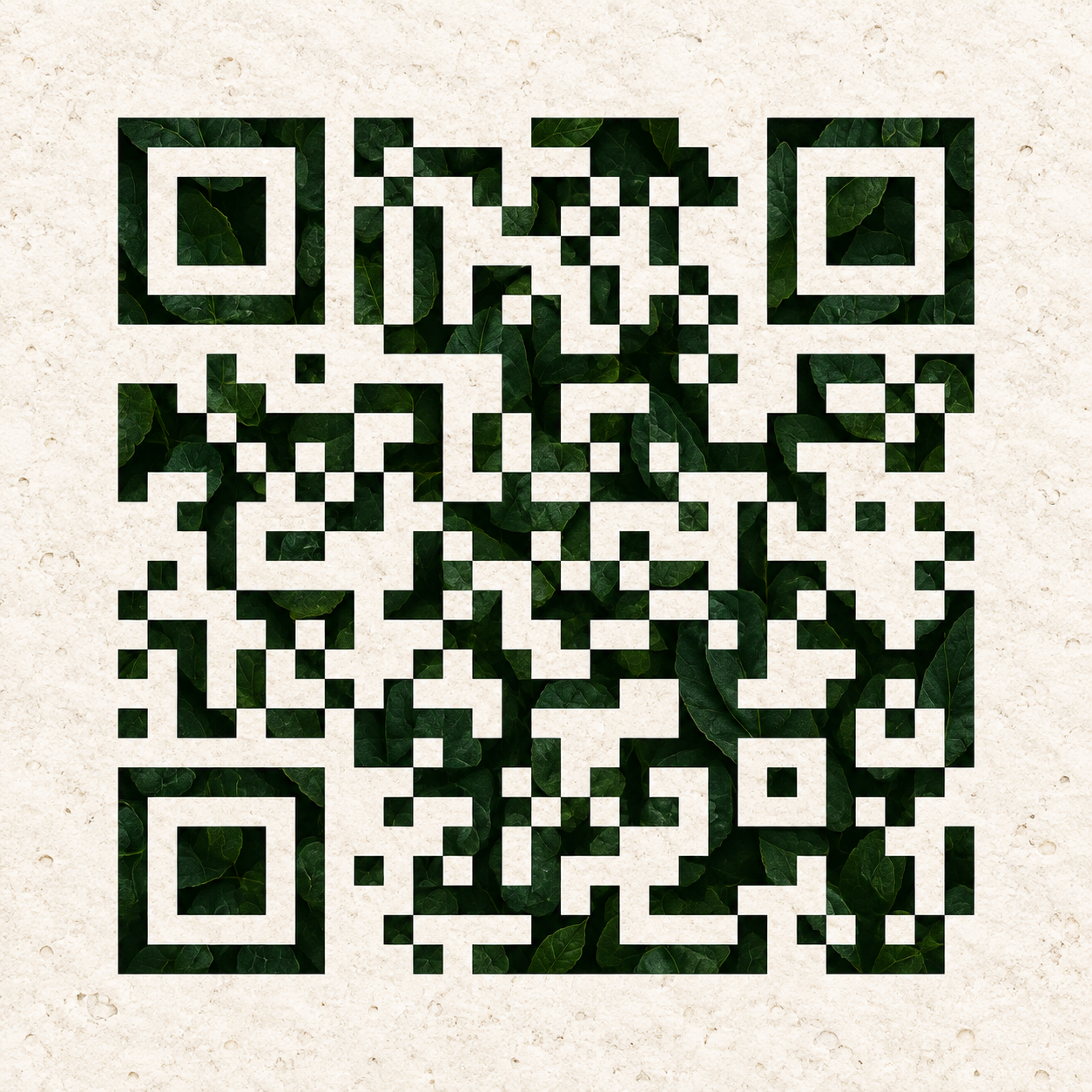
Sample Image
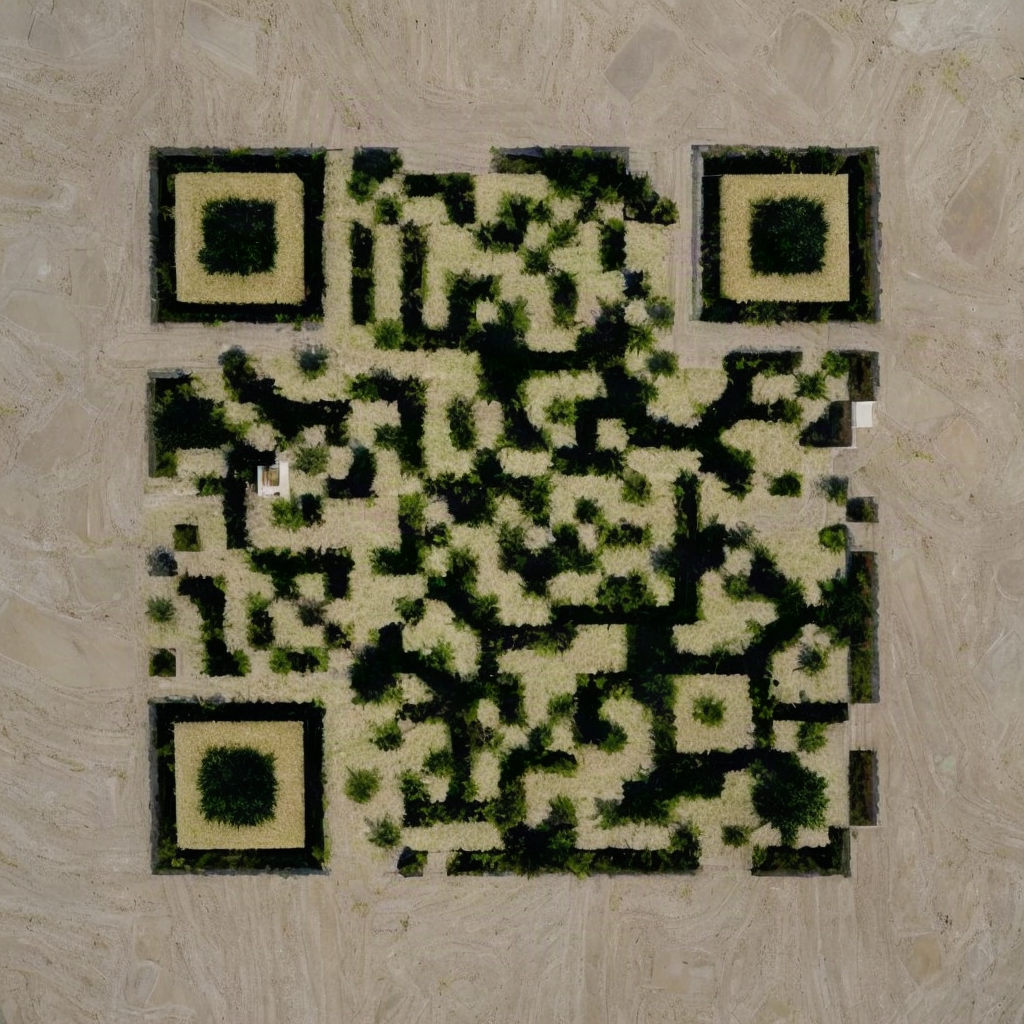 15 / 17
Scan-tested sample; recheck your final output before sharing or printing.
Introduction
Give the AI QR code generator a working starting point
Artwork follows function. Start the AI QR code generator with a clear, tested source.
Encode the destination before uploading
This workflow starts with an existing QR image, not a website address typed into a form. Before opening the AI QR code generator, create your machine-encoded code elsewhere and scan it. Check the complete destination, including any campaign path or query string.
- Upload a clear square code rather than a photographed sign.
- Keep the original beside your AI QR code generator artwork for comparison.
Check what visitors will actually reach
Open the destination on a phone and complete the intended action, such as reading a menu. The AI QR code generator changes the picture, not the destination experience. A readable code still needs a useful page behind it.
Keep the source uncomplicated
Choose an input with crisp dark and light regions and an unobstructed surrounding margin. Avoid starting with a code already buried in decoration. Give the AI QR code generator the clearest structure available, leaving visual interpretation for the next stage rather than layering uncertainty.

How to use
How to use the AI QR code generator
- Input
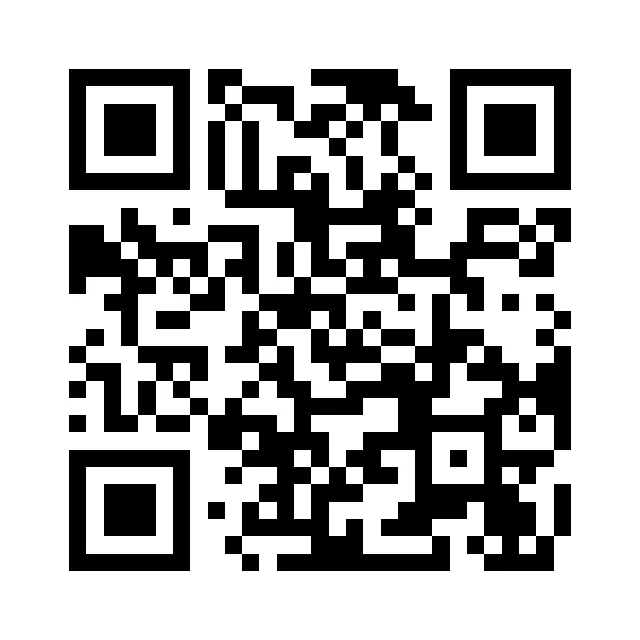 Reference image 1STEP 1
Upload a working code
Select Illusion Diffusion in the AI QR code generator and upload an existing QR image that already scans to your intended destination.
- Example settingsIllusion Diffusion1K1:1PromptOutputSTEP 2
Describe a restrained scene
Brief the AI QR code generator on simple artwork while preserving contrast, recognizable corner structures, and a clear surrounding quiet zone.
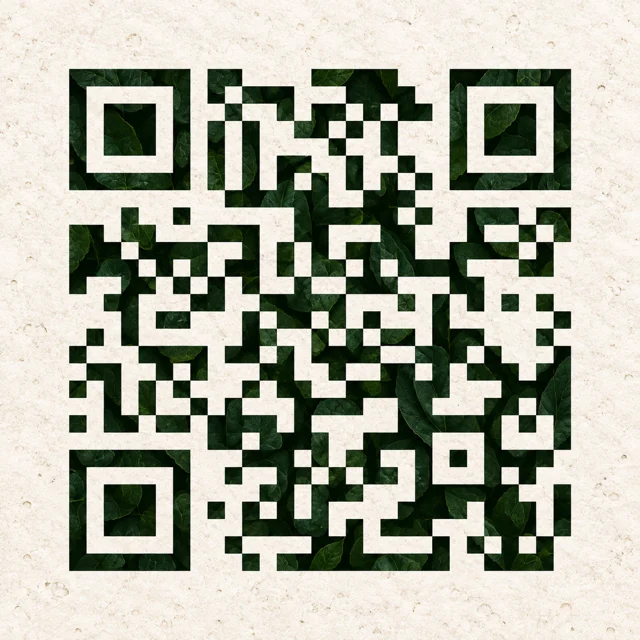 BeforeAfterTest scan passedSTEP 3
Generate one PNG
Check displayed credits in the AI QR code generator, then create one square 1024-pixel PNG from your code and scene prompt.
- STEP 4
Test the final file
Scan AI QR code generator output on multiple devices, at intended display sizes and on printed proofs, before using that exact file.
Features
Choose an AI QR code generator scene that supports the pattern
Give the AI QR code generator a scene with broad, contrasting shapes.
Match the artwork to the invitation
For a garden workshop, try cream paving surrounded by dark green leaves. For a ceramics event, try pale shelves and restrained terracotta forms. Give the AI QR code generator a visual connection to the destination rather than a scene chosen only for complexity.
- Use one setting and a restrained palette in the first attempt.
- Describe the AI QR code generator scene without adding slogans or decorative lettering.
Keep the visual ingredients simple
A courtyard with foliage offers fewer competing structures than a crowded festival with faces and signs. Ask the AI QR code generator for a calm composition. Dense textures may look attractive while making the original pattern harder to distinguish and the result harder to evaluate.
Prefer clear tonal separation
Describe dark foliage against pale stone rather than several similar middle tones. The AI QR code generator can explore color while you inspect the separation between important regions. Do not judge contrast only by the largest preview; also examine the planned display size.
Protect useful structure in AI QR code generator artwork
Review AI QR code generator candidates for clear boundaries before choosing decorative detail.
Leave the surrounding margin quiet
The quiet zone is the clear area surrounding the code. Keep leaves, frames, captions, and neighboring layout elements away from it. Tell the AI QR code generator to leave an unobstructed light margin, then inspect whether the returned artwork actually respects that direction.
- Do not crop tightly into the outer code pattern.
- Check AI QR code generator margins again after placing the artwork in a layout.
Watch the recognizable corner structures
Compare the prominent corner markers with the uploaded source. If artwork obscures or distorts them, simplify the scene instead of assuming a scanner will compensate. The AI QR code generator produces a candidate image; visual resemblance alone does not establish that it remains readable.
Avoid bright glare and muddy shadows
A convincing reflection can cross several important code regions, while a dark vignette can collapse their contrast. Ask the AI QR code generator for even illumination. Keep dramatic lighting outside the central assignment when it makes the functional pattern difficult to inspect.
Use a focused AI QR code generator workflow
Keep the source constant while changing the AI QR code generator art direction.
Upload the code and describe the scene
Select the uploaded QR image and write a short scene prompt. The AI QR code generator uses Illusion Diffusion in image mode and returns one square 1024 by 1024 PNG. The workspace starts at 1:1, 1K, and one output for this task.
- Check the displayed credits before submitting the current configuration.
- Keep each AI QR code generator file with the prompt that produced it.
Change one visual direction at a time
Compare a leafy courtyard with a quieter stone garden before adding more objects. Keeping the same source helps you judge the visual change. When an AI QR code generator candidate fails to scan, reduce complexity or choose a stronger contrast rather than adding decoration.
Choose function before visual novelty
A less elaborate candidate that survives realistic scanning tests is more useful than a beautiful failure. Shortlist AI QR code generator images by readability first, then compare their art direction. Keep the original plain code available as a fallback for demanding placements.
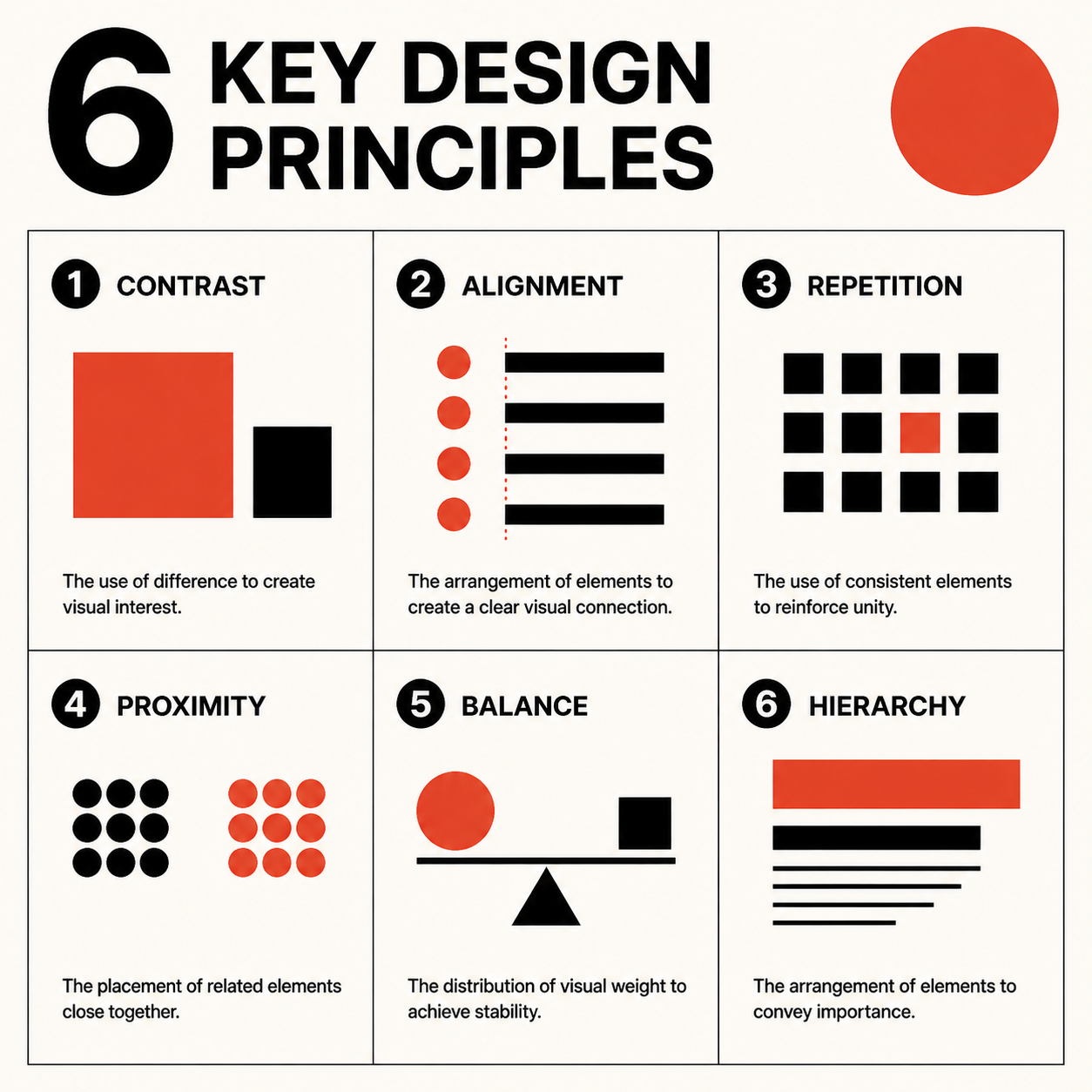
Test the final AI QR code generator file in context
Test every AI QR code generator output at its actual destination and size.
Try more than one device
Open the finished file at its planned display size and scan it using different phones or scanning applications. Confirm the decoded destination each time. An AI QR code generator result working once on your own screen is not enough evidence for every visitor.
- Test normal viewing distances and ordinary lighting conditions.
- Retest AI QR code generator artwork after resizing, compression, or layout changes.
Inspect the printed version
Print a sample using the planned material and approximate final size. Check for glare, ink spreading, low contrast, or awkward placement. The AI QR code generator preview cannot show every change introduced by a printer, glossy finish, curved surface, or dim display area.
Check the complete published arrangement
Place the artwork beside the actual headline, border, and surrounding graphics before scanning again. A layout can intrude on previously clear space. Review the AI QR code generator file as visitors will encounter it, not isolated on a large empty editing canvas.
Put AI QR code generator artwork to work clearly
Pair AI QR code generator artwork with a useful invitation outside the code.
Explain the action outside the image
Add a short instruction such as View the workshop schedule in your separate layout. Keep it outside the clear margin. The AI QR code generator artwork can carry the visual mood while ordinary editable text tells visitors why they should scan it.
- Make the surrounding invitation specific to the destination.
- Do not cover AI QR code generator artwork with a button or decorative badge.
Preserve the tested version
Save the exact approved file and note the placements and sizes you checked. Avoid replacing it with an untested export at the last moment. Treat a changed AI QR code generator image as a new candidate, even when the difference seems visually minor.
Keep an alternative route available
A readable short address or another way to find the information helps visitors who cannot scan in that setting. Use the AI QR code generator as one invitation route, not the only access path to an essential booking detail, menu, or event instruction.
Example prompts
Leafy courtyard with clear code structure
Use my uploaded, already working QR image as the structural reference. Create a restrained courtyard artwork with deep green leaves, cream limestone paths, and softly painted botanical texture. Keep the light and dark code regions clearly separated, the corner markers recognizable, and a clean light quiet zone around the entire code. Use even diffuse light with no glare or deep vignette. Do not add text, logos, faces, frames, or objects crossing the clear margin. Prioritize a simple pattern that I can scan-test afterward.
Quiet ceramics display in two main tones
Integrate the uploaded working QR pattern into a calm ceramics display with dark terracotta shelving and pale cream negative spaces. Keep the composition square and understated, with broad shapes rather than dense miniature details. Retain distinct corner structures, strong tonal separation, and an unobstructed light outer margin. Use soft even illumination and avoid reflective glaze across important pattern regions. No captions, logos, ornamental border, or people. This is a candidate artwork that will be tested for scanning after generation.
User reviews
EveryGen AI video creator feedback.
EveryGen AI creator reviews

I made a full character PV for my game with MiniMax H3 in one afternoon. The menu UI stayed readable in every frame and the character never went off-model. That used to cost me a contractor and three weeks.

We tested every AI video generator on the market for stylized work. H3 is the only one that held our anime style across cuts. We now use it for pitch reels and animatics on every project.

I uploaded four product photos and got a listing video with music and a voiceover the same day. My click-through rate on the new listings is up 38%. H3 even got the label text on my packaging right.

I ship five vertical videos a week for three brands. MiniMax H3 gets me from brief to draft in under an hour, with sound already synced. My old workflow needed a videographer and two review rounds.

The editing side is what sold me. A client wanted the background of an interview changed — I typed one sentence into MiniMax H3 and the lighting on the subject matched the new scene automatically.

I previsualized my entire short film in MiniMax H3 before we shot a single frame. Rack focus, match cuts, even the title cards — it understands director language, not just keywords.
EveryGen AI · MiniMax H3 Max Pricing and Credit Plans
Cancel anytime
Lite
50% off0.025 / credit
Billed $ yearly179· Save $179.8
Video Models


Image Models



- Includes MiniMax H3 and all premium models
- Up to 1 batch generation task
- Standard generation speed
- Standard generation success rate
- Standard customer support
- Commercial Use License
Standard
50% off0.017 / credit
Billed $ yearly299· Save $299.8
Video Models
Image Models
- Includes MiniMax H3 and all premium models
- Up to 4 batch generation tasks
- Priority processing speed
- High generation success rate
- Priority customer support
- Commercial Use License
Pro
50% off0.014 / credit
Billed $ yearly599· Save $599.8
Video Models
Image Models
- Includes MiniMax H3 and all premium models
- Up to 10 batch generation tasks
- Fastest generation speed
- High generation success rate
- Dedicated account manager
- Commercial Use License
Max
50% off0.012 / credit
Billed $ yearly1,199· Save $1,199.8
Video Models
Image Models
- Includes MiniMax H3 and all premium models
- Up to 10 batch generation tasks
- Fastest generation speed
- High generation success rate
- Dedicated account manager
- Commercial Use License
Pay safely and securely with























FAQ
Frequently asked questions
Does the AI QR code generator turn a URL into a code?
No. Upload a QR image that already contains the desired address and already scans correctly. The AI QR code generator adds visual interpretation through a scene prompt; it does not encode a typed URL. Check the original destination before creating artwork and check the final output afterward.
Will every generated image scan successfully?
No. The AI QR code generator can change functional details while creating artwork. Scan each final file on multiple devices, at the intended display sizes, and on printed samples when relevant. Confirm the actual destination rather than counting any scanner response as a successful test.
What file will I receive?
This workflow returns one 1024 by 1024 PNG. The AI QR code generator starts with a square image configuration and one output. Review the credits displayed before submitting. Avoid assuming that settings described on unrelated image-generation pages also apply to this dedicated QR workflow.
What should I change after a failed scan?
Return to a clear source, simplify the scene, strengthen tonal separation, and protect the surrounding margin. Generate another AI QR code generator candidate and test it independently. Do not publish a failed result simply because its pattern looks similar to the original when viewed at a large size.
Can a tested example prove my own artwork will work?
No. A successful sample establishes only that the particular file decoded under the tested conditions. Your AI QR code generator output needs its own checks after every relevant change. Keep a plain working code available when artistic treatment makes the intended placement unreliable.
CTA
Start the AI QR code generator with a tested code
Upload a working code, describe one restrained scene, and review the credits. Choose AI QR code generator artwork by its appearance and final-file scanning results, then test the actual placement.
Create QR artwork