 EveryGen AI
EveryGen AI · AI Video Background Remover for subjects you can place elsewhere
Separate a moving subject from its surroundings before placing it in another composition. The EveryGen AI AI Video Background Remover uses Bria Video Background Removal to produce transparent WebM video while retaining source audio. Give the AI Video Background Remover a clear short clip, then inspect the moving outline rather than judging the cutout from one still frame.
Video workspace
Upload one MP4/MOV video under 30 seconds and below 4000 × 4000 pixels. Download transparent WebM with original audio.
Prepare the portrait video cutout
10/18View prompt
Prepare the adult woman’s portrait video with her face, hair, shoulders, and visible gestures inside the frame. Keep it shorter than thirty seconds, with both dimensions below 4000 pixels, and load it into Video Input. Review the transparent VP9 WebM against light and dark backgrounds, checking moving hair edges, internal gaps, and retained source audio.
Introduction
Give the AI Video Background Remover a clear subject
Use the AI Video Background Remover when you need a moving cutout, not a generated replacement scene or a newly imagined version of the person.
Separate removal from replacement
A portrait cutout can become a foreground layer for a presentation. The AI Video Background Remover removes the surrounding scene rather than generating another room. Plan the replacement composition after checking the isolated subject.
Use the dedicated video model
This workflow uses Bria Video Background Removal with one video shorter than thirty seconds. The AI Video Background Remover accepts source dimensions below 4000 pixels in both width and height. Choose an appropriate short file rather than trying to upload an entire presentation.
Keep the audible performance
The AI Video Background Remover retains the source audio in its transparent WebM output. A speaker’s recording can therefore remain associated with the moving cutout. Listen to that audio during review, especially when the visual destination differs from the environment where the clip was recorded.
How to use
How to use the AI Video Background Remover
- InputReference video 1STEP 1
Select your short clip
Upload one video shorter than thirty seconds to the AI Video Background Remover, with both dimensions below four thousand pixels.
- Example settingsBria Video Background Removalsource5s
 OutputSTEP 2
Use dedicated removal
Choose Bria Video Background Removal in the AI Video Background Remover; no prompt, background image, or green-screen color selection is needed.
- Illustrative preview
 BeforeAfter
The subject stays; the room disappears. Check hair and hand edges throughout your processed video.
STEP 3Check and process
Review the Create quote for your loaded AI Video Background Remover clip, then start removal and wait for the processed file.
- STEP 4
Inspect the cutout
Check AI Video Background Remover edges, transparency, and retained source audio, then download the VP9 WebM for your next composition.
Features
Prepare an AI Video Background Remover source with readable edges
Examine the subject boundary before processing. A useful AI Video Background Remover source makes the person, clothing, and intended foreground objects reasonably distinct from the surroundings.
Keep the full movement in frame
Hands extending beyond the frame cannot become complete hands simply because the background disappears. Choose an AI Video Background Remover source with room for the actual gesture. Check the beginning, middle, and ending so a good opening does not hide later clipping.
- Leave comfortable space around hair and the widest visible gesture.
- Check the AI Video Background Remover source through the entire action.
Notice similar foreground and background colors
Dark hair against a dark wall or pale fabric against a bright window can make the boundary difficult to judge. Review those areas closely in the AI Video Background Remover output. Prefer a clearer source when you have several recordings of the same performance.
Identify objects that should remain
If the speaker holds a mug or a book, include it in your visual review of the foreground. The AI Video Background Remover has no text instruction for selecting individual objects. Check whether the delivered cutout includes the items needed to understand the gesture.
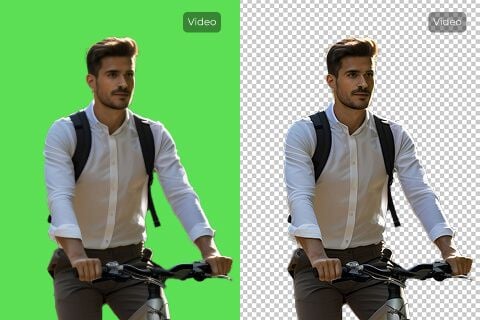
Inspect AI Video Background Remover transparency as transparency
The AI Video Background Remover produces transparent WebM encoded with VP9. Inspect that file in a workflow capable of using its transparent areas.
Do not confuse a preview background with pixels
A viewer may display transparency against a plain background. Judge the AI Video Background Remover file by how the subject composites over another layer, not just the background color of one preview. A displayed white or dark area alone does not explain the underlying transparency.
- Place the cutout over a contrasting layer in your own editor.
- Inspect AI Video Background Remover edges against both light and dark surfaces.
Keep the actual transparent file
Use the delivered WebM when moving the cutout into your next application. A screenshot of an AI Video Background Remover preview is a still picture, not the transparent video layer. Keep the original output available when testing another export or a different composition.
Distinguish this from still-image removal
A transparent PNG is appropriate to a still-image workflow, but this page delivers moving WebM video. Keep the AI Video Background Remover result separate from image cutouts in your asset folder. Clear naming helps collaborators choose the correct source when assembling layouts.
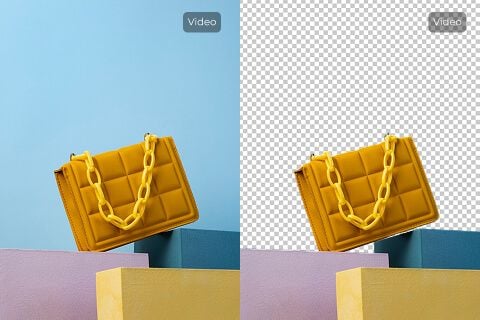
Review AI Video Background Remover results during motion
A single sharp frame does not establish a stable cutout. Watch the AI Video Background Remover output at normal speed, then inspect weak moments more closely.
Follow hair and fine contours
Loose hair and fine clothing edges may look different as the subject turns. Trace these areas through the AI Video Background Remover result, looking for disappearing strands, leftover background, or unstable borders. Judge the full movement rather than choosing the most flattering paused frame.
- Watch the boundary as the subject moves through changing backgrounds.
- Compare AI Video Background Remover detail before and after a head turn.
Check the spaces inside the pose
The gap between an arm and the body can reveal retained background that is easy to miss around the outside contour. Inspect those openings in the AI Video Background Remover output. Also review spaces between fingers, around handles, and beneath loose fabric.
Inspect overlap and reappearance
When a hand crosses the face or a prop moves in front of the body, inspect both the overlapping moment and what follows. The AI Video Background Remover should be assessed for a coherent foreground shape, including details that disappear briefly and then return.

Place AI Video Background Remover cutouts with intention
The AI Video Background Remover supplies a foreground asset. The next composition still needs suitable scale, placement, and a background that supports the existing performance.
Choose a believable placement
A seated portrait may suit a corner presentation overlay better than a full scene that implies standing on a floor. Use the AI Video Background Remover result according to the visible crop. Do not build a layout that requires body parts absent from the source.
Respect the recorded lighting
A subject lit strongly from one side may look disconnected over a background lit from the opposite direction. Choose surroundings that work with the AI Video Background Remover foreground. Removing the original setting does not automatically relight the person for every possible destination.
Add backgrounds outside this workflow
This page has no background upload or green-screen color selector. Download the AI Video Background Remover result and compose it elsewhere. Keep text independently editable when preparing the presentation rather than baking it into the foreground.

Finish AI Video Background Remover review before delivery
Check image, transparency, and sound together. An AI Video Background Remover result is ready for your project only when those parts work in the intended destination.
Test the receiving application
Import the WebM into the actual application you plan to use. Confirm that its transparency appears as intended and that the source audio plays. This AI Video Background Remover handoff check is more useful than assuming every preview or export path treats transparent video identically.
Review the duration-based quote
The actual input duration affects the task cost. Check the Create quote after loading the clip in the AI Video Background Remover rather than assuming the same credit amount for every file. Choose a focused segment that contains the performance you genuinely need.
Keep a source comparison
Keep the original video alongside the approved cutout. Compare AI Video Background Remover results against that source when questioning a missing object or unstable edge, giving collaborators a concrete reference for further review.

Example prompts
Source preparation: a clear portrait video
Prepare one short video of the adult portrait subject with the face, hair, shoulders, and visible gestures inside the frame. Keep the source below thirty seconds and below 4000 pixels in each dimension. Load the file in Video Input, then inspect the transparent WebM for moving edges and retained audio.
Source preparation: speaker with a small prop
Choose a short clip of an authorized adult speaker holding the object needed for the presentation. Keep the hand and prop visible through the movement, without cutting them off at the frame edge. Upload the prepared video and review the resulting foreground against contrasting backgrounds in your own composition workflow.
User reviews
EveryGen AI video creator feedback.
EveryGen AI creator reviews

I made a full character PV for my game with MiniMax H3 in one afternoon. The menu UI stayed readable in every frame and the character never went off-model. That used to cost me a contractor and three weeks.

We tested every AI video generator on the market for stylized work. H3 is the only one that held our anime style across cuts. We now use it for pitch reels and animatics on every project.

I uploaded four product photos and got a listing video with music and a voiceover the same day. My click-through rate on the new listings is up 38%. H3 even got the label text on my packaging right.

I ship five vertical videos a week for three brands. MiniMax H3 gets me from brief to draft in under an hour, with sound already synced. My old workflow needed a videographer and two review rounds.

The editing side is what sold me. A client wanted the background of an interview changed — I typed one sentence into MiniMax H3 and the lighting on the subject matched the new scene automatically.

I previsualized my entire short film in MiniMax H3 before we shot a single frame. Rack focus, match cuts, even the title cards — it understands director language, not just keywords.
EveryGen AI · MiniMax H3 Max Pricing and Credit Plans
Cancel anytime
Lite
50% off0.025 / credit
Billed $ yearly179· Save $179.8
Video Models


Image Models



- Includes MiniMax H3 and all premium models
- Up to 1 batch generation task
- Standard generation speed
- Standard generation success rate
- Standard customer support
- Commercial Use License
Standard
50% off0.017 / credit
Billed $ yearly299· Save $299.8
Video Models
Image Models
- Includes MiniMax H3 and all premium models
- Up to 4 batch generation tasks
- Priority processing speed
- High generation success rate
- Priority customer support
- Commercial Use License
Pro
50% off0.014 / credit
Billed $ yearly599· Save $599.8
Video Models
Image Models
- Includes MiniMax H3 and all premium models
- Up to 10 batch generation tasks
- Fastest generation speed
- High generation success rate
- Dedicated account manager
- Commercial Use License
Max
50% off0.012 / credit
Billed $ yearly1,199· Save $1,199.8
Video Models
Image Models
- Includes MiniMax H3 and all premium models
- Up to 10 batch generation tasks
- Fastest generation speed
- High generation success rate
- Dedicated account manager
- Commercial Use License
Pay safely and securely with
























FAQ
Frequently asked questions
What does the AI Video Background Remover output?
The result is transparent WebM video encoded with VP9, with the source audio retained. Use the actual output file in a compatible composition workflow rather than a screenshot of its preview.
Does the AI Video Background Remover require a green screen?
This workflow does not provide a green-screen color selector. Upload a clear short video and inspect the separated subject. Readable boundaries and a useful source crop matter more than writing instructions, since there is no prompt field.
What are the AI Video Background Remover input limits?
Upload one video shorter than thirty seconds. Both width and height must be below 4000 pixels. Prepare a suitable source segment before uploading when your original recording exceeds those limits.
Can the AI Video Background Remover add another room?
Not within this page’s controls. It removes the background and returns a transparent foreground video. Combine that result with a new background in your separate composition workflow, checking lighting, scale, and the visible crop.
Will the AI Video Background Remover keep every hair perfectly?
No perfect edge result is guaranteed. Watch loose hair, moving fingers, and gaps inside the pose across the clip. Review against contrasting backgrounds and retain the source so you can identify any missing or unstable details.
CTA
Prepare a moving cutout with the AI Video Background Remover
Choose a clear short clip, review the Create quote, and process the source. Inspect transparency and sound before placing the subject into the next layout.
Remove the video background