 EveryGen AI
EveryGen AI · AI avatar generator for a recognizable face at small sizes
Make a profile picture that still reads when it becomes a small circle beside a comment. The EveryGen AI AI avatar generator uses your reference image with GPT Image 2 to explore framing, expression, and visual style. Start in image mode at 1:1 and 1K. Use the AI avatar generator to simplify what matters about the subject, not to squeeze an entire scene into a tiny icon.
Image workspace
Sample Image
 6 / 17
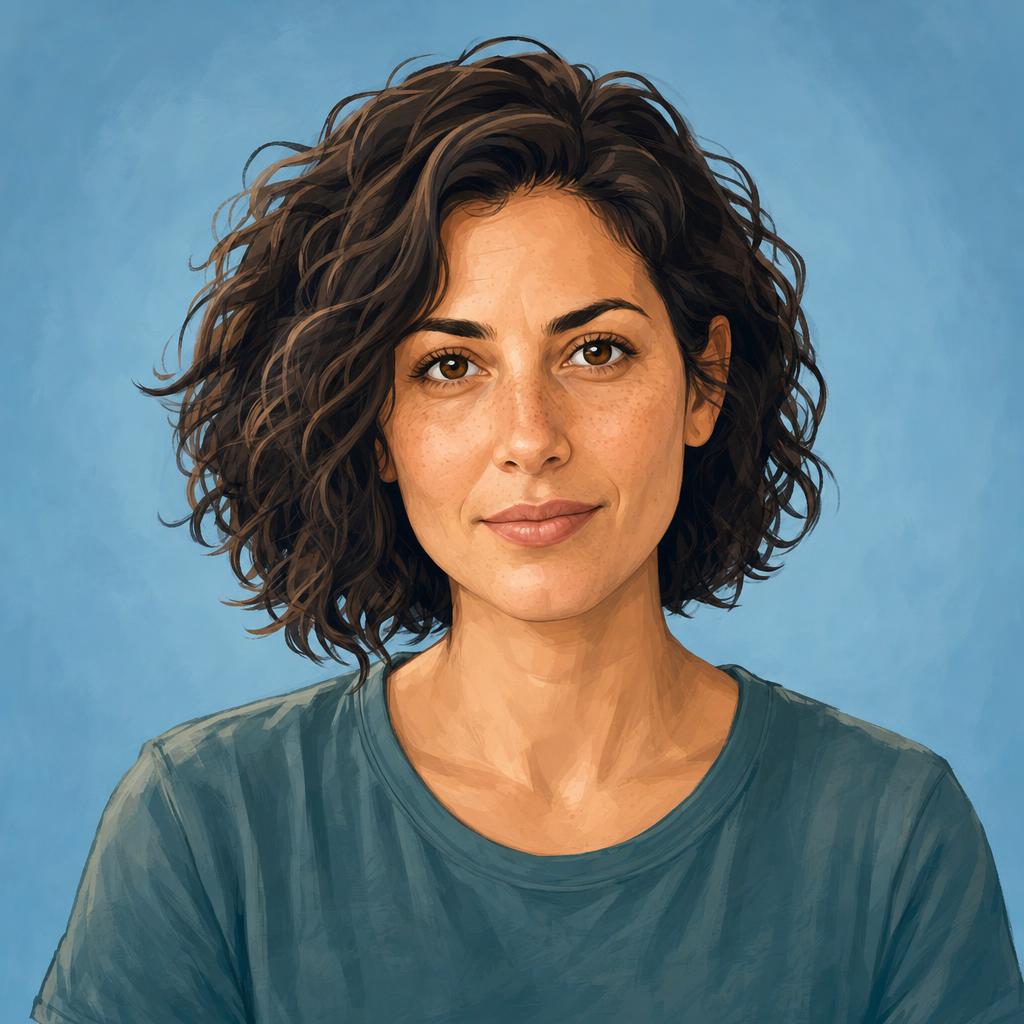
AI-generated fictional portrait.
Introduction
Give the AI avatar generator a small-format goal
An avatar is often seen before it is inspected. Tell the AI avatar generator which features should remain recognizable when the picture is reduced, surrounded by interface elements, or displayed beside text.
Choose one visual subject
Use one face or clearly defined character rather than a person, pet, desk, and landscape together. The AI avatar generator needs a hierarchy. At small sizes, several meaningful objects can collapse into an indistinct shape instead of communicating more about the account.
- Start with the face and silhouette before adding accessories.
- Keep the AI avatar generator background secondary to the subject.
Preserve a few recognizable cues
A hairstyle, glasses shape, or distinctive color combination may remain readable after tiny facial details disappear. Name those cues in the AI avatar generator brief. Choose features actually present in the reference instead of inventing accessories simply to make the picture more noticeable.
Test the concept at its likely size
Look at the candidate as a small thumbnail, not only a large portrait. You can test an AI avatar generator result at several small sizes in your design workflow. Ask whether the face, expression, and outline still read without zooming in to explain them.
How to use
How to use the AI avatar generator
- Input
 Reference image 1STEP 1
Choose a reference
Upload your authorized portrait or character reference to the AI avatar generator, then select GPT Image 2 reference editing.
- ModelGPT Image 21K1:1PromptOutputSTEP 2
Simplify the design
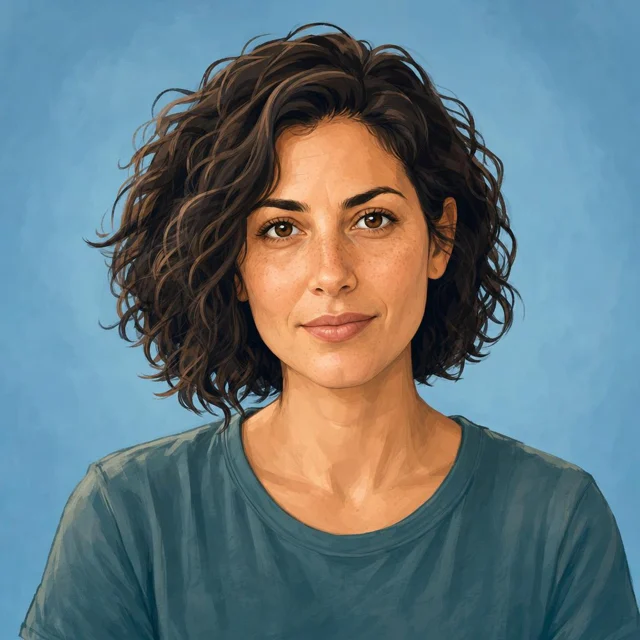
Give the AI avatar generator a distinctive silhouette, limited colors, and uncluttered background, keeping important features clear inside a square composition.
 BeforeAfterSTEP 3
Create an option
Start the AI avatar generator at square 1K, review the displayed credits, and generate a profile image with comfortable crop margins.
- STEP 4
Preview at small sizes
Compare AI avatar generator results in small square and circular previews, checking facial readability and consistent styling before choosing your avatar.
Features
Compose the AI avatar generator image for a clear crop
The starting canvas is square, but many profile layouts show a circular crop. Give the AI avatar generator room around the subject so both presentations can be evaluated without cutting off defining features.
Keep the face near the center
A centered face is easier to adapt than one pressed against a corner. Ask the AI avatar generator for comfortable space above the hair and beside the cheeks. Check the subject within the intended crop rather than assuming every square picture will work equally well.
- Leave important hair, ears, and accessories inside the likely crop area.
- Check AI avatar generator candidates as both squares and circles.
Use shoulders to support the silhouette
A little shoulder shape can anchor the head without turning the avatar into a full portrait. Tell the AI avatar generator how much of the upper body to include. Avoid elaborate gestures when the hands would be too small to remain understandable.
Keep border effects optional
A bold ring or bright outer edge may look useful in one interface and awkward in another. Begin with a clean AI avatar generator composition. Add decorative framing only after checking the actual profile layout, where a second border might already surround the image.
Choose a consistent AI avatar generator visual style
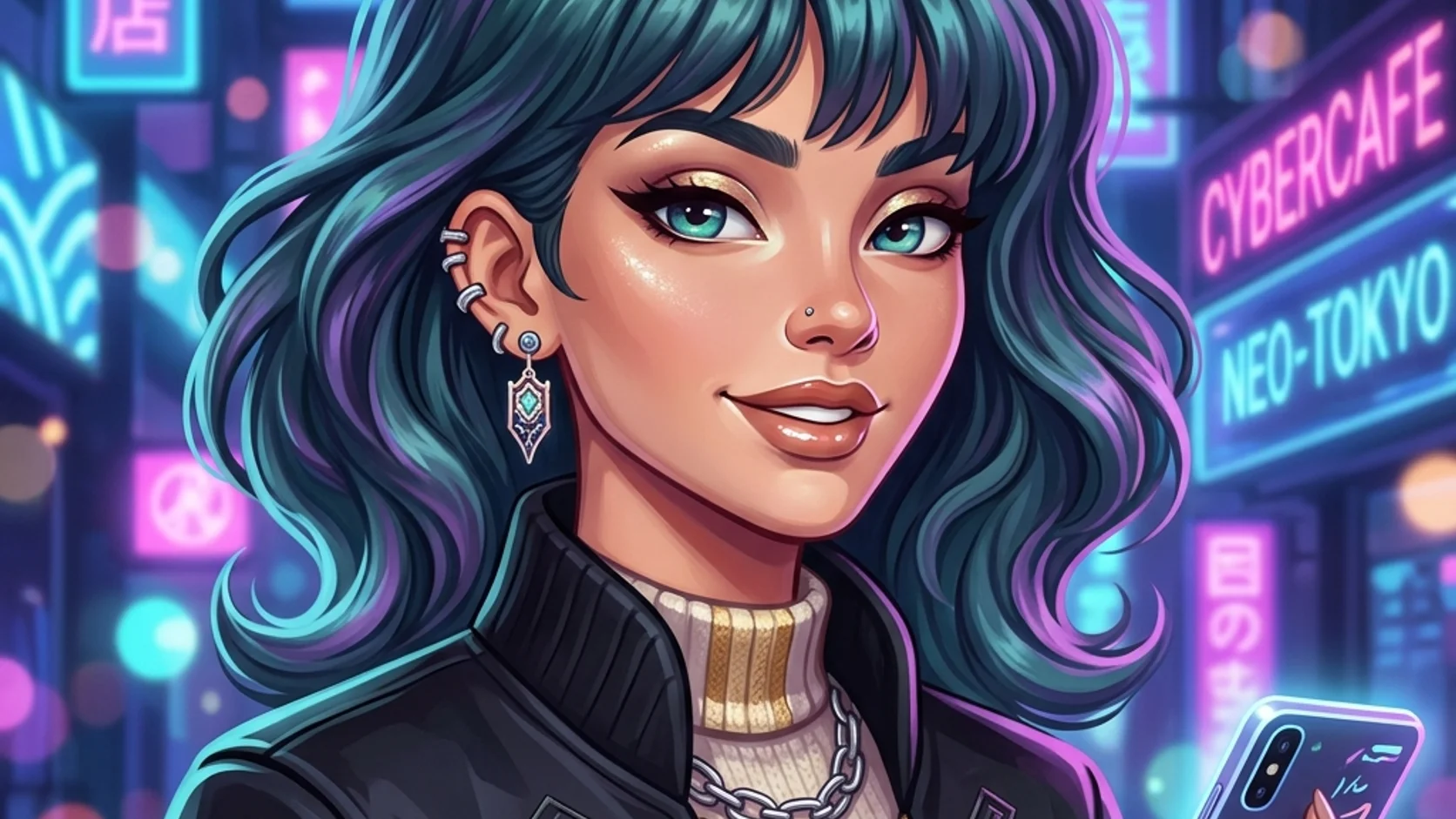
Different styles simplify a face in different ways. Give the AI avatar generator concrete instructions for linework, shading, color, and texture rather than asking for every popular visual treatment at once.
Use a small set of style decisions
Try clean contours, two or three broad shading tones, and a quiet solid background. These directions give the AI avatar generator a coherent look. Too much tiny texture can make a friendly face appear noisy when it is displayed at comment-thread size.
- Choose one main style and a restrained color palette.
- Ask the AI avatar generator for simplified detail without erasing defining features.
Choose expression for a quick reading
A relaxed gaze or slight smile can remain understandable without exaggerated facial distortion. Tell the AI avatar generator how approachable, focused, or playful the expression should feel. Compare mouth and eyes together; small discrepancies become surprisingly noticeable in a simplified face.
Distinguish simplification from a different person
Stylization can reduce texture while retaining recognizable proportions and features. Ask the AI avatar generator to keep those cues from the reference. Review the result for resemblance rather than accepting any polished illustration with the same hair color as a successful avatar.
Build contrast with the AI avatar generator
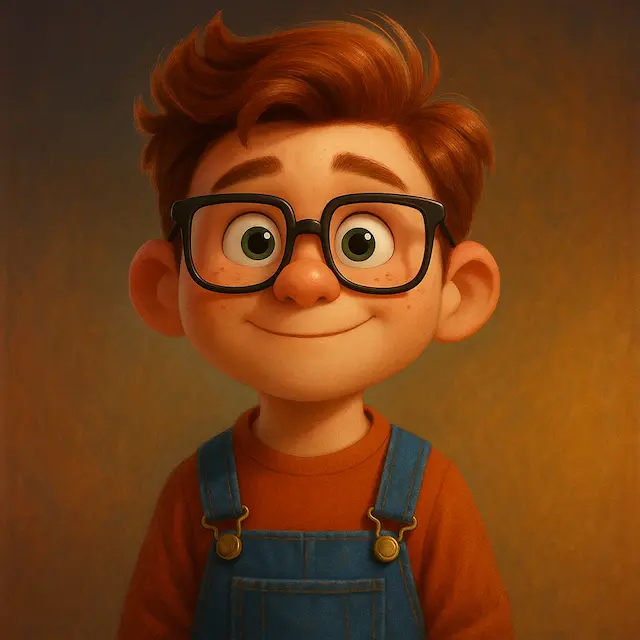
The face should separate from its surroundings without depending on a large display. Guide the AI avatar generator toward clear value differences and a background that supports the silhouette.
Avoid merging hair into the backdrop
Dark hair against a dark background can lose its outline. Ask the AI avatar generator for a quieter, lighter backing or a gentle separation in tone. Judge the entire silhouette rather than adding bright highlights that distract from the face itself.
- Try a background that contrasts with the dominant hair and clothing tones.
- Review AI avatar generator contrast on both light and dark surrounding interfaces.
Limit decorative objects and tiny lettering
Initials, small badges, and intricate background patterns may become clutter at avatar size. Keep the first AI avatar generator concept free of those additions. Add any final lettering separately in your design process only after verifying that it remains readable at the intended size.
Use color to connect a set
For related profile pictures, a shared background tone can create continuity without forcing identical faces. Record the palette for future AI avatar generator briefs. Inspect each result independently, because repeating the same color instruction does not guarantee perfectly matched output across different requests.
Run an AI avatar generator reference workflow
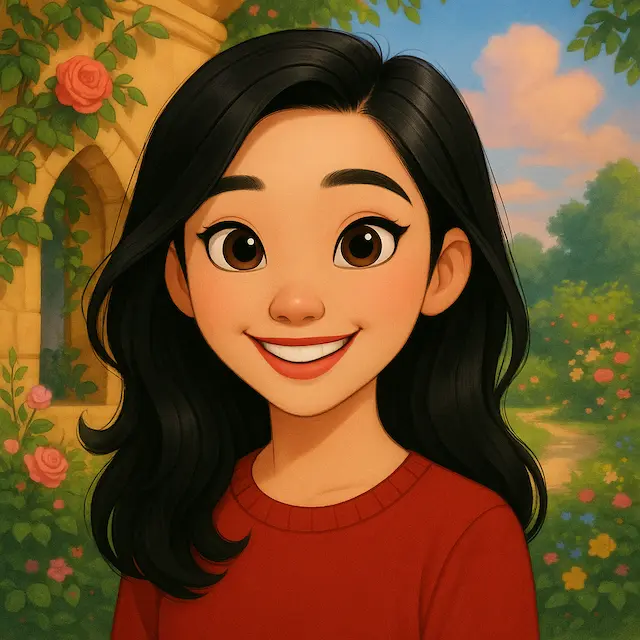
Keep the first concept simple enough to judge at a small size before exploring further stylistic variations.
Upload and identify the subject
Describe the subject, recognizable cues, style, expression, and quiet background in that order. Keep the face prominent within the square.
Set references and outputs deliberately
Assign supporting references roles such as palette or style. Review framing, resolution, output count, and displayed credits before submission.
Compare candidates at thumbnail size
Choose by readability, resemblance, and crop flexibility. If the face is too small, revise the AI avatar generator framing before increasing resolution.
Keep AI avatar generator versions coherent
An account may need a square profile picture, a cropped circle, and a larger author image. Treat the AI avatar generator result as a source to evaluate for those placements, not an automatically published profile update.
Keep one approved visual direction
Record the chosen expression, palette, crop, and style with the approved result. Use these notes for the next AI avatar generator revision. A stable brief is more useful than trying to recreate the whole direction from adjectives after each new version.
Check light and dark presentation contexts
Place the image beside the actual interface colors where possible. The AI avatar generator output should remain legible without relying on a particular page background. Check whether pale clothing disappears on white or a dark outer edge vanishes in a dark theme.
Approve the face before replacing a profile image
Compare the avatar with the reference and obtain the subject's approval when appropriate. The AI avatar generator does not guarantee identity consistency or update accounts automatically. Save the approved image, then make the profile change yourself in the intended service.
Example prompts
A clean illustrated profile avatar
Use the person in my uploaded reference as the subject. Create an original illustrated square profile avatar with recognizable facial proportions, hairstyle, and glasses if present. Center the face with a small amount of shoulders and comfortable room around the hair for a later circular crop. Use clean contours, broad soft shading, a relaxed expression, and a quiet muted blue background. Keep details readable at small sizes. No text, logos, badges, border rings, or extra objects.
A soft painterly avatar with a quiet palette
Use my uploaded portrait as the person reference. Create a simplified painterly square avatar with a centered head-and-shoulders composition, natural expression, and recognizable personal cues. Use restrained brush texture, warm skin tones, dark simple clothing, and a pale sage background with clear separation around the hair. Keep the face large enough to read as a small thumbnail while leaving room for a circular crop. Avoid tiny decorative details, lettering, logos, and elaborate scenery.
User reviews
EveryGen AI video creator feedback.
EveryGen AI creator reviews

I made a full character PV for my game with MiniMax H3 in one afternoon. The menu UI stayed readable in every frame and the character never went off-model. That used to cost me a contractor and three weeks.

We tested every AI video generator on the market for stylized work. H3 is the only one that held our anime style across cuts. We now use it for pitch reels and animatics on every project.

I uploaded four product photos and got a listing video with music and a voiceover the same day. My click-through rate on the new listings is up 38%. H3 even got the label text on my packaging right.

I ship five vertical videos a week for three brands. MiniMax H3 gets me from brief to draft in under an hour, with sound already synced. My old workflow needed a videographer and two review rounds.

The editing side is what sold me. A client wanted the background of an interview changed — I typed one sentence into MiniMax H3 and the lighting on the subject matched the new scene automatically.

I previsualized my entire short film in MiniMax H3 before we shot a single frame. Rack focus, match cuts, even the title cards — it understands director language, not just keywords.
EveryGen AI · MiniMax H3 Max Pricing and Credit Plans
Cancel anytime
Lite
50% off0.025 / credit
Billed $ yearly179· Save $179.8
Video Models


Image Models



- Includes MiniMax H3 and all premium models
- Up to 1 batch generation task
- Standard generation speed
- Standard generation success rate
- Standard customer support
- Commercial Use License
Standard
50% off0.017 / credit
Billed $ yearly299· Save $299.8
Video Models
Image Models
- Includes MiniMax H3 and all premium models
- Up to 4 batch generation tasks
- Priority processing speed
- High generation success rate
- Priority customer support
- Commercial Use License
Pro
50% off0.014 / credit
Billed $ yearly599· Save $599.8
Video Models
Image Models
- Includes MiniMax H3 and all premium models
- Up to 10 batch generation tasks
- Fastest generation speed
- High generation success rate
- Dedicated account manager
- Commercial Use License
Max
50% off0.012 / credit
Billed $ yearly1,199· Save $1,199.8
Video Models
Image Models
- Includes MiniMax H3 and all premium models
- Up to 10 batch generation tasks
- Fastest generation speed
- High generation success rate
- Dedicated account manager
- Commercial Use License
Pay safely and securely with























FAQ
Frequently asked questions
Does the AI avatar generator need my reference photo?
This page starts with reference editing. Give the AI avatar generator an authorized photograph or character image that establishes the subject. For a completely invented subject described only in words, use the text-based generation workflow instead of expecting this reference brief to supply a real likeness.
Can the AI avatar generator make a circle-ready picture?
Ask for a centered composition with space around important features. The AI avatar generator starts with a square canvas; check the result inside the circular crop used by your destination. Do not assume the service will crop every candidate in the same helpful way.
Will the AI avatar generator keep my face identical?
Exact likeness is not guaranteed. The AI avatar generator may change facial proportions and other details while simplifying the reference. Compare recognizable cues, not only hair color or clothing, and reject a stylish candidate that does not represent the intended person.
Should I choose 4K in the AI avatar generator for a tiny icon?
Begin by fixing the composition and readability. The AI avatar generator offers 1K, 2K, and 4K, but a tiny displayed image does not become clearer simply because its source has more pixels. Choose the resolution for your broader uses and check the displayed credits.
Can the AI avatar generator keep several versions consistent?
A shared brief and reference can guide the direction, but consistency is not guaranteed. Keep the approved AI avatar generator image and style notes, then compare new versions against them. Check palette, face proportions, expression, and crop rather than accepting every variation as the same identity.
CTA
Make the AI avatar generator brief work at small sizes
Choose a clear reference, a simple style, and a crop with room to breathe. Use the AI avatar generator to explore the idea, then compare the face as a small square and circle before choosing your profile image.
Create a reference-based avatar