 EveryGen AI
EveryGen AI · Seedance 2.0 for Video Briefs with a Consistent Visual Identity
Bring a subject, setting, and motion idea together with Seedance 2.0 on H3 Max. Generate from text, animate supplied frames, or direct a clip using mixed references. Seedance 2.0 lets you choose a short duration, output resolution, and audio setting while keeping the creative brief at the center.
Video workspace
A portrait in flat cartoon colors
12/18View prompt
Use @Video 1 as the source adult woman’s portrait performance. Reinterpret the footage as flat-color cartoon animation with clean outlines, restrained shading, and a simple coherent palette. Follow the existing facial movement, head direction, framing, and background arrangement. Create a five-second interpretation without adding new gestures, extra subjects, camera changes, or written captions.
Introduction
What Is Seedance 2.0?
Seedance 2.0 is ByteDance's video generation model, available through fal as separate text-to-video, image-to-video, and reference-to-video endpoints.
Generate with words or supplied evidence
Seedance 2.0 accepts a written scene when no source image is needed, starting and optional ending frames for image animation, or mixed media for reference-guided generation. Its reference route uses images, videos, and audio to inform the requested result. Seedance 2.0 also provides an option for generated synchronized sound. These inputs guide a new video; they are not clips automatically assembled on a conventional editing timeline.
Choose a defined configuration on H3 Max
The Seedance 2.0 workspace offers four-to-fifteen-second videos at 480p, 720p, 1080p, or 4K output. Choose text, image, or reference mode and set whether to generate audio. In reference mode, the individual media limits sit inside an overall twelve-file allowance. Work from a concise creative specification, and review the available controls and credit quote before committing to a particular combination of settings.
How to use
How to Direct Seedance 2.0 on H3 Max
- Input
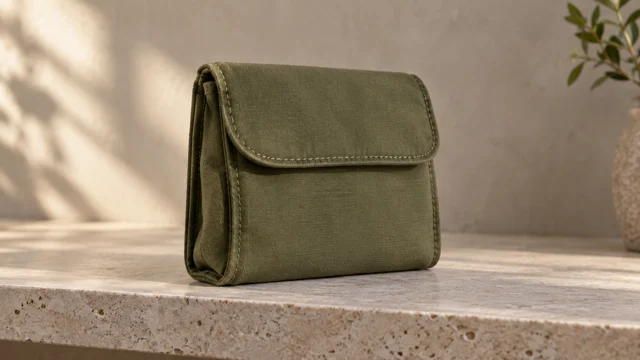 Reference image 1STEP 1
Choose the source of direction
Select Seedance 2.0 and decide whether the scene begins with text, frame images, or mixed references. Gather only the inputs needed for that route before writing the final brief.
- Example settingsSeedance 2.0 Pro480p10sPromptOutputSTEP 2
Assign the creative roles
Tell Seedance 2.0 which input defines appearance, which suggests movement, and what the scene should show. In image mode, add an ending frame only when it serves the transition.
- Illustrative preview
Keep the product stationary while the camera pulls back from the seam to the full silhouette.
STEP 3Review the configuration
Set the duration from four to fifteen seconds, choose an available resolution, and decide on audio. Check the Seedance 2.0 reference limits and workspace credits before submitting.
- STEP 4
Select a result by its purpose
Review Seedance 2.0 motion, sound, and recognizable details together. Compare the take with the original brief, keep what works, and change one specific decision for the next attempt.
Features
Establish a Visual Identity with Seedance 2.0
Give Seedance 2.0 separate instructions for the subject, environment, and movement so reference inputs have clearly defined responsibilities.
Build a focused Seedance 2.0 reference hierarchy
For a fictional travel accessory, one picture might establish its construction while another defines the color of the surrounding set. A short video could demonstrate the desired camera approach. Tell Seedance 2.0 which input has authority over each part of the scene. Ask Seedance 2.0 to retain the accessory's shape without importing unrelated labels, people, or props from the movement reference.
Resolve contradictions before uploading
Two equally prominent references can suggest incompatible materials or lighting. Decide whether the object should look matte or polished, whether the set is bright or shadowed, and which image defines those choices. Seedance 2.0 can then be evaluated against an intentional hierarchy. Remove duplicates that add no information, and keep a written note of reference order when comparing several versions of the same concept.
Describe Visible Decisions to Seedance 2.0
Text mode gives Seedance 2.0 a scene to construct without requiring an existing photograph or a reference collection.
Translate the Seedance 2.0 mood into staging
Instead of requesting an impressive launch video, describe a folded travel pouch standing on a stone shelf, side light crossing its fabric, and a modest camera approach. Give Seedance 2.0 an arrangement the viewer can understand. Position the important subject first, then explain its action and surroundings. A restrained brief provides a clearer basis for judging the result than a long collection of competing visual adjectives.
Use time to reveal information
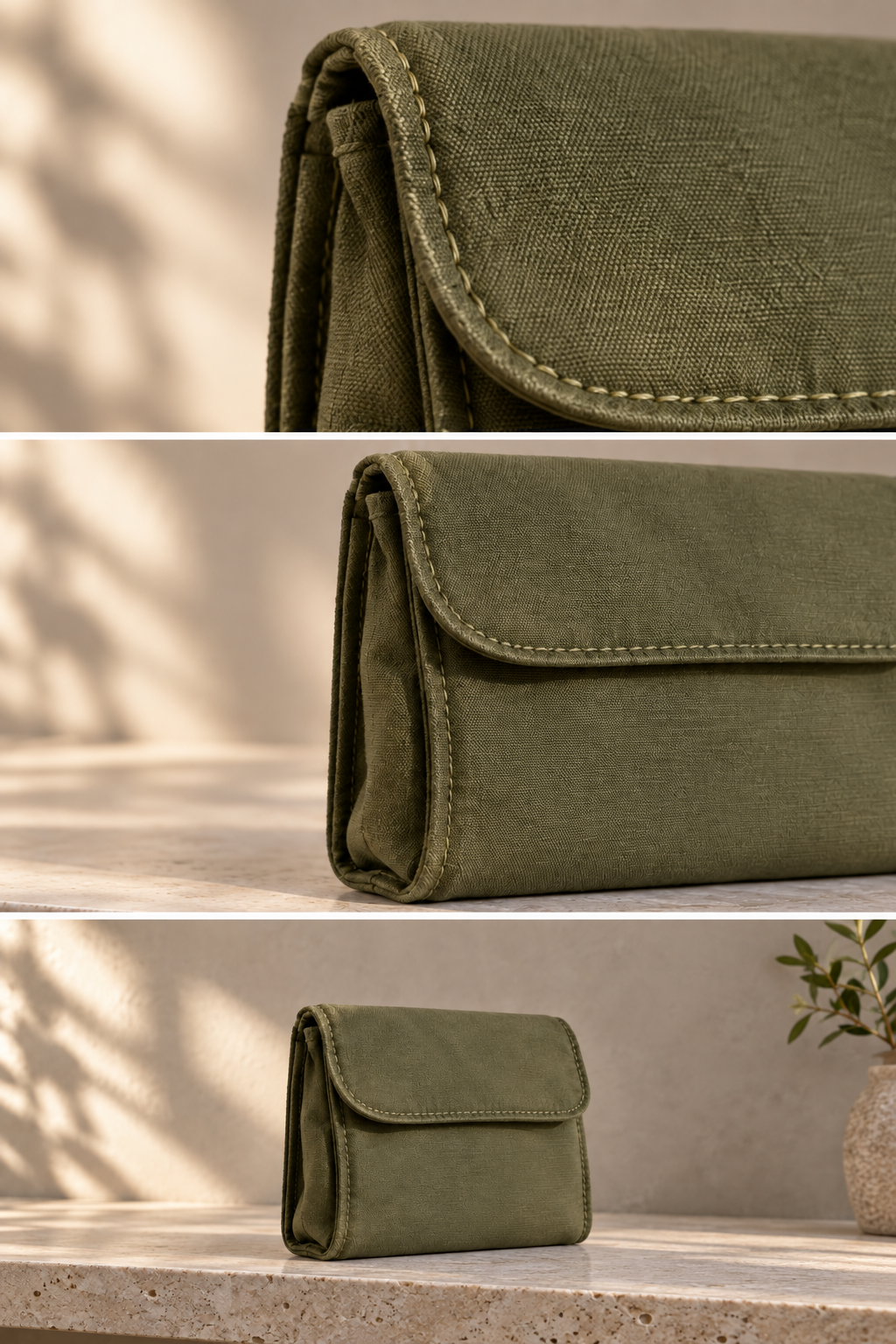
Specify what the viewer notices first and what becomes visible later. A twelve-second Seedance 2.0 brief might begin on a stitched edge, reveal the complete pouch, and finish with the object centered. The movement should uncover something useful rather than circle aimlessly. Review whether Seedance 2.0 follows that progression, and simplify the shot when several actions compete for the same small window.
Plan Frame-to-Frame Motion with Seedance 2.0
In image mode, Seedance 2.0 uses your opening composition and can work toward a supplied ending composition.
Preserve the important starting relationships
Show the subject at a useful scale, with a visible support surface and clear separation from its background. Seedance 2.0 should receive an opening image that already expresses the visual idea. In the motion brief, identify the relationships that matter: the pouch remains upright, the seam stays on the same side, and the supporting shelf remains stationary. Ask Seedance 2.0 to change only the intended movement.
Distinguish endpoints from extra references
An ending frame specifies where image animation should arrive; it is not simply another mood reference. Keep its subject and spatial arrangement compatible with the opening when continuity matters. Seedance 2.0 may still reinterpret details between the two pictures, so review the transition throughout its duration. Use reference mode instead when you have multiple images describing identity or style rather than two intended scene endpoints.
Give Seedance 2.0 an Audible Environment
Choose whether Seedance 2.0 should generate sound, then describe the relationship between the picture and its audible setting.
Make sound reinforce the central action
A fabric zip, a footstep, or a soft environmental sound can support the visible event without dominating it. With Seedance 2.0, write the desired sound beside the action that causes it. Keep spoken lines brief enough for the chosen duration, and identify who speaks. Avoid layering unrelated dialogue over an otherwise quiet product scene unless that contrast is part of the actual creative idea.
Separate generation from recording reuse
Audio references can inform a reference-guided request, but they are not a promise of an exact recording reproduced unchanged. Review the Seedance 2.0 soundtrack for intelligibility, unexpected voices, and effects that start before or after their visual cause. Choose a silent Seedance 2.0 result when a separate sound mix is required. Keep only the audio and visual elements that support the intended message.
Select the Right Seedance 2.0 Output
The Seedance 2.0 workspace offers several output sizes; the creative decision remains whether the finished shot communicates clearly.
Treat resolution as an output choice
Select 480p, 720p, 1080p, or 4K according to the workspace options and the intended destination. Seedance 2.0 output size is not a guarantee of extra physical accuracy or exact typography. Inspect a candidate at a practical viewing scale, then examine the details that matter. Judge Seedance 2.0 on object structure, background continuity, and believable contact with surfaces rather than the resolution label alone.
Keep Seedance 2.0 revisions comparable
When choosing between takes, keep the same subject description and reference order unless those are the variables being tested. Change one element, such as the pace of the approach or the amount of background activity. Review the Seedance 2.0 credit quote whenever the configuration changes. A small, documented revision gives you a more useful comparison than a completely different prompt with several settings changed together.
Example prompts
Text: travel pouch reveal
Create one ten-second shot of a folded olive fabric travel pouch standing upright on a pale stone shelf. Begin close to the stitched edge, then pull back gently to reveal the whole item. Keep the shelf and pouch stationary. Soft afternoon side light, simple background, subtle room ambience. No hands, added labels, captions, or scene cuts. Finish with a steady view of the complete silhouette.
Image: reach the ending display
Use the uploaded opening frame and ending frame as the visual endpoints. Over eight seconds, make a slow camera movement toward the ending display composition. Keep the object dimensions, seam placement, materials, and shelf consistent. Avoid inserting accessories or changing the product. Let the final framing settle. Quiet ambience, no music or spoken words.
Reference: separate look from movement
Use @Image1 for the travel accessory identity, @Image2 for the studio colors and lighting, and @Video1 only for the pace and direction of camera movement. Create a twelve-second shot in the supplied visual style. Preserve the accessory silhouette and fabric appearance. Do not import the reference video's subject or background. Add gentle room ambience without dialogue or text overlays.
User reviews
EveryGen AI video creator feedback.
EveryGen AI creator reviews

I made a full character PV for my game with MiniMax H3 in one afternoon. The menu UI stayed readable in every frame and the character never went off-model. That used to cost me a contractor and three weeks.

We tested every AI video generator on the market for stylized work. H3 is the only one that held our anime style across cuts. We now use it for pitch reels and animatics on every project.

I uploaded four product photos and got a listing video with music and a voiceover the same day. My click-through rate on the new listings is up 38%. H3 even got the label text on my packaging right.

I ship five vertical videos a week for three brands. MiniMax H3 gets me from brief to draft in under an hour, with sound already synced. My old workflow needed a videographer and two review rounds.

The editing side is what sold me. A client wanted the background of an interview changed — I typed one sentence into MiniMax H3 and the lighting on the subject matched the new scene automatically.

I previsualized my entire short film in MiniMax H3 before we shot a single frame. Rack focus, match cuts, even the title cards — it understands director language, not just keywords.
EveryGen AI · MiniMax H3 Max Pricing and Credit Plans
Cancel anytime
Lite
50% off0.025 / credit
Billed $ yearly179· Save $179.8
Video Models


Image Models



- Includes MiniMax H3 and all premium models
- Up to 1 batch generation task
- Standard generation speed
- Standard generation success rate
- Standard customer support
- Commercial Use License
Standard
50% off0.017 / credit
Billed $ yearly299· Save $299.8
Video Models
Image Models
- Includes MiniMax H3 and all premium models
- Up to 4 batch generation tasks
- Priority processing speed
- High generation success rate
- Priority customer support
- Commercial Use License
Pro
50% off0.014 / credit
Billed $ yearly599· Save $599.8
Video Models
Image Models
- Includes MiniMax H3 and all premium models
- Up to 10 batch generation tasks
- Fastest generation speed
- High generation success rate
- Dedicated account manager
- Commercial Use License
Max
50% off0.012 / credit
Billed $ yearly1,199· Save $1,199.8
Video Models
Image Models
- Includes MiniMax H3 and all premium models
- Up to 10 batch generation tasks
- Fastest generation speed
- High generation success rate
- Dedicated account manager
- Commercial Use License
Pay safely and securely with























FAQ
Frequently asked questions
Which generation modes does Seedance 2.0 offer?
H3 Max provides text, image, and reference modes. Text creates a scene from your description. Image mode animates an opening frame with an optional ending frame. Reference mode draws guidance from a deliberately chosen collection of media.
How many references can I add?
Seedance 2.0 accepts up to nine images, three videos, and three audio files, with no more than twelve files combined. For example, nine images and three videos fill the allowance. Audio references also require a visual reference.
Can Seedance 2.0 create a silent video?
Yes. Turn generated audio off for a clip intended for a separate soundtrack. When audio is enabled, describe relevant ambience, effects, or concise dialogue. Check the resulting sound rather than assuming every requested detail has been followed.
Are first and last images supported?
Seedance 2.0 image mode accepts an opening image and an optional last image. Use the pair to establish a planned transition. Multiple identity or style references belong in reference mode instead of being treated as additional endpoint frames.
What duration and output sizes are available?
Seedance 2.0 supports four to fifteen seconds on H3 Max, with 480p, 720p, 1080p, and 4K output choices. Review the current workspace configuration before generating. A resolution choice describes output, not a guarantee of native rendering.
Does Seedance 2.0 reproduce every reference detail exactly?
No exact preservation is promised. References guide the generated scene, but fine markings, materials, and identity can change. Compare important frames with the supplied images and reject differences that would make the result unsuitable for its purpose.
How are credits shown before generation?
The Seedance 2.0 workspace displays the quote for your selected settings and inputs. Check it after changing the configuration, especially before repeating a request. Use that displayed amount rather than assuming every clip has the same cost.
CTA
Turn a Clear Brief into a Seedance 2.0 Shot
Bring the references that matter, choose the input mode, and check your credits. Start a Seedance 2.0 project on H3 Max with a specific visual decision to explore.
Open the Video Workspace