 EveryGen AI
EveryGen AI · AI icon generator for symbols that stay clear when small
Start with the meaning of the control, then give it a readable shape. The EveryGen AI AI icon generator explores original symbol concepts through GPT Image 2, beginning in text mode at 1:1 and 1K. Use the AI icon generator to compare silhouettes and visual systems before preparing the precise assets your interface or project requires.
Image workspace
Sample Image
 24 / 30
AI-generated otter mascot concept with a leafy sprig.
Introduction
Give the AI icon generator a clear meaning
Tell the AI icon generator what the control means before choosing its appearance.
Name the action rather than the decoration
For a saved-items control, a simple bookmark may communicate more directly than a detailed shelf of books. Give the AI icon generator the intended action and context. The symbol should help someone understand the interface rather than merely fill an empty square.
- Write the control label in your brief even when it stays outside the image.
- Keep the AI icon generator request focused on one meaning.
Choose a familiar or explainable metaphor
A compass can suggest exploration, while a tray may suggest incoming items. Pick the relationship your audience is likely to understand. Ask the AI icon generator to explore that metaphor without combining several objects that introduce a second, competing interpretation.
Distinguish neighboring controls
Compare the intended symbol with icons that appear beside it. A bookmark and a flag may become confusing when both are tiny. Give the AI icon generator enough context to develop a different silhouette, while keeping the overall style related to its neighbors.
How to use
How to use the AI icon generator
- PromptSTEP 1
Choose one meaning
Select GPT Image 2 text mode in the AI icon generator and describe one action, object, or category the symbol should communicate.
- ModelGPT Image 21K1:1PromptSTEP 2
Define the visual system
Brief the AI icon generator on silhouette, stroke weight, corner treatment, and limited colors so related concepts share a visual language.
- Detail
 STEP 3
Generate a square study
Start the AI icon generator at square 1K, review the displayed credits, and generate a clean symbol against a plain background.
- Create one original square icon concept for an Explore navigation control. Use a simple filled compass-needle silhouette with one broad negative-space opening, rounded corners, and no miniature direction letters. Deep navy on a plain warm ivory background, comfortable margins, flat front view, no shadows or texture. The symbol must remain recognizable in a small interface preview. No wordmark, text, border, collage, extra symbols, or simulated app screenshot. Output a clean raster concept for later production refinement.DownloadSTEP 4
Inspect small previews
Check AI icon generator results at small sizes, then download the JPEG concept; use separate background removal for transparency when appropriate.
Features
Shape the AI icon generator result around its silhouette
Use the AI icon generator to simplify the contour before adding color or texture.
Reduce the number of visible parts
A location symbol can work with one dominant outline and a single interior opening. Ask the AI icon generator to avoid miniature buildings inside it unless they change the meaning. Each extra component takes space from the part viewers need to recognize.
- Describe one dominant shape and only essential internal detail.
- Test the AI icon generator result without relying on texture or highlights.
Preserve useful negative space
The opening in a handle or the gap between two forms can disappear when reduced. Tell the AI icon generator to keep these spaces broad and distinct. Judge the actual small preview rather than assuming a gap visible at full resolution is sufficient.
Control protrusions and corners
Tiny spikes, uneven corners, or decorative flourishes can make a simple symbol feel noisy. Ask the AI icon generator for a deliberate contour with restrained detail. Keep corners consistent with the intended family instead of mixing soft, rounded forms with accidental sharp edges.

Build an AI icon generator style family
Describe shared construction rules for related AI icon generator requests, not just matching colors.
Choose filled or outlined construction
Decide whether the symbols use solid masses, open outlines, or a deliberately pictorial treatment. Give the AI icon generator that choice explicitly. Mixing a heavy filled folder with a delicate outlined compass can make neighboring controls feel unrelated even in the same color.
- Keep line character, corner treatment, and detail density consistent.
- Compare AI icon generator concepts in one shared row rather than separately.
Balance visual weight across shapes
A broad circle may appear heavier than a narrow bookmark inside equal squares. Ask the AI icon generator for similar perceived weight, then compare the results. You may need external refinements; equal image dimensions alone do not create optically balanced interface symbols.
Use color as support, not the only distinction
Select a restrained palette, but make each icon understandable from its shape. Review monochrome versions or simple tonal previews in your design workflow. An AI icon generator family should not depend entirely on subtle color differences to distinguish important destinations or actions.
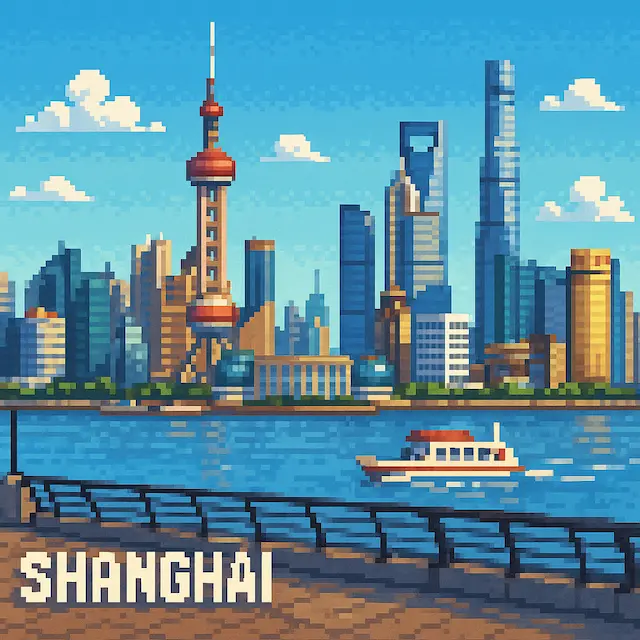
Review AI icon generator ideas at actual viewing size
Inspect AI icon generator candidates at their intended size and against the real interface.
Compare at the intended scale
Place a candidate in your layout at the planned icon size, then look at it without zooming. Identify the silhouette first. If its meaning disappears, revise the AI icon generator request toward fewer parts or wider gaps instead of adding more resolution.
- Use the same preview size when comparing alternative symbols.
- Check AI icon generator details against both light and dark surroundings.
Leave breathing room inside the image
A symbol pressed against the square boundary can feel cramped and become difficult to crop. Ask the AI icon generator for comfortable internal margins. Keep the main shape centered optically, not merely positioned so its most extreme points are mathematically balanced.
Review states in the real interface
Your application may need selected, inactive, or disabled appearances. Plan those states in the interface design rather than assuming a generated image implements them. Use the AI icon generator for the underlying concept and check its behavior alongside actual labels and controls.
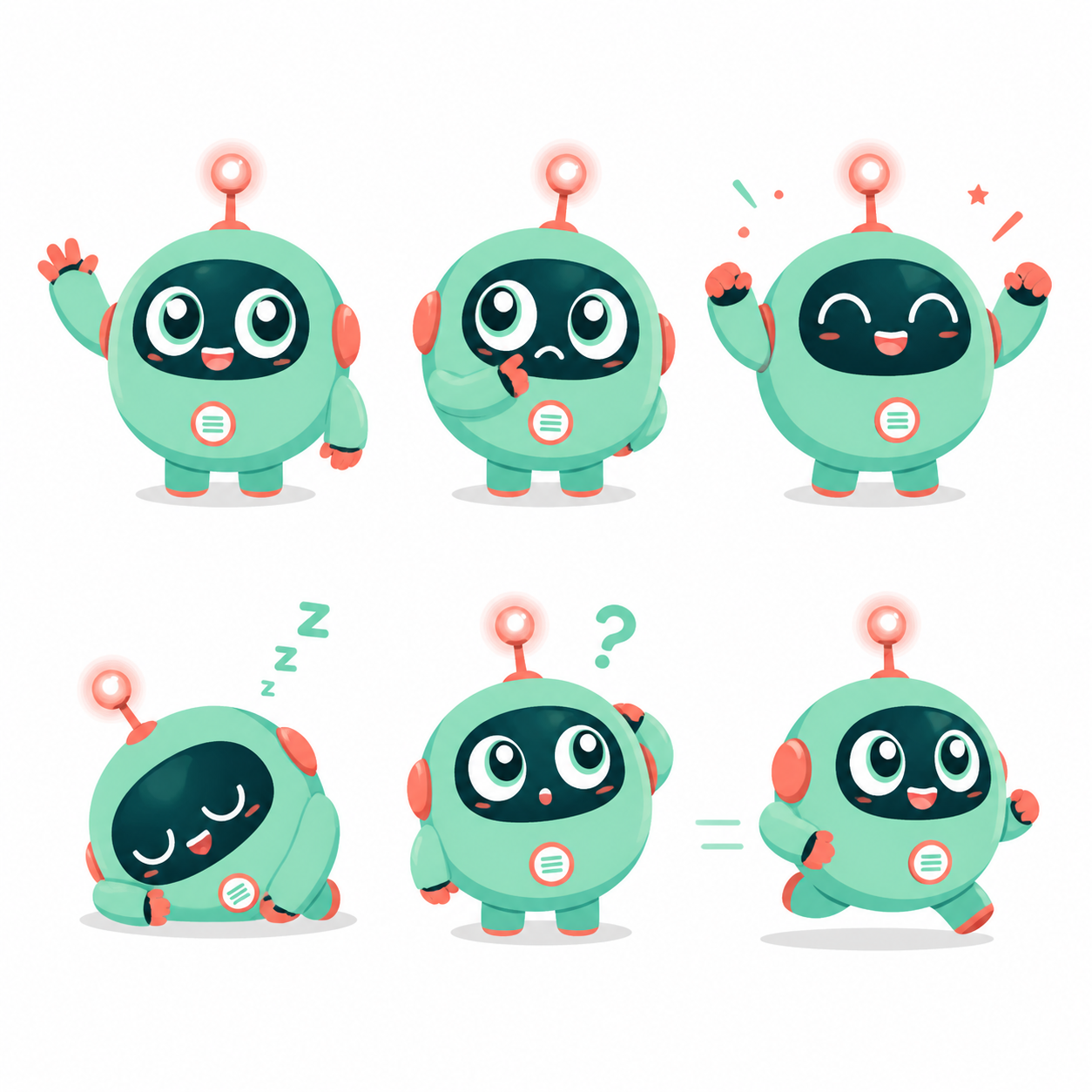
Use the AI icon generator for focused alternatives
Settle the AI icon generator meaning and construction before expanding a symbol family.
Begin with a square text request
Start at 1:1 and 1K with GPT Image 2 text mode. Describe the symbol meaning, construction, palette, and empty background. Review the AI icon generator settings and displayed credits before submitting, then compare the first results for clarity rather than decoration.
- Ask for one icon, not a sheet of miniature unrelated symbols.
- Keep the AI icon generator background plain during the first review.
Use references with specific roles
GPT Image 2 image mode supports up to sixteen references. You can supply an authorized sketch and a style sample, explaining which controls shape and which controls appearance. Review AI icon generator results for accidental borrowing that changes the intended symbol or family.
Compare variants without multiplying confusion
Choose one to four outputs and supported ratios or 1K, 2K, and 4K as needed. Use the AI icon generator to compare two contour directions or detail levels. Separate outputs are candidate images, not automatically aligned members of a production icon set.
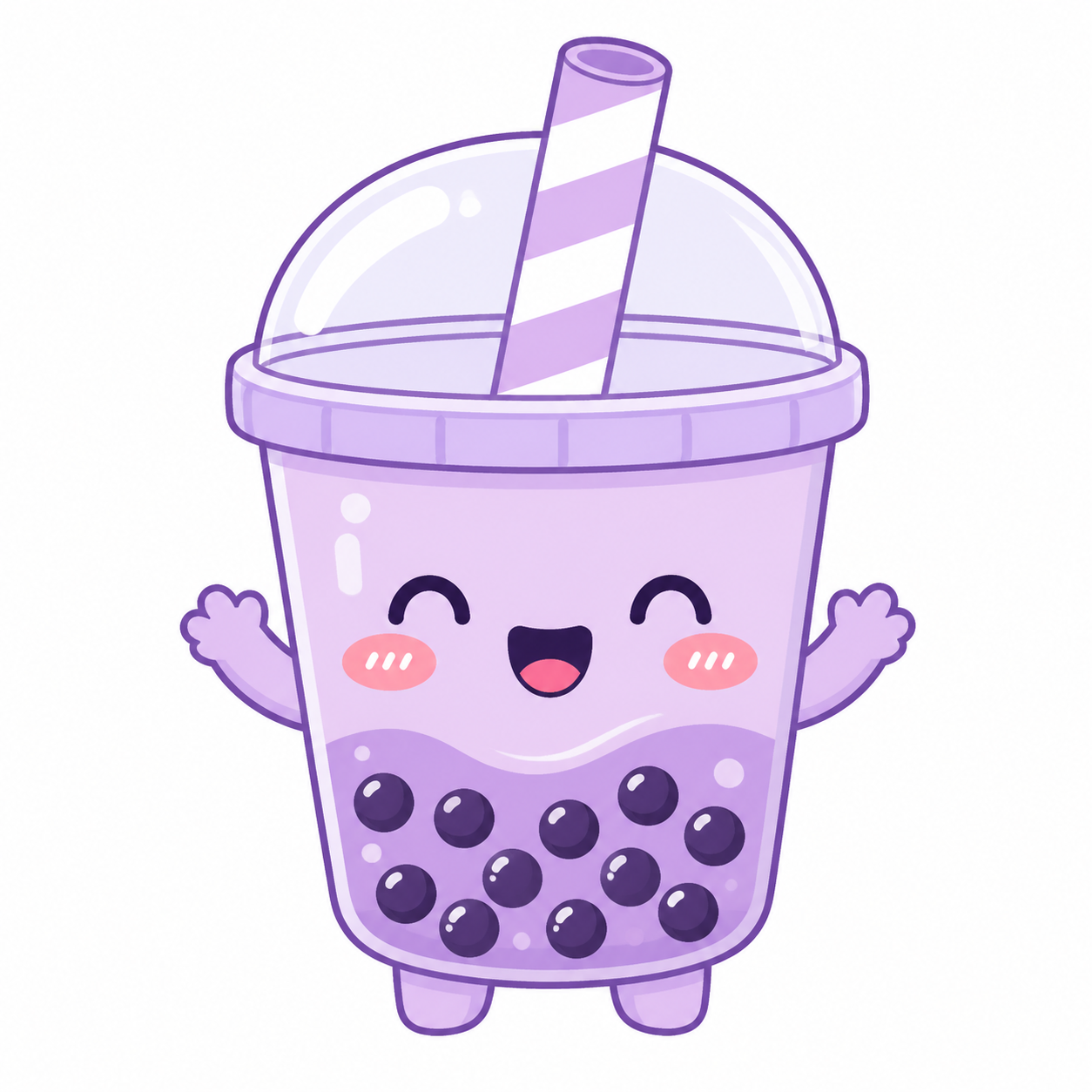
Prepare AI icon generator concepts for your project
Treat AI icon generator output as a concept requiring deliberate production preparation.
Know what the downloaded file contains
The shared GPT Image 2 workspace outputs JPEG images. The AI icon generator does not provide SVG paths, an ICO package, or transparent pixels in that JPEG. Keep the file as a visual concept and prepare required formats in the appropriate design tools.
- Inspect the actual downloaded image rather than just the preview.
- Retain the AI icon generator original before any external cleanup.
Use background removal as a separate step
When a clear isolated symbol needs transparency, you can switch to Bria background removal and inspect the result. This is separate from the AI icon generator request. Check small openings and fine edges afterward; removal does not convert the symbol into editable vector geometry.
Refine the chosen family consistently
Carry approved concepts into a design workflow for exact dimensions, spacing, strokes, and exports. Document the decisions for future additions. The AI icon generator can help explore a family, while the final production pass makes the assets behave consistently in the actual project.
Example prompts
A clear exploration symbol
Create one original square icon concept for an Explore navigation control. Use a simple filled compass-needle silhouette with one broad negative-space opening, rounded corners, and no miniature direction letters. Deep navy on a plain warm ivory background, comfortable margins, flat front view, no shadows or texture. The symbol must remain recognizable in a small interface preview. No wordmark, text, border, collage, extra symbols, or simulated app screenshot. Output a clean raster concept for later production refinement.
A saved-items companion symbol
Create one square icon concept for a Saved items navigation control in the same visual family as a rounded filled compass icon. Use a single broad bookmark silhouette, one simple notch, restrained rounded corners, and similar visual weight. Deep navy shape on plain warm ivory with generous margins. Keep all meaningful gaps wide and avoid tiny folds or realistic paper texture. No lettering, gradients, drop shadow, app mockup, multiple icons, or background decoration. It will be reviewed at small size and refined as a separate production asset.
User reviews
EveryGen AI video creator feedback.
EveryGen AI creator reviews

I made a full character PV for my game with MiniMax H3 in one afternoon. The menu UI stayed readable in every frame and the character never went off-model. That used to cost me a contractor and three weeks.

We tested every AI video generator on the market for stylized work. H3 is the only one that held our anime style across cuts. We now use it for pitch reels and animatics on every project.

I uploaded four product photos and got a listing video with music and a voiceover the same day. My click-through rate on the new listings is up 38%. H3 even got the label text on my packaging right.

I ship five vertical videos a week for three brands. MiniMax H3 gets me from brief to draft in under an hour, with sound already synced. My old workflow needed a videographer and two review rounds.

The editing side is what sold me. A client wanted the background of an interview changed — I typed one sentence into MiniMax H3 and the lighting on the subject matched the new scene automatically.

I previsualized my entire short film in MiniMax H3 before we shot a single frame. Rack focus, match cuts, even the title cards — it understands director language, not just keywords.
EveryGen AI · MiniMax H3 Max Pricing and Credit Plans
Cancel anytime
Lite
50% off0.025 / credit
Billed $ yearly179· Save $179.8
Video Models


Image Models



- Includes MiniMax H3 and all premium models
- Up to 1 batch generation task
- Standard generation speed
- Standard generation success rate
- Standard customer support
- Commercial Use License
Standard
50% off0.017 / credit
Billed $ yearly299· Save $299.8
Video Models
Image Models
- Includes MiniMax H3 and all premium models
- Up to 4 batch generation tasks
- Priority processing speed
- High generation success rate
- Priority customer support
- Commercial Use License
Pro
50% off0.014 / credit
Billed $ yearly599· Save $599.8
Video Models
Image Models
- Includes MiniMax H3 and all premium models
- Up to 10 batch generation tasks
- Fastest generation speed
- High generation success rate
- Dedicated account manager
- Commercial Use License
Max
50% off0.012 / credit
Billed $ yearly1,199· Save $1,199.8
Video Models
Image Models
- Includes MiniMax H3 and all premium models
- Up to 10 batch generation tasks
- Fastest generation speed
- High generation success rate
- Dedicated account manager
- Commercial Use License
Pay safely and securely with
























FAQ
Frequently asked questions
Does the AI icon generator produce vector files?
No. The AI icon generator uses GPT Image 2 and returns JPEG raster concepts. It does not export SVG paths or a ready-made ICO package. Use the chosen concept as a reference when preparing precise scalable assets, dimensions, and file formats in your normal design workflow.
Can I get a transparent background?
Not directly from the JPEG output. You can take a suitable AI icon generator result into the separate Bria background-removal workflow. Inspect its edges and internal openings afterward. A transparent raster file still does not provide editable paths or replace a vector-production step.
How do I keep a set consistent?
Use the same construction, line character, corner treatment, palette, and visual scale. Generate one symbol at a time with the AI icon generator and compare candidates together. Keep notes on accepted choices instead of assuming that identical prompt wording guarantees an exact system.
What should I change when an icon looks unclear?
Simplify the silhouette, widen essential gaps, and remove details that disappear at the intended size. Ask the AI icon generator for a cleaner interpretation of the same meaning. Check it beside its label and neighboring controls before deciding that extra color will solve the problem.
Can I start from my own drawing?
Yes. Switch to GPT Image 2 image mode and provide an authorized sketch. Explain the key shape and intended action to the AI icon generator. Compare the result with the source because exact line placement is not locked, then refine the production geometry separately.
CTA
Give the AI icon generator one meaning to express
Choose the action, simplify the silhouette, and define the family style. Compare AI icon generator concepts at their intended size before preparing the final formats and interface-ready details.
Explore an icon concept