 EveryGen AI
EveryGen AI · AI social media post generator for a focused visual message
Give one post one job: introduce an idea, show a detail, or invite a specific action. The EveryGen AI AI social media post generator creates visual concepts with GPT Image 2, starting in text mode at 1:1 and 1K. Use the AI social media post generator to build the picture while keeping final captions and publishing decisions in your own workflow.
Image workspace
Sample Image
 21 / 30
AI-generated illustration of an unbranded skincare studio scene.
Introduction
Give the AI social media post generator one assignment
Give the AI social media post generator a concrete message for this particular image.
Name the point before the picture
A pottery studio might announce an open workshop by showing a welcoming workbench with one unfinished bowl. Brief the AI social media post generator around that invitation. A broad request to promote creativity offers much less direction for composition and useful detail.
- Choose an announcement, explanation, demonstration, or invitation as the main purpose.
- Keep the AI social media post generator image centered on that purpose.
Pick a scene that explains the idea
For a repair service, a carefully mended fabric seam communicates care more directly than abstract sparks. Give the AI social media post generator a visible action or result. Use symbolism only when the connection is understandable without a paragraph of explanation.
Separate the image from the caption
Decide which information belongs in the picture and which belongs in the accompanying copy. Let the AI social media post generator show the atmosphere or detail. Keep dates, booking instructions, and changing availability in text you can review and update separately.
How to use
How to use the AI social media post generator
- PromptSTEP 1
Set one assignment
Choose GPT Image 2 text mode in the AI social media post generator and describe one message for your intended audience.
- ModelGPT Image 21K1:1PromptSTEP 2
Define the visual recipe
Give the AI social media post generator a subject, palette, and quiet caption area that can support a coherent visual series.
- Layout preview
 Pottery Class: Shape Something NewLayout preview onlySTEP 3
Generate the post image
Start the AI social media post generator at square 1K, check the displayed credits, and generate a standalone visual for review.
- Create a square editorial image for a small pottery studio workshop announcement. Show one unfinished pale clay bowl on a warm wooden workbench with a folded linen cloth and two neatly arranged wooden tools. Soft window light from the left, muted moss-green accent, calm inviting atmosphere. Keep the bowl the clear focal point and leave the upper third quiet for a heading added separately. No people, readable text, logos, dates, promotional claims, or collage panels. The scene should remain understandable at a small feed preview size.DownloadSTEP 4
Review before sharing
Inspect AI social media post generator crops and brand details, add final wording separately, and publish through your own chosen account.
Features
Compose the AI social media post generator image clearly
Plan the AI social media post generator focal point before adding atmosphere.
Use a simple visual hierarchy
Place the important object where its silhouette is easy to read, with quieter shapes around it. Tell the AI social media post generator what should be noticed first. Decorative backgrounds should support that choice rather than becoming a second competing announcement.
- Make the focal object recognizable without zooming into the image.
- Review the AI social media post generator composition against a busy feed-like background.
Plan negative space for actual use
A calm upper corner can hold a heading added later; a centered composition may need no text. Explain the empty space in the AI social media post generator brief. Give that space a purpose instead of treating it as an unused area.
Balance atmosphere with information
A close texture study creates mood but may not explain what is being offered. Combine it with one readable object or action. The AI social media post generator should help the viewer connect an appealing scene with the actual subject of the post.
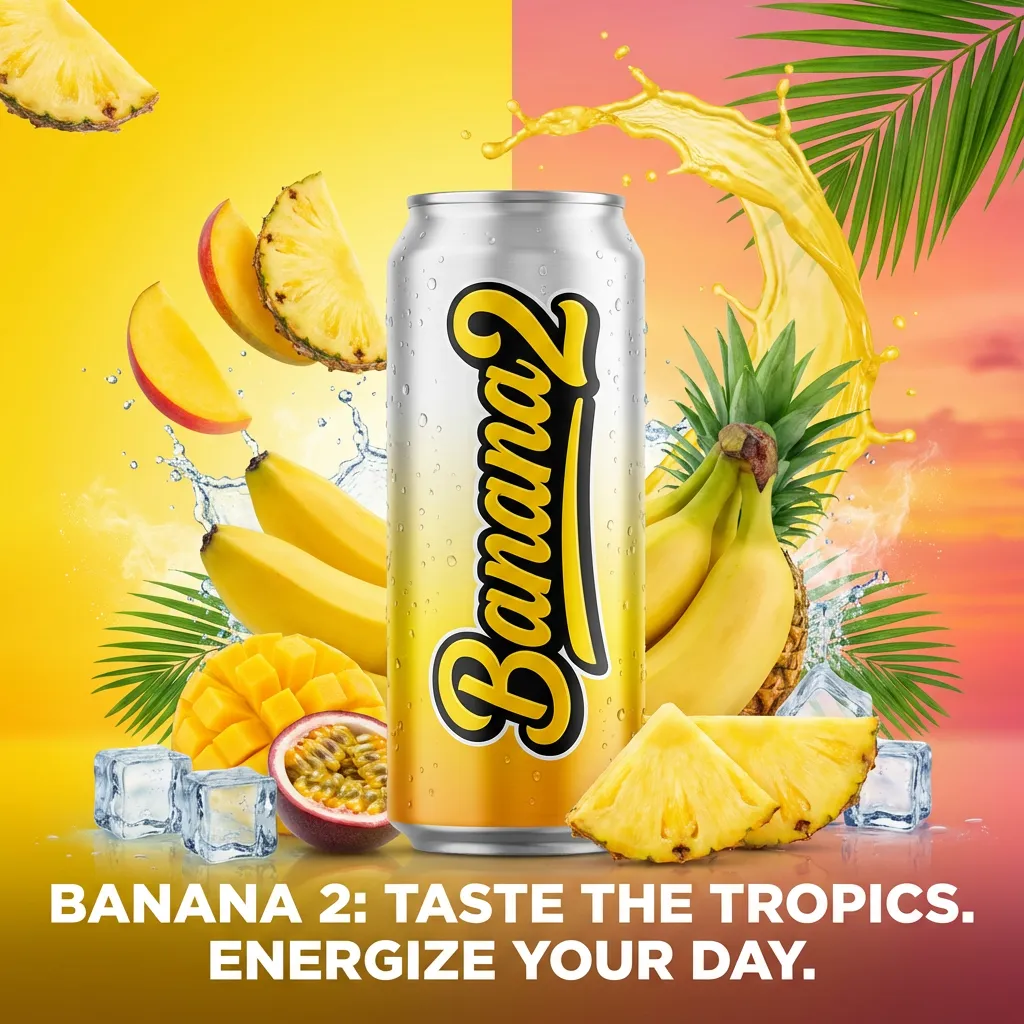
Develop an AI social media post generator series
Keep a few visual rules stable across separate AI social media post generator requests.
Write a short visual recipe
Choose a background family, lighting direction, accent color, and subject scale. For a workshop series, try warm wood, soft window light, and one muted green accent. Reuse those decisions in the AI social media post generator while changing the featured activity.
- Keep the palette and lighting notes beside each individual brief.
- Give every AI social media post generator image one new piece of information.
Assign each image a different role
A short series might introduce the tools, show the making process, and present the finished object. Brief each AI social media post generator request separately. This creates progression without assuming the workspace builds or publishes an entire carousel as one managed project.
Compare the sequence as a group
Place the candidates together in your own layout and compare brightness, object scale, and background density. The AI social media post generator may vary these between requests. Revise the outlier rather than forcing the whole collection to follow an accidental change.
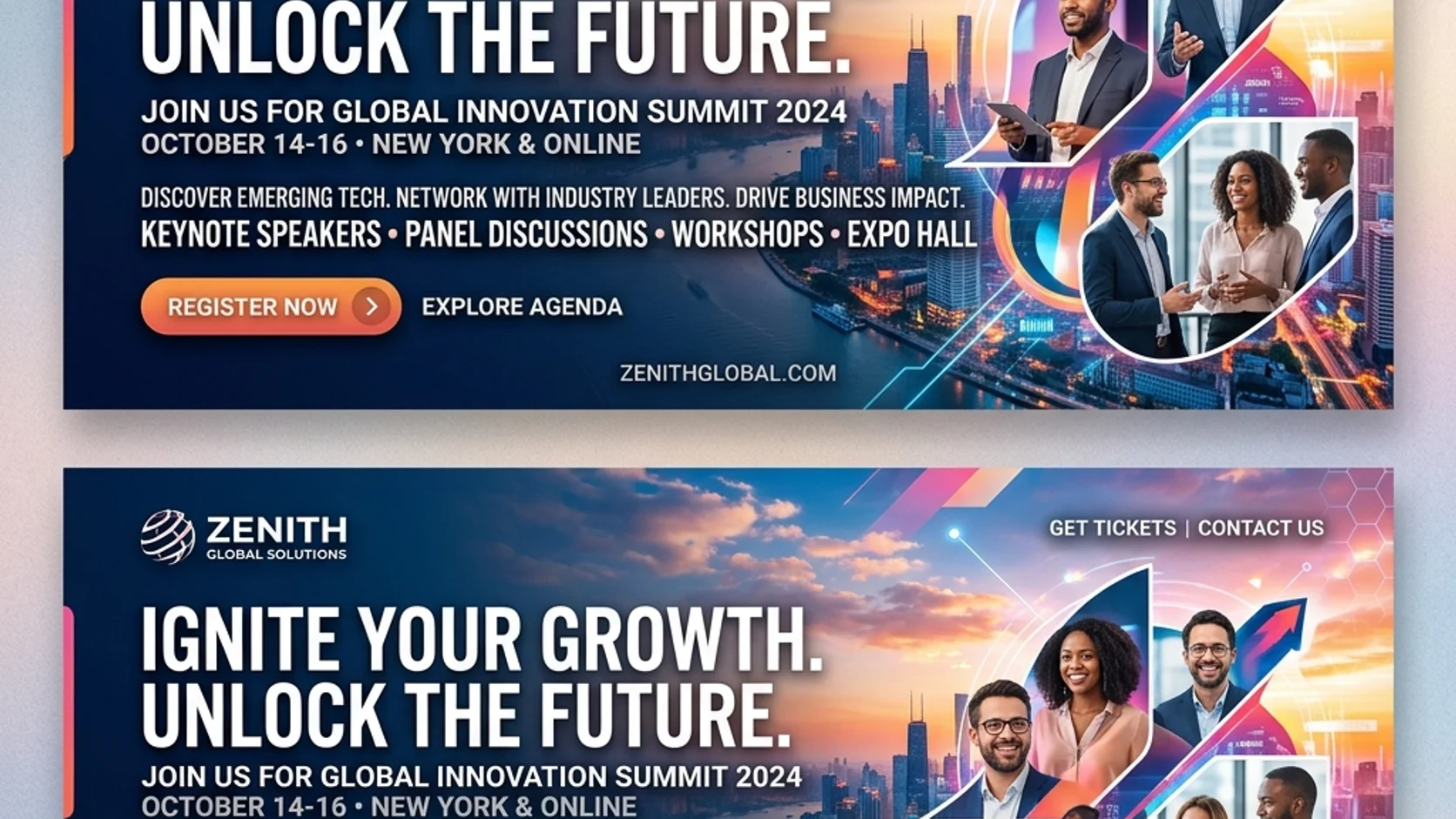
Ground AI social media post generator ideas in real details
Give the AI social media post generator purposeful references when actual subjects matter.
Use the right starting mode
Text mode is useful for an original scene. Switch to image mode when the post needs your real product, packaging, or authorized portrait. Tell the AI social media post generator which reference supplies the subject and which supplies a visual direction.
- Upload relevant references rather than every image from a project folder.
- Check AI social media post generator results against the actual subject.
Keep final brand marks separate
Add an approved logo in your external layout when its exact shape matters. The AI social media post generator returns JPEG artwork, not a layered brand document. Ask for suitable clear space rather than relying on the image to reconstruct a finished identity system.
Show a believable claim
A bakery post can show a loaf on a counter without inventing awards, ingredient claims, or customer reactions. Brief the AI social media post generator around visible facts. Avoid visual exaggeration that turns a useful scene into evidence for something the business cannot support.

Review AI social media post generator crops and settings
Review AI social media post generator compositions in their intended placements.
Check the first square draft
Begin at 1:1 and 1K in GPT Image 2 text mode. Inspect the subject at a small viewing size before adding more detail. Keep faces, objects, and planned text areas clear of tight AI social media post generator crop boundaries.
- Preview the image within the actual destination layout when possible.
- Do not assume one AI social media post generator crop fits every placement.
Recompose instead of merely trimming
A wide workbench scene may lose its focal object in a vertical crop. Describe a new arrangement when changing ratios. Give the AI social media post generator the same message with a different spatial brief rather than squeezing an unsuitable image into another shape.
Choose settings for the current task
GPT Image 2 supports 1K, 2K, 4K, one to four outputs, and up to sixteen image references. Select the AI social media post generator configuration deliberately. Review the displayed credits before submission instead of assuming each resolution or output count costs the same.

Finish AI social media post generator visuals for sharing
Finish AI social media post generator artwork with precise wording and a considered layout.
Add precise wording afterward
Place final headings, dates, and calls to action in a tool that lets you edit them independently. Then inspect the complete post at its intended size. An AI social media post generator background should support the wording without reducing contrast or crowding the message.
- Check spelling and actual availability before exporting the finished design.
- Keep a text-free AI social media post generator version for future revisions.
Review the whole posting context
Read the caption, inspect the image, and check the destination link together. The AI social media post generator does not schedule posts or connect publishing accounts. Handle that step through your usual tools after making sure all parts describe the same offer or idea.
Refine a repeatable visual habit
Keep notes on compositions that were easy to understand and easy to adapt. Use the AI social media post generator to extend those ideas without duplicating every previous scene. A consistent approach can still leave room for different subjects, seasons, and messages.
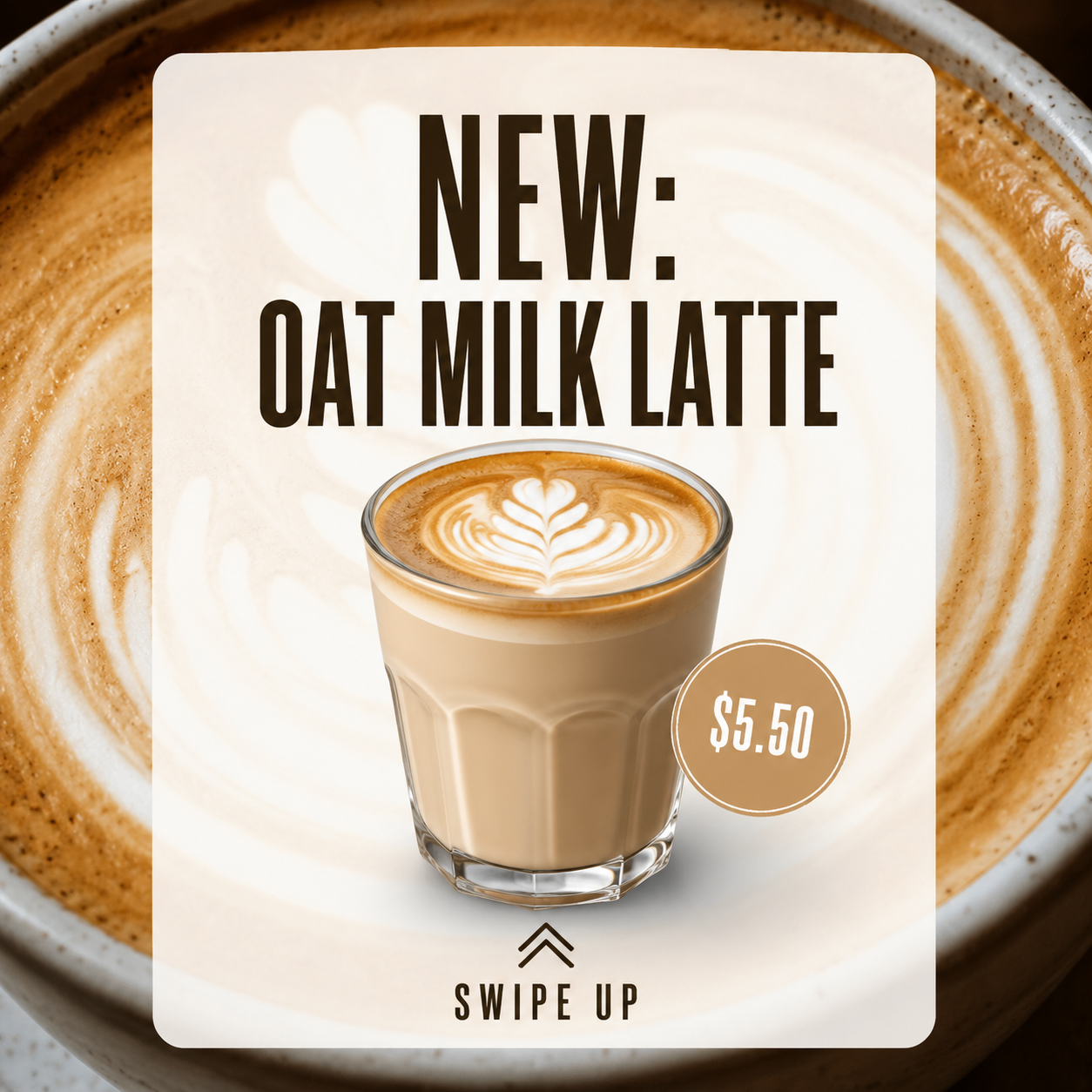
Example prompts
A welcoming pottery workshop announcement
Create a square editorial image for a small pottery studio workshop announcement. Show one unfinished pale clay bowl on a warm wooden workbench with a folded linen cloth and two neatly arranged wooden tools. Soft window light from the left, muted moss-green accent, calm inviting atmosphere. Keep the bowl the clear focal point and leave the upper third quiet for a heading added separately. No people, readable text, logos, dates, promotional claims, or collage panels. The scene should remain understandable at a small feed preview size.
A coordinated second post about the tools
Create a square companion image for a pottery workshop series: a close view of three simple wooden shaping tools beside a small piece of pale clay, arranged on warm wood. Keep the palette muted cream, natural timber, and a small moss-green cloth accent, with soft window light from the left. Use the same calm editorial mood but a closer framing that teaches viewers about the tools. Leave a quiet corner for separate wording. No hands, captions, brand marks, finished product claims, or split layout.
User reviews
EveryGen AI video creator feedback.
EveryGen AI creator reviews

I made a full character PV for my game with MiniMax H3 in one afternoon. The menu UI stayed readable in every frame and the character never went off-model. That used to cost me a contractor and three weeks.

We tested every AI video generator on the market for stylized work. H3 is the only one that held our anime style across cuts. We now use it for pitch reels and animatics on every project.

I uploaded four product photos and got a listing video with music and a voiceover the same day. My click-through rate on the new listings is up 38%. H3 even got the label text on my packaging right.

I ship five vertical videos a week for three brands. MiniMax H3 gets me from brief to draft in under an hour, with sound already synced. My old workflow needed a videographer and two review rounds.

The editing side is what sold me. A client wanted the background of an interview changed — I typed one sentence into MiniMax H3 and the lighting on the subject matched the new scene automatically.

I previsualized my entire short film in MiniMax H3 before we shot a single frame. Rack focus, match cuts, even the title cards — it understands director language, not just keywords.
EveryGen AI · MiniMax H3 Max Pricing and Credit Plans
Cancel anytime
Lite
50% off0.025 / credit
Billed $ yearly179· Save $179.8
Video Models


Image Models



- Includes MiniMax H3 and all premium models
- Up to 1 batch generation task
- Standard generation speed
- Standard generation success rate
- Standard customer support
- Commercial Use License
Standard
50% off0.017 / credit
Billed $ yearly299· Save $299.8
Video Models
Image Models
- Includes MiniMax H3 and all premium models
- Up to 4 batch generation tasks
- Priority processing speed
- High generation success rate
- Priority customer support
- Commercial Use License
Pro
50% off0.014 / credit
Billed $ yearly599· Save $599.8
Video Models
Image Models
- Includes MiniMax H3 and all premium models
- Up to 10 batch generation tasks
- Fastest generation speed
- High generation success rate
- Dedicated account manager
- Commercial Use License
Max
50% off0.012 / credit
Billed $ yearly1,199· Save $1,199.8
Video Models
Image Models
- Includes MiniMax H3 and all premium models
- Up to 10 batch generation tasks
- Fastest generation speed
- High generation success rate
- Dedicated account manager
- Commercial Use License
Pay safely and securely with
























FAQ
Frequently asked questions
Does the AI social media post generator publish or schedule posts?
No. The AI social media post generator creates visual artwork; account connections, scheduling, and publishing remain in your own workflow. Review the finished image with its accompanying caption and link before posting. No audience growth, engagement level, or conversion result is promised.
Can I include my actual product?
Yes. Switch to GPT Image 2 image mode and upload a clear product reference. Tell the AI social media post generator what setting you want and what should remain recognizable. Inspect packaging, colors, and proportions because reference editing does not guarantee an unchanged product.
Can I create several related posts?
Create separate briefs using the same palette, lighting, and framing rules. The AI social media post generator can explore related images, but their consistency needs review. Assign each post a distinct message and assemble the sequence yourself rather than treating output count as a carousel builder.
Will captions remain editable inside the result?
No. The AI social media post generator outputs JPEG images rather than editable text layers. Request clean visual space and add final wording in your own layout tool. This is especially useful for dates, prices, availability, and other details likely to change.
How should I choose the format?
Start with the square 1:1 and 1K configuration, then check the intended placement. Use supported ratios and resolution choices in the AI social media post generator as needed. Reconsider the composition after changing shape and confirm the dynamic credits before submitting the request.
CTA
Give the AI social media post generator one useful message
Choose what the post needs to communicate, define the main subject, and review your settings. Use the AI social media post generator for the visual, then add precise wording and share the finished post through your own workflow.
Create a social post visual