 EveryGen AI
EveryGen AI · AI interior design generator for room concepts grounded in your photo
Explore a different mood without losing sight of the room you have. The EveryGen AI AI interior design generator uses an uploaded room photograph to develop material, lighting, and furnishing ideas. Begin with GPT Image 2 image mode at 16:9 and 1K. Use the AI interior design generator to compare directions, then check the structure and practical dimensions against your actual space.
Image workspace
Sample Image
 13 / 17
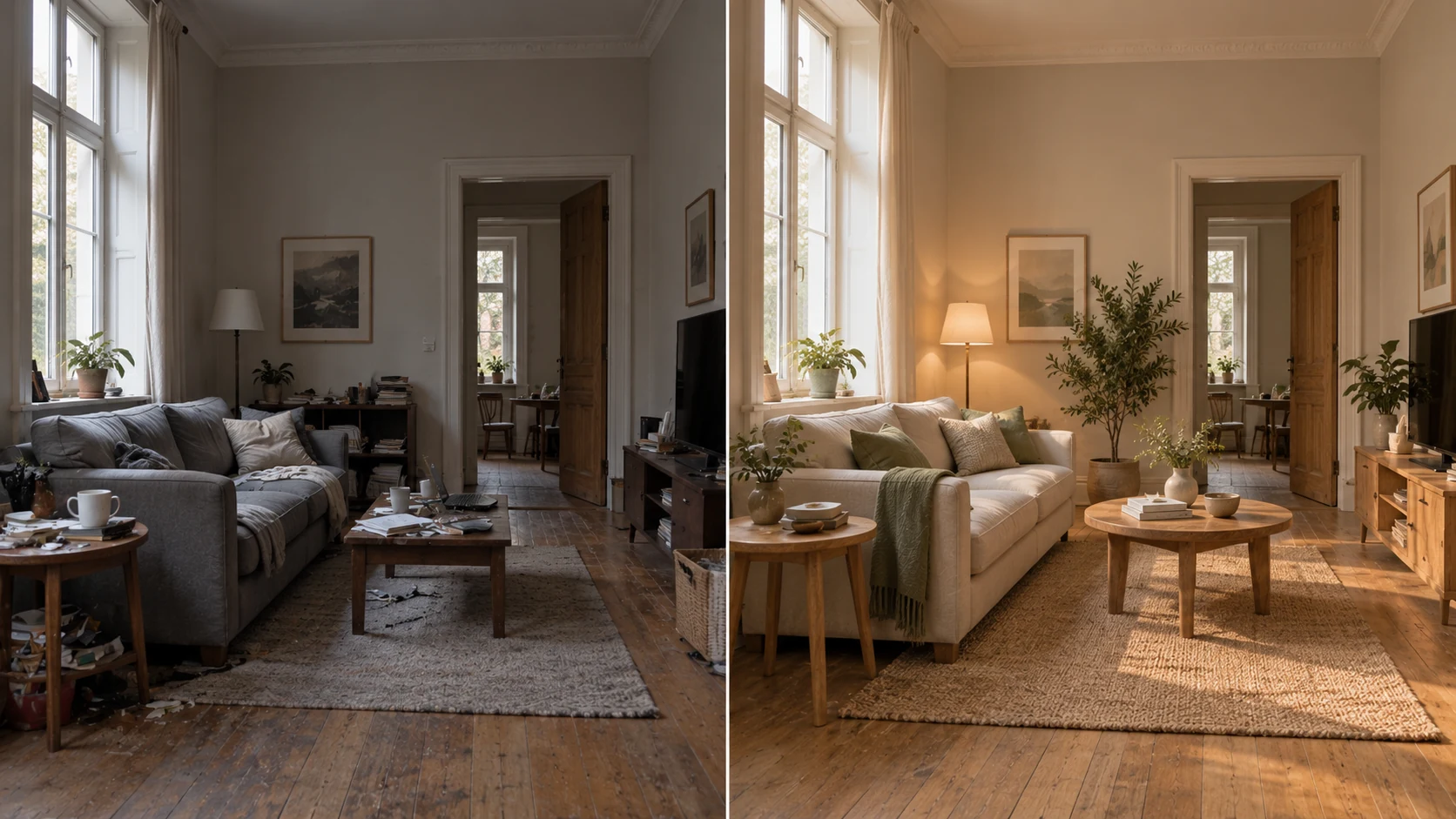
AI-generated interior redesign concept, not an EveryGen AI test.
Introduction
Show the AI interior design generator the actual room
Give the AI interior design generator a photograph that clearly explains the room’s visible boundaries and fixed features.
Choose an informative viewpoint
Use a clear view showing the floor, major walls, and important openings. Avoid a tight decorative close-up as the only source. Give the AI interior design generator a room photograph that lets you compare the proposed arrangement with the existing one.
- Keep windows, doorways, and major fixed features visible.
- Use the same AI interior design generator source for comparable alternatives.
Name what should stay
List the window position, doorway, fireplace, ceiling line, and built-in storage that matter. Tell the AI interior design generator to retain these visible anchors. Inspect them afterward because a visually appealing proposal can still move a wall or invent another opening.
Describe the room’s purpose
A reading corner needs a different furniture relationship from a shared dining and work area. Give the AI interior design generator the main activity and any secondary use. This makes it easier to judge choices beyond whether the new palette looks attractive.
How to use
How to use the AI interior design generator
- Input
 Reference image 1STEP 1
Upload your room
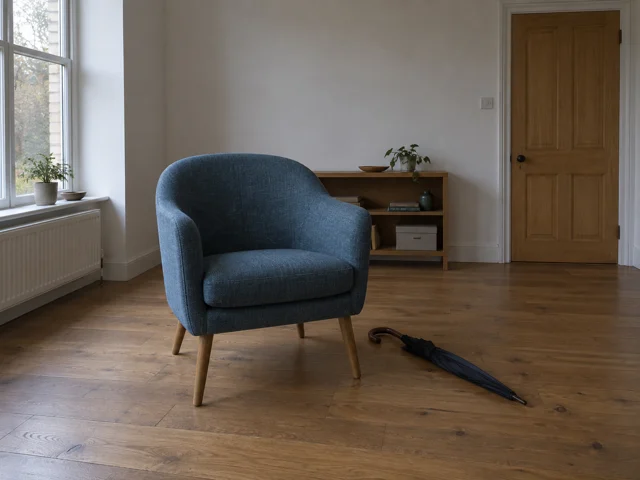
Add a clear room photograph to the AI interior design generator and choose GPT Image 2 reference editing for the redesign.
- ModelGPT Image 21K16:9PromptOutputSTEP 2
Set structural boundaries
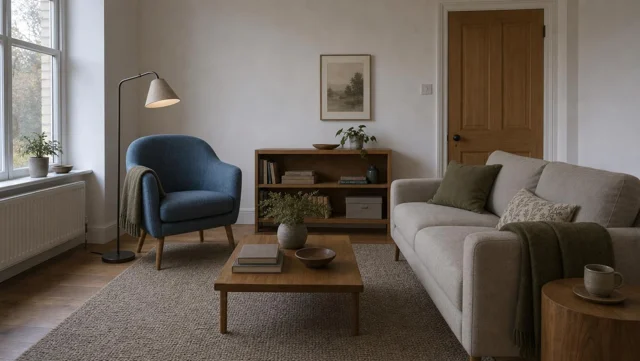
Ask the AI interior design generator to retain windows, doorways, and perspective while exploring furniture, finishes, and lighting around them.
 BeforeAfterSTEP 3
Generate a room concept
Choose suitable framing and 1K in the AI interior design generator, check displayed credits, and generate your proposed room atmosphere.
- STEP 4
Compare the layout
Review AI interior design generator output against the photograph, checking openings, furniture scale, and circulation before discussing the concept further.
Features
Set a material direction for the AI interior design generator
Choose a small family of surfaces so the AI interior design generator can give each material a clear role.
Anchor the palette in one surface
Start with the floor or a large existing furniture piece you intend to keep. Ask the AI interior design generator for colors that relate to it. Replacing every visible surface at once may create a beautiful concept with little connection to your room.
- Identify the largest retained surface before selecting accents.
- Keep AI interior design generator material changes specific and limited.
Balance texture and quiet areas
Pair a textured rug with quieter upholstery, or a visible wood grain with plain walls. Tell the AI interior design generator where texture belongs. Too many patterned surfaces can hide the room’s proportions and make it difficult to evaluate individual furniture choices.
Name finishes, not only colors
Matte paint, limewash-like texture, satin wood, and brushed metal create different visual effects. Give the AI interior design generator those distinctions. Review whether reflections and highlights match the intended finish instead of accepting a polished surface when you requested a subdued one.
Plan lighting with the AI interior design generator
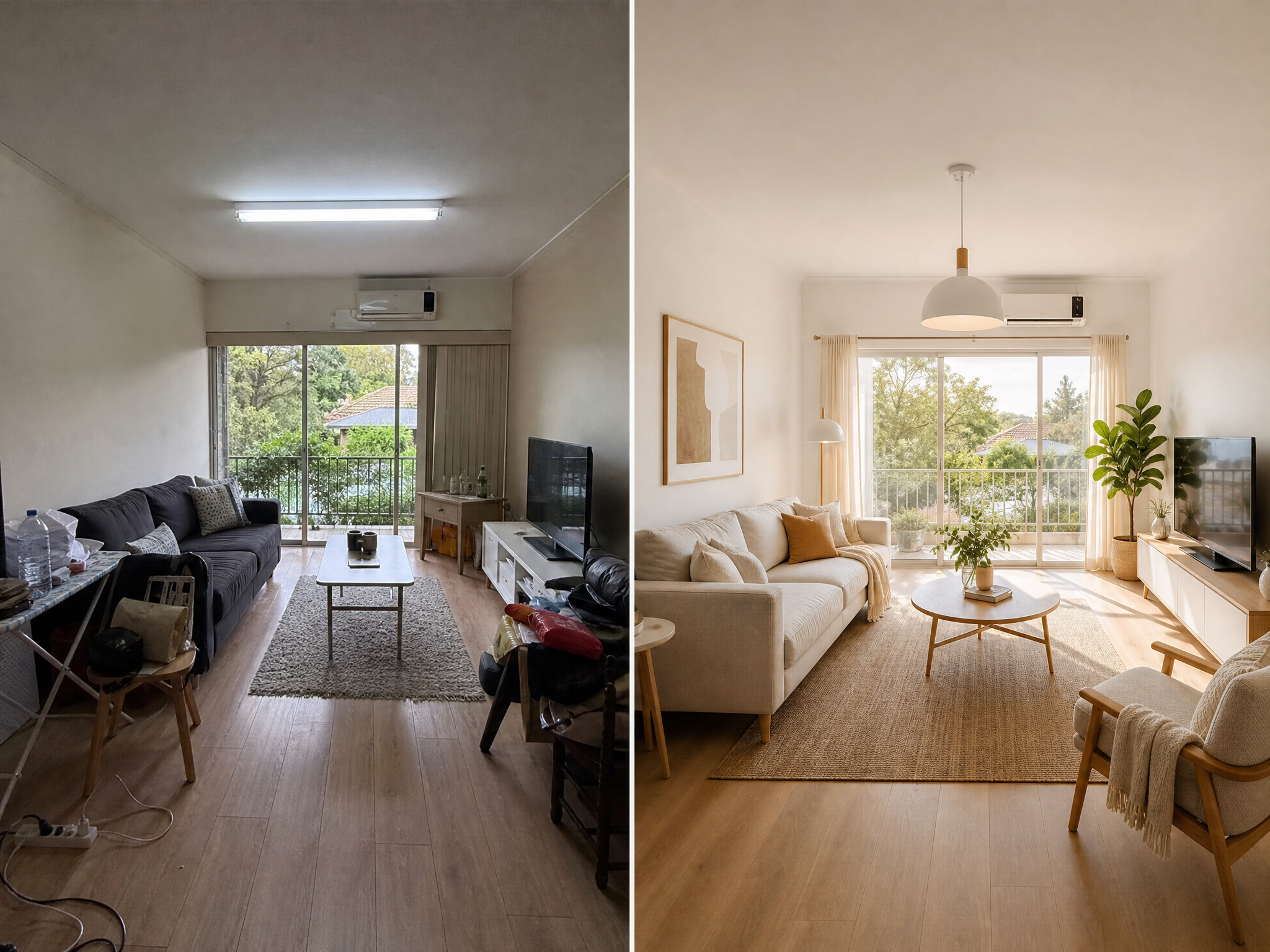
Ask the AI interior design generator for coherent daylight and purposeful fixtures rather than dramatic effects that disguise the space.
Respect the visible windows
Use the existing window position to guide the lighting brief. The AI interior design generator should not imply sunlight entering through a solid wall. Compare bright areas, shadows, and reflections with the source photograph to catch a changed or invented lighting direction.
- Choose a time-of-day mood without relocating the windows.
- Check AI interior design generator shadows against fixed room features.
Give lamps separate jobs
A reading lamp can serve the chair while a pendant anchors the dining table. Tell the AI interior design generator what each light is for. Avoid asking for decorative fixtures everywhere, which can crowd the ceiling and obscure the intended use of the space.
Keep the palette readable
An extreme warm glow can make neutral walls appear yellow and hide differences between woods. Ask the AI interior design generator for balanced illumination when comparing materials. Save dramatic evening mood studies for a separate request after choosing the underlying palette.
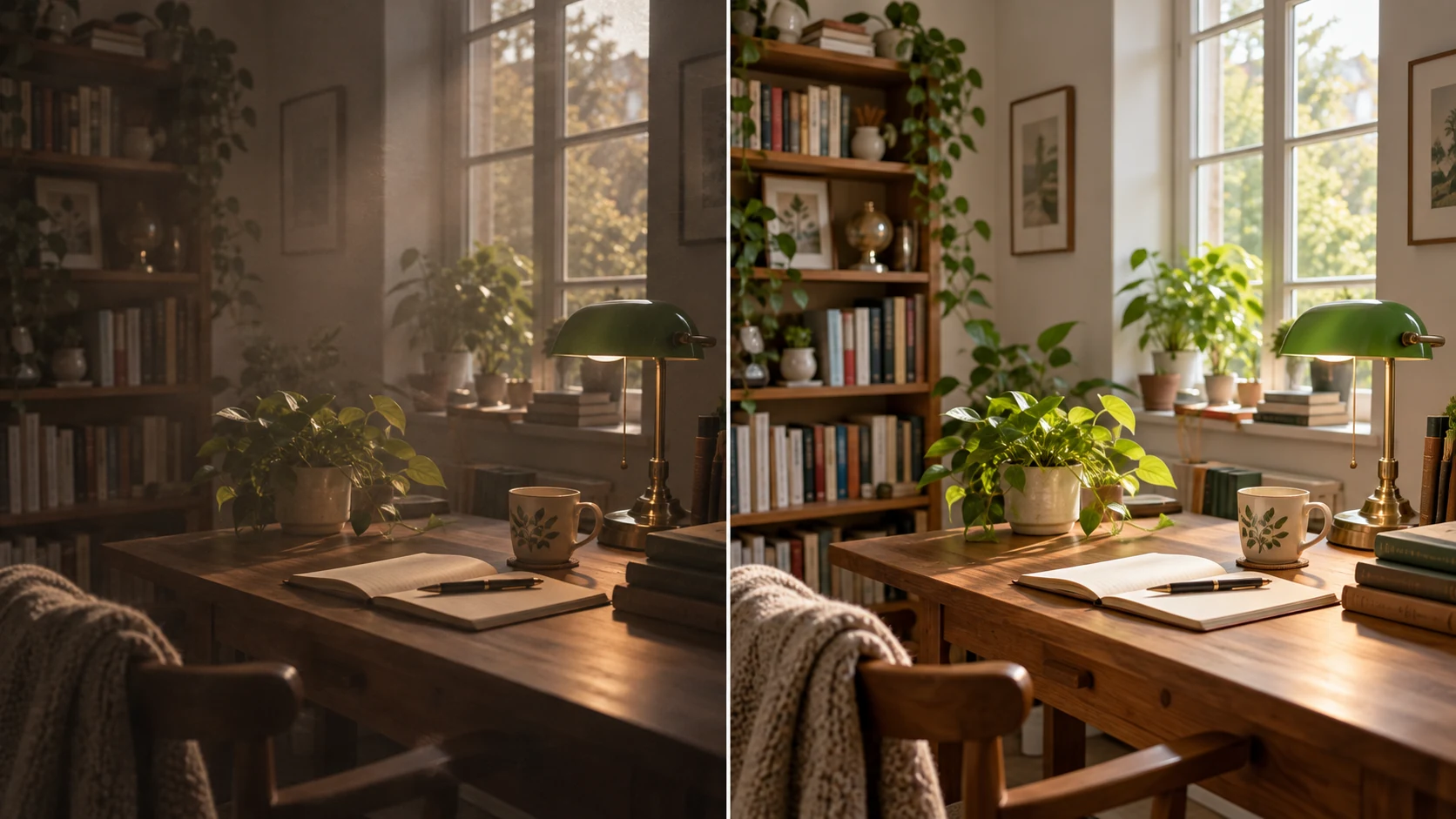
Judge AI interior design generator layouts carefully
Treat AI interior design generator layouts as proposals to check against actual furniture dimensions and everyday movement through the room.
Use familiar objects as visual anchors
Compare a proposed sofa with the doorway, existing table, or retained cabinet. The AI interior design generator may change apparent scale to make everything fit. If the proportions look questionable, measure the actual space rather than trusting a convincing perspective image.
- Check room and furniture measurements outside the image workflow.
- Review AI interior design generator scale against retained objects.
Look for clear everyday routes
Trace the path from the door to the seating, storage, and window. Ask whether chairs can move and cupboards can open. The AI interior design generator can suggest an attractive arrangement while leaving furniture across a route or too close to another object.
Compare rearrangement before replacement
Try moving the visual emphasis from one wall to another while keeping major pieces. Use the AI interior design generator to explore that simpler change before proposing an entirely new room. A clearer furniture relationship may matter more than adding more decorative objects.
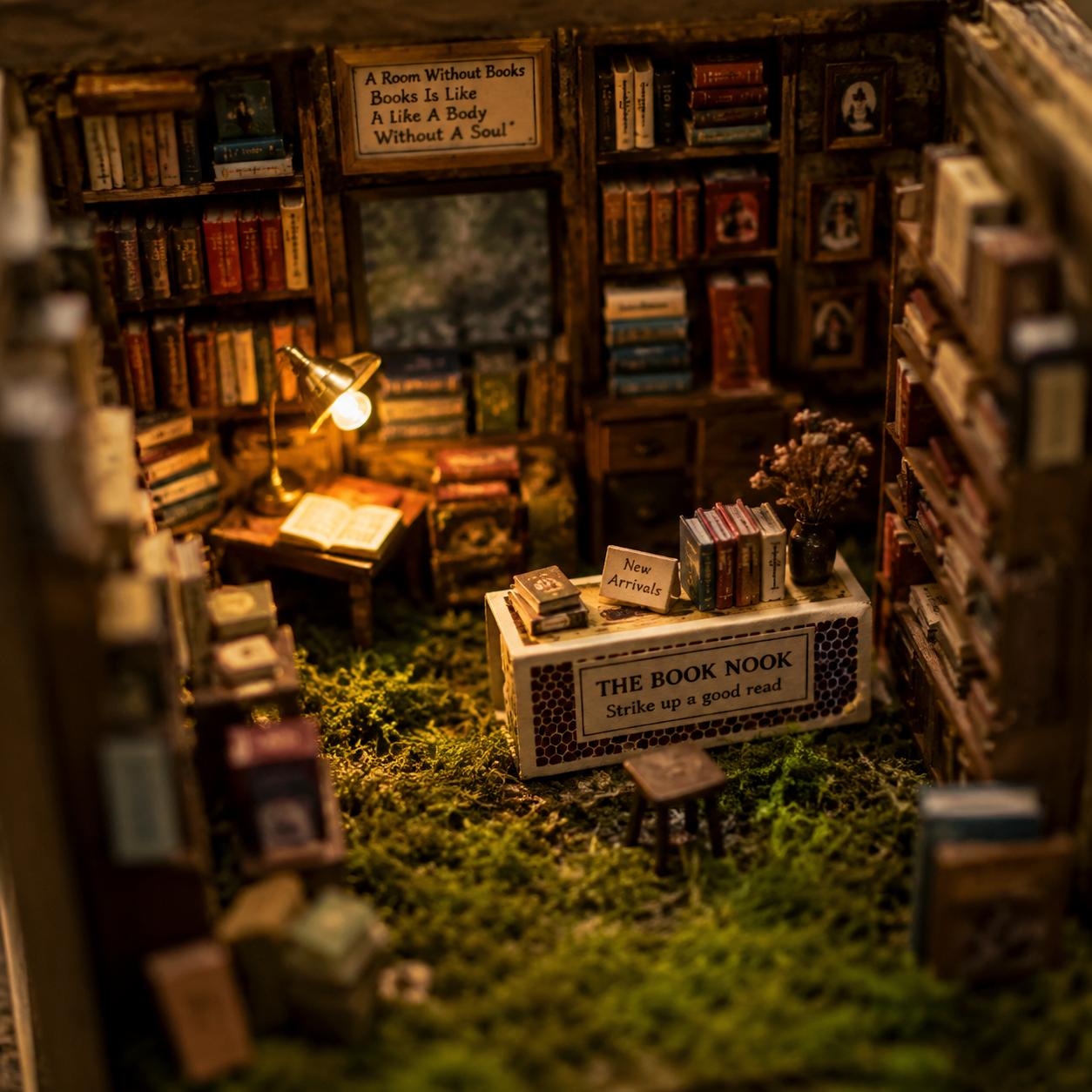
Compare directions in the AI interior design generator
Keep the AI interior design generator viewpoint and retained features stable when comparing different room directions.
Upload and choose the wide setup
Select GPT Image 2 image mode at 16:9 and 1K, with one output. Upload the room and describe the intended mood and retained structure. Review the AI interior design generator settings and the dynamic credit amount before submitting the request.
- Start with one clearly photographed room rather than mixed spaces.
- State AI interior design generator reference roles when adding more images.
Assign inspiration images a narrow role
Image mode accepts up to sixteen references. Label an inspiration image as a palette or furniture-style guide, not a replacement room. Otherwise the AI interior design generator may borrow its architecture as well as the material quality you actually wanted.
Change one family of decisions
Compare two upholstery palettes while retaining the layout, or two layouts with similar finishes. The AI interior design generator supports several ratios, 1K, 2K, or 4K, and one to four outputs. Additional candidates are useful only when the comparison remains understandable.
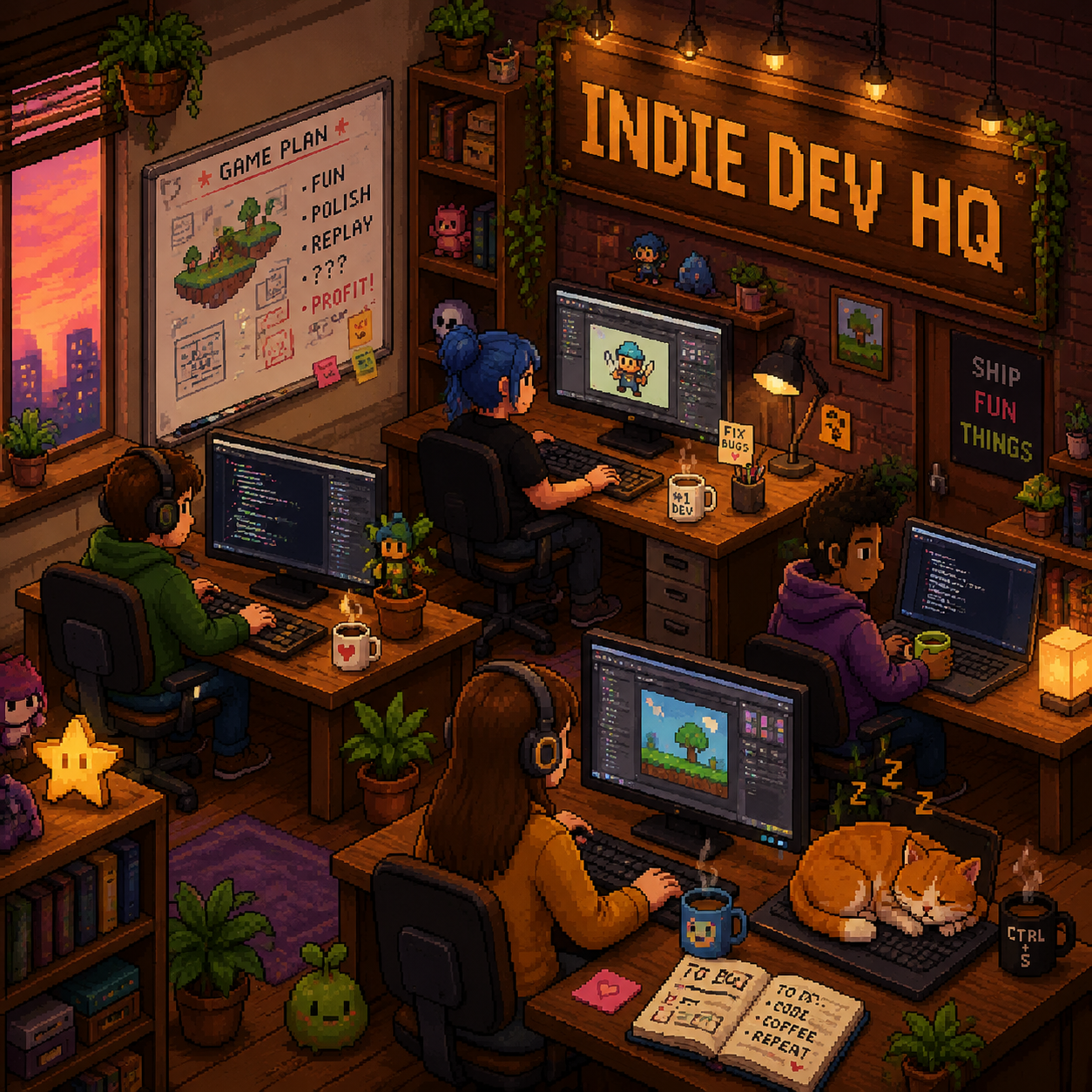
Use the AI interior design generator concept as a brief
Use the AI interior design generator image to explain preferences while separating visual ideas from practical decisions still needing confirmation.
Inspect the fixed structure again
Compare window divisions, door locations, ceiling heights in the image, and wall junctions with the source. The AI interior design generator does not guarantee architectural preservation. Reject a proposal whose visual appeal depends on a room shape you do not have.
- Review retained architecture before shopping for the pictured furniture.
- Keep AI interior design generator concepts beside the original photo.
Record decisions rather than fictional products
Write down a low sofa, warm oak tone, muted upholstery, or a restrained pendant as design preferences. The AI interior design generator may depict invented furniture. Search for real pieces using those characteristics, then verify measurements, materials, and suitability separately.
Keep technical planning separate
The output is a JPEG concept, not CAD, measured elevations, or construction instructions. Use the AI interior design generator image to communicate an atmosphere and possible layout. Actual dimensions, installation details, and structural changes need separate assessment before any work begins.

Example prompts
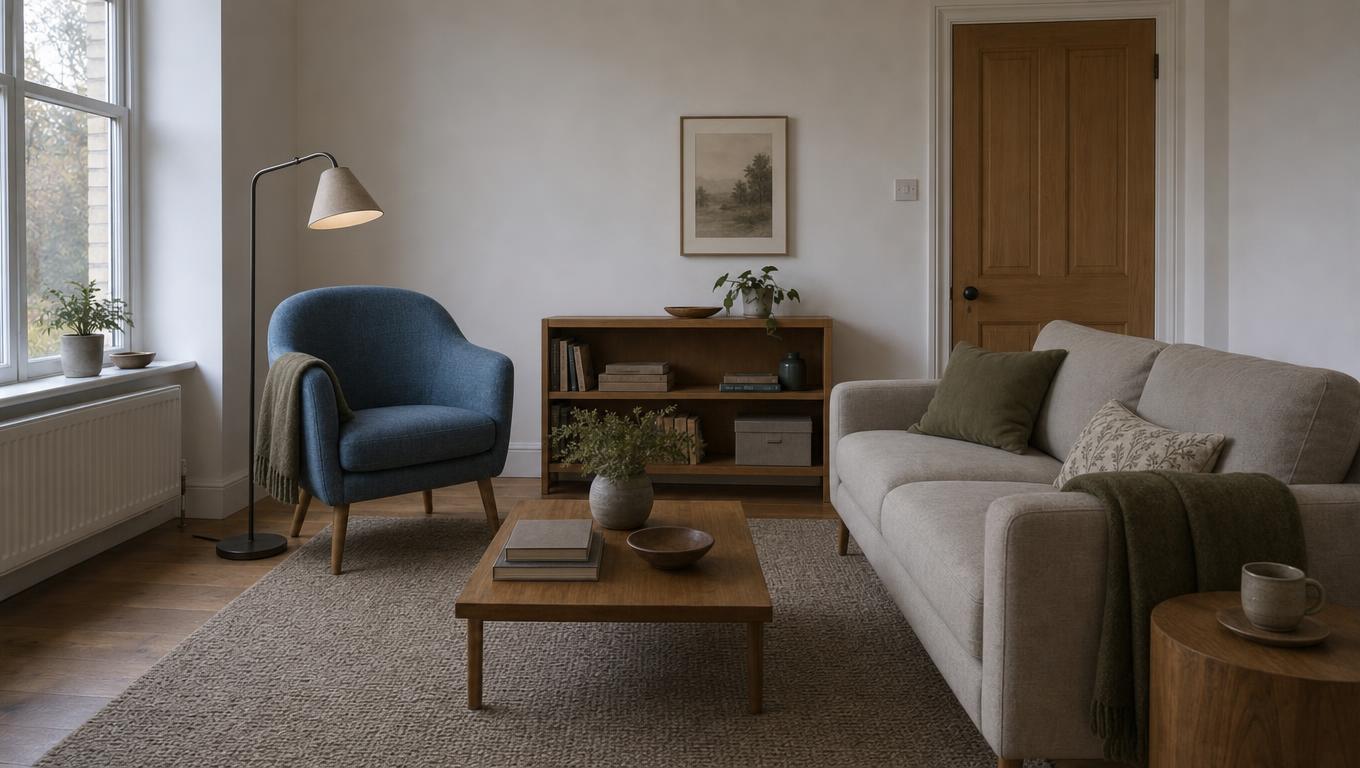
A quieter reading and living room
Use my uploaded room photograph as the structural reference. Retain the visible window and door positions, ceiling shape, wall junctions, and existing wood floor as closely as possible. Explore a calm reading and living room with a low warm-gray sofa, one comfortable reading chair, muted olive textiles, and a simple floor lamp serving the chair. Keep everyday routes visually open. Soft daylight from the actual window direction, restrained warm wood accents, uncluttered surfaces. Preserve the source camera viewpoint in a 16:9 composition. Do not invent extra windows, remove walls, add text, or create architectural drawings.
A material-only dining room refresh
Using the uploaded room photo, retain the current layout, table position, visible architecture, and viewpoint. Change the visual finish direction to matte warm ivory walls, natural oak tones, quiet linen upholstery, and one restrained dark metal pendant centered over the existing dining table. Keep daylight consistent with the source windows and show believable furniture scale. Avoid new architectural openings, extra furniture blocking routes, glossy surfaces, dramatic color casts, labels, or measurements. Wide room concept, not a construction plan.
User reviews
EveryGen AI video creator feedback.
EveryGen AI creator reviews

I made a full character PV for my game with MiniMax H3 in one afternoon. The menu UI stayed readable in every frame and the character never went off-model. That used to cost me a contractor and three weeks.

We tested every AI video generator on the market for stylized work. H3 is the only one that held our anime style across cuts. We now use it for pitch reels and animatics on every project.

I uploaded four product photos and got a listing video with music and a voiceover the same day. My click-through rate on the new listings is up 38%. H3 even got the label text on my packaging right.

I ship five vertical videos a week for three brands. MiniMax H3 gets me from brief to draft in under an hour, with sound already synced. My old workflow needed a videographer and two review rounds.

The editing side is what sold me. A client wanted the background of an interview changed — I typed one sentence into MiniMax H3 and the lighting on the subject matched the new scene automatically.

I previsualized my entire short film in MiniMax H3 before we shot a single frame. Rack focus, match cuts, even the title cards — it understands director language, not just keywords.
EveryGen AI · MiniMax H3 Max Pricing and Credit Plans
Cancel anytime
Lite
50% off0.025 / credit
Billed $ yearly179· Save $179.8
Video Models


Image Models



- Includes MiniMax H3 and all premium models
- Up to 1 batch generation task
- Standard generation speed
- Standard generation success rate
- Standard customer support
- Commercial Use License
Standard
50% off0.017 / credit
Billed $ yearly299· Save $299.8
Video Models
Image Models
- Includes MiniMax H3 and all premium models
- Up to 4 batch generation tasks
- Priority processing speed
- High generation success rate
- Priority customer support
- Commercial Use License
Pro
50% off0.014 / credit
Billed $ yearly599· Save $599.8
Video Models
Image Models
- Includes MiniMax H3 and all premium models
- Up to 10 batch generation tasks
- Fastest generation speed
- High generation success rate
- Dedicated account manager
- Commercial Use License
Max
50% off0.012 / credit
Billed $ yearly1,199· Save $1,199.8
Video Models
Image Models
- Includes MiniMax H3 and all premium models
- Up to 10 batch generation tasks
- Fastest generation speed
- High generation success rate
- Dedicated account manager
- Commercial Use License
Pay safely and securely with























FAQ
Frequently asked questions
Does the AI interior design generator preserve my room exactly?
The AI interior design generator can be asked to retain visible structure, but exact preservation is not guaranteed. Compare walls, openings, ceiling lines, and built-ins with the original photograph. Treat changes that were not requested as issues to review, not improvements to accept automatically.
Which photo works best for the AI interior design generator?
Choose a clear room view that shows the main walls, floor, and openings. Avoid using only a close-up of a chair or surface. Describe the intended activity and fixed features so the proposal remains connected to the room you want to improve.
Can the AI interior design generator compare different styles?
Yes. Keep the source and retained architecture consistent while changing a clearly described palette or furniture direction. Compare actual differences such as lighter wood, quieter fabrics, or lower furniture profiles instead of relying only on broad style names.
Can I buy furniture shown by the AI interior design generator?
The image may contain invented pieces rather than identifiable products. Use it to describe the shape, color, and material you prefer. Find real alternatives separately and check their dimensions against the room before treating them as suitable purchases.
Does the AI interior design generator provide construction plans?
No. The workspace returns JPEG images, not CAD files, measured plans, or installation specifications. Use the selected concept to discuss visual preferences. A separate professional planning process is needed wherever actual dimensions, building structure, or technical work are involved.
CTA
Explore your room with the AI interior design generator
Upload a clear photograph and name the features you want to keep. Use the AI interior design generator to compare a focused material or layout direction, then verify the practical details in your actual space.
Explore a room concept