 EveryGen AI
EveryGen AI · AI Music Video Generator for a short visual response to music
Build a short visual response to your musical direction. The EveryGen AI AI Music Video Generator combines images or footage with optional audio references through MiniMax H3 reference mode. Give the AI Music Video Generator one passage to explore, then judge how picture, movement, and sound work together.
Video workspace
A quiet illustrated cafe at dusk
13/18View prompt
Use @Image 1, the illustration of a man holding a book in a cafe at dusk. Create a slow five-second camera push with warm window light, a small natural shift of his gaze toward the book, and restrained background movement. Retain the illustration style, seated pose, book, table, and cafe arrangement, keeping the scene calm and continuous.
Introduction
Give the AI Music Video Generator a short visual assignment
Give the AI Music Video Generator one atmosphere or visual change to explore, rather than an entire song to illustrate automatically.
Name the feeling in visible terms
A quiet passage might suggest leaves moving slowly over a reflection; a stronger passage might suggest a decisive camera approach. Tell the AI Music Video Generator what viewers should see. Mood becomes more actionable when it changes light, movement, distance, or the subject’s behavior.
Begin with an image or video
Supply at least one visual reference. The AI Music Video Generator combines images or video with authorized audio, but audio alone is unsupported. Choose a scene that fits the musical direction rather than adding an unrelated picture merely to satisfy the input requirement.
Use a short generation window
MiniMax H3 reference mode starts at 2K and five seconds, with five-to-fifteen-second output durations. Use the AI Music Video Generator to explore a single visual passage. Build a larger sequence from separately reviewed shots instead of expecting one request to organize a full music video.
How to use
How to use the AI Music Video Generator
- Input
 Reference image 1STEP 1
Choose visual and audio references
Select MiniMax H3 reference mode in the AI Music Video Generator and upload an image or video, adding authorized audio when useful.
- Example settingsMiniMax H32K5sPromptOutputSTEP 2
Describe the visual response
Tell the AI Music Video Generator how the supplied scene should move and feel, assigning clear roles to visual and audio references.
- Illustrative preview
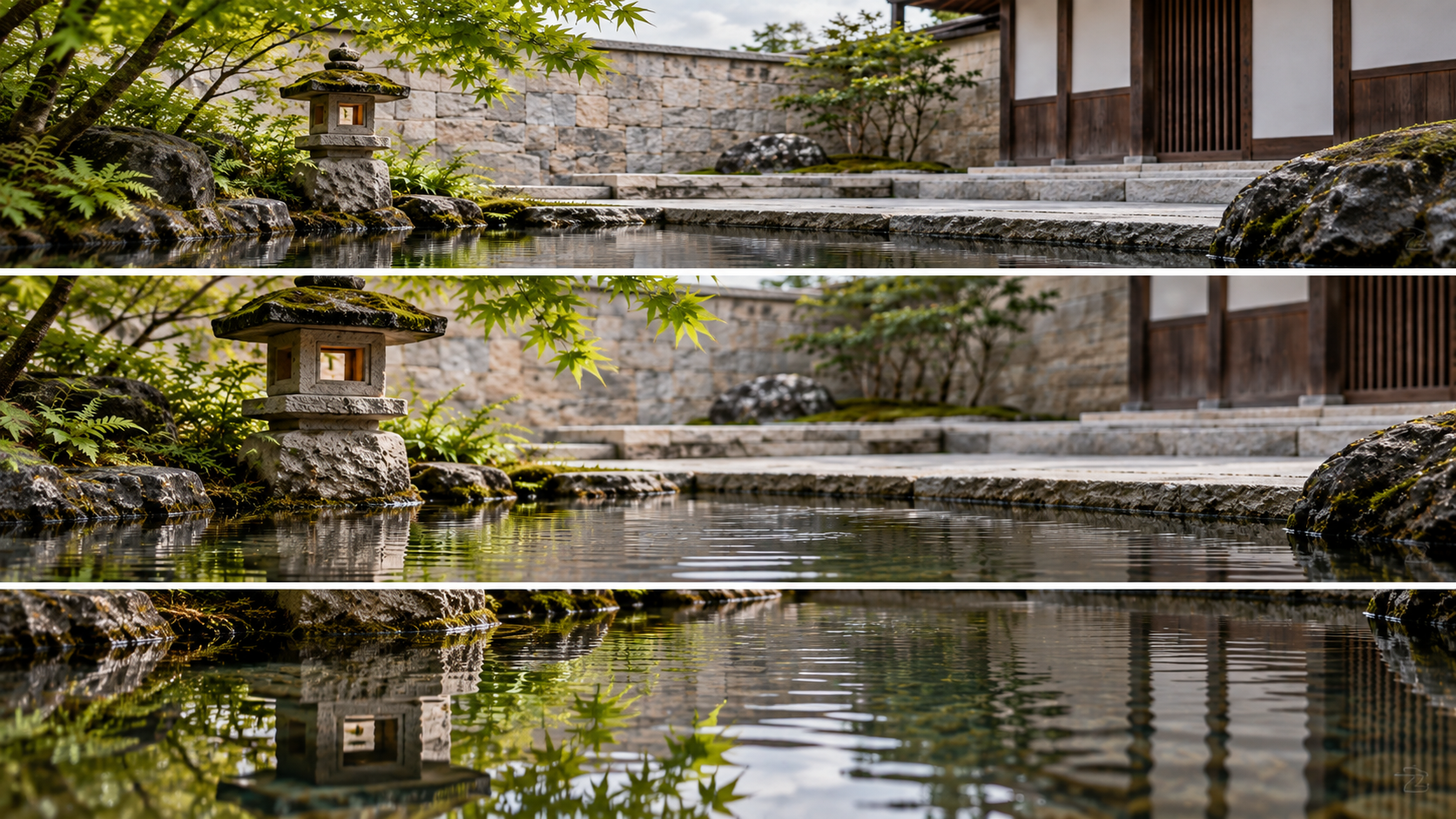
Music guides the atmosphere while the camera moves gently toward the water.
STEP 3Generate one short scene
Start the AI Music Video Generator at five seconds and 2K, review the displayed credits, and generate a focused visual passage.
- STEP 4
Compare mood and motion
Watch AI Music Video Generator movement and sound together, then refine the weakest relationship before downloading clips for your separate editing workflow.
Features
Assign AI Music Video Generator references a clear purpose
Tell the AI Music Video Generator which reference supplies the scene, which guides movement, and which contributes musical atmosphere.
Choose the visual anchor
Use an image for a deliberate composition or footage for an existing subject and movement. Describe its role to the AI Music Video Generator. A strong anchor keeps the scene connected to your project while supporting references contribute only the qualities that you need.
- Keep the main subject recognizable in the selected visual source.
- Give the AI Music Video Generator one primary scene to develop.
Describe what the audio contributes
An audio reference may suggest a gentle pulse, a sustained atmosphere, or a sharper change of energy. Explain that relationship in the AI Music Video Generator brief. Do not assume an uploaded file becomes an untouched soundtrack or that every visible action lands on a particular beat.
Avoid a crowded reference set
The workspace supports up to nine images, three videos, and three audio files. Those are upload limits, not a recipe. Keep AI Music Video Generator material selective and authorized, adding another reference only when it resolves a specific visual or sound question.
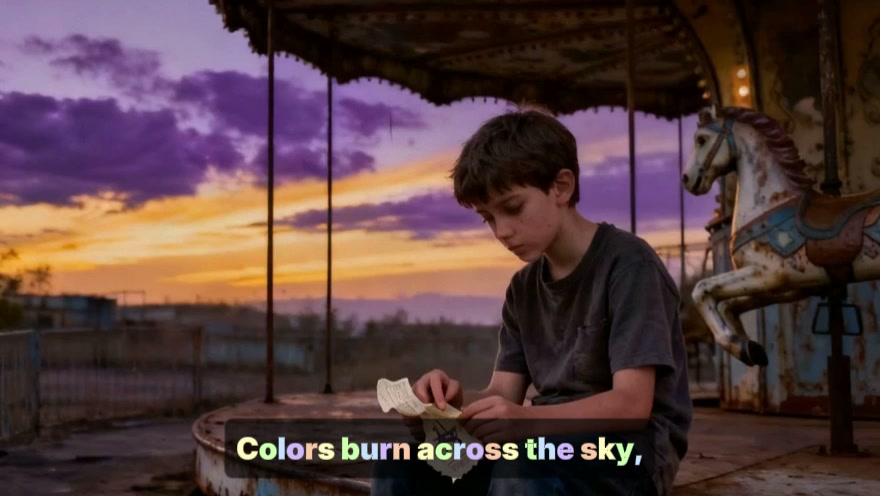
Describe AI Music Video Generator movement without exact beat claims
Give the AI Music Video Generator observable pacing and a clear progression that remains useful without precise musical synchronization.
Choose one movement quality
Slow drifting, a gentle sway, or a purposeful forward move can each suit a different passage. Ask the AI Music Video Generator for one dominant movement quality. Combining frantic subject motion with a calm camera and unrelated effects may weaken the intended musical atmosphere.
- Use ordinary descriptions of pace, weight, and direction.
- Keep AI Music Video Generator motion readable without elaborate choreography.
Create a small visual progression
A scene can begin still, develop one motion, and settle as a light reflection fades. Explain that sequence to the AI Music Video Generator. A visible progression gives the clip shape without requiring a cut at a precise instant or a complete narrative arc.
Let the source guide physical limits
A still landscape suits moving leaves or a restrained camera path; existing performance footage can guide a larger gesture. Match AI Music Video Generator instructions to the material you supplied. Requesting a dramatic action from a tightly cropped still may require too much invented geometry.
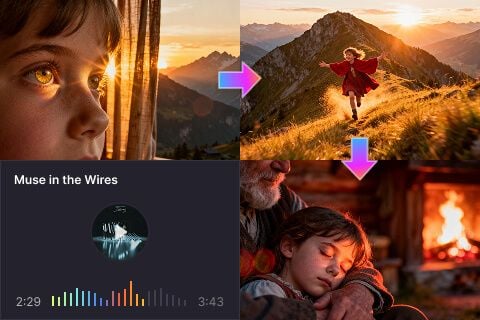
Build AI Music Video Generator atmosphere through image choices
Use AI Music Video Generator light, color, and depth to express musical atmosphere without filling the shot with unrelated effects.
Give the palette a hierarchy
Choose a dominant tone and a small accent that fits the source. Muted green surroundings with warm reflections communicate differently from bright, evenly saturated colors. Give the AI Music Video Generator this relationship so the focal point remains readable while the atmosphere develops.
- Keep bright accents connected to visible objects or light sources.
- Review AI Music Video Generator color changes across the whole scene.
Use depth to support the camera
A foreground edge, a subject area, and a quieter distance create space for a gentle move. Tell the AI Music Video Generator which layer matters most. A strong depth arrangement can express expansiveness without adding particles, rapid transformations, or several new objects.
Keep effects connected to the scene
A soft glow may suit an existing lamp; a ripple belongs on visible water. Ask the AI Music Video Generator for effects grounded in the reference. Unmotivated flashes and floating decoration can distract from the music instead of translating its character into a coherent picture.
Develop AI Music Video Generator scenes as a visual series
Plan each AI Music Video Generator output as a shot with a distinct role in your separately assembled sequence.
Give different shots different roles
An establishing view, a closer gesture, and a quiet ending offer useful variation. Prepare each AI Music Video Generator request around a suitable visual source. This creates more purposeful material than making several nearly identical clips and hoping they will form a story afterward.
Keep recurring details documented
Record the palette, subject description, lighting, and preferred camera behavior for related shots. Reuse those choices in the AI Music Video Generator, then compare the actual results. A shared brief can guide continuity, but it does not guarantee identical faces, clothing, or scenery between requests.
Reserve final editing decisions for later
Keep titles, lyrics, precise audio placement, and transitions in your separate editing workflow. The AI Music Video Generator is not a timeline or subtitle engine. A clean scene with a settled ending gives you more useful material for those later decisions than baked-in inaccurate lettering.
Review AI Music Video Generator picture and sound together
Assess whether AI Music Video Generator picture, pacing, and sound support the same atmosphere across the complete short scene.
Watch the scene while muted
Watch the clip muted to check its motion and progression. AI Music Video Generator output should make visual sense independently. Inspect subject details, perspective, and unexpected objects before relying on music to make a confusing scene feel meaningful.
Listen for the actual relationship
Play the clip with sound and compare its energy with your intention. The AI Music Video Generator does not guarantee precise beat alignment or exact reproduction of reference audio. Judge the result you received, especially unexpected speech or sounds that compete with the intended atmosphere.
Revise the clearest mismatch
Choose one correction, such as slower camera movement or a simpler palette. Check displayed credits before another AI Music Video Generator request. Save approved clips with their references and descriptions so later sequence work starts from organized creative choices.
Example prompts
A still image responds to the supplied audio
Use @Image 1 as the scene and composition reference. Use @Audio 1 to guide the overall musical atmosphere, not exact beat timing. Generate a five-second scene with one gentle camera move and restrained motion in existing environmental details. Keep the main subject recognizable and the palette coherent. Begin quietly and finish with a brief settled moment. No lyrics, captions, new subjects, or scene cuts.
A music-led variation of existing footage
Use @Video 1 for the main subject, setting, and basic motion. Let @Audio 1 guide a calmer, more flowing interpretation of that movement. Create one five-second scene with smooth camera behavior and minimal background distraction. Aim to retain the source subject and visual relationships. No extra performance actions, written lyrics, or abrupt cuts; exact soundtrack reproduction is not required.
User reviews
EveryGen AI video creator feedback.
EveryGen AI creator reviews

I made a full character PV for my game with MiniMax H3 in one afternoon. The menu UI stayed readable in every frame and the character never went off-model. That used to cost me a contractor and three weeks.

We tested every AI video generator on the market for stylized work. H3 is the only one that held our anime style across cuts. We now use it for pitch reels and animatics on every project.

I uploaded four product photos and got a listing video with music and a voiceover the same day. My click-through rate on the new listings is up 38%. H3 even got the label text on my packaging right.

I ship five vertical videos a week for three brands. MiniMax H3 gets me from brief to draft in under an hour, with sound already synced. My old workflow needed a videographer and two review rounds.

The editing side is what sold me. A client wanted the background of an interview changed — I typed one sentence into MiniMax H3 and the lighting on the subject matched the new scene automatically.

I previsualized my entire short film in MiniMax H3 before we shot a single frame. Rack focus, match cuts, even the title cards — it understands director language, not just keywords.
EveryGen AI · MiniMax H3 Max Pricing and Credit Plans
Cancel anytime
Lite
50% off0.025 / credit
Billed $ yearly179· Save $179.8
Video Models


Image Models



- Includes MiniMax H3 and all premium models
- Up to 1 batch generation task
- Standard generation speed
- Standard generation success rate
- Standard customer support
- Commercial Use License
Standard
50% off0.017 / credit
Billed $ yearly299· Save $299.8
Video Models
Image Models
- Includes MiniMax H3 and all premium models
- Up to 4 batch generation tasks
- Priority processing speed
- High generation success rate
- Priority customer support
- Commercial Use License
Pro
50% off0.014 / credit
Billed $ yearly599· Save $599.8
Video Models
Image Models
- Includes MiniMax H3 and all premium models
- Up to 10 batch generation tasks
- Fastest generation speed
- High generation success rate
- Dedicated account manager
- Commercial Use License
Max
50% off0.012 / credit
Billed $ yearly1,199· Save $1,199.8
Video Models
Image Models
- Includes MiniMax H3 and all premium models
- Up to 10 batch generation tasks
- Fastest generation speed
- High generation success rate
- Dedicated account manager
- Commercial Use License
Pay safely and securely with























FAQ
Frequently asked questions
Can the AI Music Video Generator work from audio alone?
No. Include at least one image or video. Audio can guide atmosphere alongside that material but cannot replace the required visual input. Choose a scene that supports the musical direction you want.
Does the AI Music Video Generator build an entire song automatically?
No. It generates short scenes lasting five to fifteen seconds. Plan individual shots and assemble selected outputs separately. The workspace does not automatically arrange a song-length timeline, generate accurate lyric captions, or deliver a fully edited music video.
Can I match every movement to a beat?
Precise beat matching is not guaranteed by the AI Music Video Generator. Describe visible pacing and review the output with sound. Handle exact synchronization in your own editing process when a movement must land at a specific musical instant.
Can I combine an existing clip with a music reference?
Yes. Give the AI Music Video Generator an authorized clip for scene or motion and an audio file for musical direction. Explain both roles; the result is a new interpretation rather than an unchanged source.
How many files can I include?
The AI Music Video Generator reference workflow supports up to nine images, three videos, and three audio files. Start with the fewest files that explain the task. Add references deliberately rather than using every available upload slot.
CTA
Give the AI Music Video Generator a visual passage
Choose a visual reference and clear musical atmosphere. Review settings and displayed credits, then develop a short passage to use in your wider sequence.
Create a music-inspired scene