 EveryGen AI
EveryGen AI · A gamma AI alternative for Presentation Motion Visuals
Need movement for one presentation moment rather than another slide builder? Use this gamma AI alternative to generate a short visual in EveryGen AI, then download it for placement in your own presentation workflow. Your argument, slide layout, and final edit stay with you.
Video workspace
The wooden elevator opens
28/33View prompt
Five-second continuous frontal shot of closed wooden elevator doors opening slowly to reveal one adult woman standing inside. Keep the camera fixed at eye level and the woman relaxed, facing forward. Preserve a simple, balanced composition with warm wood grain and soft interior light. End with the doors open and the woman still standing.
Introduction
What Is a gamma AI alternative for Motion Visuals?
Gamma creates AI presentations, documents, and websites. This gamma AI alternative addresses a narrower need: making a short moving illustration, not generating a deck or reproducing Gamma features.
Give One Idea a Visible Shape
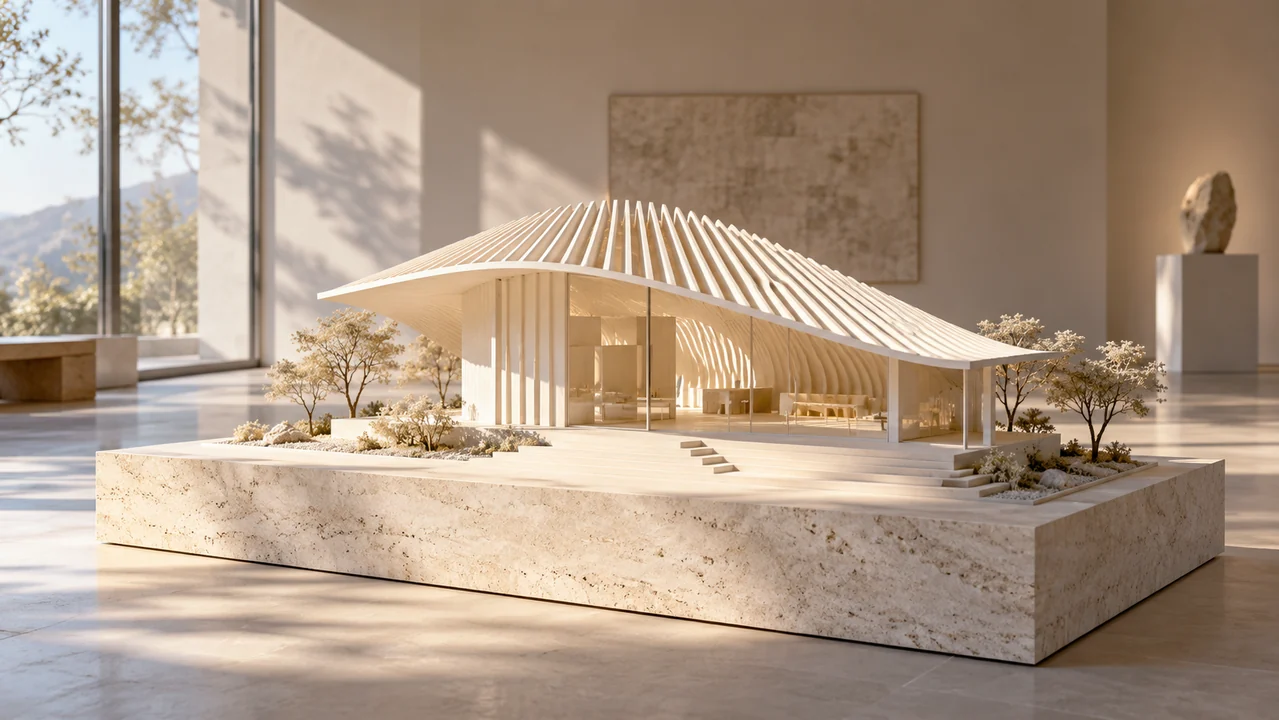
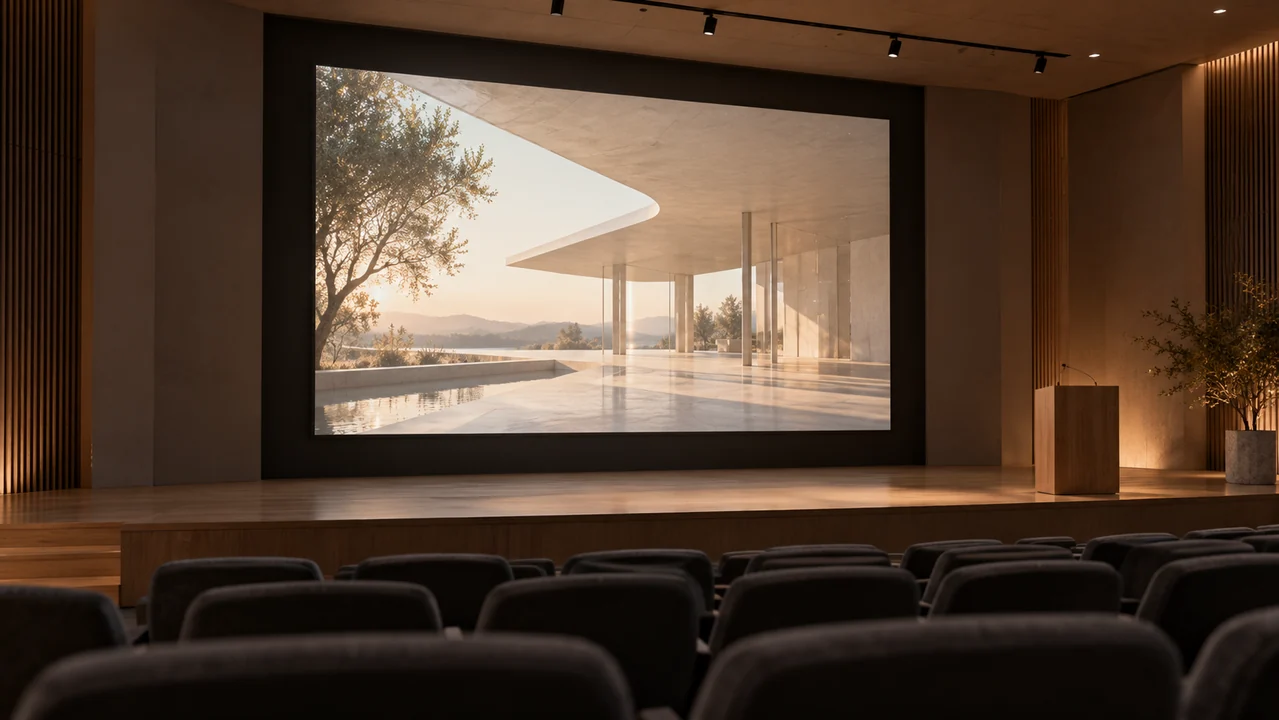
Consider an architecture presentation about daylight. A gamma AI alternative can help illustrate your direction with sunlight moving through a miniature canopy. The clip supports the explanation; it does not supply the research behind it.
- Choose one visual point for the audience.
Separate the Clip from the Presentation
Treat this gamma AI alternative as a source of footage. EveryGen AI produces a short video that you download, review, and place using other software. It does not create Gamma slides or transfer existing decks.
- Keep headings and slide layouts in your editor.
Distinguish Illustration from Evidence
A gamma AI alternative is useful for an imagined lighting concept, not a verified daylight simulation. Label conceptual footage appropriately and keep measurements, citations, and performance claims separate from generated visual material.
- Never present an invented scene as measured proof.
How to use
How to Use This gamma AI alternative for a Presentation Visual
- STEP 1
Describe the Visual Point
Write one concrete scene, such as daylight crossing a canopy model, and specify the movement that supports your presentation message.
- STEP 2
Choose the Starting Input
Keep text mode for a new scene, or switch to image mode and upload the required first frame with suitable framing.
- STEP 3
Check Settings and Create
Review duration, resolution, native audio, and the live Create quote, then submit one generation after confirming the selected configuration.
- STEP 4
Review and Place the Clip
Watch the complete result, download your chosen take, and use another editor to arrange captions, sound, timing, and presentation placement.
Features
Build a gamma AI alternative Visual Around One Message
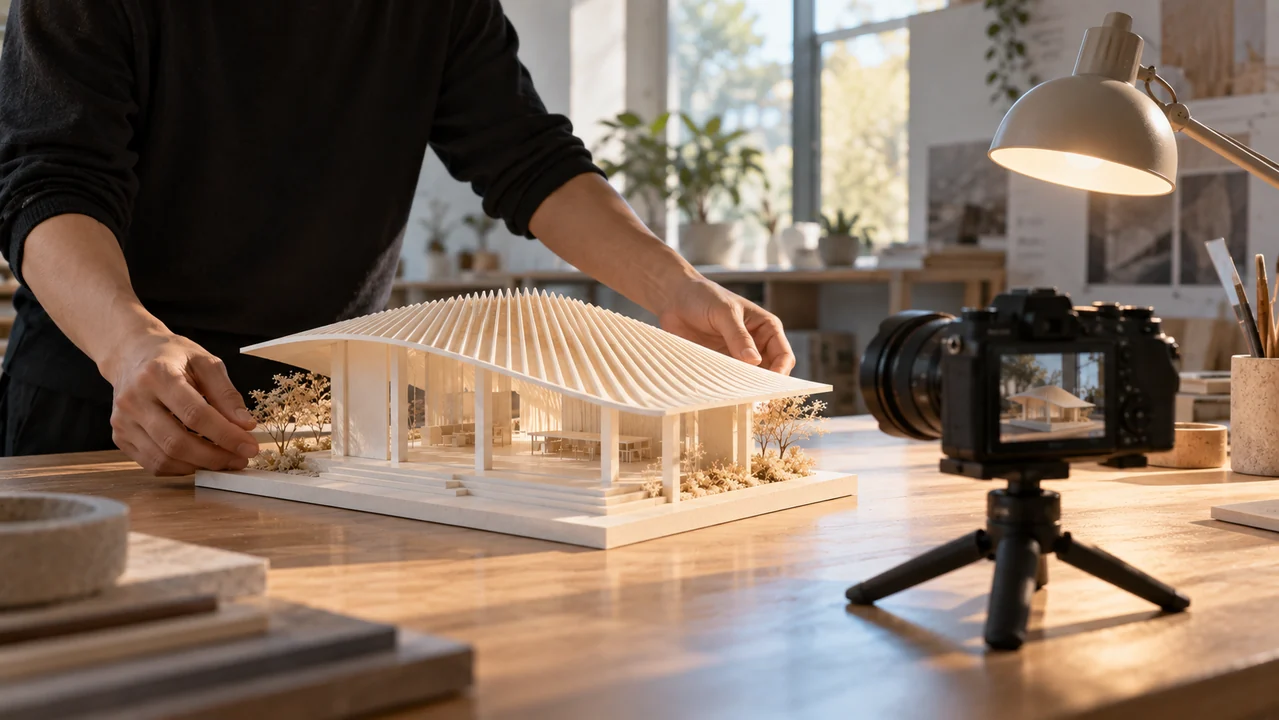
Start this gamma AI alternative workflow with the sentence your audience should remember. Translate that sentence into an observable change instead of asking a single clip to explain the entire presentation.
Find the Physical Action
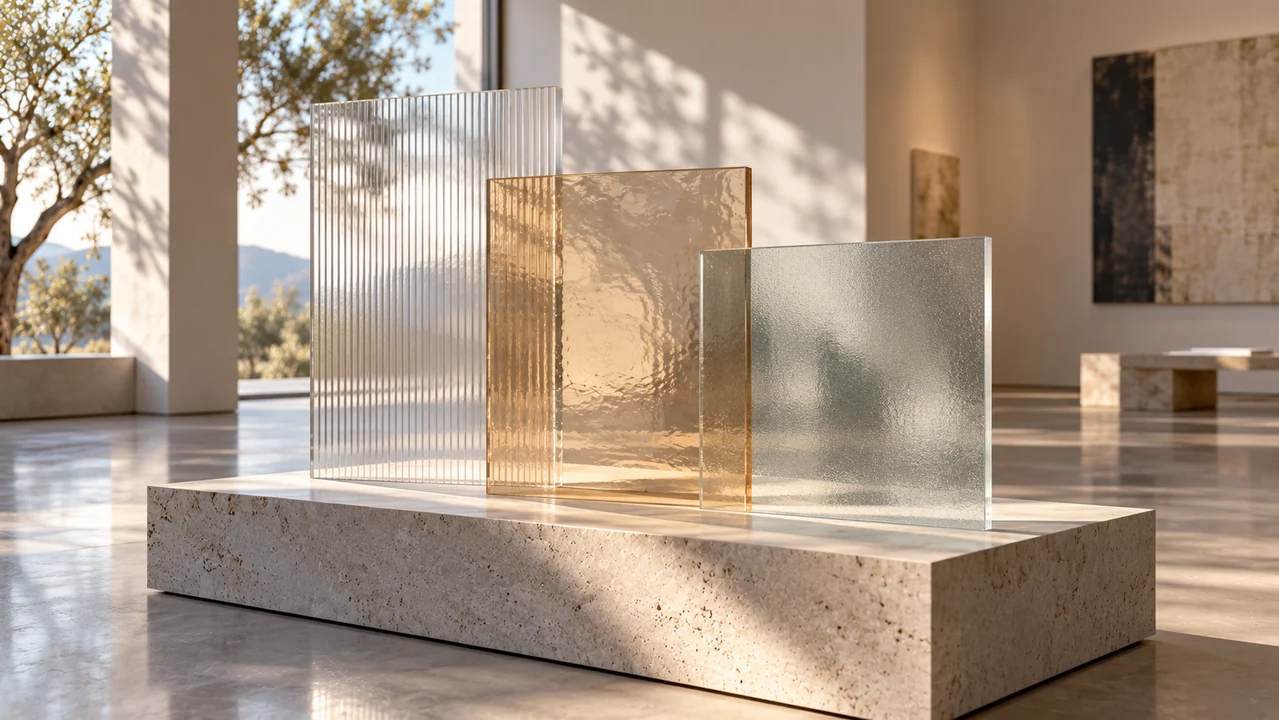
For a talk about layered design, use this gamma AI alternative to show a camera gliding past translucent panels. Their overlapping edges become the action; abstract instructions such as "show innovation" give less concrete direction.
- Name the subject, movement, and viewing angle.
Reserve Breathing Room
Request uncluttered space when using a gamma AI alternative for a title backdrop. Describe where the subject belongs and where your heading will sit later. Check the result rather than assuming those areas remain empty.
- Add presentation text after downloading the footage.
Avoid Competing Movements
Use the gamma AI alternative for one calm motion: shifting light, a turning object, or a slow camera slide. Several simultaneous actions can distract from the point you are trying to explain.
- Let the speaker carry the detailed argument.
Use a Reference in Your gamma AI alternative Workflow
A reference can establish the starting composition for this gamma AI alternative. Switch to image-to-video when you already have a suitable visual and need movement rather than a fresh scene.
Prepare the Opening Composition
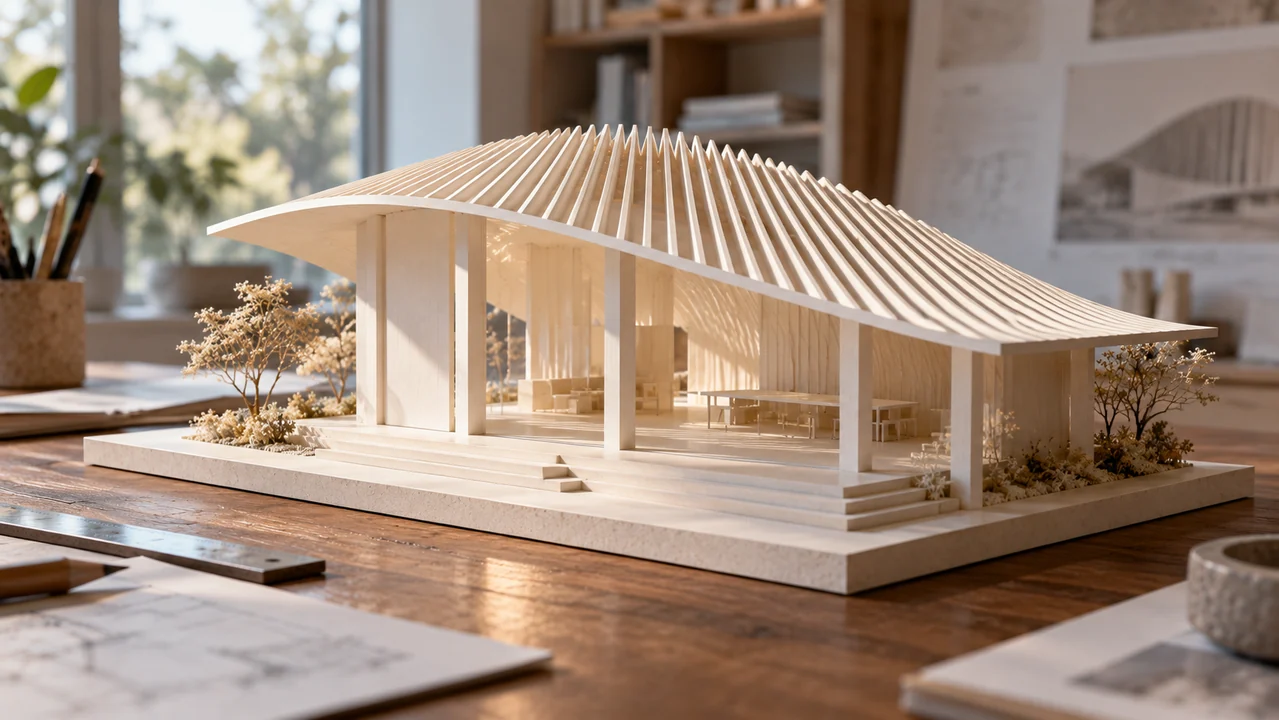
Upload the required first frame to the gamma AI alternative workspace. Use a clear image of your pavilion model with the intended framing already present. The generated image-to-video aspect ratio follows that first frame.
- Use a landscape reference for a landscape presentation.
Describe What Should Change
Tell the gamma AI alternative how to animate the reference: move the camera gently past the roof fins while light crosses the floor. Mention important shapes to preserve, then inspect whether they actually remain stable.
- Reject bent supports or unexplained material changes.
Treat the Ending as Direction
An optional last frame can guide the gamma AI alternative toward a desired ending. It is not a promise of an exact transition. Review intermediate frames before treating the shot as presentation material.
- Leave the last frame empty when unnecessary.
Choose Timing for a gamma AI alternative Clip
Match the gamma AI alternative shot to the speaking moment. A visual that introduces a topic needs different pacing from a detail you will discuss while the audience watches closely.
Begin with the Default Take
The gamma AI alternative workspace starts with MiniMax H3 Max Turbo: text-to-video, five seconds, 480P, 16:9, one output, and native audio. Use that starting configuration to explore composition before requesting another take.
- Check the actual settings before each submission.
Leave Time for the Reveal
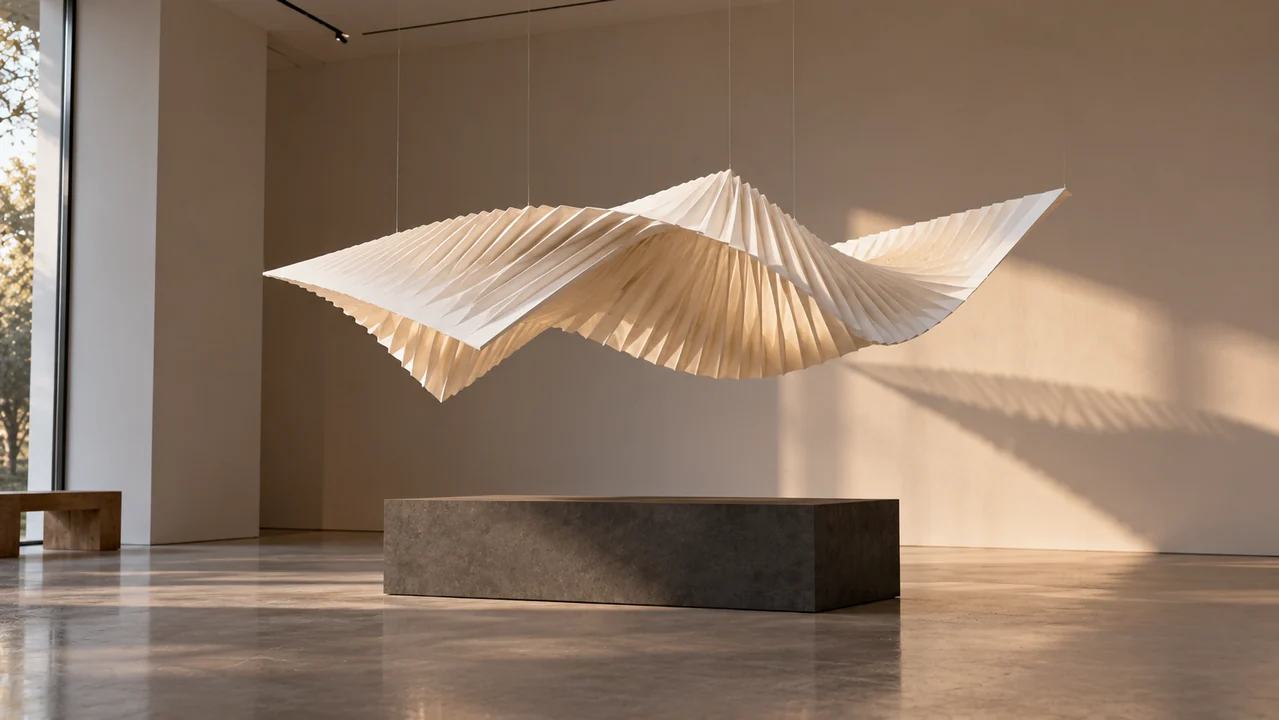
Choose between 5 and 15 seconds in this gamma AI alternative workflow. A slow reveal of a suspended paper structure may need more time than a simple light sweep. Describe the intended pace explicitly.
- Longer duration does not automatically improve the shot.
Make the Quality Decision Deliberately
Available resolutions are 480P, 768P, and 1080P. Before generating with the gamma AI alternative, read the live Create quote for the selected settings. Do not assume the cost remains unchanged after an adjustment.
- Review framing before committing to another output.
Review a gamma AI alternative Visual for Presentation Use
Evaluate the gamma AI alternative output in the context of your slide, not only as an attractive standalone video. Your audience needs to understand why this particular movement is there.
Inspect the Whole Motion
Watch the gamma AI alternative result from beginning to end. Look for flickering panel edges, changing support positions, or a camera move that hides the subject before your spoken point has landed.
- A strong opening cannot rescue a distracting ending.
Judge Audio Separately
Native audio is enabled in the starting configuration, but a gamma AI alternative clip does not need to compete with your narration. Listen before use and mute or replace unsuitable sound in another editor.
- Choose the soundtrack during presentation assembly.
Check Text Against the Actual Frame
Place your real heading over a downloaded gamma AI alternative clip in your editing software. Inspect contrast during movement, not just on a still frame. Add a backing shape externally when the background becomes busy.
- Keep essential labels readable without relying on audio.
Finish Beyond the gamma AI alternative Workspace
The gamma AI alternative delivers a short clip, not a completed presentation. Download the chosen take and finish placement, captions, timing, and playback checks in the software used for your deck.
Build Around the Speaking Cue
Trim the gamma AI alternative footage around the sentence it supports. A canopy shadow crossing the floor can introduce a design principle; it does not need to continue moving throughout the entire explanation.
- Keep a still fallback for that moment.
Test the Destination Yourself
Do a playback check after adding the gamma AI alternative download to your chosen presentation tool. Confirm the tool accepts the file and that playback behaves as intended in your actual delivery setup.
- EveryGen AI does not provide a Gamma integration here.
Keep the Concept Easy to Revisit
Save your gamma AI alternative prompt, selected settings, and downloaded take together in your own project folder. That record helps you explain a revision without pretending a later generation will reproduce identical motion.
- Finish edits externally and retain the original download.
Example prompts
gamma AI alternative Example: Daylight Canopy
A five-second architectural concept shot in 16:9. A small ivory pavilion model with evenly spaced roof fins rests on a matte pale stone plinth. A narrow band of warm daylight moves slowly across the floor beneath the canopy. The camera makes a subtle lateral slide at model height. Preserve straight supports and a quiet uncluttered background, with generous empty space on the left for a heading added later. Soft room ambience, no speech. No text, logos, charts, cuts, or additional objects.
gamma AI alternative Example: Translucent Layers
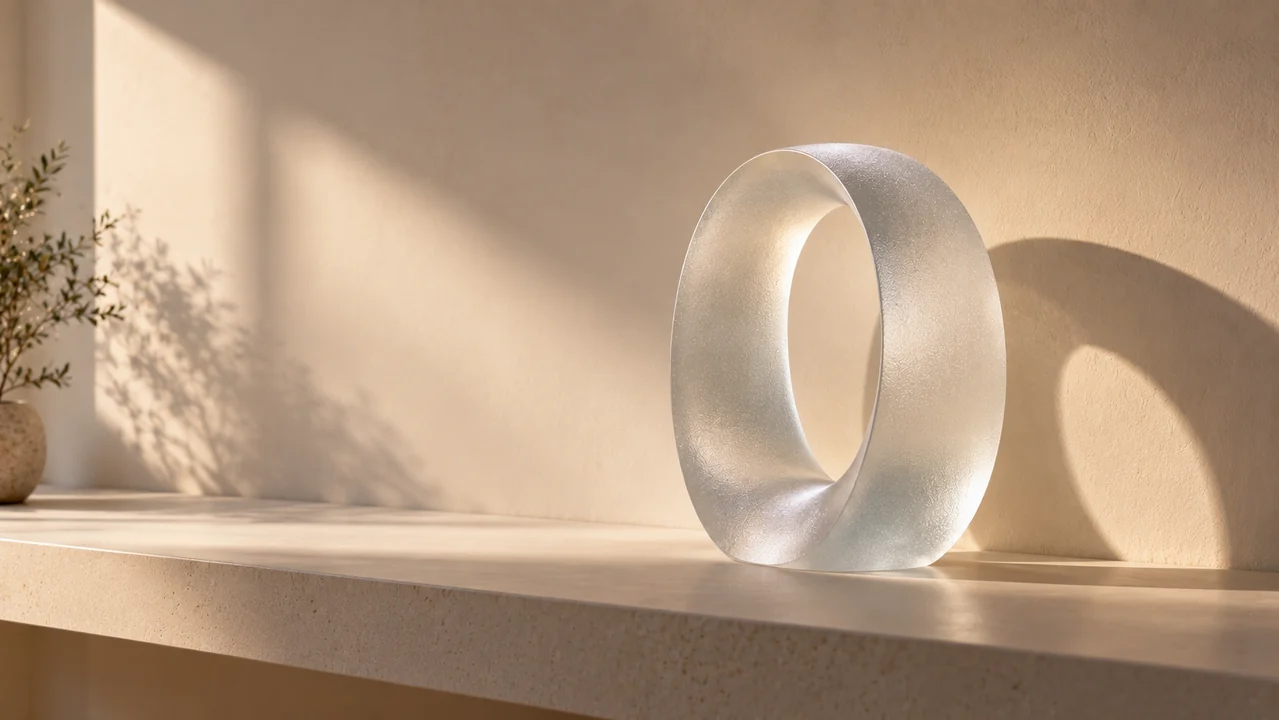
A five-second conceptual presentation visual in 16:9. Three upright translucent glass panels stand at different depths on a neutral gallery table, surrounded by empty space. The camera glides slowly from left to right so their overlapping silhouettes become visible through parallax. Restrained warm window light, gentle edge reflections, no panel movement, no sudden reveal. Quiet room ambience without speech. Keep the geometry stable and the frame free of text, logos, diagrams, and interface elements.
User reviews
EveryGen AI video creator feedback.
EveryGen AI creator reviews

I made a full character PV for my game with MiniMax H3 in one afternoon. The menu UI stayed readable in every frame and the character never went off-model. That used to cost me a contractor and three weeks.

We tested every AI video generator on the market for stylized work. H3 is the only one that held our anime style across cuts. We now use it for pitch reels and animatics on every project.

I uploaded four product photos and got a listing video with music and a voiceover the same day. My click-through rate on the new listings is up 38%. H3 even got the label text on my packaging right.

I ship five vertical videos a week for three brands. MiniMax H3 gets me from brief to draft in under an hour, with sound already synced. My old workflow needed a videographer and two review rounds.

The editing side is what sold me. A client wanted the background of an interview changed — I typed one sentence into MiniMax H3 and the lighting on the subject matched the new scene automatically.

I previsualized my entire short film in MiniMax H3 before we shot a single frame. Rack focus, match cuts, even the title cards — it understands director language, not just keywords.
EveryGen AI · MiniMax H3 Max Pricing and Credit Plans
Cancel anytime
Lite
50% off0.025 / credit
Billed $ yearly179· Save $179.8
Video Models


Image Models



- Includes MiniMax H3 and all premium models
- Up to 1 batch generation task
- Standard generation speed
- Standard generation success rate
- Standard customer support
- Commercial Use License
Standard
50% off0.017 / credit
Billed $ yearly299· Save $299.8
Video Models
Image Models
- Includes MiniMax H3 and all premium models
- Up to 4 batch generation tasks
- Priority processing speed
- High generation success rate
- Priority customer support
- Commercial Use License
Pro
50% off0.014 / credit
Billed $ yearly599· Save $599.8
Video Models
Image Models
- Includes MiniMax H3 and all premium models
- Up to 10 batch generation tasks
- Fastest generation speed
- High generation success rate
- Dedicated account manager
- Commercial Use License
Max
50% off0.012 / credit
Billed $ yearly1,199· Save $1,199.8
Video Models
Image Models
- Includes MiniMax H3 and all premium models
- Up to 10 batch generation tasks
- Fastest generation speed
- High generation success rate
- Dedicated account manager
- Commercial Use License
Pay safely and securely with























FAQ
Frequently asked questions
Does this gamma AI alternative generate complete slide decks?
No. This gamma AI alternative generates short motion visuals in EveryGen AI. It does not write or arrange Gamma slides, import a presentation, or replace a deck editor. Assemble the presentation separately.
Who is this gamma AI alternative workflow intended for?
This gamma AI alternative suits presenters who already have a message and need an illustrative clip for one moment. An architectural concept, material reveal, or calm title background fits that limited scope.
Can I animate an image with this gamma AI alternative?
Yes. Switch the gamma AI alternative workspace to image-to-video and provide a first frame. A last frame is optional, and the output ratio follows the first image. Review the result for unwanted changes.
What does a gamma AI alternative generation cost?
Use the live Create quote in the gamma AI alternative workspace for your selected settings. Available duration and resolution choices affect what you request; this page does not promise a fixed generation price.
Does this gamma AI alternative connect to Gamma?
No Gamma connection is provided by this gamma AI alternative workflow. Download the clip and handle any later editing or placement yourself. This page describes a limited use case, not an affiliation or migration service.
CTA
Try a gamma AI alternative for One Presentation Moment
Give this gamma AI alternative one scene and one movement. Check the live Create quote, generate a short take, and download it for your own presentation edit.
Create a Presentation Visual