 EveryGen AI
EveryGen AI · Rotate Image Online with Angle and Canvas Controls
Correct a sideways photo, mirror a composition, or turn a picture by a precise angle. Rotate Image keeps the work in your browser and gives you control over the canvas around the result. Use Rotate Image to decide what stays visible, how empty corners look, and whether extra margin is needed.
Rotate Image workspace
Drop or paste a JPG, PNG or WebP · up to 30 MB
Up to 8192 pixels per side and 32 megapixels
Free · Sign in to process · Inputs and results are saved to your account.
Introduction
What Is Rotate Image?
Rotate Image turns or mirrors a picture and saves the changed version. Choose a photo that appears sideways, turn it until the person stands upright, and download it; you can also flip the picture to reverse left and right.
Correct orientation or explore a new layout
A photo can arrive sideways, an illustration may need a different direction, or a layout may call for a tilted visual. Rotate Image handles these changes directly, using the source you provide rather than generating a replacement scene or altering the subject itself.
Choose Rotate Image when the whole picture needs turning or mirroring. It does not automatically identify a horizon, fix perspective, or separately reposition objects within a photograph. You choose the transformation and judge the preview against the result you actually need.
- Turn a sideways picture into the intended orientation.
- Use a deliberate tilt as part of a layout.
Keep editing local and simple
Rotate Image processes pictures in your browser after sign-in. Inputs and results are uploaded to your account for task review. No subscription, credit deduction, or paid cloud model is required. Keep your source and inspect the result before using it elsewhere.
Large images still require memory and processing time. Rotate Image can be slower on a busy or limited device, and expanding the canvas creates a larger working area. Keep a source copy and save the finished file before leaving the page.
- Rotate Image processes pictures in your browser after sign-in. Inputs and results are uploaded to your account for task review. No subscription, credit deduction, or paid cloud model is required. Keep your source and inspect the result before using it elsewhere.
- Preserve your source for another angle or later revision.

How to use
How to Use Rotate Image
- Beforebag.jpg
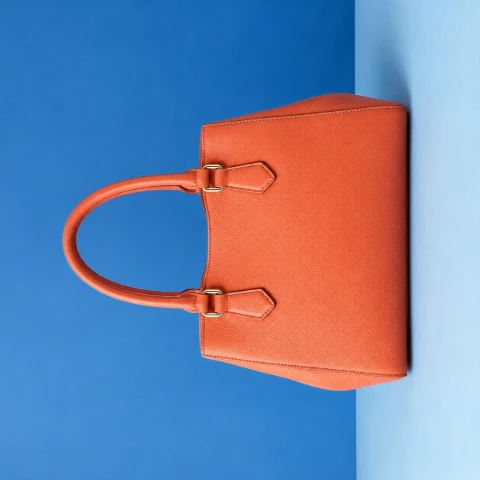 1254 × 1254 px398 KBSTEP 1
Choose the source
Open Rotate Image and select a supported local picture within the file and pixel limits. Check its current orientation before choosing a transformation.
- 90°STEP 2
Set the transformation
Use Rotate Image for a left or right quarter turn, a half turn, a flip, or an arbitrary angle. Inspect text after any reflection.
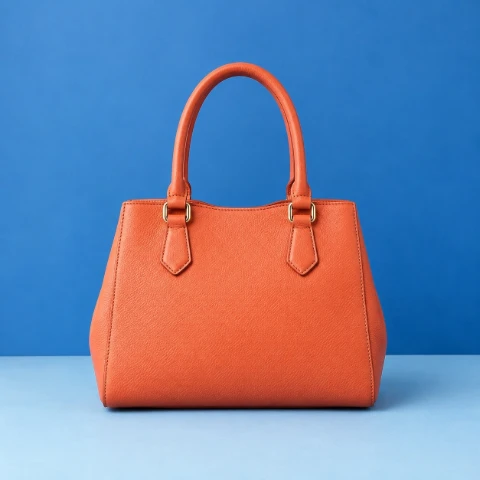 90°STEP 3
Adjust the surrounding canvas
In Rotate Image, choose whether to expand the canvas, select a corner fill or transparency, and adjust margins while checking for clipped content.
- AfterBeforebag.jpgDownloadSTEP 4
Inspect and download
Review the framing and small details in Rotate Image, then download the finished picture. Keep your source file for another version rather than overwriting it immediately.
Features
Rotate Image Features: Turns, Flips, and Any Angle
Rotate Image provides common orientation buttons alongside arbitrary-angle control. Rotation and reflection solve different problems, so inspect lettering and recognizable subjects after either operation.
Use quarter turns and a half turn
Turn left or right by 90 degrees in Rotate Image when a picture is sideways. A 180-degree turn is useful for an upside-down source. These choices are more direct than estimating a value on an angle control for a familiar orientation correction.
A quarter turn normally swaps the visual width and height of the picture. Rotate Image shows the changed orientation so you can check the framing before export. Do not assume that the surrounding destination layout will automatically adapt to the new shape.
- Use left or right 90-degree turns for sideways sources.
- Choose 180 degrees for a complete upside-down correction.
Combine mirroring with a deliberate tilt
Horizontal and vertical flip controls in Rotate Image reflect the picture rather than simply turning it. A horizontal flip changes left and right, while a vertical flip changes top and bottom. Text, logos, and familiar asymmetrical objects make these differences particularly noticeable.
For a less rigid adjustment, set an arbitrary angle in Rotate Image and inspect the preview. The exact angle is your choice; this is not automatic horizon detection. Check whether the tilt improves the intended layout without accidentally making important content difficult to read.
- Check text and logos whenever you mirror an image.
- Use the angle control for adjustments beyond fixed turns.

Rotate Image Features: Canvas, Corners, and Margins
Rotate Image lets you manage the space around a turned picture, rather than silently treating every rotation as a crop or a fixed-size export.
Decide whether the canvas should expand
An angled rectangle can extend beyond its original bounds. With canvas expansion enabled, Rotate Image makes room for the rotated picture. This helps retain the complete source when corners would otherwise fall outside the original canvas after an arbitrary-angle adjustment.
With expansion disabled, Rotate Image keeps the tighter canvas boundary, so content outside it can be clipped. That may suit a fixed layout, but it is a visual tradeoff rather than a quality improvement. Inspect all four edges before deciding which setting to keep.
- Enable expansion when retaining the full picture is important.
- Check for clipped corners when keeping the tighter canvas.
Style empty corners and add breathing room
Rotation can leave empty regions around the picture. Rotate Image lets you choose a fill color or transparency for those corners and adjust the margin around the result. These controls help an angled image sit intentionally against a surrounding design.
Transparent corners in Rotate Image need an output format that supports transparency. JPG cannot retain transparent pixels, so use an appropriate solid fill for a JPG result. Adding margin changes the surrounding space; it does not reconstruct scenery beyond the original photograph.
- Choose a corner fill that fits the destination background.
- Use margin for spacing rather than simulated scene extension.
Rotate Image Features: Review and Export Boundaries
Rotate Image keeps the controls focused on orientation, framing, and export appearance. Source quality and supported file limits still matter when you save the result.
Understand re-encoding and visible detail
Rotate Image does not advertise JPEG rotation as universally lossless. Even when a turn is exactly 90 degrees, saving through an image encoder can introduce additional compression changes. Arbitrary angles also require resampling, which can affect fine lines, text, and the appearance of edges.
Start with the best available source and avoid repeatedly rotating downloaded copies. Rotate Image is more useful when you settle the angle, canvas, and margin together before exporting. Check detailed areas at a practical viewing size, particularly when the final image contains small lettering.
- Inspect fine edges after an arbitrary-angle transformation.
- Keep the original instead of repeatedly re-encoding edited copies.
Check the supported source requirements
Rotate Image accepts static JPG, PNG, and WebP files no larger than 30 MB each. The longest side must be at most 8192 pixels, and the source must contain no more than 32 megapixels overall. Meeting only one dimension limit is not enough.
Rotate Image does not process animations, HEIC, TIFF, SVG, or AVIF, and unsupported files are not uploaded for conversion. Use a supported static source and choose sensible canvas and margin settings, especially when working with a picture already near the input size limits.
- Check source dimensions as well as the file size.
- Use supported static files instead of unsupported animated inputs.
User reviews
EveryGen AI video creator feedback.
EveryGen AI creator reviews

I made a full character PV for my game with MiniMax H3 in one afternoon. The menu UI stayed readable in every frame and the character never went off-model. That used to cost me a contractor and three weeks.

We tested every AI video generator on the market for stylized work. H3 is the only one that held our anime style across cuts. We now use it for pitch reels and animatics on every project.

I uploaded four product photos and got a listing video with music and a voiceover the same day. My click-through rate on the new listings is up 38%. H3 even got the label text on my packaging right.

I ship five vertical videos a week for three brands. MiniMax H3 gets me from brief to draft in under an hour, with sound already synced. My old workflow needed a videographer and two review rounds.

The editing side is what sold me. A client wanted the background of an interview changed — I typed one sentence into MiniMax H3 and the lighting on the subject matched the new scene automatically.

I previsualized my entire short film in MiniMax H3 before we shot a single frame. Rack focus, match cuts, even the title cards — it understands director language, not just keywords.
Rotate Image is free after sign-in, with no subscription or credits required. Inputs and results are uploaded and saved to your account for task review.
EveryGen AI · MiniMax H3 Max Pricing and Credit Plans
Cancel anytime
Lite
50% off0.025 / credit
Billed $ yearly179· Save $179.8
Video Models


Image Models



- Includes MiniMax H3 and all premium models
- Up to 1 batch generation task
- Standard generation speed
- Standard generation success rate
- Standard customer support
- Commercial Use License
Standard
50% off0.017 / credit
Billed $ yearly299· Save $299.8
Video Models
Image Models
- Includes MiniMax H3 and all premium models
- Up to 4 batch generation tasks
- Priority processing speed
- High generation success rate
- Priority customer support
- Commercial Use License
Pro
50% off0.014 / credit
Billed $ yearly599· Save $599.8
Video Models
Image Models
- Includes MiniMax H3 and all premium models
- Up to 10 batch generation tasks
- Fastest generation speed
- High generation success rate
- Dedicated account manager
- Commercial Use License
Max
50% off0.012 / credit
Billed $ yearly1,199· Save $1,199.8
Video Models
Image Models
- Includes MiniMax H3 and all premium models
- Up to 10 batch generation tasks
- Fastest generation speed
- High generation success rate
- Dedicated account manager
- Commercial Use License
Pay safely and securely with























FAQ
Frequently asked questions
Is Rotate Image free after signing in?
Yes. Rotate Image requires sign-in, but no subscription or credits. The original and finished image are saved to your account and included in task history. Paid plans elsewhere on the site are optional for this tool.
Does Rotate Image upload my source picture?
Yes. Rotate Image uploads the original and finished image to your account for task review. Processing runs in your browser; it does not call a paid cloud model. Sign in before processing, and keep the page open until saving finishes.
Can Rotate Image use an arbitrary angle?
Yes. Rotate Image supports arbitrary-angle adjustments alongside left and right 90-degree turns, a 180-degree turn, and horizontal or vertical flips. You choose the angle; automatic horizon detection is not included.
What does canvas expansion do in Rotate Image?
Rotate Image can expand the canvas to accommodate the rotated picture. With expansion off, portions extending beyond the tighter canvas can be clipped. Inspect the edges and corners before downloading the result.
Can Rotate Image keep empty corners transparent?
Yes, when the output uses a format that supports transparency. JPG cannot preserve transparent pixels, so choose a suitable solid fill for that output. The corner setting does not generate missing scene content.
Is a 90-degree JPEG turn lossless in Rotate Image?
Do not assume it is. A right-angle transformation and the export encoding are separate operations. Saving a JPEG can introduce compression changes even when the geometry uses an exact quarter turn.
Can Rotate Image mirror text without changing its readability?
A Rotate Image flip reflects the whole picture, including text and logos. It does not recognize lettering and repair it separately. Check readable content and familiar asymmetrical details whenever you use a mirror operation.
Which input limits apply to Rotate Image?
Use static JPG, PNG, or WebP up to 30 MB, with a longest side no greater than 8192 pixels and no more than 32 megapixels total. Animation, HEIC, TIFF, SVG, and AVIF are unsupported.
CTA
Find the Right Orientation with Rotate Image
Choose an angle, inspect the corners, and give the result the space it needs. Rotate Image keeps each transformation visible before you save the finished picture.
Choose an Image