 EveryGen AI
EveryGen AI · AI Product Video Generator for motion around your actual item
Build a moving scene around the product customers should recognize. The EveryGen AI AI Product Video Generator starts with your uploaded photograph and a focused motion brief. Use the AI Product Video Generator for a restrained reveal or interaction, not automatic catalog extraction from a product URL.
Video workspace
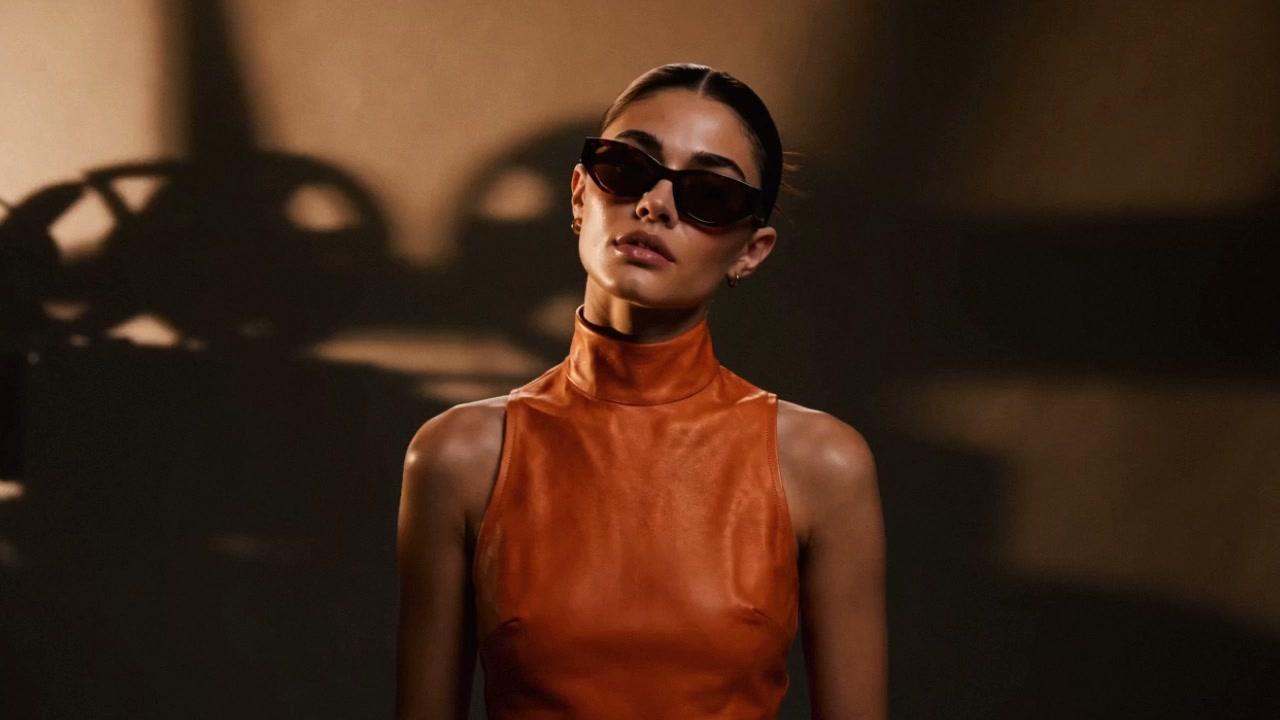
A small turn to show the sunglasses
8/10View prompt
Use the uploaded opening image of the adult woman wearing sunglasses and an orange outfit. Over five seconds, let her turn her head gently and settle, keeping the glasses clearly visible. Maintain the source framing, clothing, lighting, and background, with believable reflections on the lenses. Use restrained camera movement and avoid introducing another product or additional accessories.
Introduction
Give the AI Product Video Generator one visual task
Decide what the movement reveals about the item. Give the AI Product Video Generator a visual task that helps viewers understand it.
Choose a useful visual emphasis
A slow approach can emphasize a textured surface; a slight sideways camera move can reveal a curved handle. Give the AI Product Video Generator one useful emphasis. Constant spinning or dramatic splashes may add activity without helping anyone understand the product more clearly.
Start from the actual product image
Select MiniMax H3 Max Turbo image mode and upload a clear first frame. The AI Product Video Generator needs that opening image. Add an optional ending frame only when it describes a reachable finish for the same scene.
Keep the first attempt compact
Begin at five seconds and 480P. The AI Product Video Generator supports five to fifteen seconds and 480P, 768P, or 1080P, with native audio. Start with a simple shot whose movement and product details you can evaluate before choosing a larger configuration.
How to use
How to use the AI Product Video Generator
- Input
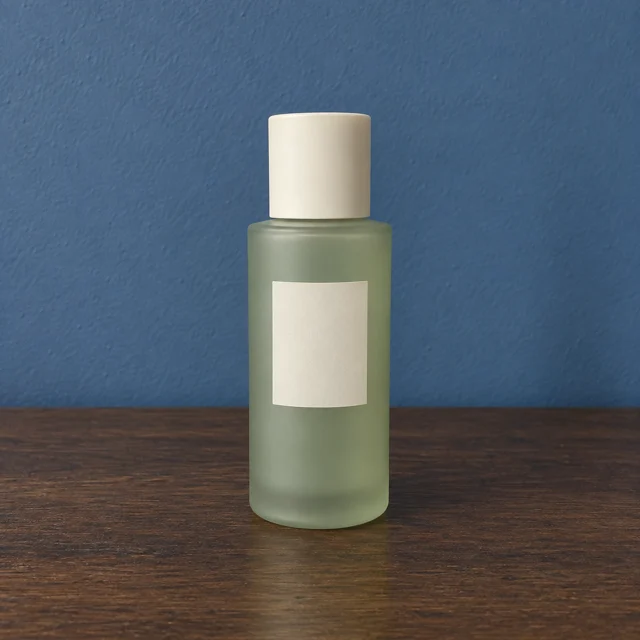 Reference image 1STEP 1
Upload your first frame
Select MiniMax H3 Max Turbo image mode in the AI Product Video Generator and upload a clear photograph of your product.
- ModelMiniMax H3 Max Turbo480P16:95sPromptOutputSTEP 2
Describe a focused movement
Give the AI Product Video Generator a restrained action, lighting direction, and sound atmosphere; add a compatible ending image when useful.
- First frameLast frame
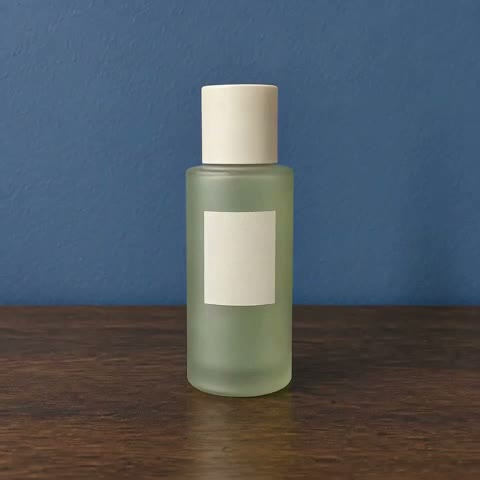 0.0s
0.0s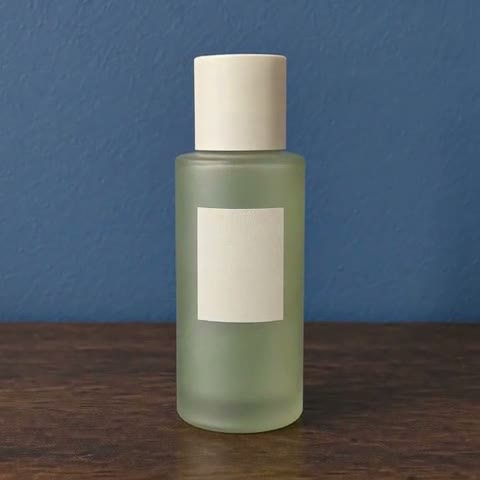 2.6s
2.6s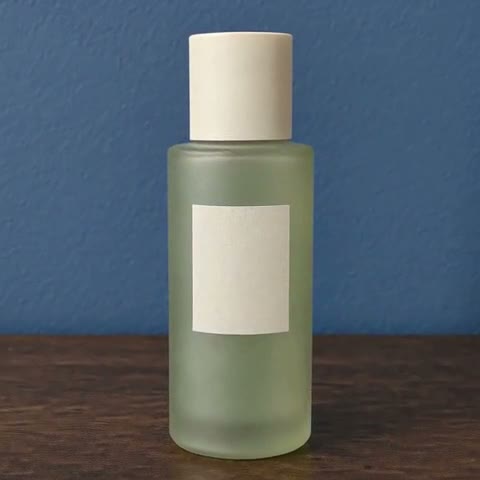 4.7sSTEP 3
Generate one short shot
Start the AI Product Video Generator at five seconds and 480P, check the displayed credits, and generate your product scene.
- STEP 4
Check the item throughout
Compare AI Product Video Generator packaging, labels, shadows, and sound with your reference throughout the clip before choosing a version to download.
Features
Prepare an AI Product Video Generator frame that works
Prepare an AI Product Video Generator source with readable packaging, a clear supporting surface, and enough room for the intended movement.
Show the defining product details
Keep the item fully visible, with its label, closure, handle, or distinctive shape unobstructed. The AI Product Video Generator should begin from the version you actually intend to represent. Avoid reference pictures where glare or blur already makes important packaging details uncertain.
- Check the source against the actual item before uploading.
- Keep AI Product Video Generator references free of unrelated product variants.
Prepare the destination crop
Image proportions come from the uploaded frame. For a narrow placement, prepare a suitable source instead of expecting a wide composition to crop automatically. Leave space around the product in the AI Product Video Generator input so small movements do not immediately cut off an edge.
Make the support surface clear
A visible tabletop or plinth establishes where the product rests. Show that relationship in the source and describe it in the AI Product Video Generator brief. Clear contact is easier to inspect than an object floating against an undefined background.
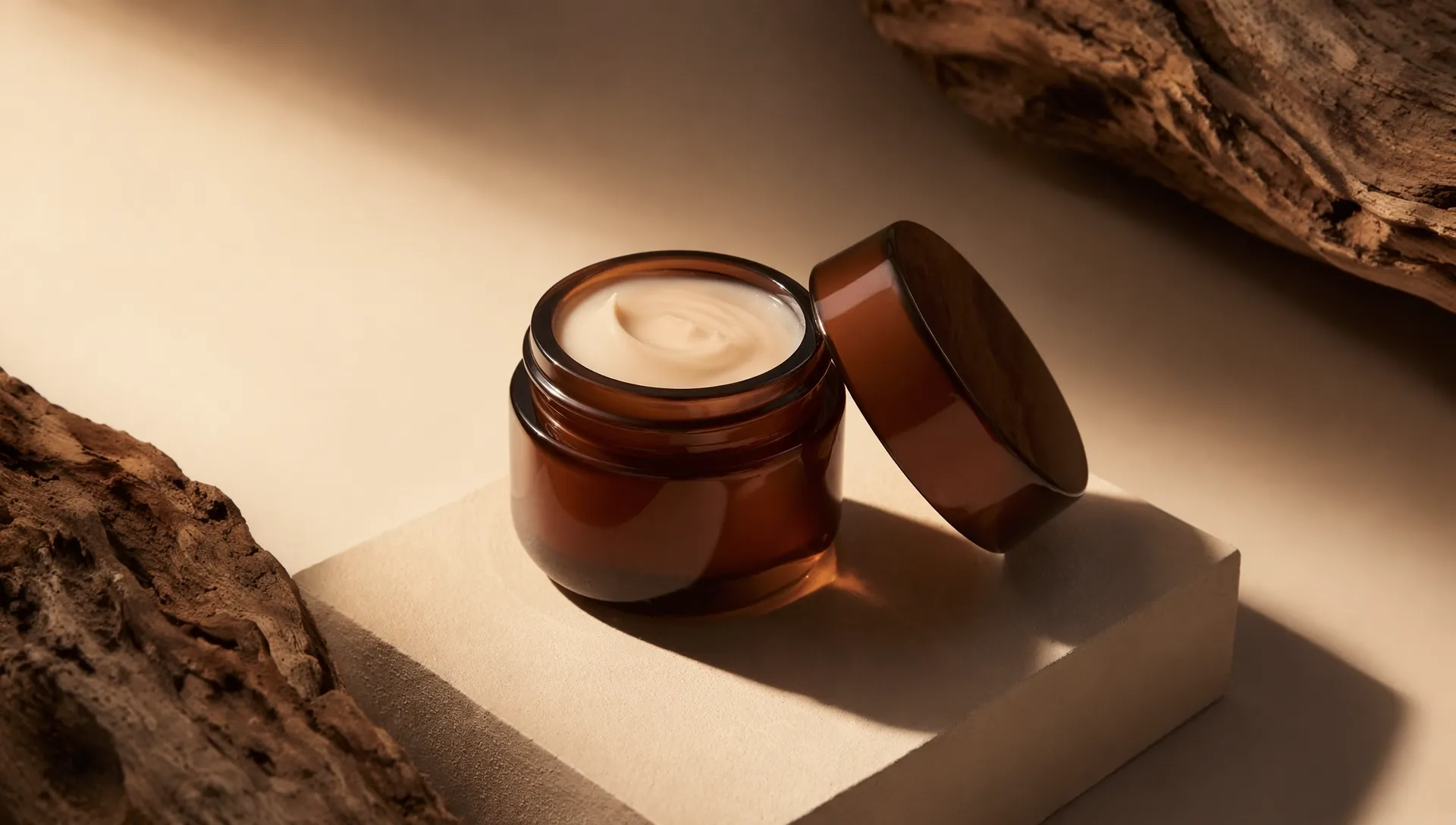
Direct AI Product Video Generator movement with restraint
Give the AI Product Video Generator one primary action, distinguishing camera movement from motion of the product or surroundings.
Let the camera do the work
For a detailed label or unfamiliar shape, start with a stationary product and a gentle camera move. Ask the AI Product Video Generator for a slow approach or slight sideways shift. Watch whether perspective changes introduce new lettering or distort edges that were clear initially.
- Prefer a small reveal over an unsupported full rotation.
- Keep AI Product Video Generator camera movement within the source composition.
Use secondary motion for atmosphere
A curtain can move behind a still object or soft reflections can travel across its surface. Give the AI Product Video Generator that supporting activity without obscuring the product. Decorative motion should not imply an ingredient, attachment, or function that the actual item does not have.
Keep physical interactions simple
When the first frame includes an authorized hand holding the item, request a small repositioning rather than a complicated assembly. The AI Product Video Generator can reinterpret fingers, closures, and contact. Inspect the interaction closely before selecting a candidate as a useful product illustration.
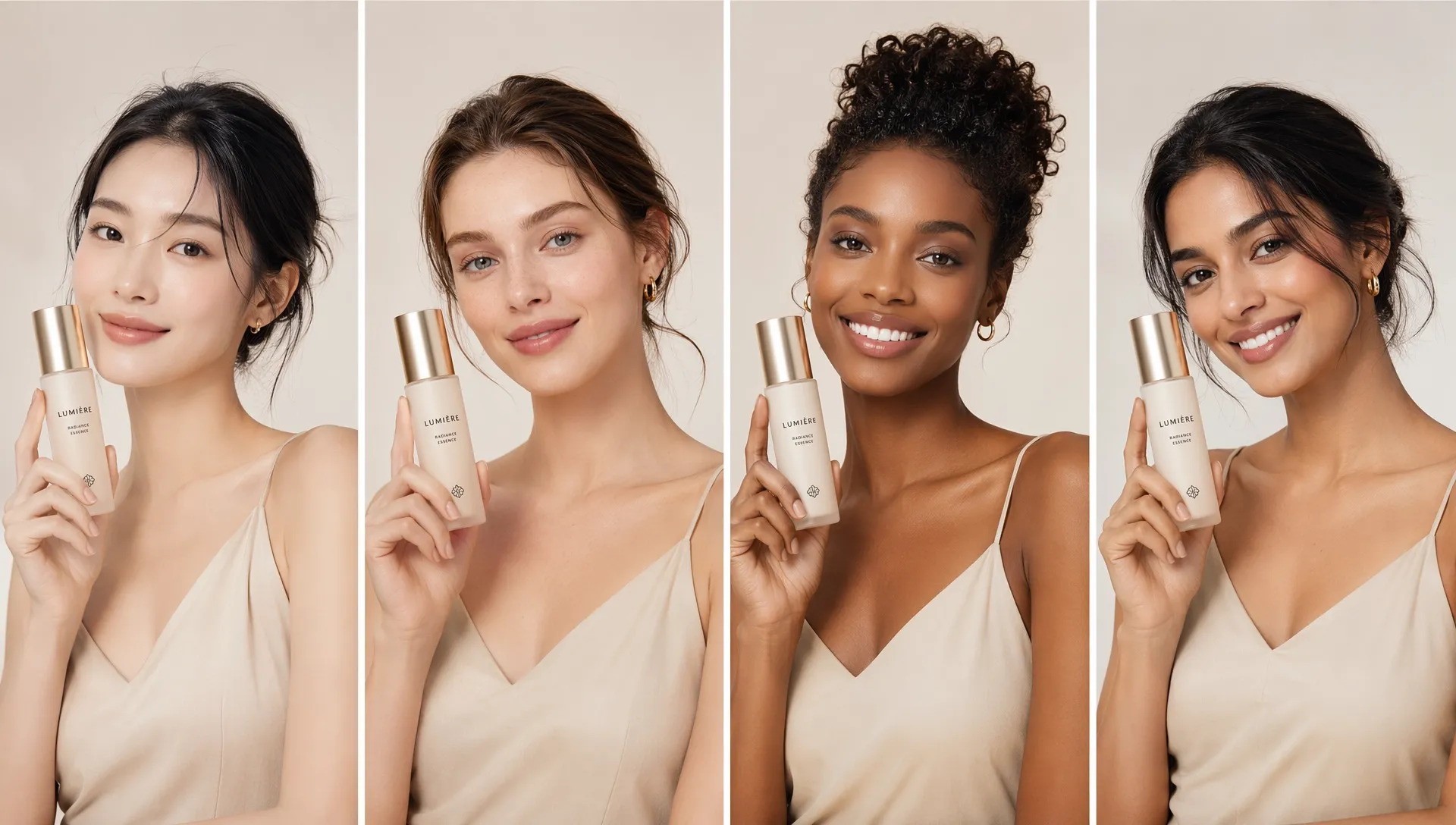
Give AI Product Video Generator materials coherent light
Direct AI Product Video Generator light to describe the product’s actual finish, keeping highlights and shadows coherent during movement.
Preserve the intended finish
Matte ceramic should not become glass, and brushed metal should not become a mirror. Name the actual finish in your AI Product Video Generator instructions. Check whether reflections describe the surface or conceal its shape, especially when the camera moves past a bright area.
- Use light to describe texture rather than cover it.
- Review AI Product Video Generator highlights through the entire camera movement.
Keep shadows attached to the object
A moving camera changes the view of a shadow without making the product leave the table. Tell the AI Product Video Generator that the item stays grounded. Watch for a detached base, a sliding contact patch, or a shadow moving independently of its source.
Choose relevant native audio
Turbo produces native audio with the scene. Describe quiet room ambience or a soft contact sound when the visible action supports it. The AI Product Video Generator does not need a dramatic impact for every movement; listen for sounds that exaggerate or misrepresent what the product does.
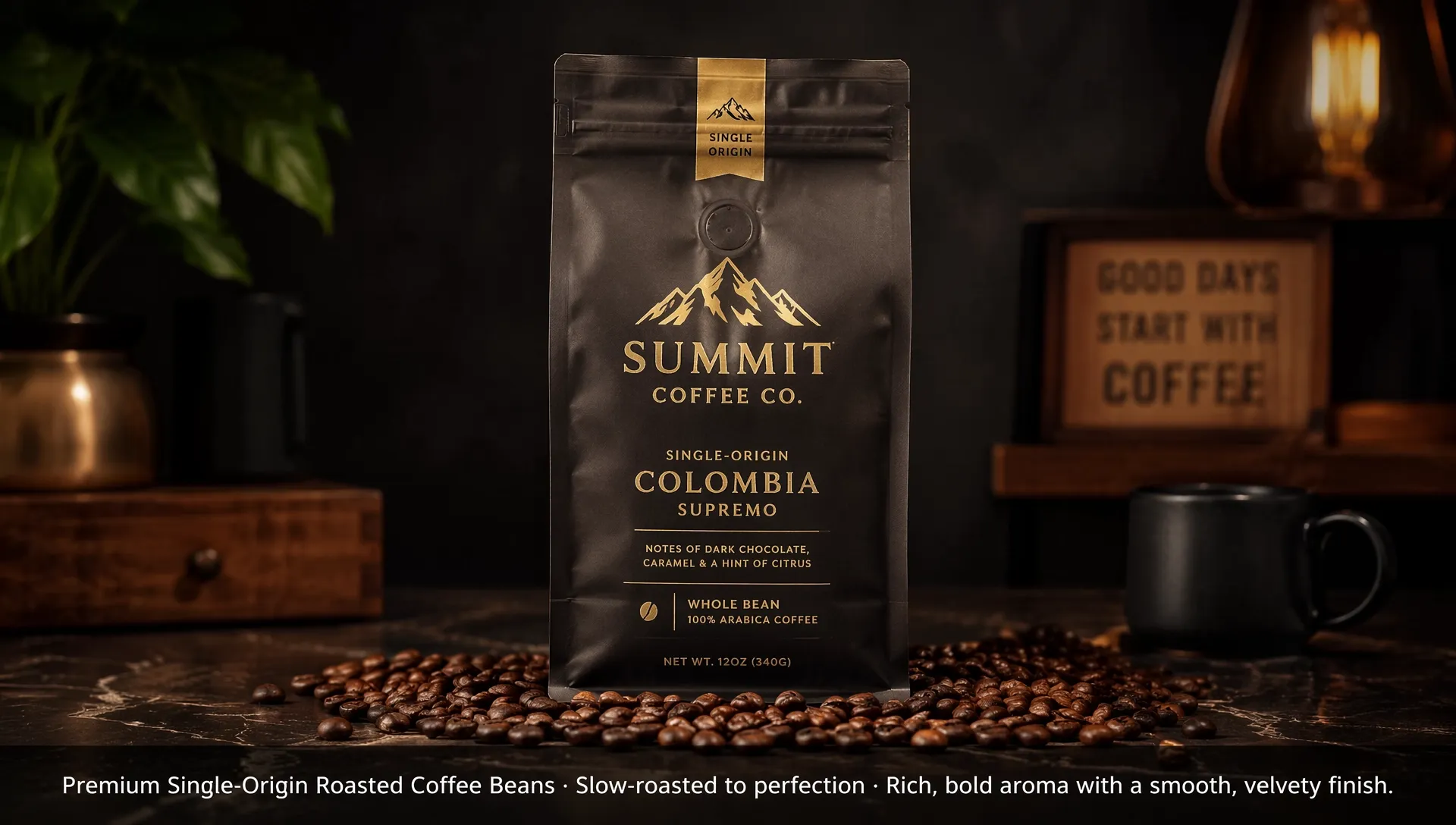
Plan AI Product Video Generator shots around viewing needs
Use the AI Product Video Generator for a specific viewing need, rather than asking one shot to perform every selling task.
Create an opening product view
Start with a clear overall view that lets the audience identify the item. Give the AI Product Video Generator a gentle reveal and a short settled ending. Avoid introducing new accessories or hiding the packaging during the first moment someone encounters the product.
Build a compatible ending frame
An optional ending image can show a modest change in framing or a reachable final position. Explain the transition to the AI Product Video Generator. Check the middle of the clip, where shapes may change, rather than judging only whether the opening and ending look attractive.
Prepare related shots separately
A wide introduction, a detail shot, and a context scene have different jobs. Plan each AI Product Video Generator request around its own appropriate first frame. Assemble approved clips separately rather than expecting several uploaded product views to become a finished timeline automatically.
Review AI Product Video Generator output against the item
Review AI Product Video Generator footage for packaging accuracy, physical stability, and appropriate sound before selecting it for visual polish.
Inspect labels and repeated details
Pause where the label turns, a handle overlaps the body, or a highlight crosses the logo. AI Product Video Generator output may alter text or proportions during motion. Compare those moments with the source and reject changes that could misrepresent the item being offered.
Watch normal playback as well
At normal speed, check whether the item wobbles, changes size, or slips across its support. The AI Product Video Generator should be judged as a moving scene, not a collection of appealing frames. Listen at the same time for an appropriate relationship between action and sound.
Refine the smallest useful change
Keep a successful composition and revise one issue, such as camera speed or excessive reflections. Confirm the displayed credits before the next AI Product Video Generator request. Save the chosen reference and brief with the approved clip so later revisions start from a clear product decision.

Example prompts
A restrained product reveal
Use the uploaded opening image as the product and composition reference. Create one five-second shot with a very slow camera push toward the main item. Keep the product upright and stationary on its support, aiming to retain its recognizable shape, label, and finish. Gentle consistent side light and quiet room ambience. No new accessories, text overlays, hands, or scene cuts.
Reach the supplied ending composition
Use the uploaded first frame and optional last frame as the scene endpoints. Over five seconds, make a gentle camera movement toward the ending composition while the product remains grounded and recognizable. Keep lighting consistent and background movement minimal. End with a short pause. Subdued ambient sound; no added logos, packaging, claims, or dramatic product transformations.
User reviews
EveryGen AI video creator feedback.
EveryGen AI creator reviews

I made a full character PV for my game with MiniMax H3 in one afternoon. The menu UI stayed readable in every frame and the character never went off-model. That used to cost me a contractor and three weeks.

We tested every AI video generator on the market for stylized work. H3 is the only one that held our anime style across cuts. We now use it for pitch reels and animatics on every project.

I uploaded four product photos and got a listing video with music and a voiceover the same day. My click-through rate on the new listings is up 38%. H3 even got the label text on my packaging right.

I ship five vertical videos a week for three brands. MiniMax H3 gets me from brief to draft in under an hour, with sound already synced. My old workflow needed a videographer and two review rounds.

The editing side is what sold me. A client wanted the background of an interview changed — I typed one sentence into MiniMax H3 and the lighting on the subject matched the new scene automatically.

I previsualized my entire short film in MiniMax H3 before we shot a single frame. Rack focus, match cuts, even the title cards — it understands director language, not just keywords.
EveryGen AI · MiniMax H3 Max Pricing and Credit Plans
Cancel anytime
Lite
50% off0.025 / credit
Billed $ yearly179· Save $179.8
Video Models


Image Models



- Includes MiniMax H3 and all premium models
- Up to 1 batch generation task
- Standard generation speed
- Standard generation success rate
- Standard customer support
- Commercial Use License
Standard
50% off0.017 / credit
Billed $ yearly299· Save $299.8
Video Models
Image Models
- Includes MiniMax H3 and all premium models
- Up to 4 batch generation tasks
- Priority processing speed
- High generation success rate
- Priority customer support
- Commercial Use License
Pro
50% off0.014 / credit
Billed $ yearly599· Save $599.8
Video Models
Image Models
- Includes MiniMax H3 and all premium models
- Up to 10 batch generation tasks
- Fastest generation speed
- High generation success rate
- Dedicated account manager
- Commercial Use License
Max
50% off0.012 / credit
Billed $ yearly1,199· Save $1,199.8
Video Models
Image Models
- Includes MiniMax H3 and all premium models
- Up to 10 batch generation tasks
- Fastest generation speed
- High generation success rate
- Dedicated account manager
- Commercial Use License
Pay safely and securely with























FAQ
Frequently asked questions
Can the AI Product Video Generator start from a product URL?
No. Upload an actual opening image. This workflow does not fetch product descriptions, prices, or pictures from a store URL. Verify the reference yourself before describing how the scene should move.
Does the AI Product Video Generator keep logos perfectly stable?
No. Lettering, packaging details, and object proportions can change during generation. Check the entire clip against your real product, especially where a label moves through shadows or reflections. Keep the verified source photograph available for comparison.
Can I choose a square or vertical product clip?
Prepare a square or vertical opening image for the AI Product Video Generator. The source controls the proportions in image mode. Include enough space for the planned movement rather than assuming a different crop can preserve every important product edge.
Is an ending image required?
No. The AI Product Video Generator requires one first frame and accepts an optional ending frame. Add the latter only when it clarifies a reachable final composition. Describe a natural stopping point when you work from one image.
Can I create a complete product demonstration?
Use the AI Product Video Generator for selected short scenes within its five-to-fifteen-second range. It is not a substitute for verifying how a real mechanism works. Assemble approved shots separately and avoid presenting invented behavior as a tested product function.
CTA
Give the AI Product Video Generator a useful movement
Choose an accurate product photograph and one useful movement. Review the configuration and displayed credits, then inspect the complete clip before selecting it.
Animate your product reference