 EveryGen AI
EveryGen AI · AI headshot generator for reference-based professional portraits
Create portrait options from a photograph you provide, with direction for clothing, background, framing, and light. The EveryGen AI AI headshot generator uses GPT Image 2 in reference image mode; begin at 3:4 and 1K for a vertical composition. Use the AI headshot generator to explore a professional presentation while keeping your original photograph close. A polished image still needs your approval for likeness, accuracy, and intended use.
Image workspace
Sample Image
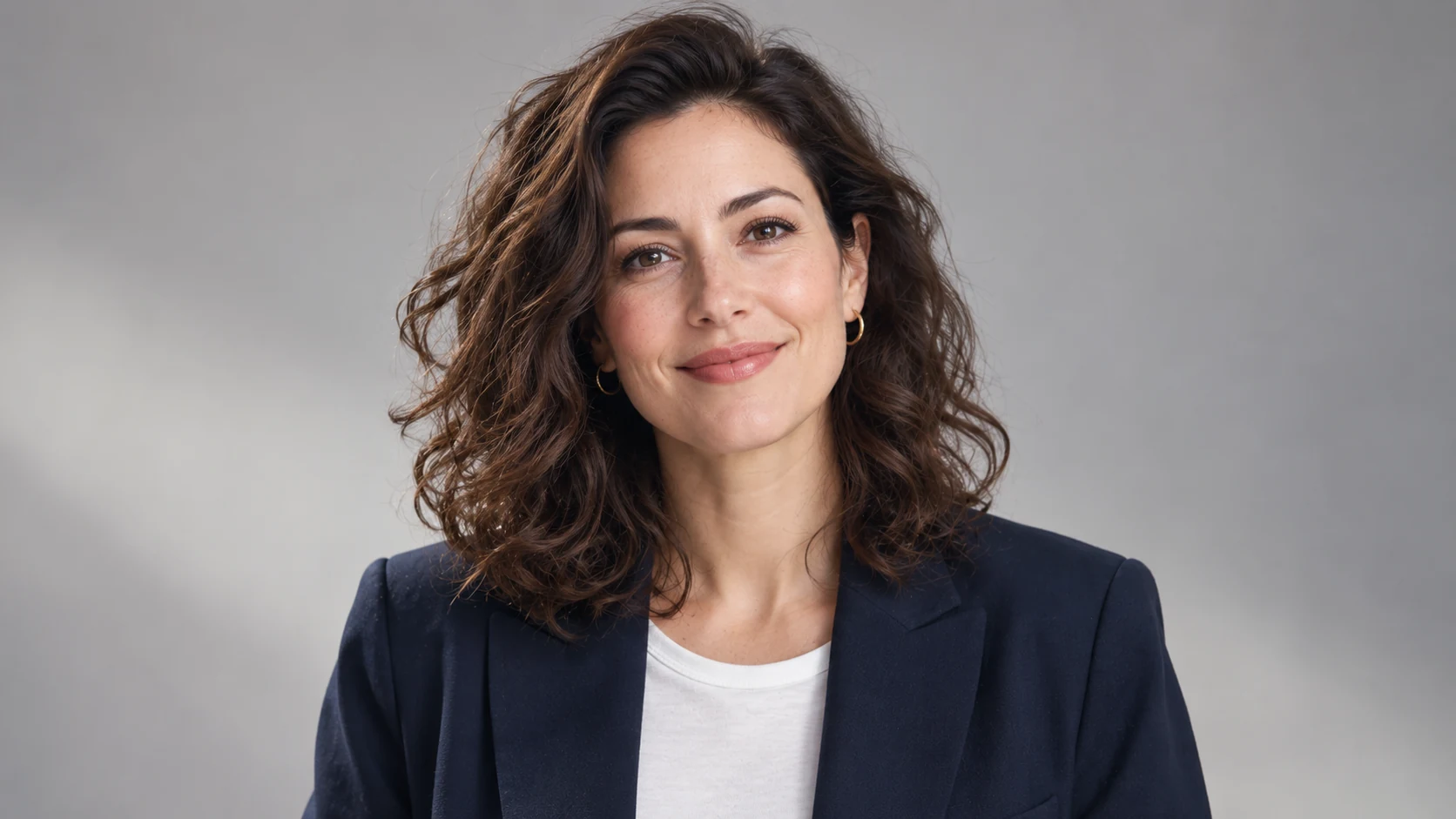 11 / 17
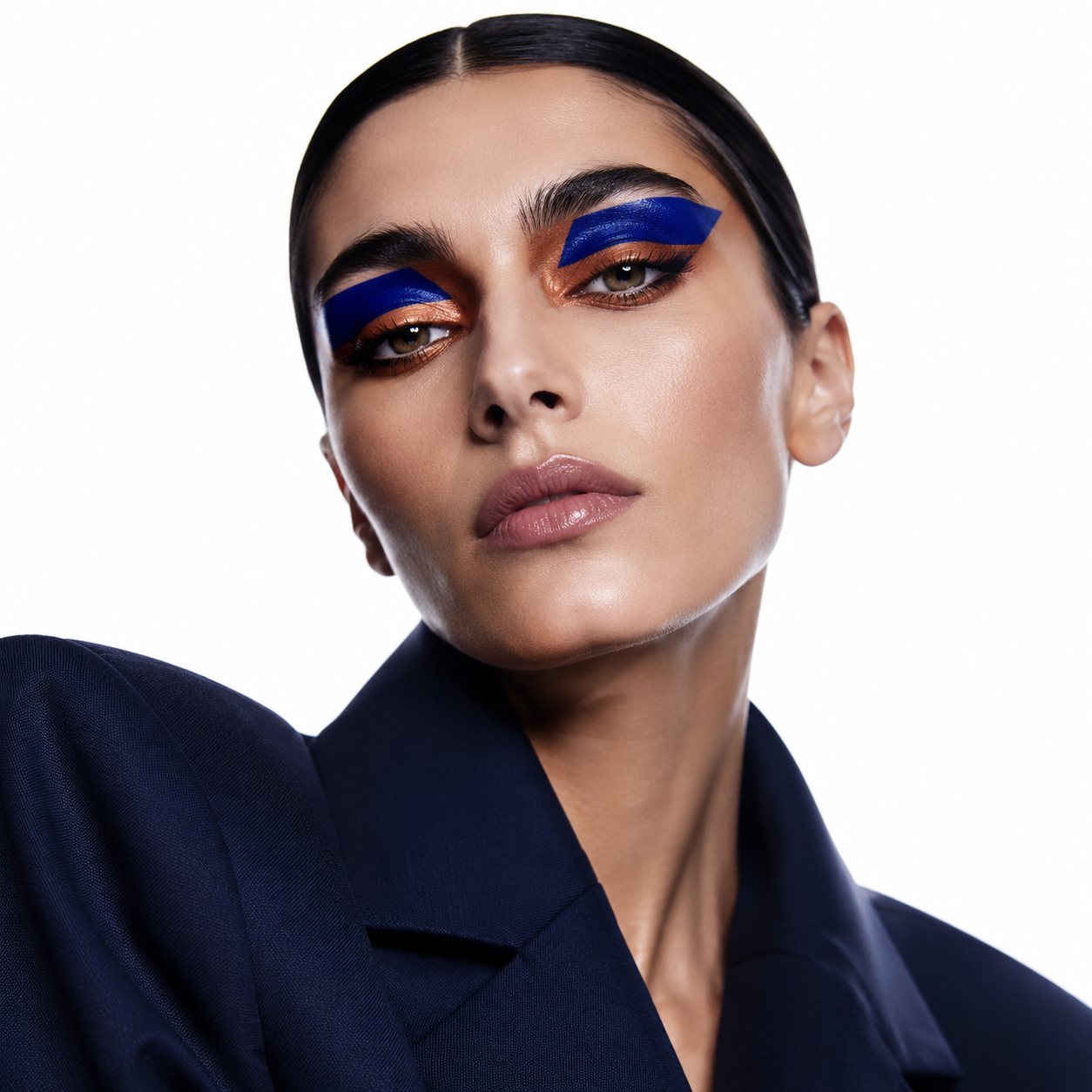
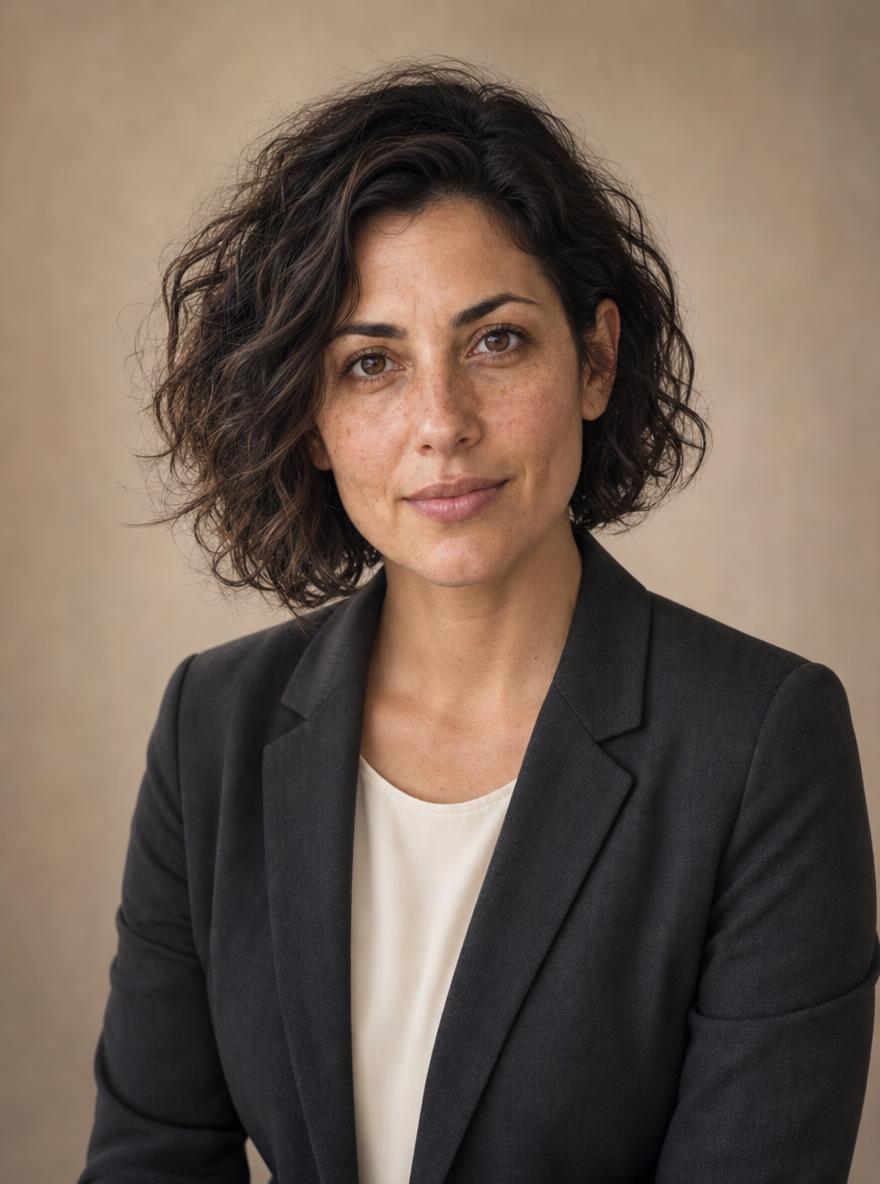
AI-generated portrait illustration of a fictional adult professional.
Introduction
Choose a clear reference for the AI headshot generator
Start with a photograph that shows the person accurately. The AI headshot generator cannot recover every detail hidden by blur, deep shadow, filters, or an obstructed face, so source selection deserves attention.
Use a recent, readable photograph
Choose a photograph with visible facial features, natural expression, and enough space around the head and shoulders. Give the AI headshot generator a clear reference rather than a heavily compressed screenshot. Avoid a source where hair, glasses, or hands conceal important features.
- Prefer an image without strong beauty filters or unusual distortion.
- Provide the AI headshot generator with a photograph you are authorized to use.
Choose the person, not the setting
A simple source background is useful, but the face matters most. The AI headshot generator can receive instructions for a new setting; it still needs a readable subject. Select the photograph that represents the person well rather than the most impressive original location.
Confirm permission before uploading
Use your own photograph or obtain appropriate permission from the person pictured and other relevant rights holders. Do not use the AI headshot generator to impersonate someone or fabricate their endorsement. For a team project, confirm that each participant understands the proposed use.
How to use
How to use the AI headshot generator
- Input
 Reference image 1STEP 1
Choose your photo
Upload an authorized adult portrait to the AI headshot generator and select GPT Image 2 reference editing for your draft.
- ModelGPT Image 21K3:4PromptOutputSTEP 2
Direct the portrait
Describe clothing, background, and a relaxed expression in the AI headshot generator, asking to retain recognizable features from your photograph.
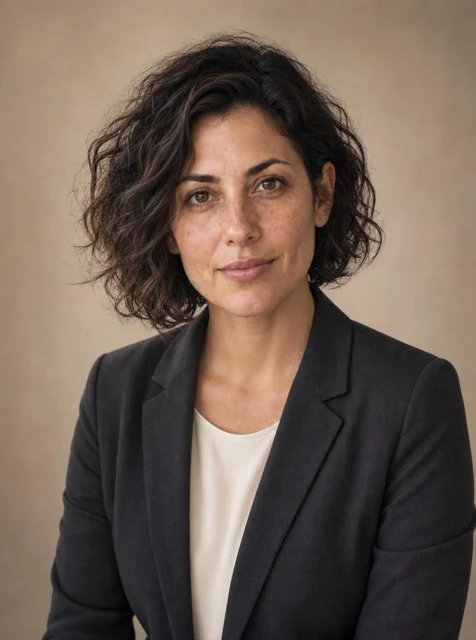 BeforeAfterSTEP 3
Generate an option
Set portrait framing and 1K in the AI headshot generator, check the displayed credits, and generate a headshot option.
- STEP 4
Approve the likeness
Compare AI headshot generator output with the reference, inspect eyes and skin texture, and obtain the subject’s approval before use.
Features
Direct framing and light in the AI headshot generator
A useful professional portrait usually needs clear priorities rather than dramatic effects. Brief the AI headshot generator on camera position, crop, eye direction, background separation, and one straightforward lighting setup.
Leave room for the destination crop
Start with the 3:4 starting frame and keep the full hairstyle inside the picture. Ask the AI headshot generator for comfortable shoulder and headroom. A portrait intended for a circular profile crop needs different breathing room from a tall biography photograph.
- Check the image at the small size where it will appear.
- Ask the AI headshot generator to keep the face away from crop boundaries.
Choose soft, understandable light
Describe a large soft light slightly above eye level, gentle facial shadows, and a quiet background. The AI headshot generator does not need several competing lighting directions. Aim for a face that remains readable without removing all natural variation in skin tone.
Request a believable expression
Use precise language such as a relaxed mouth, attentive gaze, or slight natural smile. Tell the AI headshot generator to avoid exaggerated expressions. Review the eyes and mouth together; a technically smooth portrait can still feel unlike the person in the reference.
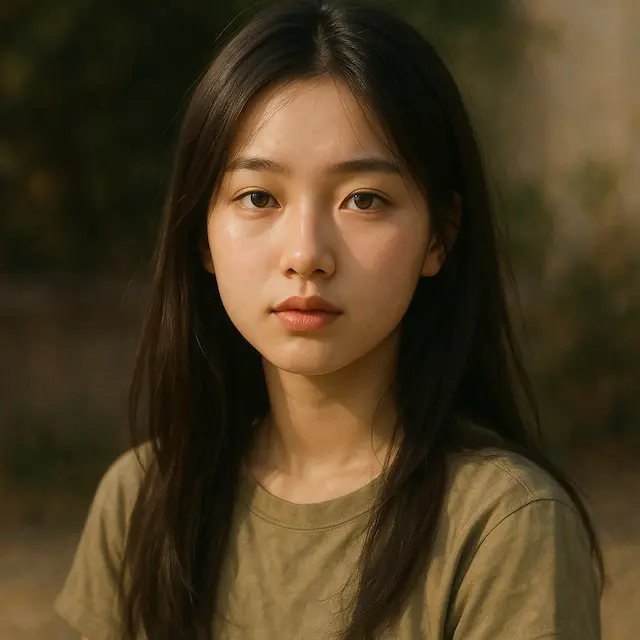
Style the portrait with the AI headshot generator
Professional does not have to mean the same outfit and backdrop for everyone. Give the AI headshot generator a visual direction suited to the person's actual work, audience, and preferred presentation.
Describe clothing simply
A plain shirt, knitted top, or understated jacket may be enough. Ask the AI headshot generator for a specific color and fit rather than a vague luxury look. Inspect collars, buttons, seams, and the way fabric meets the neck after generation.
- Avoid adding badges, uniforms, or credentials that misrepresent the subject.
- Give the AI headshot generator a wardrobe brief the person actually approves.
Keep the background secondary
Choose a neutral studio backdrop or a softly simplified work setting. The AI headshot generator should not make an invented office the main subject. Avoid recognizable company marks, readable signage, and visual details that falsely imply a specific workplace or affiliation.
Coordinate without making everyone identical
For a team, agree on background tone, crop, and lighting before preparing individual portraits. Reuse that visual brief in the AI headshot generator, but review each person separately. A shared style does not justify changing someone's features, complexion, or individual presentation.

Use a careful AI headshot generator workflow
Keep source selection, creative direction, and approval separate so a flattering result does not bypass likeness review.
Upload and set the direction
Distinguish changes to clothing or background from the facial characteristics that should remain recognizable in the portrait.
- Use the uploaded person as the subject, not a request for an unrelated face.
- Check the AI headshot generator configuration before you submit.
Select the output settings
Choose one to four outputs and 1K, 2K, or 4K. Review framing and the displayed credits before submission.
Compare and refine
Compare with the source before choosing the most flattering version. Revise one issue rather than requesting an entirely different appearance.

Check likeness in every AI headshot generator result
Looking professional and looking like the subject are separate tests. Review the AI headshot generator output for identity drift, altered features, artificial skin texture, and details that no longer match the reference.
Compare the defining features
Check facial proportions, eye spacing, nose shape, jawline, hairline, and any distinctive visible features. The AI headshot generator does not guarantee exact identity preservation. Reject a portrait that looks plausible as a person but inaccurate as the particular person you uploaded.
- Compare the source and result without relying only on memory.
- Ask the subject to approve any AI headshot generator image before publication.
Inspect skin, eyes, and accessories
Look for excessive smoothing, mismatched reflections, distorted glasses, or unnatural teeth. The AI headshot generator may introduce details that are easy to miss at thumbnail size. Inspect jewelry, ears, collars, and hair edges before deciding that a portrait is ready.
Know when to keep the original
Sometimes the reference photograph is the more accurate choice. The AI headshot generator can explore alternatives, but it does not make every alteration an improvement. Keep the original when a candidate changes the person's appearance more than the intended use can reasonably support.
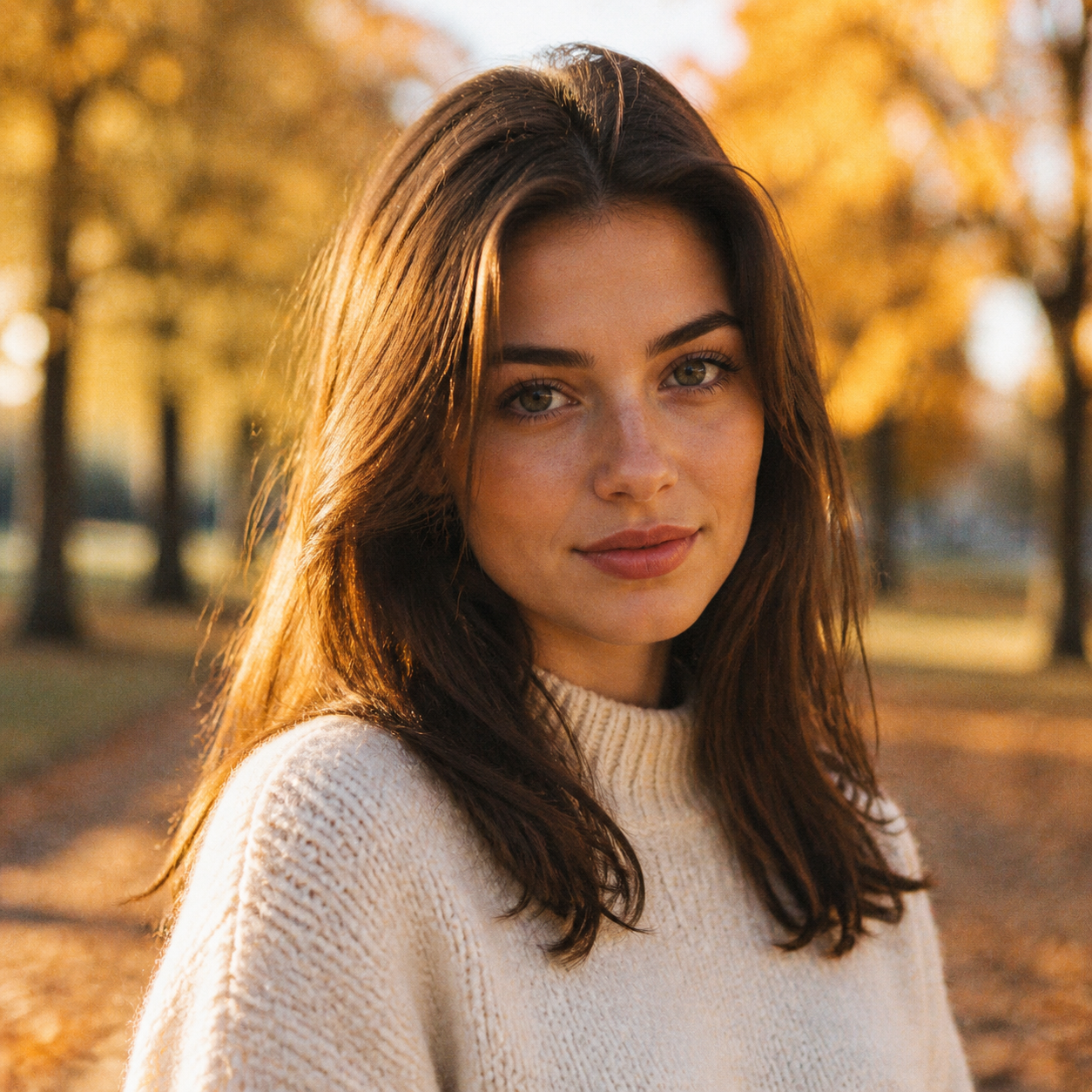
Prepare AI headshot generator portraits for their intended use
A final portrait needs context as well as a good crop. Use the AI headshot generator for creative presentation, then review permissions, destination requirements, and whether the image accurately represents the person.
Match the profile or biography layout
Check how the photograph appears in the actual profile card or biography layout. A wide hero illustration and a personal avatar serve different purposes. Ask the AI headshot generator for an appropriate composition rather than forcing one crop into every placement.
- Keep a copy of the source and the subject's approved final choice.
- Review AI headshot generator portraits within their real destination layout.
Do not turn a portrait into a credential
Do not assume generated portraits are accepted for passports, identity verification, or regulated identification. The AI headshot generator does not establish identity or certify employment. Avoid using invented uniforms, badges, or locations to imply qualifications the person does not hold.
Label illustrative examples honestly
A fictional portrait can explain a visual direction, but it is not a customer testimonial or evidence of preserved likeness. Keep AI headshot generator illustrations distinct from verified product results. Do not describe a fictional person as a real EveryGen AI user.
Example prompts
Understated studio portrait
Use the person in my uploaded photograph as the subject. Create a natural professional head-and-shoulders portrait in a 3:4 composition. Aim to retain the person's recognizable facial proportions, hairstyle, complexion, and distinctive features. Use a plain charcoal jacket over a simple light shirt, a warm neutral studio background, soft light slightly above eye level, and a relaxed expression. Leave comfortable headroom. Avoid excessive skin smoothing, exaggerated beauty retouching, logos, badges, and invented credentials.
Relaxed creative professional
Using my uploaded reference photo, create a waist-up professional portrait with a natural posture and an attentive, approachable expression. Preserve recognizable personal characteristics as closely as possible. Choose an understated dark knitted top, a softly simplified workspace background without company names, and gentle window-style lighting. Keep the face clearly visible and the background secondary. Portrait 3:4 framing with room around the head and shoulders. Avoid altered facial structure, artificial skin, text, logos, uniforms, and identification badges.
User reviews
EveryGen AI video creator feedback.
EveryGen AI creator reviews

I made a full character PV for my game with MiniMax H3 in one afternoon. The menu UI stayed readable in every frame and the character never went off-model. That used to cost me a contractor and three weeks.

We tested every AI video generator on the market for stylized work. H3 is the only one that held our anime style across cuts. We now use it for pitch reels and animatics on every project.

I uploaded four product photos and got a listing video with music and a voiceover the same day. My click-through rate on the new listings is up 38%. H3 even got the label text on my packaging right.

I ship five vertical videos a week for three brands. MiniMax H3 gets me from brief to draft in under an hour, with sound already synced. My old workflow needed a videographer and two review rounds.

The editing side is what sold me. A client wanted the background of an interview changed — I typed one sentence into MiniMax H3 and the lighting on the subject matched the new scene automatically.

I previsualized my entire short film in MiniMax H3 before we shot a single frame. Rack focus, match cuts, even the title cards — it understands director language, not just keywords.
EveryGen AI · MiniMax H3 Max Pricing and Credit Plans
Cancel anytime
Lite
50% off0.025 / credit
Billed $ yearly179· Save $179.8
Video Models


Image Models



- Includes MiniMax H3 and all premium models
- Up to 1 batch generation task
- Standard generation speed
- Standard generation success rate
- Standard customer support
- Commercial Use License
Standard
50% off0.017 / credit
Billed $ yearly299· Save $299.8
Video Models
Image Models
- Includes MiniMax H3 and all premium models
- Up to 4 batch generation tasks
- Priority processing speed
- High generation success rate
- Priority customer support
- Commercial Use License
Pro
50% off0.014 / credit
Billed $ yearly599· Save $599.8
Video Models
Image Models
- Includes MiniMax H3 and all premium models
- Up to 10 batch generation tasks
- Fastest generation speed
- High generation success rate
- Dedicated account manager
- Commercial Use License
Max
50% off0.012 / credit
Billed $ yearly1,199· Save $1,199.8
Video Models
Image Models
- Includes MiniMax H3 and all premium models
- Up to 10 batch generation tasks
- Fastest generation speed
- High generation success rate
- Dedicated account manager
- Commercial Use License
Pay safely and securely with























FAQ
Frequently asked questions
Does the AI headshot generator require my own photo?
Yes. This page is designed for reference-based portraits using a photograph you provide. Give the AI headshot generator a clear view of the subject and describe the desired changes. Use your own image or obtain the necessary permission before uploading another person's photograph.
Can the AI headshot generator preserve my face exactly?
No. The AI headshot generator may change facial proportions, hair, skin texture, expression, or other details. Requesting recognizable features does not guarantee identity consistency. Compare the result with your source and reject images that do not represent you accurately, even when their lighting or styling looks appealing.
Can the AI headshot generator change clothing and background?
You can describe both changes in the AI headshot generator, but review them separately. Keep the brief clear about the subject and the desired setting. When the result changes too much, simplify the task or revise one visual element at a time instead of adding more instructions.
How many AI headshot generator portraits can I request?
GPT Image 2 supports one to four outputs per request on EveryGen AI. The AI headshot generator also supports multiple ratios and 1K, 2K, or 4K. Begin with the 3:4 and 1K starting setup, then check the actual configuration and displayed credits before submitting.
Can I use the portrait professionally?
Review applicable terms, permissions, and the requirements of the intended destination. The AI headshot generator does not provide blanket commercial clearance or acceptance for identity documents. For a professional profile or team page, obtain the subject's approval and avoid imagery that misrepresents appearance, affiliation, or credentials.
CTA
Start the AI headshot generator with your reference photo
Choose a photograph that represents you clearly and a visual direction that fits your work. Use the AI headshot generator to explore portrait options, then approve the likeness and details before deciding where to use one.
Create a portrait from your photo