 EveryGen AI
EveryGen AI · Nano Banana 2 for Flexible Image Creation and Editing
Move between a new visual idea and a revision to something you already have. Nano Banana 2 on H3 Max supports text-based image creation, image editing, and 1K, 2K, or 4K output selections. Give Nano Banana 2 a concrete assignment, then choose the format of the request around the work you need to deliver.
Image workspace
Sample Image
 1 / 30
Introduction
What Is Nano Banana 2?
Nano Banana 2 is Google's Gemini 3.1 Flash Image model, available for generating images from text and editing images with written instructions.
The model behind Nano Banana 2
The name identifies a specific Google image model, not a generic enhancement filter. Its official interfaces separate text-based generation from editing with image inputs. Nano Banana 2 can therefore serve two different starting points: a scene that exists only in your brief, or a picture that needs a deliberate change. Decide which starting point matches the assignment before constructing the prompt.
Resolution choices within H3 Max
H3 Max offers Nano Banana 2 creation and editing with 1K, 2K, and 4K selections. That flexibility lets you plan a request around the detail and display size you need. It does not remove the need to inspect the image itself. A larger result still needs a clear composition, accurate visible wording, and a subject that makes sense in its surroundings.
How to use
How to Create with Nano Banana 2
- PromptSTEP 1
Pick the starting material
Select Nano Banana 2 in H3 Max. Use text for a new scene, or choose editing and provide the image that contains the subject or composition you want to revise.
- ModelNano Banana 21K1:1PromptSTEP 2
Describe the visual task
Give Nano Banana 2 a clear subject, setting, viewpoint, and visual treatment. For an edit, identify both the change and the features you want to retain.
- Detail
 STEP 3
Choose resolution and review credits
Select 1K, 2K, or 4K for your Nano Banana 2 request. Check the available configuration and displayed credits before submitting the generation.
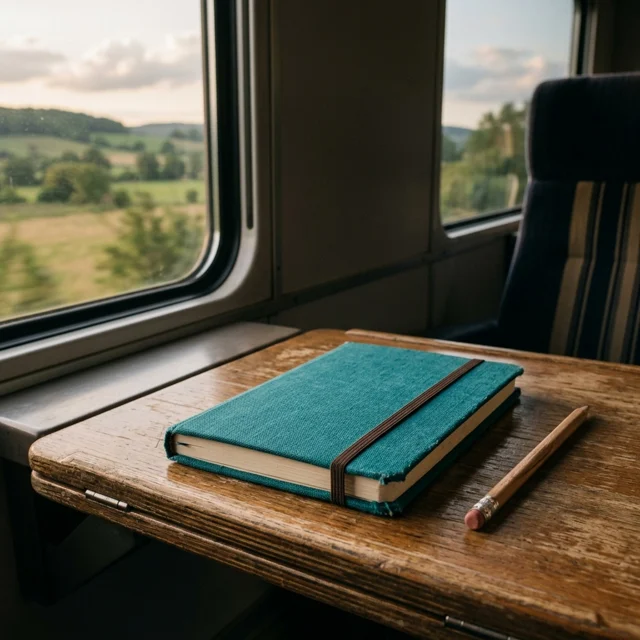
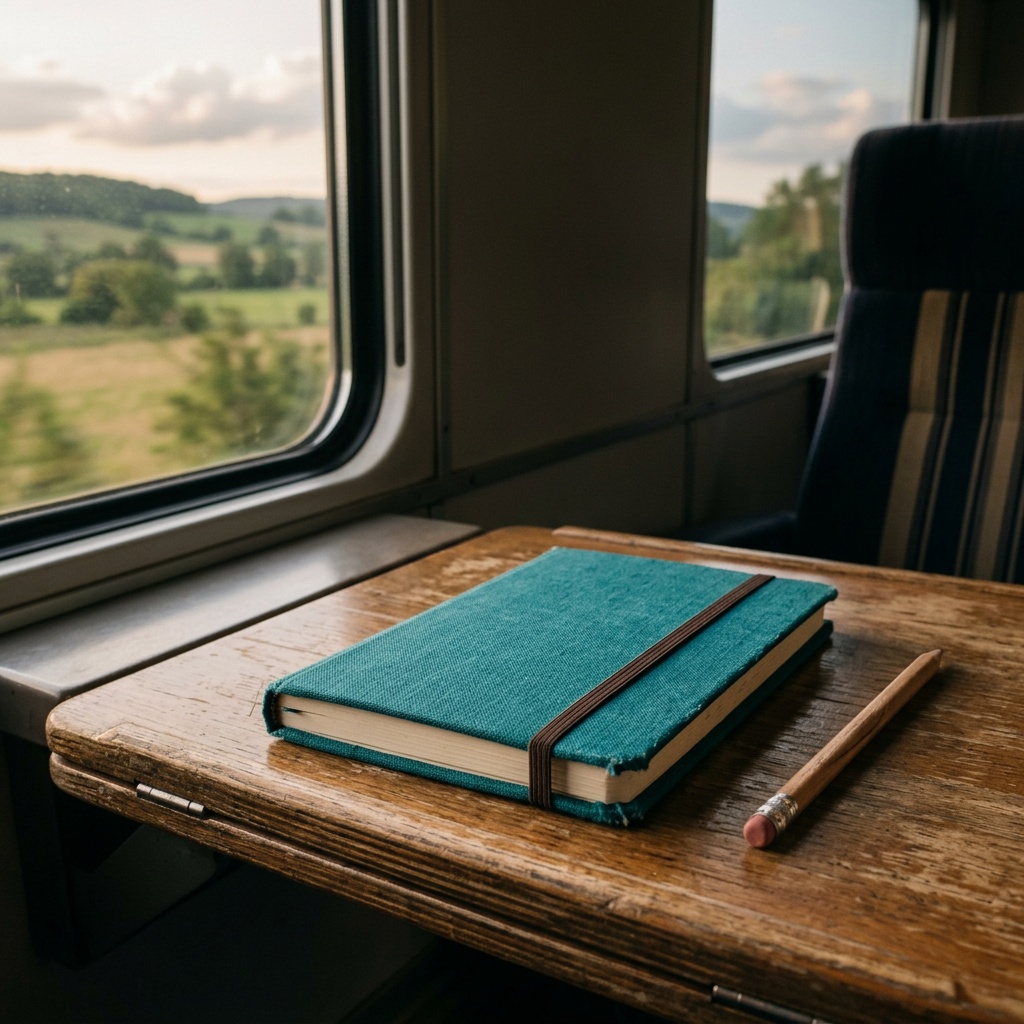
- Create an editorial travel image showing a closed teal notebook and a simple pencil on a small train table. Soft late-afternoon light enters through the window, with an indistinct countryside landscape outside. Keep the notebook as the clear focal point, show realistic paper and fabric textures, and leave a calm area above the table for later text. No visible logos, ticket details, people, or readable words.DownloadSTEP 4
Evaluate before using the result
Inspect the Nano Banana 2 output closely and at its intended display size. Check any reference details, then keep the image or request a focused revision.
Features
Choose Nano Banana 2 Output Around the Destination
Use the Nano Banana 2 resolution setting as a practical production choice, alongside the composition and purpose of the image.
Choose a Nano Banana 2 output for the destination
A small article illustration and a large presentation visual ask different things of the finished file. Consider how closely the audience will view the picture before choosing among 1K, 2K, and 4K. With Nano Banana 2, review the displayed credits for that selection as well. Make the choice around an actual destination instead of assuming that the largest option is always necessary.
Do not mistake a larger file for a solved image
Extra output size does not correct a misplaced object, an unreadable label, or conflicting light. Resolve those issues in the brief or through a focused edit. A new Nano Banana 2 request may also reinterpret the composition, so compare the resulting image rather than expecting an identical picture at another size. Resolution is one decision in the workflow, not the entire quality check.
Build Nano Banana 2 Scenes from Concrete Descriptions
A Nano Banana 2 text prompt works as a visual brief: describe the subject, its environment, and the relationship between them.
Start Nano Banana 2 from a written scene
Imagine a travel journal beside a train window, with the moving landscape suggested through soft shapes beyond the glass. Tell Nano Banana 2 which details should be sharp, where the light enters, and what makes the journal important. That gives the scene a focal point. Avoid stacking unrelated styles when one clear visual treatment would communicate the idea more directly.
Define a useful amount of context
The background should explain the subject without becoming a second assignment. For a handmade bowl, a simple workbench may say more than a room full of decorative tools. Ask Nano Banana 2 for the amount of context the viewer needs. Review the edges and smaller objects after generation, removing details that distract from the intended story or introduce an unintended claim.
Revise Existing Images with Nano Banana 2
Use Nano Banana 2 editing when your starting material already contains a subject, arrangement, or visual decision worth keeping.
Keep Nano Banana 2 revisions specific
Upload the image you want to work from and describe the desired change in ordinary language. You might ask for a quieter background, a different illustration treatment, or a revised color palette. Tell Nano Banana 2 which features should remain recognizable. A focused request lets you judge whether the change helped, rather than comparing two pictures that differ in almost every respect.
Use the reference as something to check against
The presence of an input image does not guarantee exact reconstruction. Inspect the Nano Banana 2 result against the source, looking at contours, facial features, material cues, and any lettering. When the image represents a real object, verify that the edit has not changed what a customer would receive. Keep stylistic exploration separate from claims about the object's actual construction or performance.
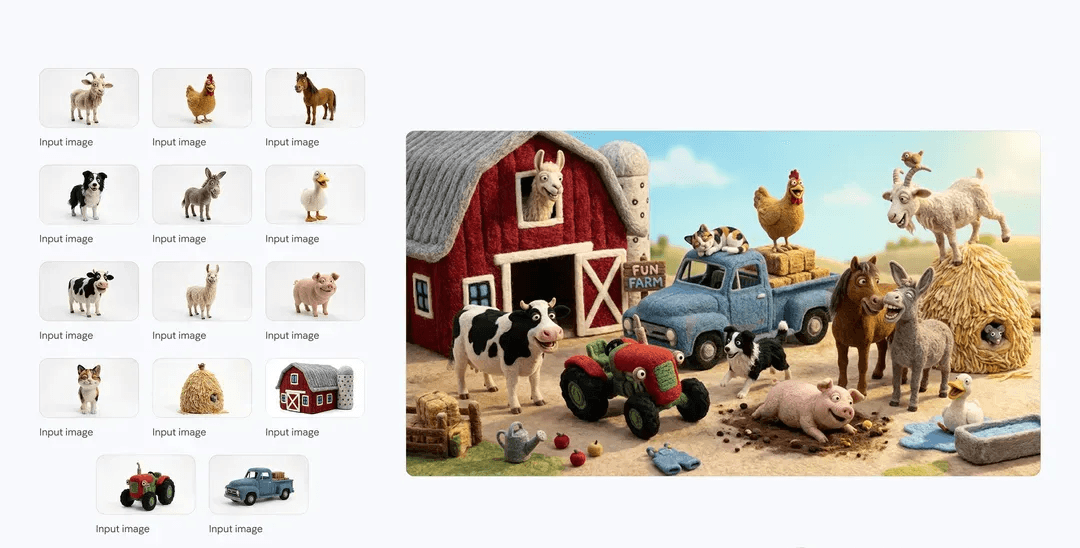
Create a Shared Visual Direction with Nano Banana 2
Related Nano Banana 2 images can begin with the same written rules, while each composition responds to a different subject.
Give Nano Banana 2 a shared visual language
Write a small set of reusable decisions: a cream background, soft left light, a gently elevated viewpoint, and one restrained accent color. Carry those instructions into Nano Banana 2 requests for different subjects. Describe any deliberate exceptions. This creates an organized way to explore a series without assuming the model will remember earlier choices or reproduce every detail automatically.
Let each asset serve its own position
An opening visual may need a strong central subject, while a supporting image may need a quieter composition beside explanatory text. Ask Nano Banana 2 for the role of each asset, not just a different object in the same scene. Review the images together in their destination. Consistency should make the set feel related without making every picture compositionally identical.
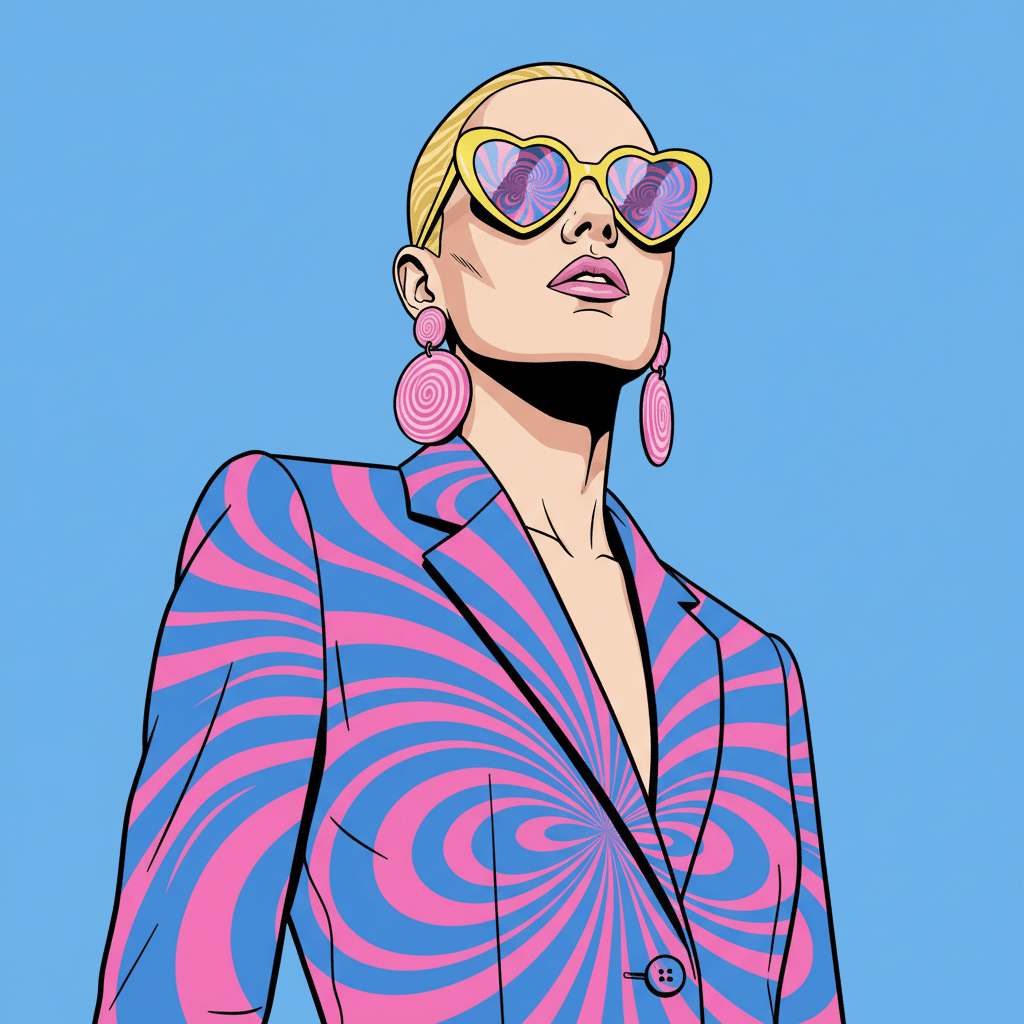
Make Nano Banana 2 Detail Useful in the Finished Design
Treat Nano Banana 2 output as a visual asset to evaluate in context, not a finished project merely because generation has completed.
Inspect Nano Banana 2 at its intended size
Check the picture at the scale where people will actually see it. Thin lines can disappear, small objects can become confusing, and a subtle focal point can lose its impact. A Nano Banana 2 preview also deserves a close inspection for unusual shapes and accidental wording. Use both views before deciding whether the result belongs in a website, presentation, or other composition.
Separate artwork from information that must be exact
For a graphic with a headline, request generous space and keep the wording short when asking the model to render it. Proofread every visible character in Nano Banana 2 output. Add critical text, logos, or factual labels separately in your design editor where appropriate. That division keeps the visual exploration flexible while giving exact information a more controlled place in the final layout.
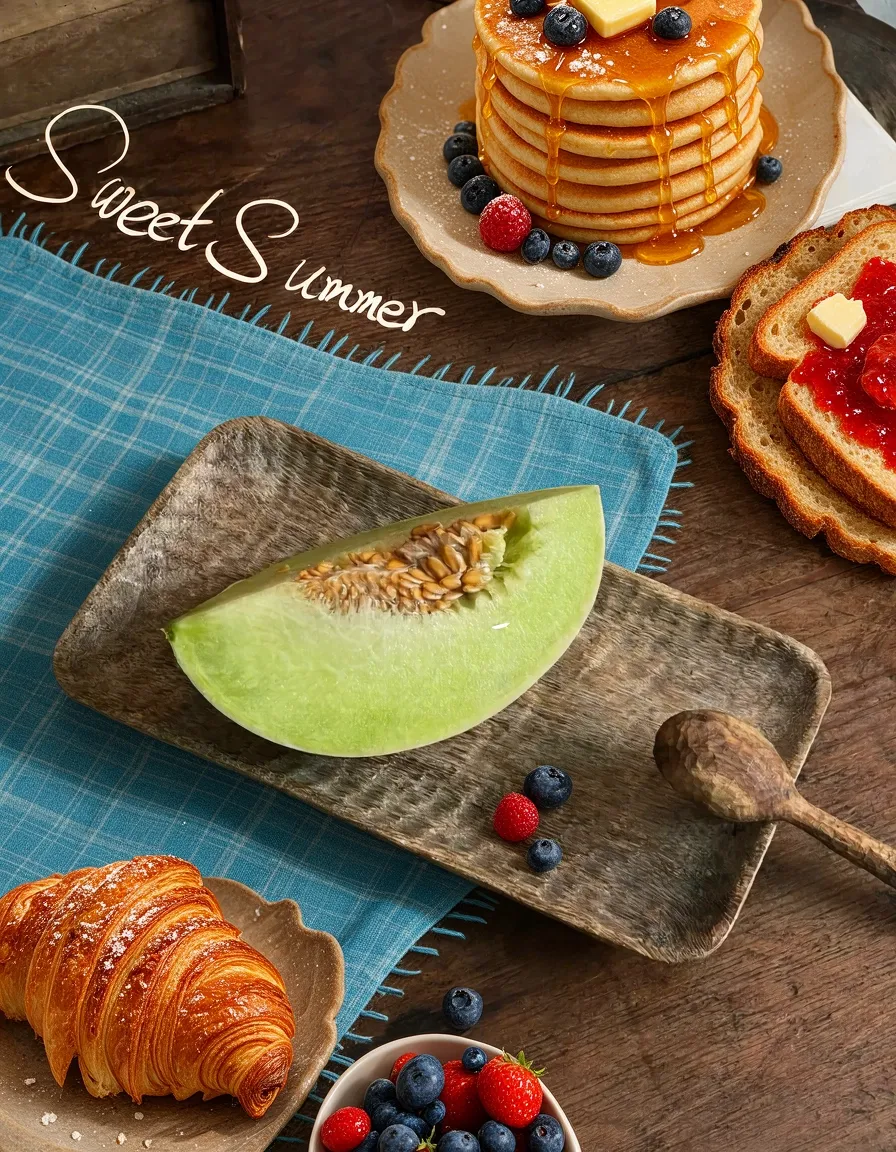
Example prompts
Text to image: a journal beside a train window
Create an editorial travel image showing a closed teal notebook and a simple pencil on a small train table. Soft late-afternoon light enters through the window, with an indistinct countryside landscape outside. Keep the notebook as the clear focal point, show realistic paper and fabric textures, and leave a calm area above the table for later text. No visible logos, ticket details, people, or readable words.
Text to image: a coherent illustrated card
Create a friendly illustration for a website card about growing herbs at home. Show three small terracotta pots with basil, mint, and rosemary on a clean cream background. Use softly textured shapes, gentle shadows toward the right, a restrained green palette, and a slightly elevated viewpoint. Give each plant a distinct silhouette without excessive detail. Do not add labels, decorative lettering, logos, hands, or extra gardening equipment.
Image edit: a quieter presentation for a handmade bowl
Use the uploaded bowl photograph as the source. Replace the busy surrounding scene with a pale workbench against a muted warm wall. Aim to preserve the bowl silhouette, rim shape, visible glaze pattern, and existing viewpoint. Keep lighting soft and plausible, with a natural shadow connecting the bowl to the surface. Do not invent branding, change the material, add food, or alter the bowl proportions.
User reviews
EveryGen AI video creator feedback.
EveryGen AI creator reviews

I made a full character PV for my game with MiniMax H3 in one afternoon. The menu UI stayed readable in every frame and the character never went off-model. That used to cost me a contractor and three weeks.

We tested every AI video generator on the market for stylized work. H3 is the only one that held our anime style across cuts. We now use it for pitch reels and animatics on every project.

I uploaded four product photos and got a listing video with music and a voiceover the same day. My click-through rate on the new listings is up 38%. H3 even got the label text on my packaging right.

I ship five vertical videos a week for three brands. MiniMax H3 gets me from brief to draft in under an hour, with sound already synced. My old workflow needed a videographer and two review rounds.

The editing side is what sold me. A client wanted the background of an interview changed — I typed one sentence into MiniMax H3 and the lighting on the subject matched the new scene automatically.

I previsualized my entire short film in MiniMax H3 before we shot a single frame. Rack focus, match cuts, even the title cards — it understands director language, not just keywords.
EveryGen AI · MiniMax H3 Max Pricing and Credit Plans
Cancel anytime
Lite
50% off0.025 / credit
Billed $ yearly179· Save $179.8
Video Models


Image Models



- Includes MiniMax H3 and all premium models
- Up to 1 batch generation task
- Standard generation speed
- Standard generation success rate
- Standard customer support
- Commercial Use License
Standard
50% off0.017 / credit
Billed $ yearly299· Save $299.8
Video Models
Image Models
- Includes MiniMax H3 and all premium models
- Up to 4 batch generation tasks
- Priority processing speed
- High generation success rate
- Priority customer support
- Commercial Use License
Pro
50% off0.014 / credit
Billed $ yearly599· Save $599.8
Video Models
Image Models
- Includes MiniMax H3 and all premium models
- Up to 10 batch generation tasks
- Fastest generation speed
- High generation success rate
- Dedicated account manager
- Commercial Use License
Max
50% off0.012 / credit
Billed $ yearly1,199· Save $1,199.8
Video Models
Image Models
- Includes MiniMax H3 and all premium models
- Up to 10 batch generation tasks
- Fastest generation speed
- High generation success rate
- Dedicated account manager
- Commercial Use License
Pay safely and securely with























FAQ
Frequently asked questions
Which Google model is Nano Banana 2?
The official model identity is Gemini 3.1 Flash Image. H3 Max provides its image creation and editing workflows under the familiar name used on this page.
Is Nano Banana 2 the same model as Pro?
No. The Pro model is identified as Gemini 3 Pro Image. These are distinct selections, so use the workflow and available settings for the model you actually choose.
Which Nano Banana 2 resolutions can I select?
H3 Max provides 1K, 2K, and 4K selections. Choose around the destination of the image and check the displayed credits for your current configuration before submitting.
Can Nano Banana 2 edit an uploaded picture?
Yes. Choose editing, supply the relevant image, and describe the change. Specify what should remain and compare the full output with the source before approving it.
Will Nano Banana 2 reproduce a reference exactly?
Exact reproduction is not guaranteed. Check shapes, textures, identity details, and lettering. A reference helps communicate the task but does not replace inspection of the finished result.
Does a larger Nano Banana 2 output fix mistakes?
No. Output size does not automatically resolve compositional or factual errors. Correct the instruction or request a focused edit, then assess the new result independently.
How do I review Nano Banana 2 credits?
Look at the amount displayed in the H3 Max workspace for the selected request. Recheck it after changing the configuration or before submitting another generation.
CTA
Bring Your Next Visual Brief to Nano Banana 2
Choose creation or editing, select 1K, 2K, or 4K, and check the displayed credits. Use Nano Banana 2 on H3 Max to turn a defined idea into an image you can review and develop.
Open Nano Banana 2