 EveryGen AI
EveryGen AI · Bigfoot video generator for an imagined forest encounter
A branch moves, a tall silhouette crosses the pines, and your fictional scene has begun. The Bigfoot video generator lets you direct that small story moment in EveryGen AI. Describe the creature and its surroundings, then evaluate a generated short rather than claiming a real sighting.
Video workspace
The wooden elevator opens
28/33View prompt
Five-second continuous frontal shot of closed wooden elevator doors opening slowly to reveal one adult woman standing inside. Keep the camera fixed at eye level and the woman relaxed, facing forward. Preserve a simple, balanced composition with warm wood grain and soft interior light. End with the doors open and the woman still standing.
Introduction
What does a Bigfoot video generator create?
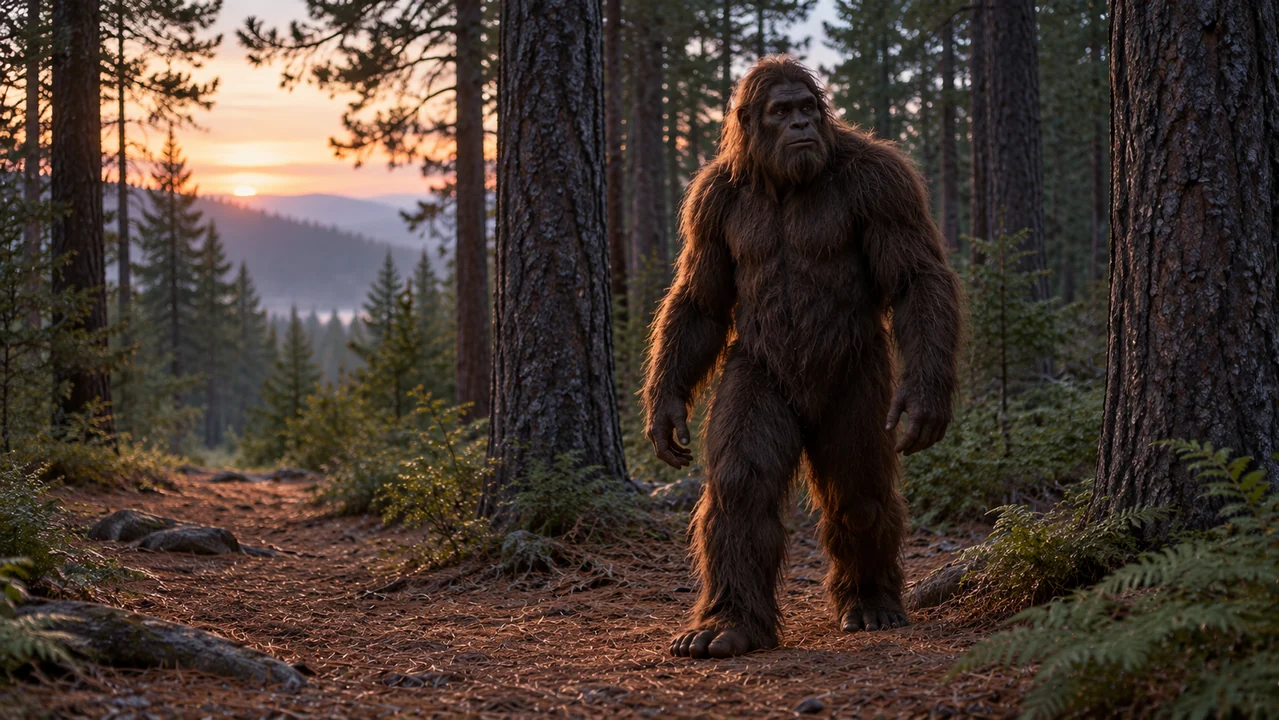
The Bigfoot video generator is a text-to-video workspace for fictional creature scenes. It turns a creative description into a short clip, not wildlife documentation or proof of an encounter.
Invent a character before a mystery
Give the Bigfoot video generator a gentle shaggy creature, long arms, and a cautious pace. Invent its appearance rather than borrowing supposed evidence. Curiosity or hesitation can establish a personality without threats or violence.
- Choose one recognizable trait beyond simply being large.
Start with a single cinematic beat
A Bigfoot video generator scene might reveal a creature between two pines, stopping beside a stream. That is a complete story beat. Save a chase, search party, or larger revelation for a separate filmmaking plan.
- Decide what becomes visible during these few seconds.
Use the existing short-video setup
The Bigfoot video generator runs MiniMax H3 Max Turbo with text-to-video, five seconds, 480P, 16:9, one output, and native audio as its starting setup. The page supplies a short shot; you assemble any larger story separately.
- Build your first request around the available short shot.
How to use
How to direct a Bigfoot video generator scene
- STEP 1
Write the imagined encounter
Describe a fictional creature, one forest location, and a small action in the Bigfoot video generator, with a clear viewing direction.
- STEP 2
Prepare the short-shot request
Review the five-second starting settings and credit quote in the Bigfoot video generator; sign in and choose Generate only when ready.
- STEP 3
Watch the complete scene
Watch the Bigfoot video generator result from start to finish, checking limb contact, bridge geometry, and whether the reveal remains understandable.
- STEP 4
Save footage with its context
Download a useful Bigfoot video generator result and keep it labeled as fictional footage for any later editing or public presentation.
Features
Plan a Bigfoot video generator forest with clear landmarks
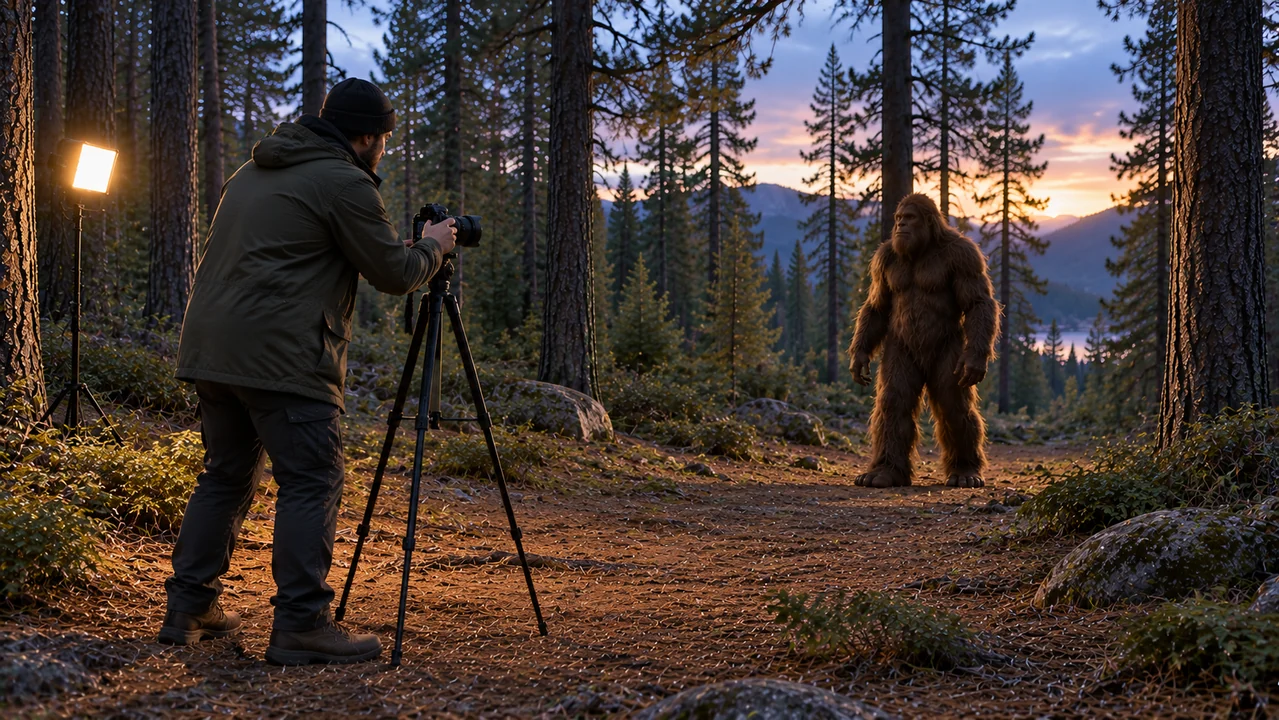
Orient the Bigfoot video generator with a few stable landmarks. A clear path, two distinctive trunks, and one patch of open ground give the encounter a readable location.
Separate foreground from the creature path
Describe damp ferns near the camera and a clear trail farther back in the Bigfoot video generator prompt. Place the creature on that trail, without branches hiding the walking action you need to judge.
- Reserve an opening wide enough for the full figure.
Stage a Bigfoot video generator bridge approach
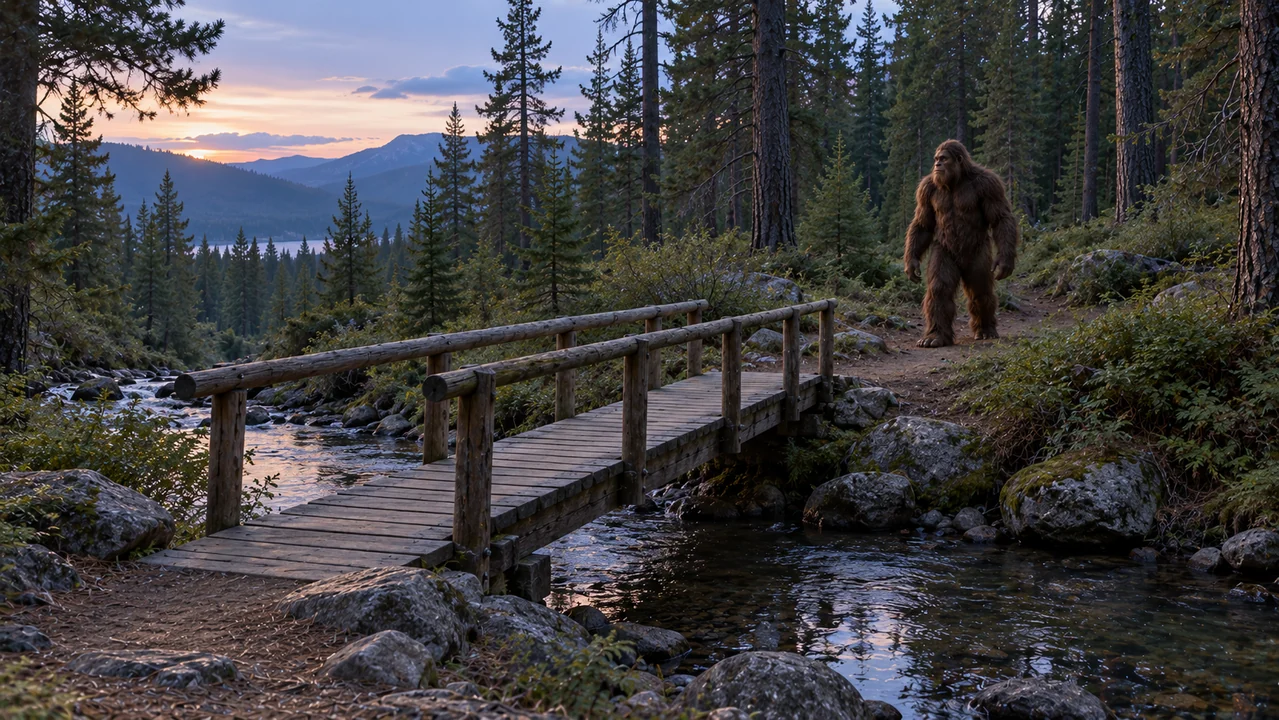
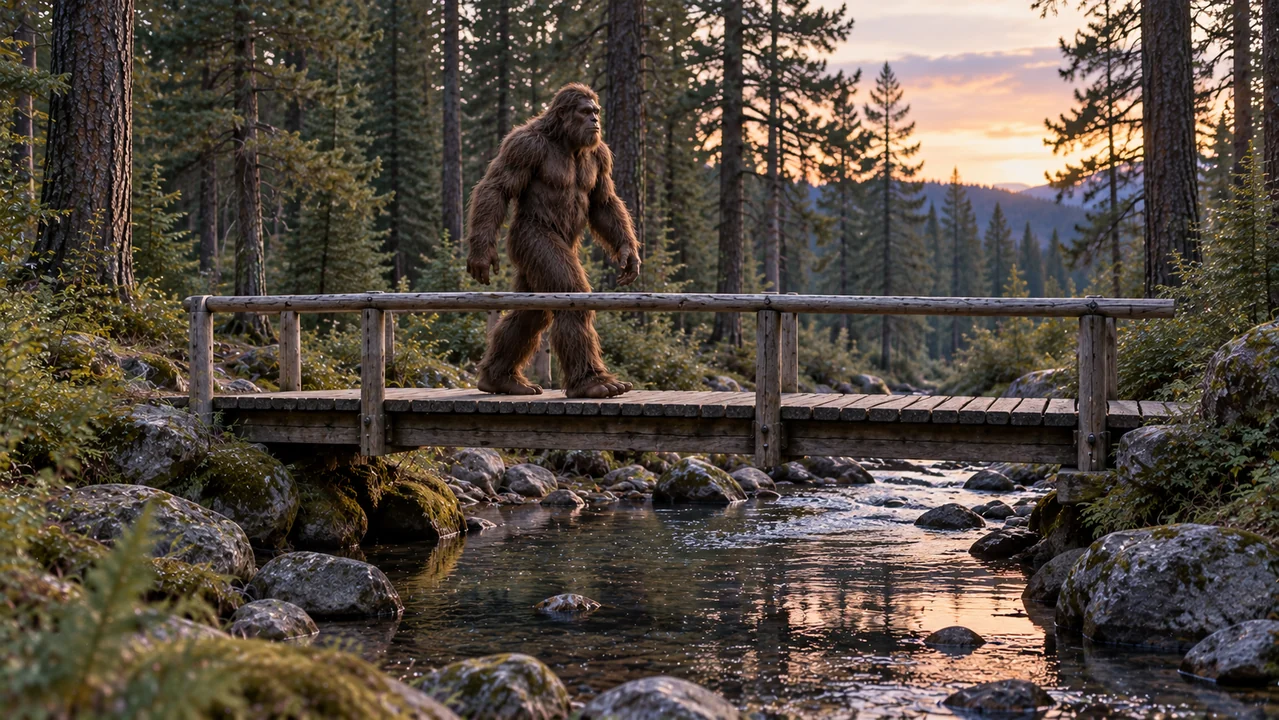
Place a wooden footbridge diagonally across a narrow stream in the Bigfoot video generator, with the creature approaching from the far bank. Keep the bridge level and its destination visible, rather than crowding the crossing with obstacles.
- Ask for an ordinary crossing, not an impossible leap.
Let dusk reveal rather than conceal
Use blue evening light beneath the pines and a restrained warm edge on fur in the Bigfoot video generator. Keep the face, hands, and feet readable. Mystery need not mean darkness across the entire subject.
- Check whether the silhouette separates from nearby trunks.
Direct the Bigfoot video generator creature through space
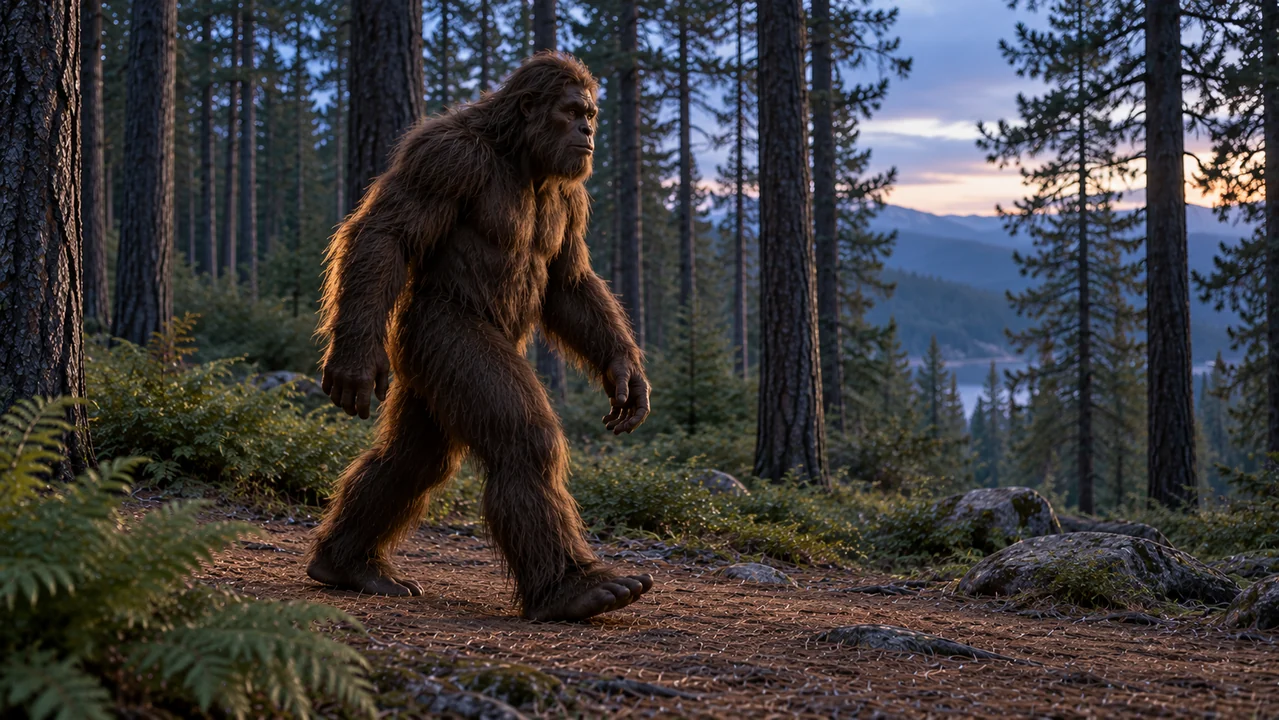
Movement gives your Bigfoot video generator encounter its personality. Write a visible action with a clear direction, then leave room to inspect weight, contact, and the final stance.
Choose a cautious step rather than a rush
Ask the Bigfoot video generator for one measured step followed by a small head turn, with relaxed arms and grounded feet. These are creative targets; inspect whether the generated joints and contacts actually make sense.
- A quiet action can carry the whole encounter.
Decide what the camera discovers
Tell the Bigfoot video generator whether the camera waits behind a fern or moves sideways for a reveal. Choose one behavior. Fast zooms, running, and heavy shake together can obscure the intended discovery.
- Keep the camera movement subordinate to the reveal.
Allow a readable exit
Give the Bigfoot video generator an open route toward a gap in the trees. A pause before departure may offer a useful ending. Inspect the result rather than relying on an exact final position or seamless continuity.
- Leave space beyond the creature instead of clipping its path.
Give the Bigfoot video generator atmosphere, props, and sound
A Bigfoot video generator can suggest a handmade forest film through carefully described detail. Treat footprints, mist, and sound as storytelling choices rather than scientific measurements or discovered evidence.
Present a footprint as an invented prop
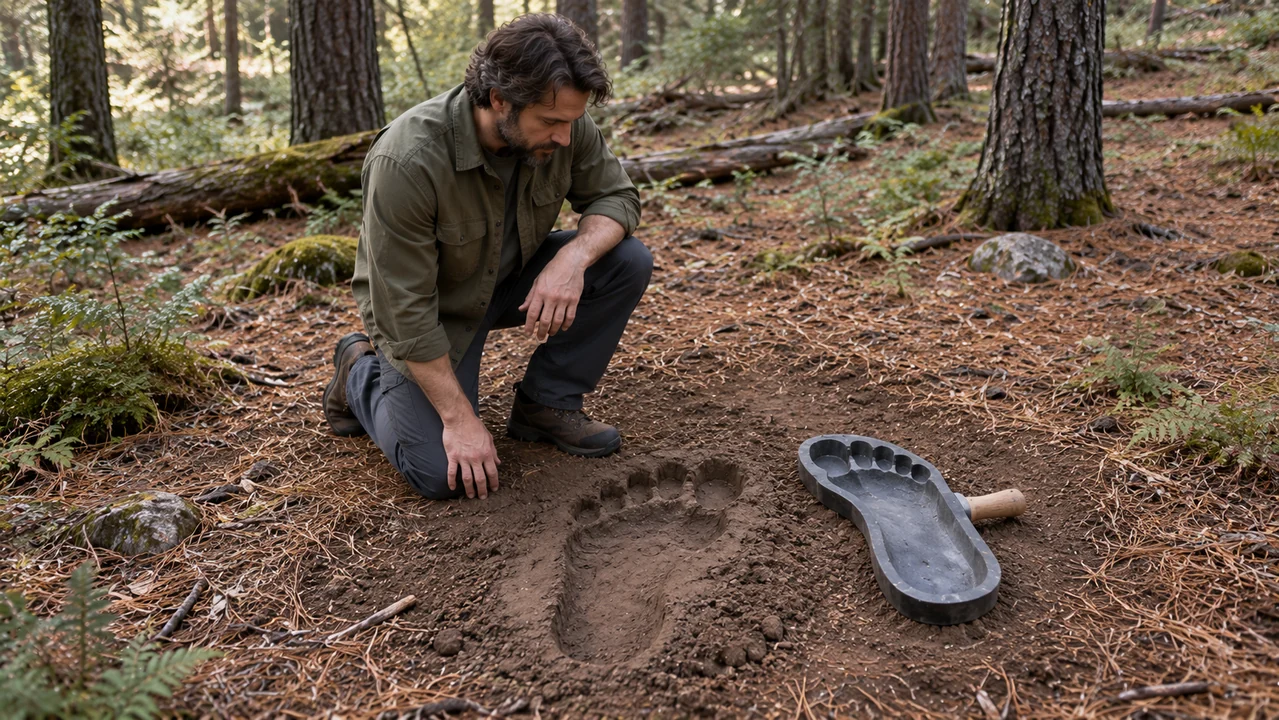
Describe an oversized footprint prop pressed into soft earth beside pine needles in the Bigfoot video generator. A plain molding tool can establish its manufactured origin. Never present a generated impression as an authentic track or field discovery.
- Keep the fictional origin clear in your surrounding presentation.
Control haze in the Bigfoot video generator
Request a thin ribbon of low mist in the Bigfoot video generator, not dense fog everywhere. Let soft light catch the vapor edge. Check whether the creature remains legible before deciding that atmosphere helps the shot.
- Keep fog away from important feet and hand details.
Give the forest a restrained sound direction
Native audio is enabled in the initial Bigfoot video generator setup. Ask for quiet pine wind, a small stream, or soft leaf contact. Listen to what returns; neither precise timing nor a particular sound performance is guaranteed by the written request.
- Avoid news narration or claims of an actual recording.
Review a Bigfoot video generator encounter as a filmmaker
Watch a Bigfoot video generator result from beginning to end. Decide whether the intended reveal works, then examine the creature and environment instead of accepting a single impressive frame.
Track the creature silhouette
In the Bigfoot video generator output, follow shoulder width, arm length, and the spacing between legs. Fur should not erase essential limbs or merge the figure into a trunk. A mysterious character still needs a body the viewer can understand.
- Pause at the first visible step and the last.
Inspect contact around the bridge
Inspect a Bigfoot video generator bridge crossing for feet passing through boards, shifting rails, or changing stream direction. Follow those relationships through time. Reject distracting physical inconsistencies instead of explaining them as creature mythology.
- Keep water reflections quieter than the main movement.
Revise a Bigfoot video generator instruction with purpose
Change the Bigfoot video generator brief where the story became unclear: brighten the path, reduce fog, or ask for slower movement. Altering one request makes your intention easier to track, but a fresh generation can also change details you did not mention.
- Keep useful versions without claiming a controlled model comparison.
Choose the encounter that belongs in your forest film
Use the Bigfoot video generator selection as one piece of a fictional film. Organize the scene by its narrative job, then make finishing decisions outside the workspace.
Keep the story cue with the file
Save the intention behind a Bigfoot video generator take with its downloaded file: approach, hesitation, or departure. Revisit available results through existing history. The note belongs in your production records, not as a fabricated field report.
- Use a descriptive local filename rather than a sighting claim.
Find an ending with room for a cut
Prefer a Bigfoot video generator take where the action has a readable pause. Watch its last moment before pairing it with another shot. The generator does not trim footage or guarantee that separate scenes join without visible differences.
- Leave assembly, transitions, and titles to your own editor.
Present the imagined encounter honestly
A Bigfoot video generator image can look photographic without documenting anything real. Identify the story as fictional in its surrounding presentation. This lets viewers enjoy the craft while keeping invented creatures and props separate from alleged evidence.
- Do not package your short as a verified discovery.
Example prompts
A hesitant crossing beneath the pines
Create one five-second, 16:9 fictional forest-film shot at dusk. An entirely invented gentle Bigfoot creature with deep brown shaggy fur, a broad coherent silhouette, long relaxed arms, and natural large hands and feet approaches a small wooden footbridge over a narrow stream. Show the complete creature from head to feet in an eye-level wide three-quarter view. It takes one cautious step onto the first stable board and turns its head slightly toward the open trail beyond. Use cool blue pine-forest light with a faint warm edge on the fur, restrained low mist well behind the feet, and quiet water. Keep bridge boards, limb joints, and foot contact physically believable. Request soft stream ambience and a little leaf movement, with no speech. No people, threatening action, gore, news style, timestamps, text, logos, or claims of a real sighting. This is an imagined creature scene, not documentary evidence.
Bigfoot video generator example: the fern-side reveal
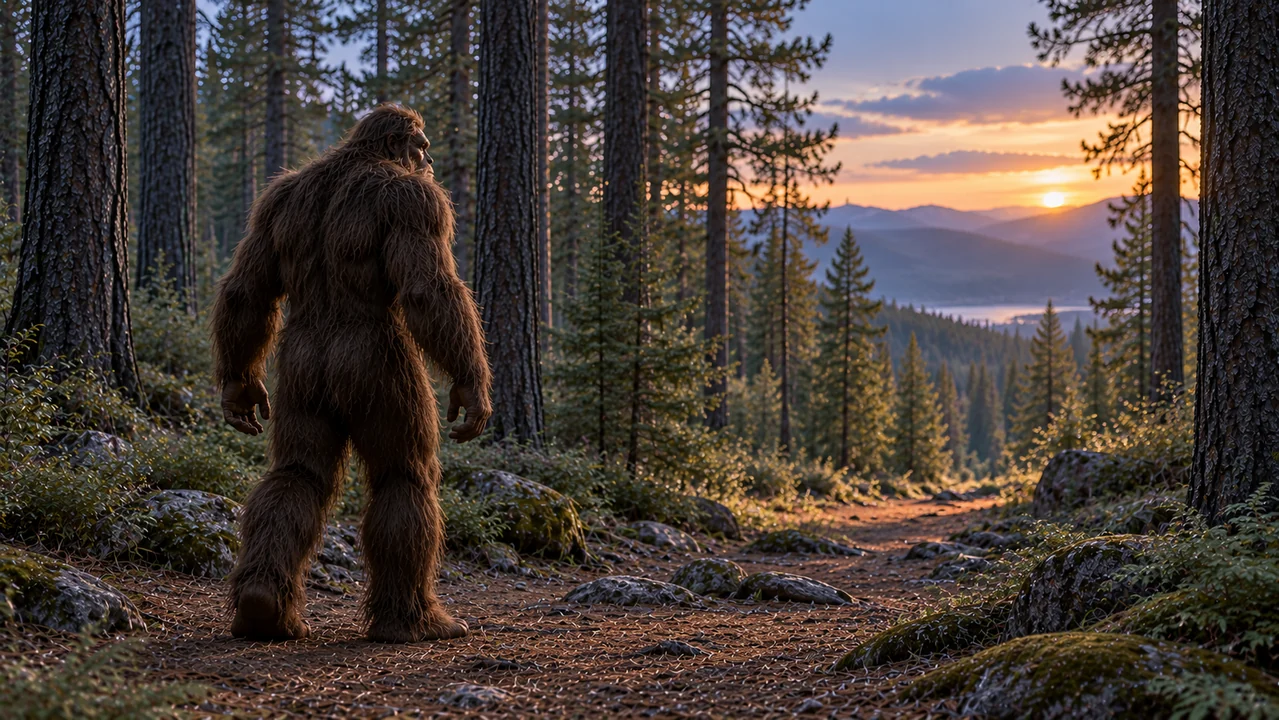
Generate a five-second landscape 16:9 fictional creature-film moment in a quiet pine forest at blue hour. A single invented Bigfoot character with charcoal-brown fur and a calm curious face stands on a clear needle-covered path beyond one low fern. The camera moves gently sideways a short distance to reveal the entire creature, including natural hands and both feet; keep the creature mostly still apart from one small head turn. Leave a visible gap between tree trunks toward the right as a possible exit. Use soft diffused dusk light, a slight warm rim on the shoulders, and one faint ribbon of mist in the distant background, not across the body. Request quiet pine wind and a distant stream, without dramatic music or speech. No extra creatures, crowds, violence, text, logos, handheld evidence styling, tracking graphics, or purported real encounter. This is a clearly fictional forest short.
User reviews
EveryGen AI video creator feedback.
EveryGen AI creator reviews

I made a full character PV for my game with MiniMax H3 in one afternoon. The menu UI stayed readable in every frame and the character never went off-model. That used to cost me a contractor and three weeks.

We tested every AI video generator on the market for stylized work. H3 is the only one that held our anime style across cuts. We now use it for pitch reels and animatics on every project.

I uploaded four product photos and got a listing video with music and a voiceover the same day. My click-through rate on the new listings is up 38%. H3 even got the label text on my packaging right.

I ship five vertical videos a week for three brands. MiniMax H3 gets me from brief to draft in under an hour, with sound already synced. My old workflow needed a videographer and two review rounds.

The editing side is what sold me. A client wanted the background of an interview changed — I typed one sentence into MiniMax H3 and the lighting on the subject matched the new scene automatically.

I previsualized my entire short film in MiniMax H3 before we shot a single frame. Rack focus, match cuts, even the title cards — it understands director language, not just keywords.
EveryGen AI · MiniMax H3 Max Pricing and Credit Plans
Cancel anytime
Lite
50% off0.025 / credit
Billed $ yearly179· Save $179.8
Video Models


Image Models



- Includes MiniMax H3 and all premium models
- Up to 1 batch generation task
- Standard generation speed
- Standard generation success rate
- Standard customer support
- Commercial Use License
Standard
50% off0.017 / credit
Billed $ yearly299· Save $299.8
Video Models
Image Models
- Includes MiniMax H3 and all premium models
- Up to 4 batch generation tasks
- Priority processing speed
- High generation success rate
- Priority customer support
- Commercial Use License
Pro
50% off0.014 / credit
Billed $ yearly599· Save $599.8
Video Models
Image Models
- Includes MiniMax H3 and all premium models
- Up to 10 batch generation tasks
- Fastest generation speed
- High generation success rate
- Dedicated account manager
- Commercial Use License
Max
50% off0.012 / credit
Billed $ yearly1,199· Save $1,199.8
Video Models
Image Models
- Includes MiniMax H3 and all premium models
- Up to 10 batch generation tasks
- Fastest generation speed
- High generation success rate
- Dedicated account manager
- Commercial Use License
Pay safely and securely with























FAQ
Frequently asked questions
Can a Bigfoot video generator prove a sighting?
No. Every Bigfoot video generator scene on this page is an imagined visual, not evidence of a creature or encounter. Realistic fur, footprints, or camera motion do not change that fictional status.
Can I make the creature curious rather than frightening?
Yes, that is a suitable Bigfoot video generator direction. Describe a relaxed face, cautious movement, and generous distance from the camera. Review the returned behavior instead of assuming the prompt guarantees a particular emotional expression.
Will separate shots keep exactly the same creature?
The Bigfoot video generator does not promise identical appearance between requests. Reusing descriptive details can express your preferred design, but fur, proportions, and surroundings may vary. Review continuity yourself before combining independently generated footage.
Can the Bigfoot video generator create an entire forest film?
The Bigfoot video generator starts with a five-second shot, not a finished film. Build separate ideas deliberately, review their continuity, and assemble selected downloads elsewhere. Titles, scene transitions, and final sound decisions remain part of your own production.
Can I apply an example without starting a paid job?
Yes. Use prompt only fills the Bigfoot video generator editor. It does not automatically submit or spend credits. Check the wording and current quote, then explicitly choose Generate when you are ready.
CTA
Begin an imagined Bigfoot video generator encounter
Choose a forest landmark and one revealing action. Prepare your Bigfoot video generator brief, review the quote, and keep the resulting footage grounded in fiction.
Plan a forest shot