 EveryGen AI
EveryGen AI · AI video generator for short scenes with a clear action
Give a short clip one action worth watching. The EveryGen AI AI video generator starts with MiniMax H3 Max Turbo: text mode, 16:9, 480P, five seconds, and native audio. Use the AI video generator with words or a chosen image, then review picture and sound together.
Video workspace
Mountain airglide
1/33View prompt
GoPro footage of someone airgliding through the mountains, shaky camera footage.
Introduction
Give the AI video generator one complete action
Give the AI video generator one visible change with a plausible beginning and finish.
Choose an action that fits the time
A hand turns a small bowl and pauses, a curtain lifts and settles, or a bird lands on a railing. Give the AI video generator an action that can unfold naturally in a few seconds instead of compressing a complete story into one shot.
- Describe the starting state and the visible change.
- Keep the AI video generator first attempt focused on one action.
Make the subject easy to follow
Name the main subject and restrain competing movement. One person opening a window is simpler to follow than a crowded market. Ask the AI video generator for a scene where viewers can identify the focal action and track it throughout the clip.
Avoid scheduling too many events
An arrival, conversation, transformation, and departure create several different assignments. Reduce the brief to its strongest moment. Use the AI video generator to establish that shot first, then build a longer sequence through your own editing workflow rather than expecting every event in one request.

How to use
How to use the AI video generator
- PromptSTEP 1
Choose the clip settings
Select MiniMax H3 Max Turbo in the AI video generator; choose 5–15 seconds and either 480P or 768P resolution.
- ModelMiniMax H3 Max Turbo480P16:95sPromptSTEP 2
Direct the movement
Describe one action and camera move in the AI video generator; image mode accepts an opening and optional ending frame.
- First frameLast frame
 0.0s
0.0s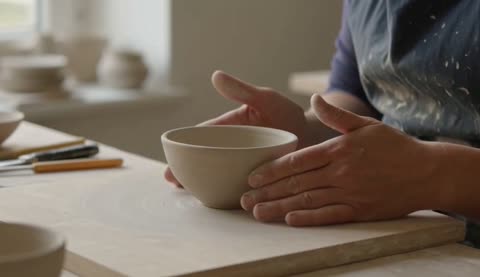 2.6s
2.6s 4.7sSTEP 3
Generate with sound
Native audio accompanies AI video generator output; describe the atmosphere, confirm the displayed credits, and generate one short clip.
- One continuous five-second shot in a quiet ceramics studio. An adult craftsperson gently rotates a small unglazed bowl on a wooden workbench by one quarter turn, then pauses with the bowl stable. Fixed close camera, bowl and hands clearly visible, soft side-window light, calm background with no other moving people. Natural quiet room tone and a faint ceramic-on-wood contact sound matching the movement. No dialogue, music, cuts, text, logos, sudden camera movement, or object transformation. Keep the action simple enough to finish within the shot.DownloadSTEP 4
Review picture and audio
Inspect AI video generator footage for completed movement, frame continuity, and matching sound before downloading or revising your next attempt.
Features
Direct AI video generator movement with a steady viewpoint
Choose an AI video generator camera movement that supports the action rather than competing.
Start with a static or gentle camera
A fixed view makes the movement of a hand or object easier to judge. A slow push can emphasize a small reveal. Tell the AI video generator which approach to use instead of combining a zoom, orbit, tilt, and tracking move in one short clip.
- Use the simplest camera movement that communicates the moment.
- Keep the AI video generator subject visible throughout the planned motion.
Keep movement physically understandable
Explain whether the camera moves closer, sideways, or stays still while the subject turns. The AI video generator needs a coherent relationship between these movements. Avoid an instruction that asks the viewer to see both the front and back of an object without a transition.
Let the environment support the action
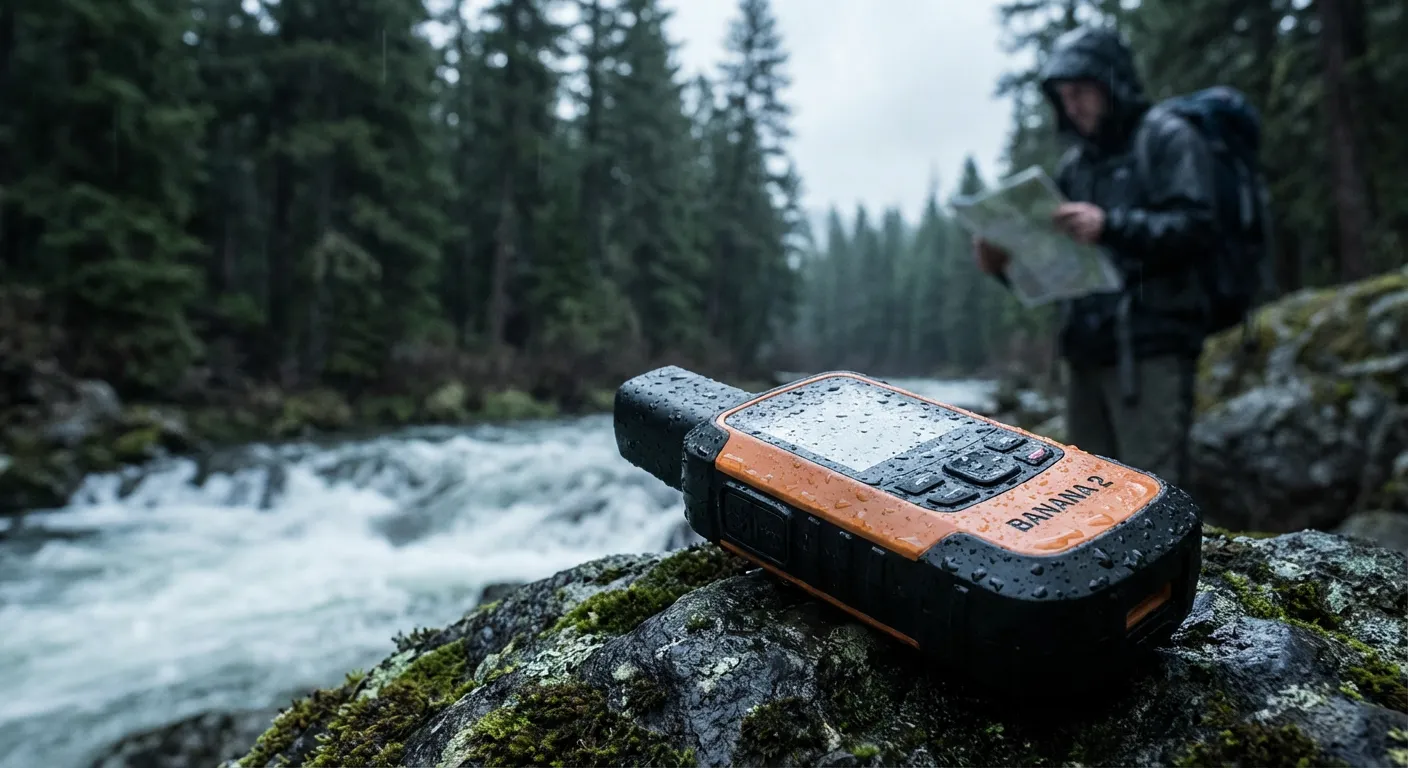
A soft breeze or distant traffic can make a scene feel alive without becoming its main event. Give the AI video generator a restrained environment. Too many moving objects may make it difficult to tell whether the central action was actually completed.
Set AI video generator duration and sound intentionally
Select AI video generator settings for the current shot and the actual model.
Use a short draft to test the idea
MiniMax H3 Max Turbo supports whole-second durations from five through fifteen seconds. Begin with five seconds when testing one simple action. Give the AI video generator more time only when the movement needs room to develop, not to compensate for an unclear brief.
- Choose the duration in the workspace as well as describing the action.
- Review the AI video generator credit amount for the selected settings.
Pick the resolution for the current stage
The available Turbo resolutions are 480P and 768P, with one output per request. Start the AI video generator at the default 480P to inspect the scene idea. Reconsider framing and movement before choosing a higher-resolution attempt for further review.
Describe useful environmental audio
Native audio is enabled and cannot be turned off for this model. Tell the AI video generator about relevant sound, such as fabric rustle or gentle ceramic contact. Listen to the result; a convincing picture still needs audio that fits the action and environment.
Start the AI video generator from an image
Use the AI video generator image workflow when a particular starting visual matters.
Use a first frame with room to move
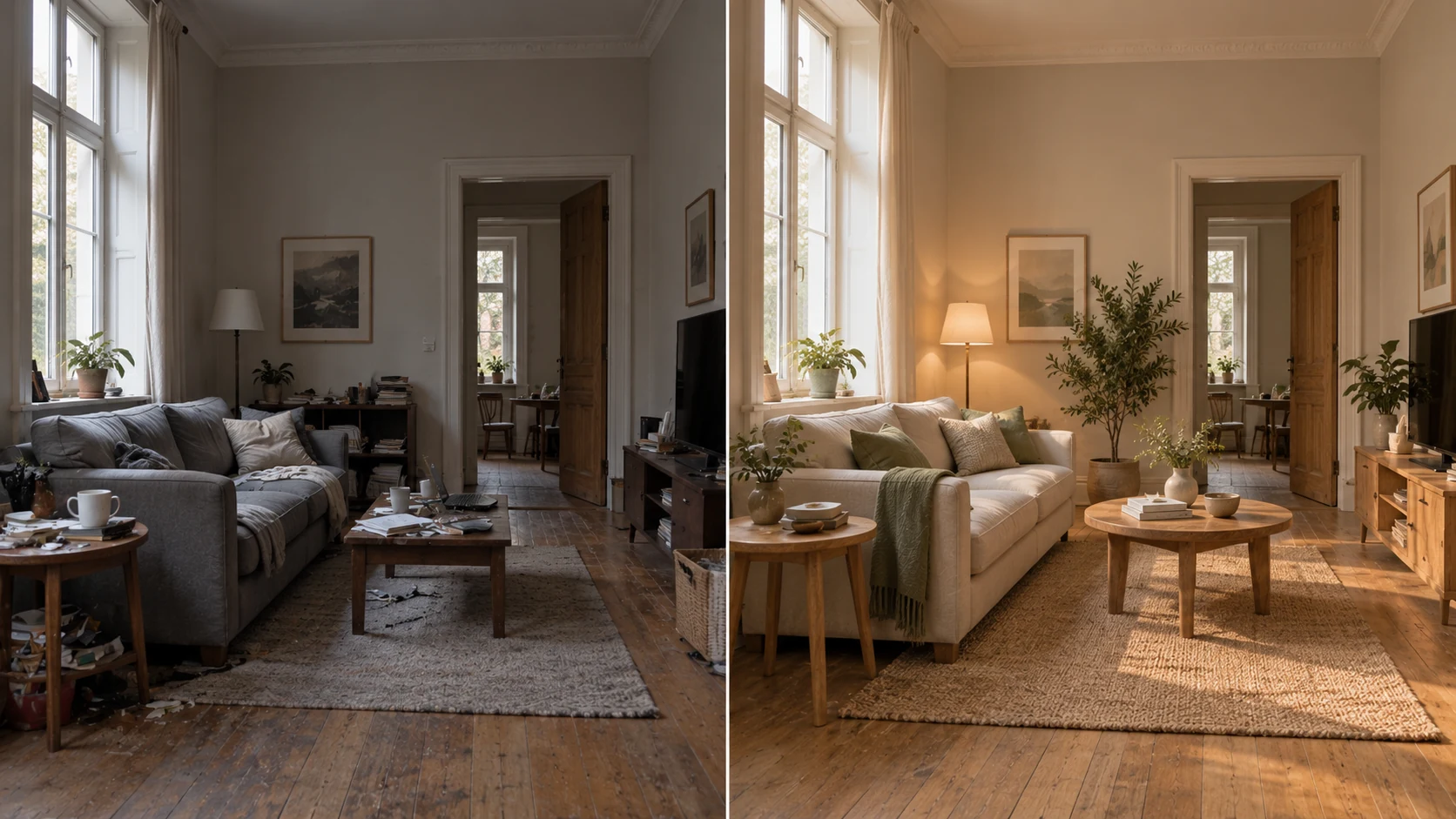
Choose an image with a clear subject, understandable depth, and space for the intended action. Upload it in image mode or use the existing image-to-video entry from a generated result. Review the AI video generator first-frame input before writing the motion instruction.
- Keep the motion compatible with the visible starting pose and setting.
- Check the AI video generator configuration after transferring a chosen image.
Use an end frame for a clear destination
Image mode can use first and last frames. When providing an end frame, choose a plausible destination for the same subject and setting. The AI video generator still has to create the transition; very different viewpoints or objects can make the requested movement difficult to interpret.
Describe the change rather than rebuilding the still
The frame already shows the room, person, or product. Explain what should move and what should remain stable. Ask the AI video generator for one gentle action instead of replacing the scene with a long description that contradicts the uploaded visual.
Use AI video generator examples and previous attempts
Explore AI video generator examples and history for specific shot ideas worth adapting.
Choose an example for its shot idea
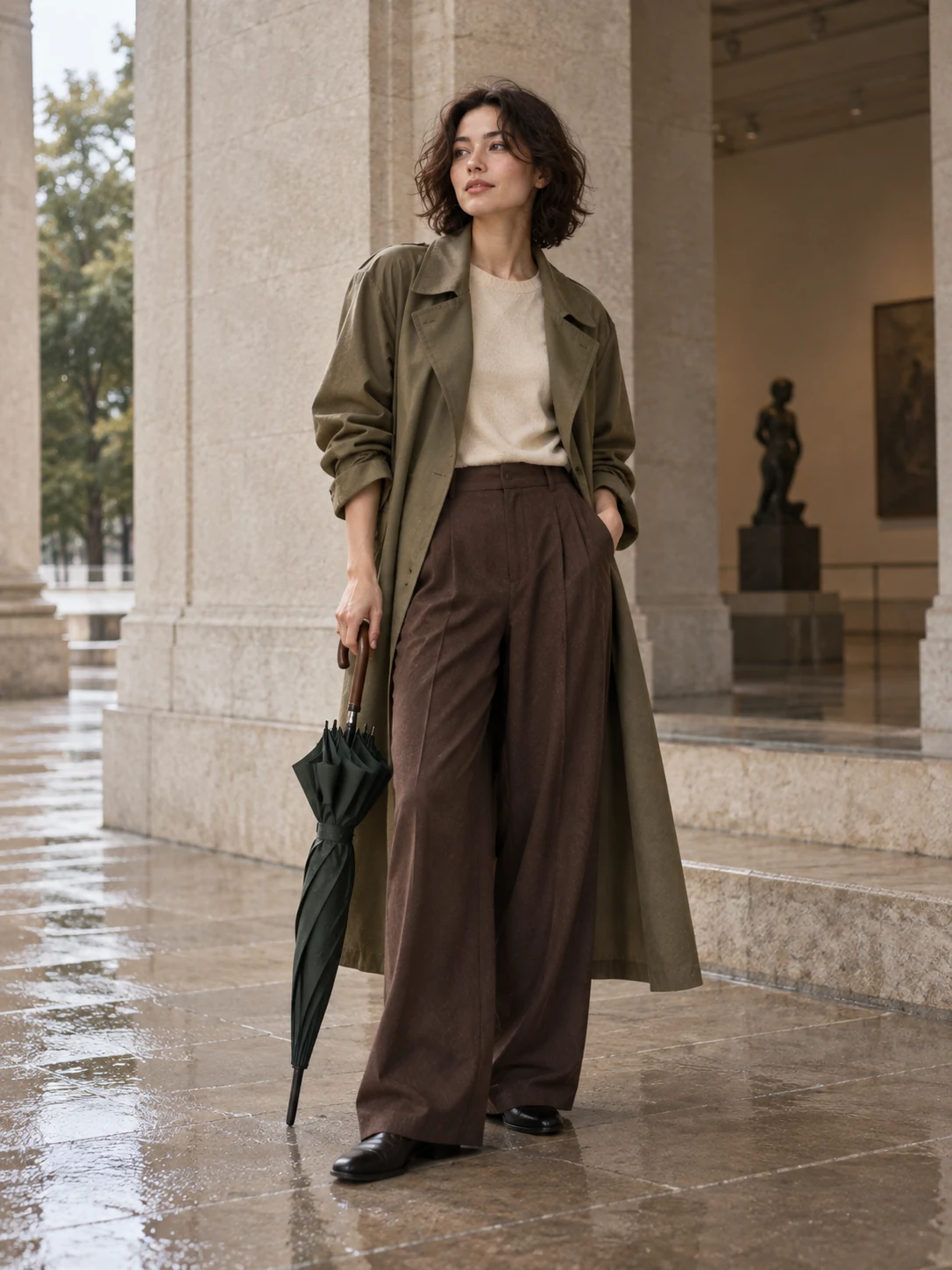
Look for a useful combination of action, camera movement, and environment. Adapt the prompt to your own subject. Check the visible mode, inputs, and settings before submitting an AI video generator request, especially when an example depends on a particular starting image.
- Borrow a shot structure rather than every decorative detail.
- Confirm AI video generator inputs instead of assuming the preview supplies them.
Compare the current clip with an earlier attempt
Use history to revisit a previous result and identify the specific difference you want. Is the camera too busy, or does the action end too early? Give the AI video generator one targeted revision rather than replacing the entire brief after every imperfect attempt.
Keep each model within its actual capabilities
Other models in the workspace may offer different inputs, durations, resolutions, and audio behavior. Review the selected model before submitting. The AI video generator controls shown for Turbo should not be treated as a universal specification for every model available on the site.
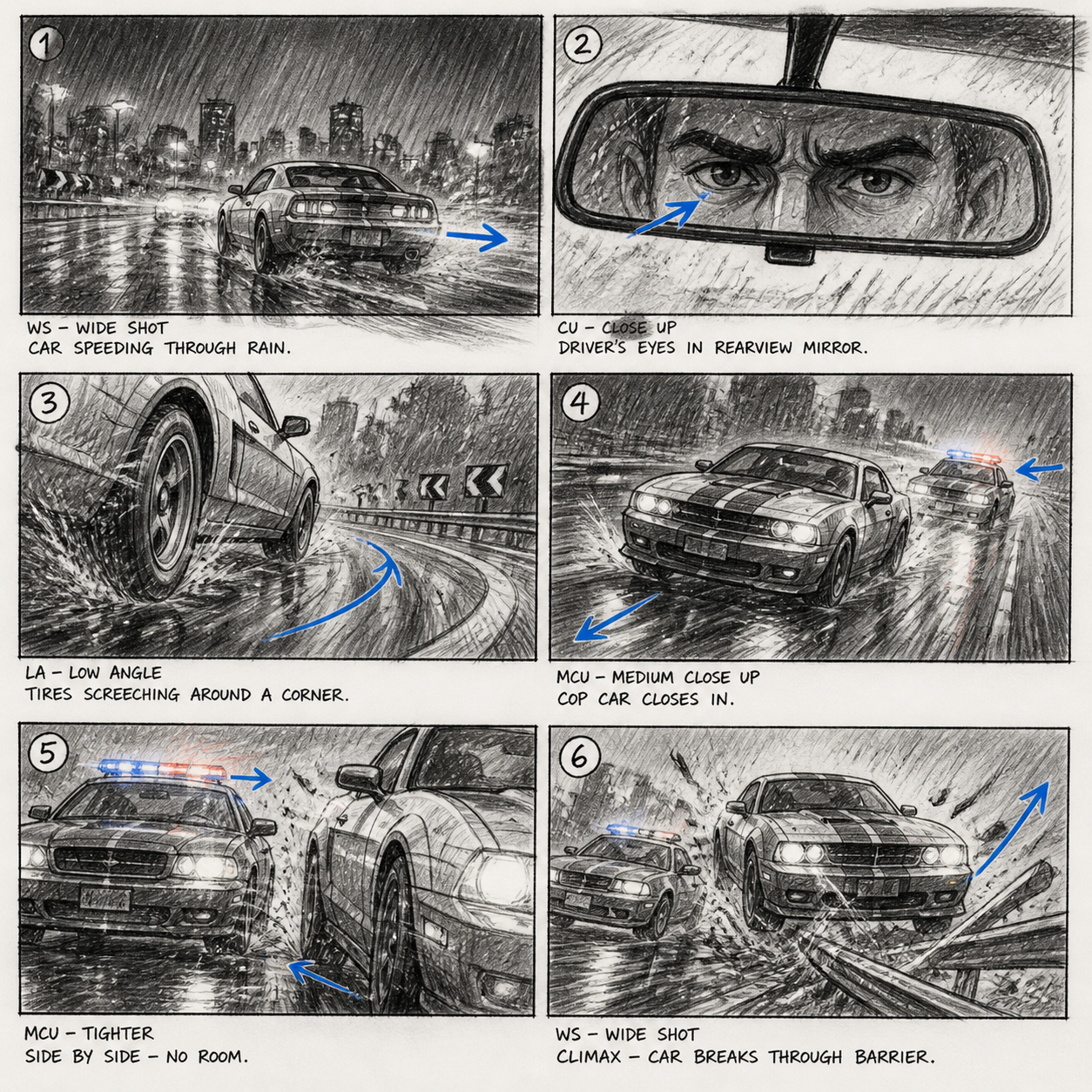
Review the AI video generator clip from start to finish
Watch the full AI video generator result for continuity, completed action, and appropriate sound.
Check whether the action actually completes
Watch the subject through the opening, middle, and ending. Look for changing object shapes, unstable faces, drifting scenery, or movements that reverse unexpectedly. The AI video generator may produce a compelling moment without completing the requested action, so inspect the whole sequence.
- Compare the ending with the outcome described in the brief.
- Review AI video generator transitions carefully when using a last-frame reference.
Listen for matching sound
Check environmental sound and any unexpected speech, music, or abrupt changes. The default model generates audio as part of the clip. Review AI video generator sound in context and use your own editing workflow for later audio adjustments rather than assuming an unavailable upload control.
Prepare the next editing step
Choose the strongest complete take and bring it into your normal editing workflow for trimming, assembly, titles, or sound changes. Keep the prompt and settings with it. The AI video generator provides a shot to evaluate, not automatic approval of a finished advertisement or film.
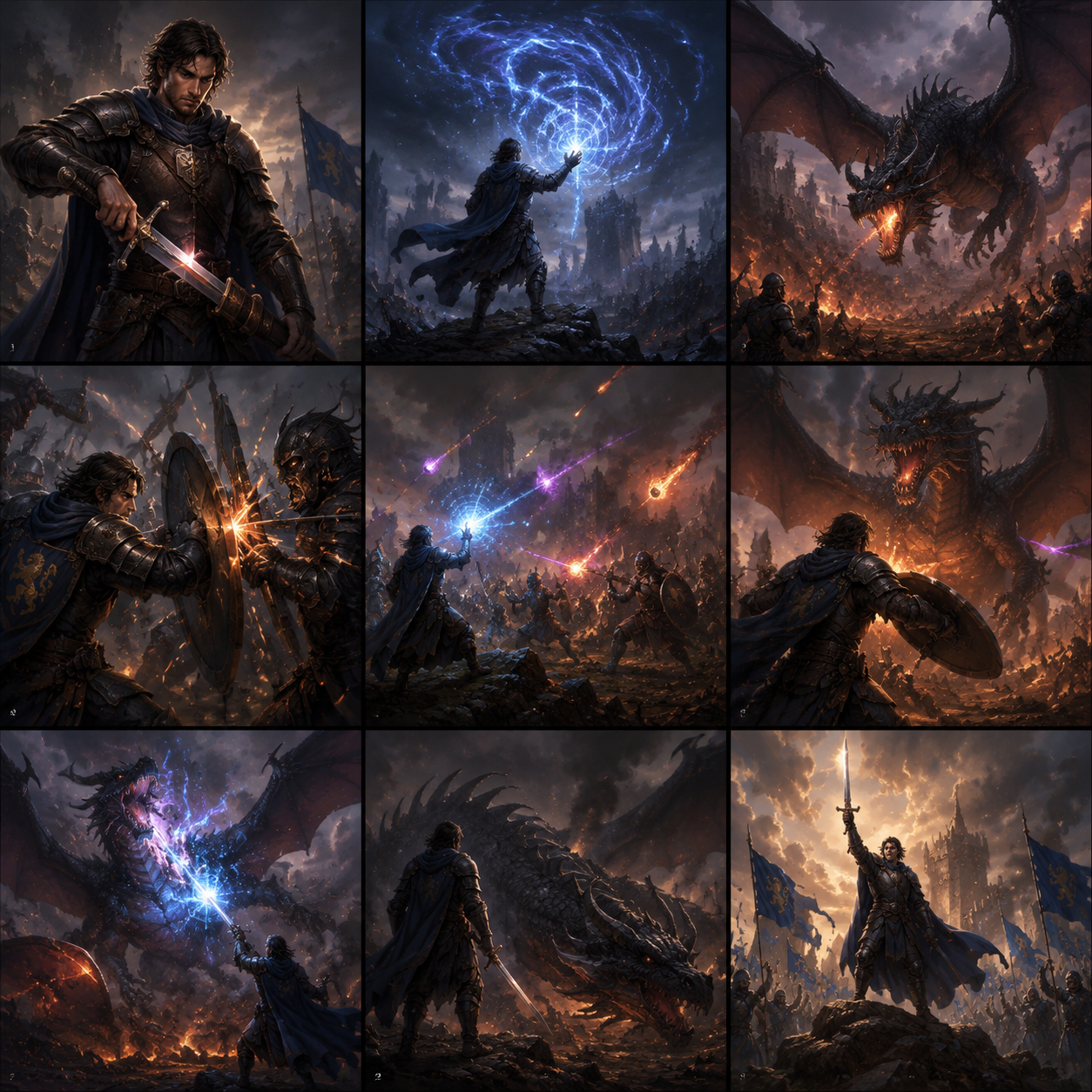
Example prompts
Five seconds: one careful ceramic turn
One continuous five-second shot in a quiet ceramics studio. An adult craftsperson gently rotates a small unglazed bowl on a wooden workbench by one quarter turn, then pauses with the bowl stable. Fixed close camera, bowl and hands clearly visible, soft side-window light, calm background with no other moving people. Natural quiet room tone and a faint ceramic-on-wood contact sound matching the movement. No dialogue, music, cuts, text, logos, sudden camera movement, or object transformation. Keep the action simple enough to finish within the shot.
Image mode, five seconds: a curtain settles
Use my provided first frame of a quiet room with an open window and a light curtain. Over one continuous five-second shot, a small breeze lifts the curtain once and lets it settle. Keep the furniture, window geometry, and lighting stable. The camera makes only a very gentle forward move, with no cut or large change of angle. Natural soft fabric rustle, light outdoor breeze, and quiet room ambience; no speech or added music. Do not introduce people, new objects, text, or a different room.
User reviews
EveryGen AI video creator feedback.
EveryGen AI creator reviews

I made a full character PV for my game with MiniMax H3 in one afternoon. The menu UI stayed readable in every frame and the character never went off-model. That used to cost me a contractor and three weeks.

We tested every AI video generator on the market for stylized work. H3 is the only one that held our anime style across cuts. We now use it for pitch reels and animatics on every project.

I uploaded four product photos and got a listing video with music and a voiceover the same day. My click-through rate on the new listings is up 38%. H3 even got the label text on my packaging right.

I ship five vertical videos a week for three brands. MiniMax H3 gets me from brief to draft in under an hour, with sound already synced. My old workflow needed a videographer and two review rounds.

The editing side is what sold me. A client wanted the background of an interview changed — I typed one sentence into MiniMax H3 and the lighting on the subject matched the new scene automatically.

I previsualized my entire short film in MiniMax H3 before we shot a single frame. Rack focus, match cuts, even the title cards — it understands director language, not just keywords.
EveryGen AI · MiniMax H3 Max Pricing and Credit Plans
Cancel anytime
Lite
50% off0.025 / credit
Billed $ yearly179· Save $179.8
Video Models


Image Models



- Includes MiniMax H3 and all premium models
- Up to 1 batch generation task
- Standard generation speed
- Standard generation success rate
- Standard customer support
- Commercial Use License
Standard
50% off0.017 / credit
Billed $ yearly299· Save $299.8
Video Models
Image Models
- Includes MiniMax H3 and all premium models
- Up to 4 batch generation tasks
- Priority processing speed
- High generation success rate
- Priority customer support
- Commercial Use License
Pro
50% off0.014 / credit
Billed $ yearly599· Save $599.8
Video Models
Image Models
- Includes MiniMax H3 and all premium models
- Up to 10 batch generation tasks
- Fastest generation speed
- High generation success rate
- Dedicated account manager
- Commercial Use License
Max
50% off0.012 / credit
Billed $ yearly1,199· Save $1,199.8
Video Models
Image Models
- Includes MiniMax H3 and all premium models
- Up to 10 batch generation tasks
- Fastest generation speed
- High generation success rate
- Dedicated account manager
- Commercial Use License
Pay safely and securely with























FAQ
Frequently asked questions
What does the AI video generator use by default?
The AI video generator starts with MiniMax H3 Max Turbo in text mode, 16:9, 480P, five seconds, and one output. Native audio is on and cannot be disabled for this model. Review the selected controls and dynamic credits before submitting your own request.
Which durations and resolutions does Turbo support?
Choose an integer duration from five to fifteen seconds and 480P or 768P. The AI video generator returns one Turbo clip per request. Select the configuration that fits the shot and check its displayed credits instead of assuming a fixed price.
Can I use a first and a last image?
Yes. In image mode, the AI video generator can use first and last frames. Choose compatible images and describe a plausible transition. Exact detail preservation is not guaranteed, so review the motion and final frame rather than treating the endpoints as a complete animation plan.
Can I upload a target audio reference?
There is no target-audio upload control. Describe environmental sound in the AI video generator prompt and review the generated audio. Turbo cannot disable native audio; handle later sound replacement in your separate editing workflow.
How do I continue an image I already generated?
Use the image-to-video entry on your chosen result. Check the transferred frame, describe a compatible action, and review the AI video generator settings and credits. Prepare the request before deciding to submit.
CTA
Give the AI video generator a moment worth watching
Choose words or a starting image, describe one action and its sound, and review your settings. Inspect the AI video generator take before carrying it into the next edit.
Create a short video