 EveryGen AI
EveryGen AI · Image to Video that starts from your chosen frame
A still image already contains decisions about color, composition, and subject. EveryGen AI Image to Video lets you build a short movement around those decisions using MiniMax H3 Max Turbo. Upload an opening image, describe what happens next, and add an optional ending frame. Use Image to Video to explore motion without rebuilding the entire scene in words.
Video workspace
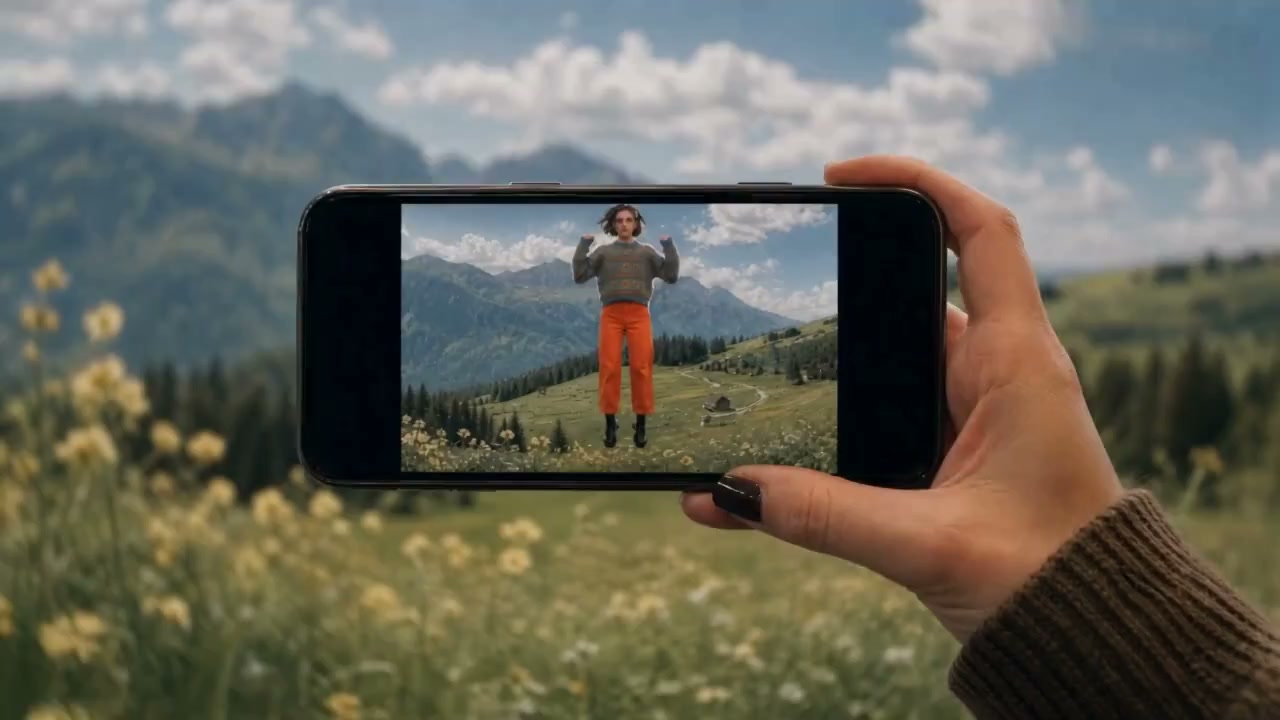
A mountain view through the phone
7/10View prompt
Use the uploaded image of a hand holding a phone before a grassy mountain landscape as the opening frame. Keep the hand, phone position, and adult person visible within the screen consistent. Over five seconds, add gentle grass movement, drifting clouds, and subtle natural motion within the screen. Keep the camera nearly still and the composition unchanged.
Introduction
Give Image to Video a clear visual starting point
Choose Image to Video when the composition already exists. Your uploaded picture establishes the scene; the prompt explains the movement that should develop within it.
Bring an image with a purpose
A courtyard photograph might become a quiet atmospheric clip, while an illustrated character might turn toward a sound. Give Image to Video a task connected to the source. Movement should reveal something useful rather than disturb every attractive detail in the original.
Use the correct input workflow
This Image to Video page uses MiniMax H3 Max Turbo with one opening image and an optional ending image. Start with the composition that matters most. Unrelated images are not separate shots in this workflow.
Decide what deserves attention
Identify the subject that viewers should follow: a ceramic cup, a character, or the reflection in a pond. Then use Image to Video to direct attention there. A clear priority makes it easier to accept subtle motion and reject distracting activity elsewhere.
How to use
How to create with Image to Video
- Input
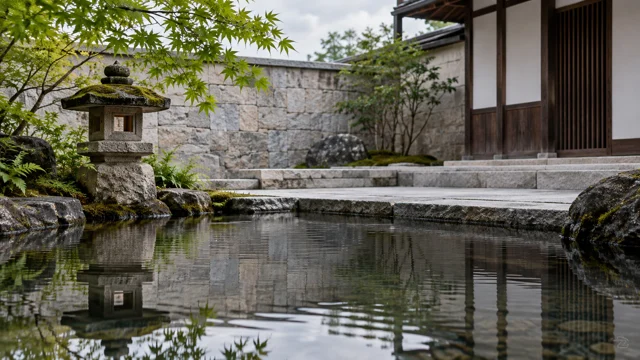 Reference image 1STEP 1
Upload the opening
Choose MiniMax H3 Max Turbo image mode for Image to Video, then upload one clear opening frame with the intended composition.
- ModelMiniMax H3 Max Turbo480P16:95sPromptOutputSTEP 2
Describe the movement
Give Image to Video one main action, a restrained camera direction, and ambient sound; add a compatible ending image when useful.
- First frameLast frame
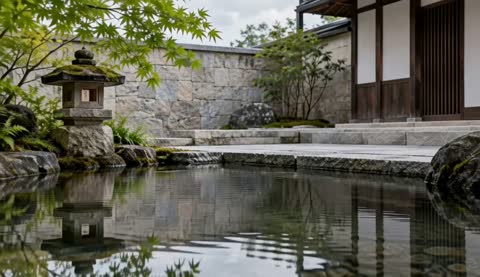 0.0s
0.0s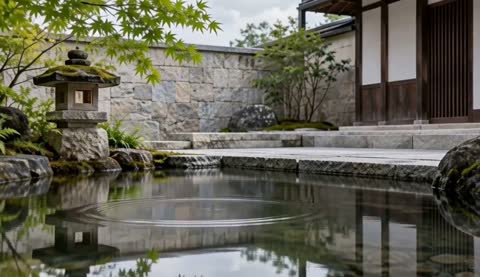 2.6s
2.6s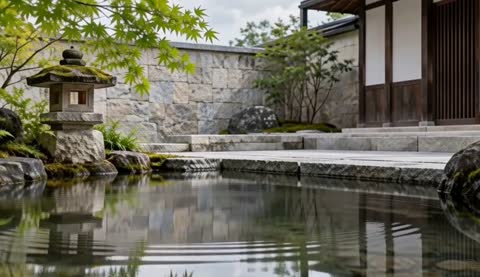 4.7sSTEP 3
Generate the clip
Start Image to Video at five seconds and 480P, check the displayed credits, and generate motion from your prepared image.
- STEP 4
Compare the full result
Watch Image to Video from beginning to end, comparing subject details and transitions with your source before downloading an approved clip.
Features
Prepare an Image to Video frame with room to move
Your input controls the image-mode proportions. Prepare Image to Video framing before uploading, especially when the source will be used in a narrow or wide placement.
Keep important edges visible
Leave space around hands, hair, handles, and other features involved in the action. An Image to Video request cannot reliably compensate for important parts missing from the source. A comfortably framed subject gives the movement somewhere to develop without immediately leaving the picture.
- Inspect the source at the size where viewers will watch.
- Prepare Image to Video crops before committing to a particular composition.
Remove competing visual instructions
A collage or several versions of an object can give the scene competing interpretations. For Image to Video, choose one continuous composition. Keep final overlay text separate when it needs to remain editable in your later layout.
Match the source to the action
A close product photograph suits a slight light change or a restrained camera move. It is a weaker starting point for a dramatic full rotation. Ask Image to Video for movement supported by the visible geometry rather than relying on unseen surfaces to appear correctly.
Build Image to Video movement around the subject
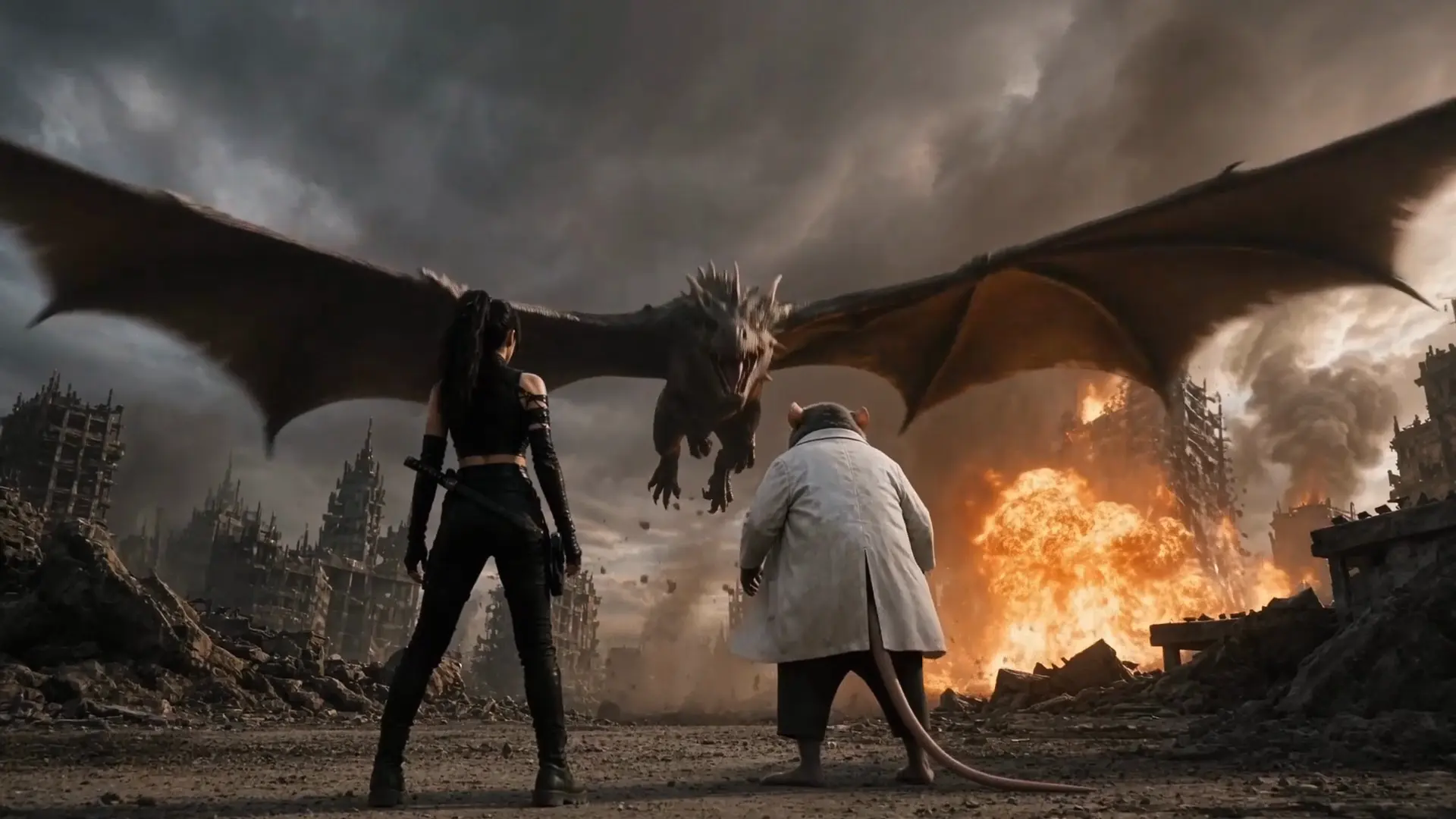
Describe what moves first and what stays quieter. An Image to Video prompt becomes easier to follow when subject motion, surrounding motion, and camera motion have different roles.
Choose the main gesture
For a portrait, try a small head turn followed by a relaxed pause. For a still life, try a ribbon moving beside the object. Give Image to Video one primary gesture instead of requesting a sequence of unrelated poses within a short clip.
- Use one action that can resolve within the selected duration.
- Keep Image to Video instructions specific about direction and movement size.
Add restrained secondary motion
Leaves can move behind a stationary subject, or steam can rise while the cup remains still. These Image to Video details establish atmosphere without competing with the main gesture. Name the quieter element and ask for movement that supports the scene rather than dominates it.
Describe what should stay steady
State that the table remains stationary, the product stays upright, or the background architecture keeps its arrangement. These Image to Video directions guide the request. Compare the generated clip with the source to check those relationships.
Give Image to Video a compatible destination
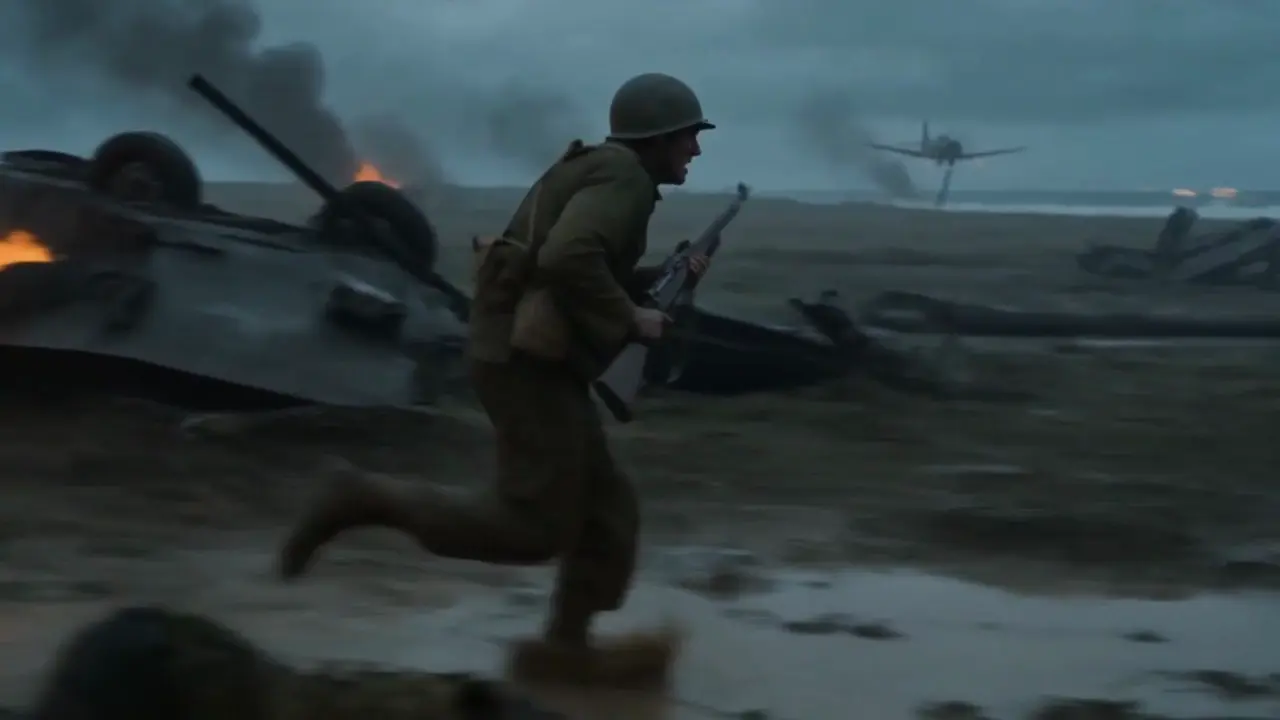
An ending image can describe where the shot should arrive. Use Image to Video endpoints that belong to one plausible action, not two unrelated compositions.
Choose a reachable change
A partly closed door and a more open door suggest a manageable transition. A close face and a distant aerial landscape suggest a much larger transformation. For Image to Video, choose endpoints whose subject position and visual scale make sense together.
- Check that both images belong to the same intended scene.
- Give Image to Video endpoints enough time for the proposed change.
Explain the journey between frames
Do not rely on two images alone to specify the movement. Tell Image to Video how the subject travels between them: the door opens slowly, the camera stays near eye level, and the light beyond becomes visible. Review the middle, not just the endpoints.
Leave the ending open when appropriate
You do not have to supply a final image. For a gently animated landscape or a brief character reaction, one opening frame may be sufficient. Keep Image to Video instructions focused on a natural stopping point rather than adding an endpoint without a clear purpose.
Connect Image to Video camera work and atmosphere
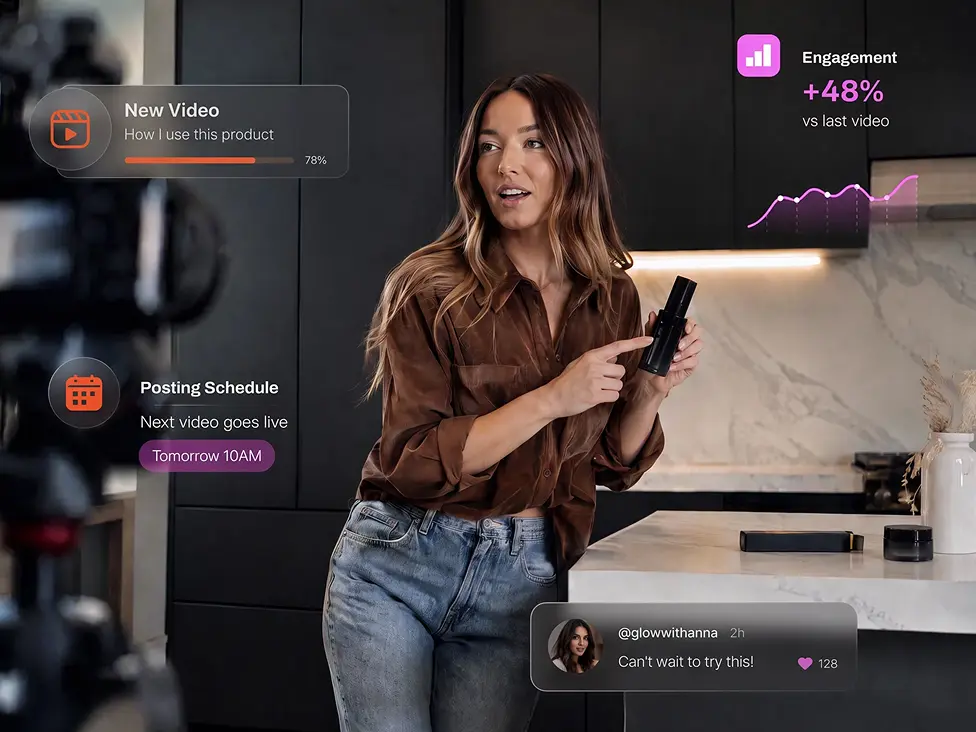
Choose a viewpoint and soundscape that make the still scene feel inhabited. Image to Video works best as a directed moment, not a list of simultaneous effects.
Use a restrained camera path
Try a slight push toward a lantern or a slow sideways move along a garden wall. Image to Video camera instructions should respect the source framing. Large moves may reveal invented areas, so inspect new geometry before choosing a clip for publication.
Describe the audible environment
Turbo includes native audio. Give Image to Video sound direction such as soft water movement, a distant bird, or fabric rustling during the gesture. The request guides atmosphere; listen to the result instead of assuming every sound will match the visible source perfectly.
Protect the quiet moment
A calm scene does not need a dramatic musical event or constant camera movement. Ask Image to Video for gentle ambience and a measured pace when that serves the image. Keep the emotional direction consistent with the light, pose, and surroundings already present.
Judge Image to Video across the entire clip
A convincing opening is only the beginning. Watch Image to Video output through to the end and compare the moving details with the photograph or illustration you supplied.
Check what changes unintentionally
Inspect faces, packaging, fingers, outlines, and objects that pass behind other objects. Image to Video can introduce changes as the scene develops. Pause at the busiest moments and check whether the subject still looks like the one you intended to animate.
Review the motion at normal speed
A paused frame cannot tell you whether a gesture feels rushed or whether the camera lurches. Watch Image to Video results at normal playback speed, then examine any weak interval more closely. A smaller movement may produce a more useful direction than a busier scene.
Choose the next configuration deliberately
Begin at five seconds and 480P. Image to Video supports five to fifteen seconds and 480P, 768P, or 1080P. Check the displayed credits before each request, then change duration or resolution to suit the next task rather than changing everything together.
Example prompts
Courtyard with moving reflections
Use the uploaded courtyard image as the opening frame. Five-second continuous shot: a few leaves sway gently and small ripples move across the pond while the stonework remains stationary. Very slow camera push toward the lantern reflection. Soft water sounds and a light breeze, no dialogue or sudden cuts. Keep movement restrained and do not introduce people.
Opening a workshop door
Use the uploaded first image as the opening and the optional last image as the destination. Over five seconds, the wooden workshop door opens slowly to reveal warm light inside. Keep the camera steady and the doorway aligned. A quiet hinge creak and subdued room ambience accompany the movement. Finish with a short pause; no new characters or captions.
User reviews
EveryGen AI video creator feedback.
EveryGen AI creator reviews

I made a full character PV for my game with MiniMax H3 in one afternoon. The menu UI stayed readable in every frame and the character never went off-model. That used to cost me a contractor and three weeks.

We tested every AI video generator on the market for stylized work. H3 is the only one that held our anime style across cuts. We now use it for pitch reels and animatics on every project.

I uploaded four product photos and got a listing video with music and a voiceover the same day. My click-through rate on the new listings is up 38%. H3 even got the label text on my packaging right.

I ship five vertical videos a week for three brands. MiniMax H3 gets me from brief to draft in under an hour, with sound already synced. My old workflow needed a videographer and two review rounds.

The editing side is what sold me. A client wanted the background of an interview changed — I typed one sentence into MiniMax H3 and the lighting on the subject matched the new scene automatically.

I previsualized my entire short film in MiniMax H3 before we shot a single frame. Rack focus, match cuts, even the title cards — it understands director language, not just keywords.
EveryGen AI · MiniMax H3 Max Pricing and Credit Plans
Cancel anytime
Lite
50% off0.025 / credit
Billed $ yearly179· Save $179.8
Video Models


Image Models



- Includes MiniMax H3 and all premium models
- Up to 1 batch generation task
- Standard generation speed
- Standard generation success rate
- Standard customer support
- Commercial Use License
Standard
50% off0.017 / credit
Billed $ yearly299· Save $299.8
Video Models
Image Models
- Includes MiniMax H3 and all premium models
- Up to 4 batch generation tasks
- Priority processing speed
- High generation success rate
- Priority customer support
- Commercial Use License
Pro
50% off0.014 / credit
Billed $ yearly599· Save $599.8
Video Models
Image Models
- Includes MiniMax H3 and all premium models
- Up to 10 batch generation tasks
- Fastest generation speed
- High generation success rate
- Dedicated account manager
- Commercial Use License
Max
50% off0.012 / credit
Billed $ yearly1,199· Save $1,199.8
Video Models
Image Models
- Includes MiniMax H3 and all premium models
- Up to 10 batch generation tasks
- Fastest generation speed
- High generation success rate
- Dedicated account manager
- Commercial Use License
Pay safely and securely with























FAQ
Frequently asked questions
How many pictures does Image to Video use?
This Turbo workflow takes one opening image and an optional ending image. The ending frame is a destination for the same short shot, not a second independent scene or an additional style reference.
Can I choose a different Image to Video aspect ratio?
The input image controls the proportions in this mode. Prepare an appropriate crop before uploading. Do not assume a differently shaped output will retain every edge or important object from the original composition.
Will the original subject stay exactly unchanged?
No. Image to Video may change facial features, labels, shapes, or other details as motion develops. Use a clear source, request restrained movement, and compare the complete clip with the original before deciding whether it is suitable.
Do I need to provide the final frame?
No. Image to Video can begin from one opening image and your movement instructions. Add an ending frame only when it clarifies a reachable destination. An unrelated endpoint can make the intended motion harder to communicate.
Can I animate an illustration rather than a photograph?
Yes. Give Image to Video a clear illustration and describe movement consistent with its visual style. Inspect outlines and character details throughout the clip. Starting from an illustration does not ensure a fixed drawing or identical features in every frame.
CTA
Give Image to Video a clear next moment
Choose the image that already expresses your visual direction. Add a focused movement brief, review your configuration and credits, then compare the complete result with the source.
Animate your opening image