 EveryGen AI
EveryGen AI · H3 LoRA for Video Generation with Your Chosen Adapter
Bring a compatible, already-trained adapter to a defined video brief. H3 LoRA on H3 Max lets you apply one adapter at an adjustable strength, then generate from text or images while keeping the creative request and its settings easy to track.
Video workspace
The wooden elevator opens
28/33View prompt
Five-second continuous frontal shot of closed wooden elevator doors opening slowly to reveal one adult woman standing inside. Keep the camera fixed at eye level and the woman relaxed, facing forward. Preserve a simple, balanced composition with warm wood grain and soft interior light. End with the doors open and the woman still standing.
Introduction
What Is H3 LoRA?
H3 LoRA is the H3 Max workflow for applying an existing LoRA adapter to MiniMax H3 during text-to-video or image-to-video generation.
An adapter changes generation, not the input inventory
The official MiniMax H3 LoRA services accept adapter weights and a strength value alongside the generation request. The adapter can contribute learned visual characteristics, depending on what it was trained to represent. H3 LoRA is therefore an inference workflow: you bring compatible weights and use them for a new scene rather than training a model from uploaded examples here.
The H3 LoRA controls on H3 Max
Provide one HTTPS LoRA file URL or a Hugging Face repository path and choose strength from 0 to 4. H3 LoRA supports text and image modes, 5–15 second clips, native audio, seed, and first and last frames. Output choices are 480P, 768P, 2K, and 4K; larger output labels do not mean native rendering at those sizes.
How to use
How to Generate with H3 LoRA
- Trained adapterYour compatible trained adapterStrength 1PromptSTEP 1
Provide the adapter
Open H3 LoRA and enter one compatible HTTPS weight-file URL or Hugging Face repository path. Check the adapter’s documentation and choose an appropriate strength between 0 and 4.
- Example settingsH3 LoRA768P5s16:9PromptSTEP 2
Build the visual brief
Choose H3 LoRA text or image mode. Describe the scene and action. In image mode, upload the opening picture and optionally a compatible ending frame to guide the transition.
- Illustrative preview
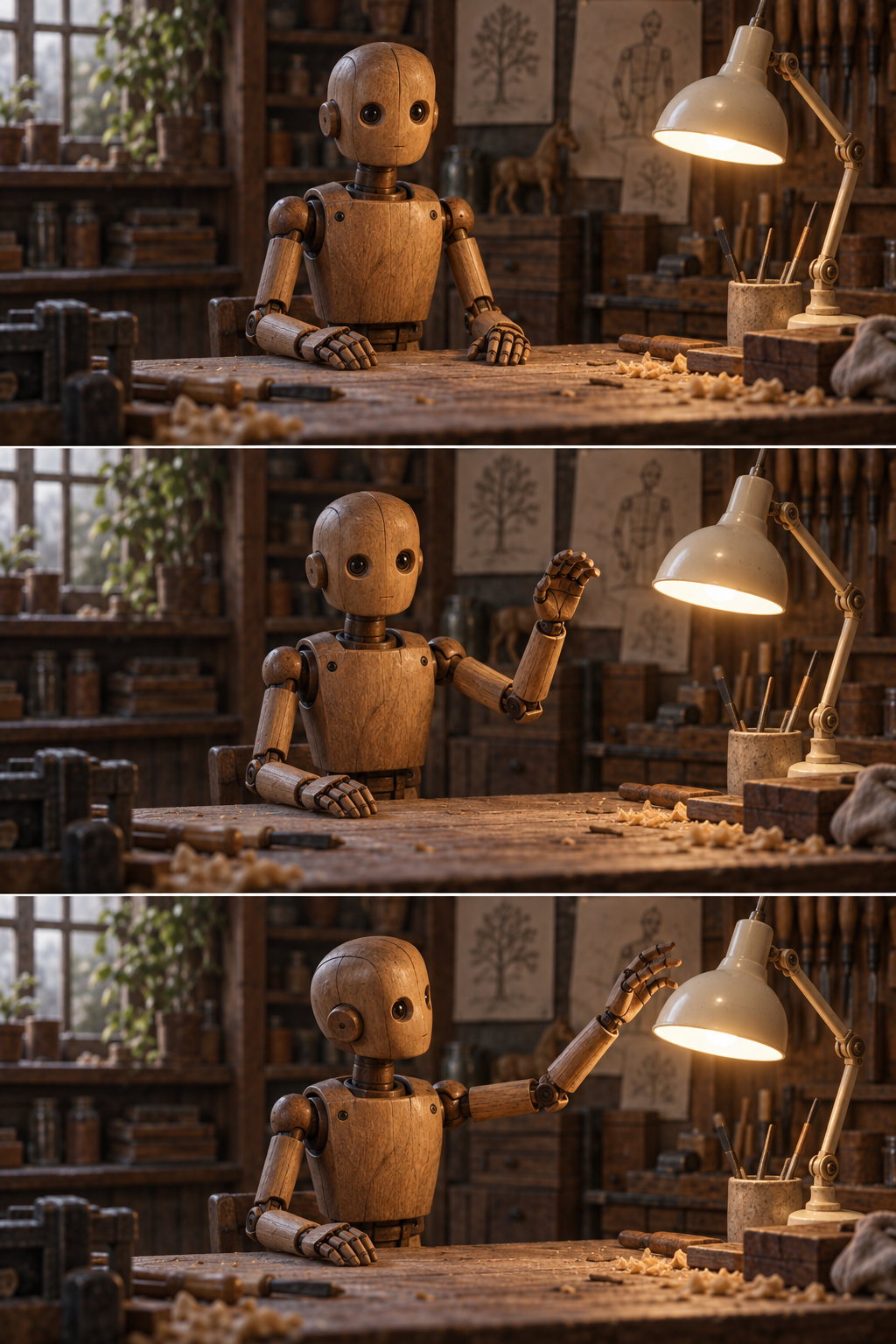
Select a compatible trained adapter and its strength before generation. This storyboard illustrates the prompt, not a tested adapter output.
STEP 3Configure the request
Select a duration from 5 to 15 seconds and an available output size. Record the H3 LoRA seed and strength, review any sound direction in the prompt, and check the credits.
- Text mode: With the compatible adapter selected separately, show an unbranded wooden automaton sitting at a workbench. It slowly raises one hand, looks toward a small lamp, and pauses. Keep the camera steady and the room coherent. Soft mechanical movement and quiet indoor ambience; no speech or added text.Save illustrationStatic illustration · not a generated videoSTEP 4
Compare the complete result
Generate with H3 LoRA, then review motion, appearance, and audio together. Keep the recipe recorded. Change only one important variable when the next request is meant to test a specific improvement.
Features
Connect One Compatible Adapter to H3 LoRA
The adapter is a specific model asset, not a style name typed into the prompt. Start H3 LoRA with weights whose purpose you understand.
Use an accessible file or repository path
Paste the HTTPS address of the adapter file or its Hugging Face repository identifier. Check that the weights are intended for the relevant MiniMax H3 workflow. H3 LoRA does not make an unrelated image or video adapter compatible merely because its address is valid. Keep the adapter’s own documentation available when deciding how to describe the requested scene.
Keep the H3 LoRA selection unambiguous
When a repository contains several weight files, use a direct file URL to identify the intended adapter rather than assuming a filename selector is available. This H3 LoRA workspace exposes one adapter slot, not a stack of adapters or a built-in catalog. Record which weights you used so a later comparison is based on the same model asset.
Tune H3 LoRA Strength Without Losing the Scene
The strength range runs from 0 to 4. Use H3 LoRA strength as a controlled creative variable, not as a quality score.
Begin with the adapter’s documented guidance
An adapter may be designed for a particular strength or set of prompt conventions. Start from its guidance when available, then inspect the result. Increasing H3 LoRA strength is not automatically an improvement: the adapter’s learned appearance may become more prominent while competing with the arrangement or action you wanted. Keep the intended scene as the basis for judgment.
Compare one strength change at a time
Hold the prompt, source images, seed, duration, and output size steady while changing strength. Ask whether the next H3 LoRA result better expresses the intended look without losing recognizable structure. Note the actual setting rather than describing it only as subtle or strong. This keeps later revisions explainable even when generation produces some variation.
Direct H3 LoRA from Text or Supplied Frames
The adapter supplies one kind of guidance; the scene brief and images supply another. Give each part of H3 LoRA a clear role.
Write the action independently of the adapter
Describe the subject, setting, camera, and movement even when the weights are associated with a recognizable style. H3 LoRA still needs a scene to generate. Follow any documented trigger-word instructions for your chosen adapter, but do not invent a universal trigger. Keep the action simple enough to evaluate separately from the look contributed by the weights.
Give H3 LoRA compatible opening and ending frames
In image mode, start with an opening picture and add an ending frame when the destination matters. Match their subject, proportions, and lighting so the desired change is understandable. H3 LoRA should be assessed throughout the transition, not only at its endpoints. A selected adapter does not guarantee that every intermediate frame will preserve the intended identity or geometry.
Plan H3 LoRA Duration, Output Size, and Sound
Choose the clip’s duration and output settings around a defined shot. H3 LoRA offers the controls for generation, while your review determines whether the result is useful.
Distinguish output resolution from native generation
The available sizes are 480P, 768P, 2K, and 4K. The official service describes 480P and 768P as native generation modes, with 2K and 4K upscaling a 768P base. Choose H3 LoRA output size for the intended use, but inspect shape, texture, and motion rather than treating the larger dimensions as evidence of additional original detail.
Give the action and audio a suitable time window
Select a duration from 5 to 15 seconds and describe a complete, focused moment. H3 LoRA generates video with native audio, so include a sensible sound intention in the brief when it matters. Review the soundtrack with the movement. Do not assume a visual adapter also provides a particular voice or a recording-driven performance.
Keep an H3 LoRA Recipe You Can Review
An adapter experiment is easier to evaluate when the configuration is recorded. H3 LoRA provides a seed, but good comparisons need more than that number.
Save the H3 LoRA configuration together
Record the adapter path, strength, prompt, seed, frame inputs, output size, and duration. This creates a useful description of the request without promising identical results. When an H3 LoRA take succeeds, identify why: the motion reads clearly, the subject remains recognizable, or the intended visual character appears without overwhelming the composition.
Treat selection as a creative approval
Use weights and input assets you are authorized to use, and check any restrictions supplied with the adapter. Review H3 LoRA credits before submitting another request. Inspect the entire generated clip for changes that could alter the subject or message. Keep the selected result with its configuration instead of assuming the adapter’s name explains every creative decision.
Example prompts
A quiet workshop scene
Text mode: With the compatible adapter selected separately, show an unbranded wooden automaton sitting at a workbench. It slowly raises one hand, looks toward a small lamp, and pauses. Keep the camera steady and the room coherent. Soft mechanical movement and quiet indoor ambience; no speech or added text.
A character turning toward a window
Image mode: Use the uploaded opening picture as the composition reference. The character makes a gentle turn toward the window and settles. Retain the recognizable clothing, face, and surrounding objects while allowing the selected adapter’s visual treatment. Restrained camera movement, quiet rain ambience, no scene cut.
A transition between two matched poses
Image mode: Use the supplied opening and ending pictures of the same subject. Move gradually between the two poses while maintaining consistent proportions, setting, and lighting. Keep the selected adapter treatment coherent across the clip. Finish in the ending composition with a short pause and subdued ambience.
User reviews
EveryGen AI video creator feedback.
EveryGen AI creator reviews

I made a full character PV for my game with MiniMax H3 in one afternoon. The menu UI stayed readable in every frame and the character never went off-model. That used to cost me a contractor and three weeks.

We tested every AI video generator on the market for stylized work. H3 is the only one that held our anime style across cuts. We now use it for pitch reels and animatics on every project.

I uploaded four product photos and got a listing video with music and a voiceover the same day. My click-through rate on the new listings is up 38%. H3 even got the label text on my packaging right.

I ship five vertical videos a week for three brands. MiniMax H3 gets me from brief to draft in under an hour, with sound already synced. My old workflow needed a videographer and two review rounds.

The editing side is what sold me. A client wanted the background of an interview changed — I typed one sentence into MiniMax H3 and the lighting on the subject matched the new scene automatically.

I previsualized my entire short film in MiniMax H3 before we shot a single frame. Rack focus, match cuts, even the title cards — it understands director language, not just keywords.
EveryGen AI · MiniMax H3 Max Pricing and Credit Plans
Cancel anytime
Lite
50% off0.025 / credit
Billed $ yearly179· Save $179.8
Video Models


Image Models



- Includes MiniMax H3 and all premium models
- Up to 1 batch generation task
- Standard generation speed
- Standard generation success rate
- Standard customer support
- Commercial Use License
Standard
50% off0.017 / credit
Billed $ yearly299· Save $299.8
Video Models
Image Models
- Includes MiniMax H3 and all premium models
- Up to 4 batch generation tasks
- Priority processing speed
- High generation success rate
- Priority customer support
- Commercial Use License
Pro
50% off0.014 / credit
Billed $ yearly599· Save $599.8
Video Models
Image Models
- Includes MiniMax H3 and all premium models
- Up to 10 batch generation tasks
- Fastest generation speed
- High generation success rate
- Dedicated account manager
- Commercial Use License
Max
50% off0.012 / credit
Billed $ yearly1,199· Save $1,199.8
Video Models
Image Models
- Includes MiniMax H3 and all premium models
- Up to 10 batch generation tasks
- Fastest generation speed
- High generation success rate
- Dedicated account manager
- Commercial Use License
Pay safely and securely with























FAQ
Frequently asked questions
Does H3 LoRA train a new adapter?
No. This page applies an already-trained adapter during generation. It does not provide a dataset upload, a training job, or a training-progress screen. Prepare compatible weights elsewhere before bringing their path into the workspace.
Which adapter inputs does H3 LoRA accept?
Enter one HTTPS file URL or Hugging Face repository path. Use a compatible MiniMax H3 adapter and make the intended weights accessible. A valid address alone does not establish that the file works with this model.
Can H3 LoRA combine multiple adapters here?
No. The current H3 LoRA workspace exposes one adapter slot. It also does not provide a built-in adapter list. Choose the specific weights you intend to apply rather than planning a stack of different adapters.
What does the H3 LoRA strength control do?
It sets the adapter’s influence within the supported 0–4 range. It is not a quality rating. Follow the adapter’s guidance when available, then compare results for the balance between its learned appearance and your intended scene.
Does H3 LoRA generate native 4K video?
The 4K option is an output tier. The official service describes 2K and 4K as upscaled from a 768P base, while 480P and 768P are native modes. Do not equate the larger dimensions with native detail.
Can H3 LoRA use first and last frames?
Yes. The image workflow supports an opening image and an optional ending image. Use compatible frames and describe the transition. Check the intermediate motion because two visual endpoints do not certify every frame between them.
Will the same H3 LoRA seed reproduce an identical clip?
Do not treat it as a guarantee. Record the complete configuration, including adapter path and strength, to make comparisons useful. Review credits before further requests and assess the resulting movement and appearance directly.
CTA
Apply Your Adapter with H3 LoRA
Bring compatible weights and a focused scene. Set up H3 LoRA, review the credits, and judge the complete result before choosing your take.
Open H3 LoRA