 EveryGen AI
EveryGen AI · H3 Max Lip Sync for a Portrait and a Finished Recording
Start with the voice performance you already want to use. H3 Max Lip Sync animates one picture against one supplied audio track, making the recording—not a text instruction—the basis for mouth movement and the length of the resulting clip.
Video workspace
Upload one portrait image and WAV/M4A audio lasting at least 5 seconds and under 30 seconds. Audio beyond 14.8 seconds is clipped. Credits follow the clipped audio duration.
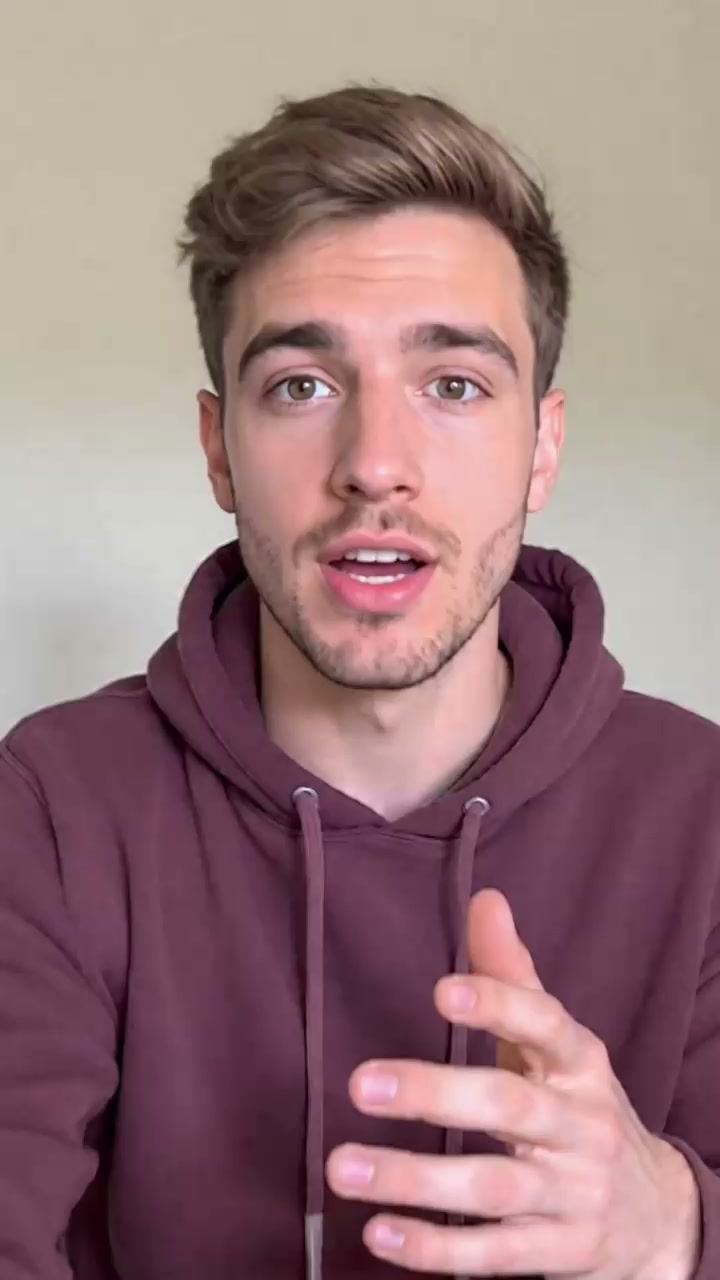
Prepare the portrait and matching voice recording
17/18View prompt
Prepare the adult man’s authorized portrait image and the provided recording of the same man speaking. Use one WAV or M4A file shorter than thirty seconds, with clear speech and a complete ending. Load the image and audio, then review the generated speaking portrait for recognizable features, natural articulation, comfortable framing, and the full recorded message.
Introduction
What Is H3 Max Lip Sync?
H3 Max Lip Sync is an image-and-audio video service that animates a portrait while aligning mouth movement with a supplied soundtrack.
The recording directs the performance
The model takes an image and an audio file rather than a written scene prompt. H3 Max Lip Sync returns a video with the supplied soundtrack, with its duration following the audio after clipping. This is a different task from generating speech from text: prepare the recording first, including the words, pacing, and pauses you want the viewer to hear.
The H3 Max Lip Sync workflow
Upload one image and one WAV or M4A recording, then choose the output resolution and optionally a seed. H3 Max Lip Sync has no prompt-entry step here. The workspace accepts audio from 5 seconds to under 30 seconds, but the service uses only the first 14.8 seconds of longer recordings. Plan the spoken message around that limit.
How to use
How to Use H3 Max Lip Sync
- Input
 Reference image 1STEP 1
Select the portrait
Upload one clear image to H3 Max Lip Sync. Keep the face and mouth visible, check the source ratio, and leave room around the head for the output composition.
- Example settingsH3 Max Lip Sync768P5sOutputSTEP 2
Add the finished audio
Upload a WAV or M4A recording lasting at least 5 seconds and less than 30 seconds. For H3 Max Lip Sync, complete the intended message within the first 14.8 seconds.
- Illustrative preview
A still portrait and a finished recording become a speaking performance. These panels illustrate mouth positions.
STEP 3Review output settings
Choose the H3 Max Lip Sync resolution and, when needed, enter a valid seed. Confirm the portrait, recording, and displayed credits. There is no text prompt to fill in.
- STEP 4
Generate and inspect
Submit the H3 Max Lip Sync request. Watch the resulting performance with sound, check the spoken ending and facial movement, and revise the source assets when a different performance is needed.
Features
Prepare an Image for H3 Max Lip Sync
The portrait gives the animation its visual starting point. Choose an H3 Max Lip Sync image that makes the intended speaker easy to read.
Keep the mouth and face visible
Use an image with a clear face and an unobstructed mouth. Avoid a composition where hands, a microphone, or heavy shadows cover the area you need to evaluate. H3 Max Lip Sync should be reviewed for more than mouth movement: check the eyes, facial proportions, clothing, and the background for unintended changes during the generated performance.
Frame H3 Max Lip Sync within the supported shape
The input image needs a width-to-height ratio between 0.4 and 2.5. The service selects the supported output ratio nearest the source rather than promising an identical canvas. Leave sensible space around the head and shoulders when preparing an H3 Max Lip Sync portrait. Check the delivered crop before adding graphics in another editor.
Fit H3 Max Lip Sync to a Complete Audio Message
A sentence should finish before the usable audio ends. Prepare H3 Max Lip Sync recordings around the output window, not just the upload limit.
Put the complete message inside the first 14.8 seconds
Record at least five seconds and finish the essential words before 14.8 seconds. Longer accepted files are clipped at the service, so a closing phrase placed later will not appear. For H3 Max Lip Sync, edit the recording before upload rather than expecting a written instruction or a duration setting to recover the missing ending.
Leave natural pauses instead of rushing
A concise message can still include a brief opening breath and a relaxed ending. Listen to the finished audio at normal speed before using H3 Max Lip Sync. Check for cut-off consonants, abrupt silence, and background sounds that obscure the voice. Do not speed up an overcrowded script merely to force more information into a short performance.
Carry a Chosen Performance into H3 Max Lip Sync
The supplied voice already contains emphasis and timing. H3 Max Lip Sync uses that recording as the sound basis for the animation.
Make the audio decision before generation
Choose the take that conveys the intended tone, whether it is a calm introduction or a concise explanation. H3 Max Lip Sync does not turn the creative brief into new spoken audio. Record or prepare the words separately, then check pronunciation and pauses. Changing the message means preparing another recording, not typing a replacement sentence into the workspace.
Judge synchronization without ignoring expression
Watch the mouth during stressed words and pauses, then review the face as a whole. A useful H3 Max Lip Sync result should support the intended performance without distracting facial changes. Compare the sound and picture at normal speed as well as at individual moments. Keep only footage that communicates the message clearly and respectfully.
Review H3 Max Lip Sync Size and Seed Choices
Choose settings for the output you need to evaluate. H3 Max Lip Sync provides four resolution choices without changing the recording’s role.
Select an output size for the planned use
The workspace offers 480P, 768P, 1080P, and 2K. These are output choices, not a promise of native generation at every size or exact portrait preservation. Inspect H3 Max Lip Sync around the lips, teeth, eyes, and hairline where animation artifacts can become noticeable. A larger output does not replace careful review of the performance.
Record the H3 Max Lip Sync seed
Use a seed from 0 through 2147483647 when you need to record the request configuration. Keep the same portrait and recording while comparing a controlled change. A reused seed in H3 Max Lip Sync is not a guarantee of identical frames. Save the chosen settings with the selected assets so later work starts from the correct performance.
Organize H3 Max Lip Sync Around Reusable Inputs
A creative brief helps you prepare the assets, but the picture and recording do the work. Keep H3 Max Lip Sync reuse deliberate.
Treat example briefs as preparation guides
Use the example ideas to plan a portrait, a short script, and a finished recording. They are not instructions to paste into a missing prompt field. With H3 Max Lip Sync, the gallery’s Use This Prompt action loads reference inputs into the workspace; it does not start generation. Inspect those inputs and your settings before submitting.
Review permission and the finished message
Use a portrait and recording you are authorized to work with. Check that the final H3 Max Lip Sync clip does not imply an unintended endorsement or change the meaning of the performance. Review credits before generating, then keep the selected portrait, audio, and result together. This makes the source of the chosen performance clear for later revisions.
Example prompts
A welcoming studio introduction
Creative brief: Prepare a clear, front-facing studio portrait and an eight-second WAV recording of a warm introduction. Use one complete sentence, leave a short pause at the end, and keep the mouth unobstructed in the picture. Pair the finished image and recording for the performance.
A concise product explanation
Creative brief: Prepare a portrait of an authorized presenter and a ten-second M4A recording explaining one factual product detail. Avoid endorsements not approved by the presenter. Keep the voice clear, finish the sentence naturally, and use a simple image background that does not compete with the face.
A calm closing message
Creative brief: Prepare a portrait and a twelve-second WAV recording with a short closing message. Leave a natural opening pause and complete all spoken words before the recording ends. Use a consistent tone and a clear view of the face. The finished recording supplies the performance.
User reviews
EveryGen AI video creator feedback.
EveryGen AI creator reviews

I made a full character PV for my game with MiniMax H3 in one afternoon. The menu UI stayed readable in every frame and the character never went off-model. That used to cost me a contractor and three weeks.

We tested every AI video generator on the market for stylized work. H3 is the only one that held our anime style across cuts. We now use it for pitch reels and animatics on every project.

I uploaded four product photos and got a listing video with music and a voiceover the same day. My click-through rate on the new listings is up 38%. H3 even got the label text on my packaging right.

I ship five vertical videos a week for three brands. MiniMax H3 gets me from brief to draft in under an hour, with sound already synced. My old workflow needed a videographer and two review rounds.

The editing side is what sold me. A client wanted the background of an interview changed — I typed one sentence into MiniMax H3 and the lighting on the subject matched the new scene automatically.

I previsualized my entire short film in MiniMax H3 before we shot a single frame. Rack focus, match cuts, even the title cards — it understands director language, not just keywords.
EveryGen AI · MiniMax H3 Max Pricing and Credit Plans
Cancel anytime
Lite
50% off0.025 / credit
Billed $ yearly179· Save $179.8
Video Models


Image Models



- Includes MiniMax H3 and all premium models
- Up to 1 batch generation task
- Standard generation speed
- Standard generation success rate
- Standard customer support
- Commercial Use License
Standard
50% off0.017 / credit
Billed $ yearly299· Save $299.8
Video Models
Image Models
- Includes MiniMax H3 and all premium models
- Up to 4 batch generation tasks
- Priority processing speed
- High generation success rate
- Priority customer support
- Commercial Use License
Pro
50% off0.014 / credit
Billed $ yearly599· Save $599.8
Video Models
Image Models
- Includes MiniMax H3 and all premium models
- Up to 10 batch generation tasks
- Fastest generation speed
- High generation success rate
- Dedicated account manager
- Commercial Use License
Max
50% off0.012 / credit
Billed $ yearly1,199· Save $1,199.8
Video Models
Image Models
- Includes MiniMax H3 and all premium models
- Up to 10 batch generation tasks
- Fastest generation speed
- High generation success rate
- Dedicated account manager
- Commercial Use License
Pay safely and securely with
























FAQ
Frequently asked questions
Does H3 Max Lip Sync use a text prompt?
No. This workflow uses one image and one supplied audio file. Prepare the spoken performance before uploading it. The creative briefs describe assets to prepare; they are not text-generation instructions for this model.
How long is an H3 Max Lip Sync video?
Its duration follows the supplied audio after clipping. Audio must be at least five seconds, and anything beyond 14.8 seconds is discarded by the service. The workspace’s under-30-second upload limit does not create a longer output.
Which audio files does H3 Max Lip Sync accept here?
Upload WAV or M4A. Listen to the exact file first and make sure the intended words finish within the usable window. This H3 Max Lip Sync workflow does not create a recording from a typed script.
Can I upload an existing video to H3 Max Lip Sync?
No. The input here is a still image paired with audio, not a video whose existing mouth movements are replaced. Choose the portrait that should establish the appearance of the generated performance.
Which resolutions can H3 Max Lip Sync return?
The choices are 480P, 768P, 1080P, and 2K. The output uses a supported ratio nearest the image. Review both framing and facial detail rather than assuming that a larger selection preserves every source pixel.
Does H3 Max Lip Sync require a transcript?
No transcript needs to be entered. Automatic transcription guidance is not enabled in this workspace. Supply a finished recording with clear speech and judge the resulting mouth movement against the audio itself.
Does Use This Prompt start H3 Max Lip Sync automatically?
No. It loads the example’s reference inputs for review. Confirm the selected image, audio, settings, and credits before choosing to generate. There is no hidden requirement to fill a text prompt after reuse.
CTA
Prepare an H3 Max Lip Sync Performance
Pair a clear portrait with a complete recording. Review H3 Max Lip Sync settings and credits, then inspect the resulting performance.
Open H3 Max Lip Sync