 EveryGen AI
EveryGen AI · AI logo generator for a recognizable brand concept
A useful mark should work without a presentation mockup. Explore a brand direction with the EveryGen AI AI logo generator, using GPT Image 2 text mode at 1:1 and 1K. Give the AI logo generator a clear idea, compare the silhouette, and prepare a focused brief for further refinement.
Image workspace
Sample Image
 24 / 30
AI-generated otter mascot concept with a leafy sprig.
Introduction
Give the AI logo generator one brand idea
Give the AI logo generator a clear audience and purpose before choosing colors, lettering, or decorative effects.
Write a useful brand sentence
For a neighborhood repair workshop, the idea might be careful hands extending the life of everyday objects. Give the AI logo generator that purpose and audience. This is more actionable than asking for a modern, premium, memorable logo without explaining the business.
- Name the audience and one quality you want to express.
- Keep the AI logo generator brief centered on that quality.
Choose a visual connection
Try an open loop suggesting repair, a joining shape suggesting cooperation, or a simple folded form suggesting reuse. Ask the AI logo generator to explore one connection at a time. Combining every possible symbol can make the result feel like an illustrated checklist.
Set a short exclusion list
Explain which familiar solutions you want to avoid, such as crossed tools, light bulbs, or decorative shields. The AI logo generator can explore alternatives within that boundary. Use exclusions to clarify the idea, not to replace a positive description of the desired shape.
How to use
How to use the AI logo generator
- PromptSTEP 1
Describe the brand
Select GPT Image 2 text mode in the AI logo generator, then describe your audience, brand idea, and one visual connection.
- ModelGPT Image 21K1:1PromptSTEP 2
Simplify the mark
Ask the AI logo generator for a recognizable silhouette, restrained palette, and plain background without relying on decorative presentation mockups.
- Detail
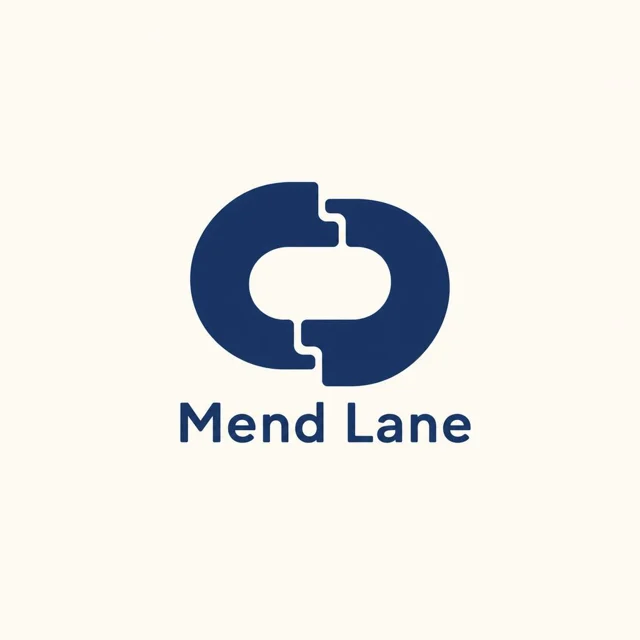 STEP 3
Generate a concept
Begin the AI logo generator at square 1K, review the displayed credits, and generate a focused raster concept for comparison.
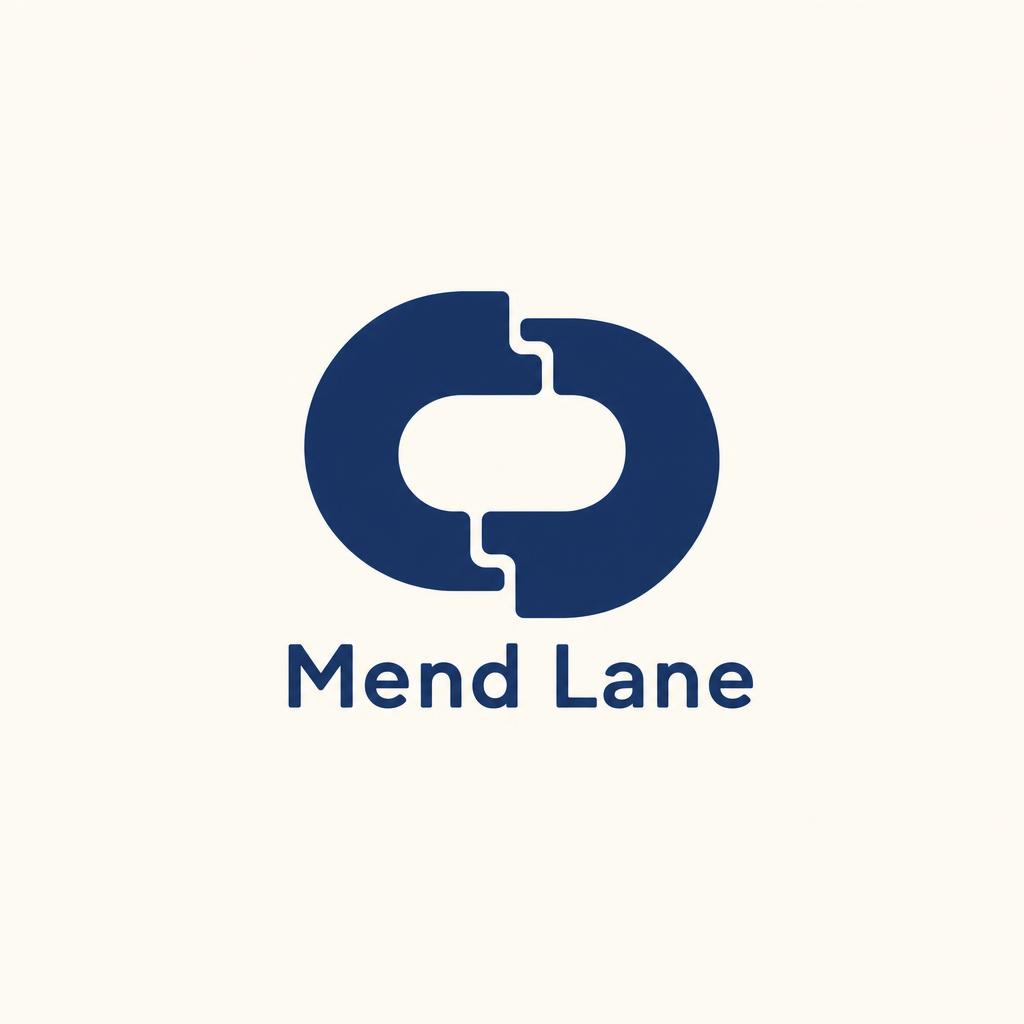
- Create a flat logo concept for a fictional neighborhood repair workshop named "Mend Lane". Explore a single open-loop symbol suggesting two pieces carefully joined. Use one deep navy color on a plain ivory background, with generous negative space and a compact readable silhouette. Place the short name below the symbol in simple lettering. No crossed tools, light bulbs, gradients, embossing, mockup objects, taglines, or decorative border. Square composition. Prioritize an identifiable shape when reduced.DownloadSTEP 4
Check the silhouette
Inspect AI logo generator results in small and monochrome previews, then download the JPEG concept for further design refinement.
Features
Test the AI logo generator silhouette first
Ask the AI logo generator for a plain mark whose shape works without gradients, textures, or presentation effects.
Read the outside contour
Look at the outer edge as though the symbol were a solid paper cutout. The AI logo generator should give you a shape you can describe simply. Remove tiny protrusions, accidental tangencies, and decorative fragments that distract from its main gesture.
- Prefer one dominant shape over several competing miniature illustrations.
- Inspect the AI logo generator result without its surrounding decoration.
Give empty space a job
A gap can suggest a doorway, a folded corner, or two parts fitting together. Describe the intended opening to the AI logo generator. Then check that it remains visible when reduced, rather than becoming a mysterious hole or closing into a dark patch.
Try a single-color direction
Request one dark color on a plain light background, without shading. This makes an AI logo generator concept easier to judge for balance and separation. If the idea only works through metallic reflections or a dramatic glow, simplify the underlying construction first.

Arrange names with the AI logo generator
Choose a symbol, wordmark, or combined direction so the AI logo generator gives each element a clear role.
Start with the most important element
If the brand name is unfamiliar, a readable name may matter more than an abstract icon. Tell the AI logo generator which element should dominate. Avoid giving the symbol, name, tagline, and decorative frame equal weight in a small square composition.
- Keep the first concept to a symbol and short name.
- Ask the AI logo generator to omit secondary taglines initially.
Inspect every requested letter
Place the exact short name in quotation marks and review the returned spelling. The AI logo generator can produce incorrect or awkward letterforms. Treat the lettering as a concept to refine, not as editable typography or a verified final arrangement of characters.
Compare spacing, not just font mood
Check whether the symbol crowds the name, whether gaps feel uneven, and whether small letters lose their openings. Use the AI logo generator to explore a calmer arrangement. A different spacing relationship may solve the problem without adding another stylistic effect.
Review AI logo generator concepts at small sizes
Check AI logo generator concepts in everyday placements, where small details may disappear and crowded shapes become difficult to distinguish.
Reduce a copy for inspection
Place a small preview beside the larger concept in your own design workflow. Check which shapes survive and which merge. Ask the AI logo generator for fewer internal details when the mark becomes a blur, rather than trying to rescue it with stronger colors.
- Check a square icon crop and a narrow header placement.
- Review AI logo generator concepts at normal viewing distance.
Check light and dark surroundings
Try the design against both light and dark interface mockups, keeping its edges easy to see. The AI logo generator returns a JPEG image here, so any background is part of the pixels. A white rectangle is not transparent just because it looks clean.
Separate the mark from the mockup
A storefront sign or embossed card can make almost any symbol feel finished. Use the AI logo generator for a plain front-facing version as well. Compare the actual mark before letting paper texture, photography, or expensive-looking materials influence the decision.
Refine one AI logo generator direction
Give each AI logo generator revision a specific design question based on what you observed in the previous concept.
Start with the square setup
Choose GPT Image 2 in text mode at 1:1 and 1K, with one output for a focused first attempt. Give the AI logo generator the brand sentence, symbol idea, color limit, and plain background. Check the displayed credits before submitting.
- Describe the mark rather than requesting a finished brand system.
- Use the AI logo generator to resolve one visual question.
Change a single design variable
Compare a rounded silhouette with an angular one, or an open loop with a closed shape. Keep the other instructions stable. This helps you understand what the AI logo generator changed instead of comparing unrelated images with different colors, names, and presentation styles.
Bring back an approved direction
For a revision, switch to reference editing and identify the uploaded concept that should guide the result. The AI logo generator supports up to sixteen references in image mode, but one clear source can be enough. Review whether the new version retains your preferred structure.
Take the AI logo generator concept further
Use the AI logo generator image to explain a design direction while keeping final production and brand review separate.
Keep a clear selection note
Record the preferred silhouette, spacing, colors, and the reason you selected them. Include unresolved details for the next designer to address. This turns an AI logo generator image into a useful starting brief instead of a picture accompanied only by the instruction to improve it.
- Keep the flat concept alongside any optional presentation mockup.
- List the AI logo generator details that still need refinement.
Plan production separately
JPEG pixels are not vector paths, editable type, or a scalable master logo. An AI logo generator concept may need professional redrawing and carefully prepared variants. Increasing to 2K or 4K adds a larger image option; it does not turn the file into SVG.
Review the name and resemblance
Compare the direction with brands relevant to your field before adopting it. The AI logo generator does not register trademarks or establish exclusive ownership. Keep that review separate from the creative decision so a promising sketch is not mistaken for a cleared brand identity.
Example prompts
An open-loop repair workshop symbol
Create a flat logo concept for a fictional neighborhood repair workshop named "Mend Lane". Explore a single open-loop symbol suggesting two pieces carefully joined. Use one deep navy color on a plain ivory background, with generous negative space and a compact readable silhouette. Place the short name below the symbol in simple lettering. No crossed tools, light bulbs, gradients, embossing, mockup objects, taglines, or decorative border. Square composition. Prioritize an identifiable shape when reduced.
A quiet reading circle wordmark
Create a text-led brand concept for a fictional reading group named "Margin Club". Use calm, rounded letterforms with open counters and generous spacing, arranged as one short wordmark. Add only a small folded-page accent integrated into the composition, not a separate large book illustration. Dark charcoal on a plain warm white background. Show the mark front-facing and flat. No metallic effects, scenery, paper texture, taglines, or extra words. Keep the spelling exactly as provided; output a square raster concept for later refinement.
User reviews
EveryGen AI video creator feedback.
EveryGen AI creator reviews

I made a full character PV for my game with MiniMax H3 in one afternoon. The menu UI stayed readable in every frame and the character never went off-model. That used to cost me a contractor and three weeks.

We tested every AI video generator on the market for stylized work. H3 is the only one that held our anime style across cuts. We now use it for pitch reels and animatics on every project.

I uploaded four product photos and got a listing video with music and a voiceover the same day. My click-through rate on the new listings is up 38%. H3 even got the label text on my packaging right.

I ship five vertical videos a week for three brands. MiniMax H3 gets me from brief to draft in under an hour, with sound already synced. My old workflow needed a videographer and two review rounds.

The editing side is what sold me. A client wanted the background of an interview changed — I typed one sentence into MiniMax H3 and the lighting on the subject matched the new scene automatically.

I previsualized my entire short film in MiniMax H3 before we shot a single frame. Rack focus, match cuts, even the title cards — it understands director language, not just keywords.
EveryGen AI · MiniMax H3 Max Pricing and Credit Plans
Cancel anytime
Lite
50% off0.025 / credit
Billed $ yearly179· Save $179.8
Video Models


Image Models



- Includes MiniMax H3 and all premium models
- Up to 1 batch generation task
- Standard generation speed
- Standard generation success rate
- Standard customer support
- Commercial Use License
Standard
50% off0.017 / credit
Billed $ yearly299· Save $299.8
Video Models
Image Models
- Includes MiniMax H3 and all premium models
- Up to 4 batch generation tasks
- Priority processing speed
- High generation success rate
- Priority customer support
- Commercial Use License
Pro
50% off0.014 / credit
Billed $ yearly599· Save $599.8
Video Models
Image Models
- Includes MiniMax H3 and all premium models
- Up to 10 batch generation tasks
- Fastest generation speed
- High generation success rate
- Dedicated account manager
- Commercial Use License
Max
50% off0.012 / credit
Billed $ yearly1,199· Save $1,199.8
Video Models
Image Models
- Includes MiniMax H3 and all premium models
- Up to 10 batch generation tasks
- Fastest generation speed
- High generation success rate
- Dedicated account manager
- Commercial Use License
Pay safely and securely with























FAQ
Frequently asked questions
What does the AI logo generator deliver?
The AI logo generator creates a JPEG raster concept using GPT Image 2. Use it to explore the mark, spacing, palette, and presentation. It does not deliver SVG paths, editable lettering, or automatic trademark registration. A production identity may require a separate design handoff.
Can the AI logo generator make a text-only wordmark?
You can request a short name with a particular lettering direction and no symbol. Review every letter, spacing pair, and small opening. For final typography, recreate and refine the approved direction in a design tool rather than assuming generated letters are directly editable.
How should I compare AI logo generator options?
Use the same background and viewing size. Compare silhouette, spacing, monochrome readability, and the connection to your brand idea. Choose a direction that works plainly before assessing decorative mockups. Different presentation styles can otherwise make the comparison misleading.
Can I upload a sketch to the AI logo generator?
Yes. Switch to GPT Image 2 reference editing and upload a sketch you can use. State which shapes to keep and which details to simplify. Image mode supports up to sixteen references, though a small, clearly explained selection is usually easier to direct.
Which AI logo generator settings can I change?
You can change the aspect ratio, select 1K, 2K, or 4K, and request one to four outputs. Start with the square setup while judging the mark itself. Review the displayed credits before submitting, especially when increasing the resolution or requesting additional outputs.
CTA
Give the AI logo generator a meaningful starting idea
Choose one brand quality and one visual connection. Use the AI logo generator to explore a plain, readable concept, then take the strongest direction into a focused design review.
Explore a logo concept