 EveryGen AI
EveryGen AI · AI pixel art generator for expressive scenes with simple shapes
Build a scene through silhouette, color, and purposeful detail. The EveryGen AI AI pixel art generator explores pixel-style artwork with GPT Image 2 at 1:1 and 1K in text mode. Give the AI pixel art generator a limited palette and clear subject, then review the raster concept before production refinement.
Image workspace
Sample Image
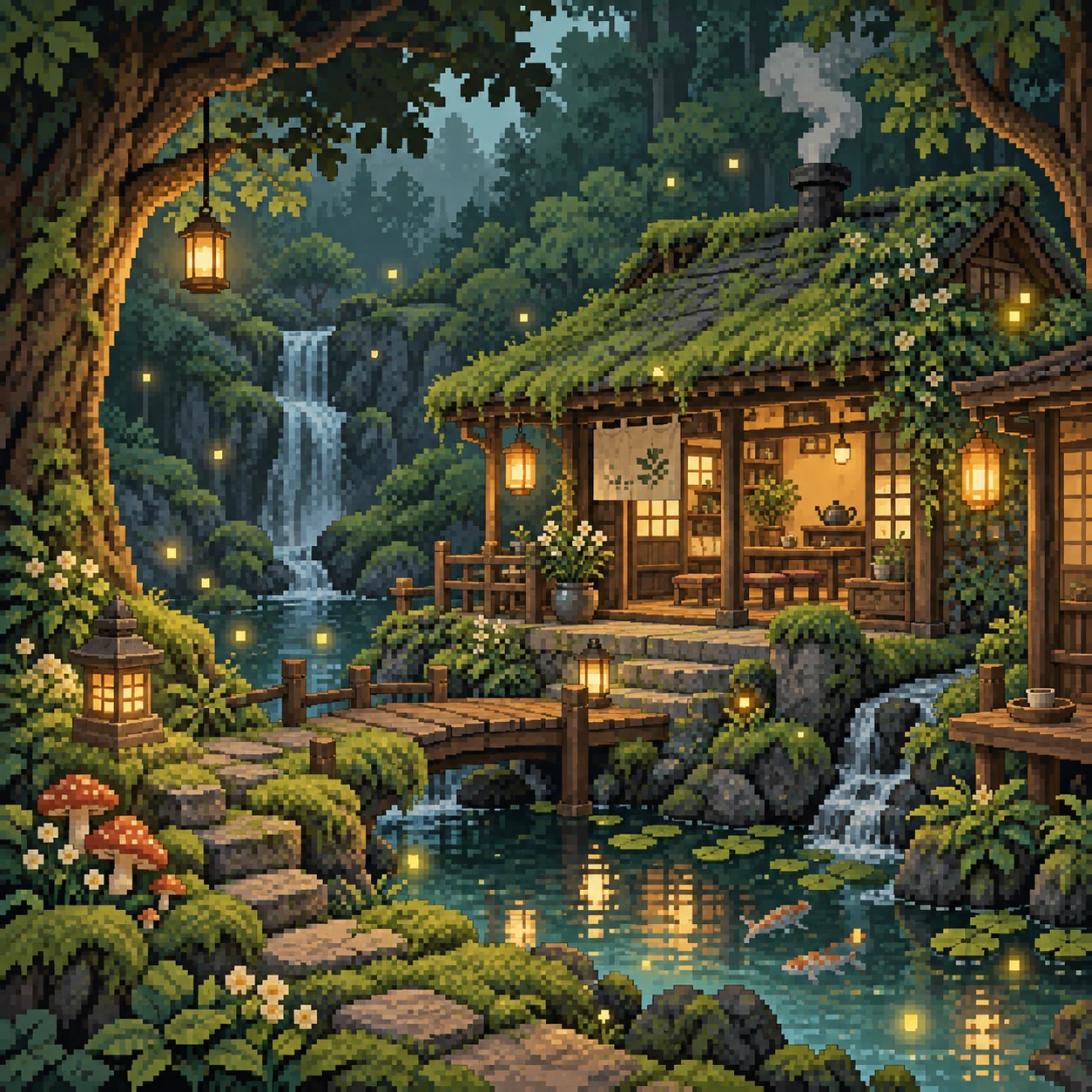 26 / 30
AI-generated pixel-art-style illustration of a woodland tea house.
Introduction
Give the AI pixel art generator one readable subject
Give the AI pixel art generator a clear subject whose shape carries the scene.
Choose a subject with a distinct outline
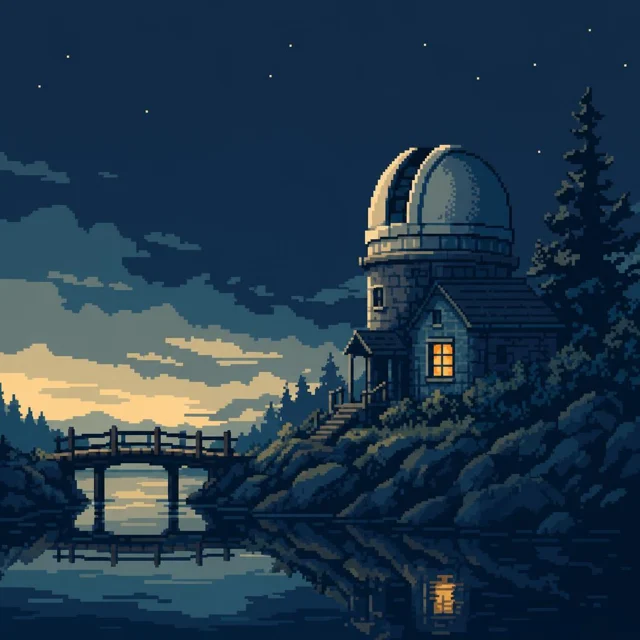
A tiny observatory with a large telescope dome offers a clearer shape than an ordinary building covered in details. Brief the AI pixel art generator around that silhouette. Add smaller features only when they help explain what the object is or how it is used.
- Describe the main shape before listing accessories or surface textures.
- Keep the AI pixel art generator focal subject separate from surrounding clutter.
Give the character one defining feature
A courier might carry an oversized canvas satchel and wear a short bright scarf. Give the AI pixel art generator one or two recognizable details. Too many buckles, pockets, and badges can become indistinct noise rather than a more memorable character design.
Pick a moment that needs few gestures
A character waiting beside a lantern or tending one plant can be understood with a simple pose. Ask the AI pixel art generator for a readable action. Complicated overlapping hands and props may be difficult to interpret even before you inspect the pixel treatment.
How to use
How to use the AI pixel art generator
- PromptSTEP 1
Choose the scene
Open GPT Image 2 text mode in the AI pixel art generator and describe a readable subject, viewpoint, and simple setting.
- ModelGPT Image 21K1:1PromptSTEP 2
Limit visual complexity
Give the AI pixel art generator a restrained palette, blocky contours, and consistent lighting, using grouped shapes instead of scattered tiny details.
- Detail
 STEP 3
Create the artwork
Choose square 1K in the AI pixel art generator, check the displayed credits, and generate your original retro-style scene concept.
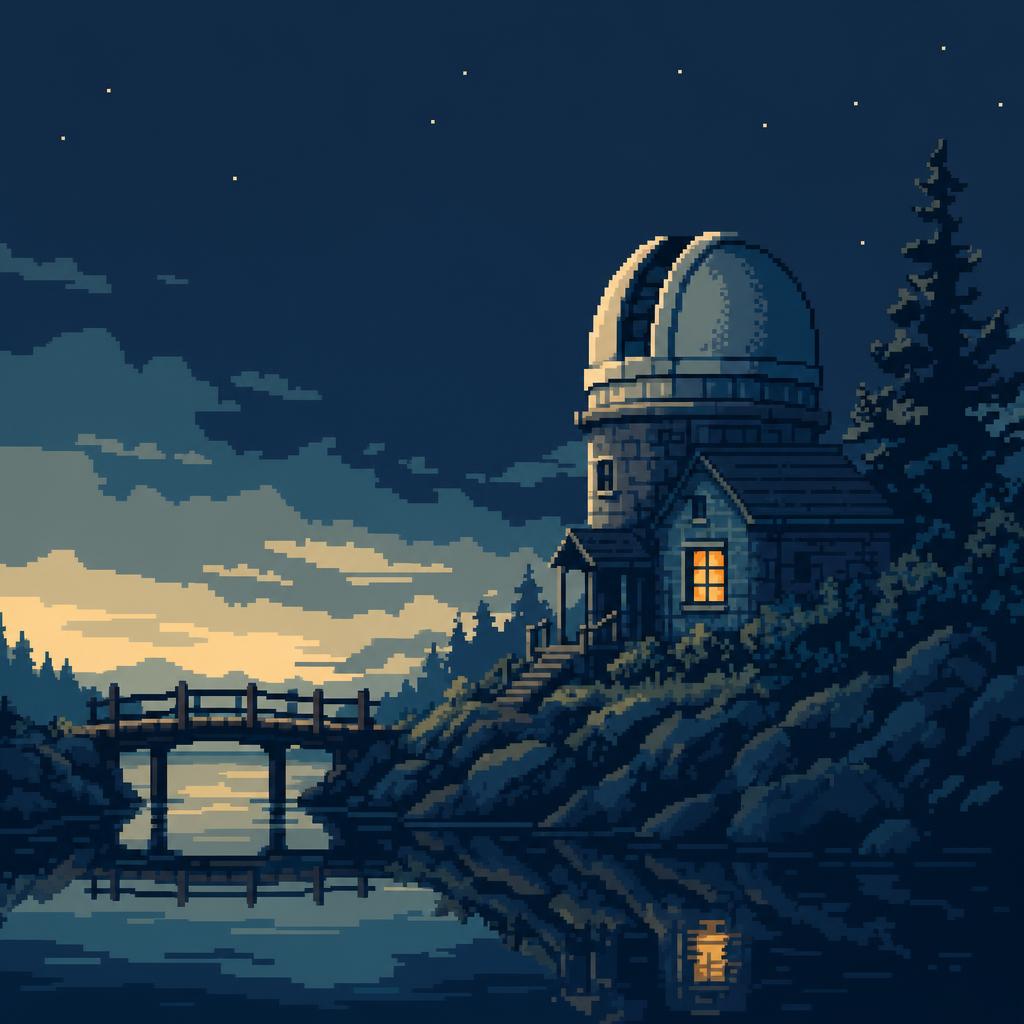
- Create one square pixel-style environment concept of a small riverside observatory at dusk. Use a clear side view, one large telescope dome, a short wooden bridge, still water, and a single amber window as the focal accent. Limited visual palette of deep navy, muted teal, cream highlights, and amber. Chunky grouped shapes, restrained stepped shading, clean silhouettes, and broad quiet areas of sky and water. No photographic gradients, text, logos, collage, asset grid, or sprite-sheet layout. Prioritize coherent scene design rather than exact production pixel dimensions.DownloadSTEP 4
Review the pixel language
Inspect AI pixel art generator contours and visual scale, then refine strict grids or game assets separately rather than assuming production readiness.
Features
Control AI pixel art generator color relationships
Choose an AI pixel art generator palette with purposeful contrast and few competing accents.
Define the dominant and accent colors
Try deep blue shadows, muted teal surfaces, pale cream highlights, and one amber light. Tell the AI pixel art generator which role each color plays. This is more useful than asking for a retro palette without explaining where the eye should go.
- Keep the brightest accent near the subject or important action.
- Compare AI pixel art generator results for clear light and dark groupings.
Separate neighboring materials
A wooden bridge and the water beneath it need distinct tonal shapes, even when both belong to a cool palette. Ask the AI pixel art generator to separate their edges. Extra texture will not fix a bridge that blends into the river at small size.
Treat a palette count as a direction
You can describe a limited color count, but inspect the returned file rather than assuming exact enforcement. The AI pixel art generator creates a rendered image, not a verified indexed palette. Use your own pixel editor when a project needs precise color entries.
Give the AI pixel art generator a consistent visual scale
Describe the AI pixel art generator detail level consistently across characters and scenery.
Choose chunky or finer visual detail
A chunky style suits bold characters and simple objects, while a finer treatment allows richer environments. Tell the AI pixel art generator which direction to follow. Avoid asking for tiny facial features inside an otherwise broad, blocky scene unless that contrast is intentional.
- Keep detail density similar across objects at the same distance.
- Inspect AI pixel art generator edges for inconsistent or accidental smoothing.
Use grouped shapes rather than scattered noise
Leaf clusters, stone groups, and broad shadow patches can suggest texture without isolated speckles everywhere. Give the AI pixel art generator that instruction. The goal is a readable visual rhythm, not filling every quiet surface with decorative dots that distract from the subject.
Keep lighting compatible with the style
A simple highlight and one shadow region can describe volume without photographic gradients. Ask the AI pixel art generator for restrained stepped shading. Review whether glowing effects or reflections overwhelm the intended blocky treatment and make the scene feel like unrelated styles combined.
Build AI pixel art generator scenes with clear depth
Arrange AI pixel art generator environments in readable layers, with one coherent viewpoint.
Choose a viewpoint and keep it coherent
Specify a side view, elevated room view, or another clear camera direction. Tell the AI pixel art generator how surfaces should align. Inspect roofs, tables, paths, and doors for conflicting perspectives before being distracted by appealing colors or detailed foliage.
- Use one viewpoint throughout the first environment concept.
- Keep AI pixel art generator pathways and major openings easy to trace.
Let the foreground frame the action
A nearby branch or low wall can establish depth while leaving the main subject unobstructed. Give the AI pixel art generator a quieter distance and a readable middle ground. Do not let foreground decoration cover the character or object the scene is meant to introduce.
Use empty space as part of the design
An open sky or still water area can balance a detailed building and provide room in a later layout. Ask the AI pixel art generator for that breathing space. A complete environment does not need equal detail in every corner of the square.
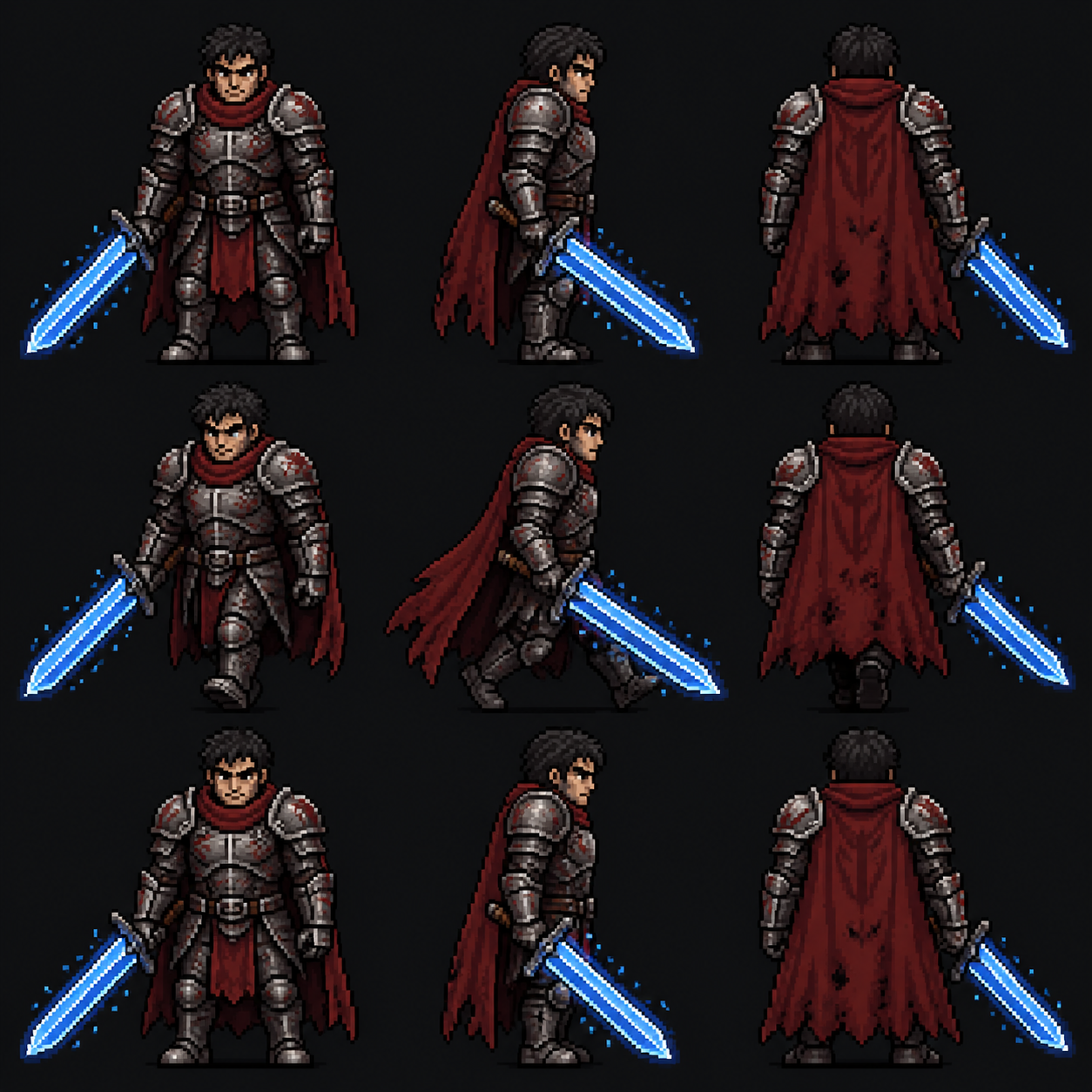
Explore AI pixel art generator directions in the workspace
Establish AI pixel art generator shape and palette before refining smaller details.
Begin with a focused text request
Choose GPT Image 2 text mode at 1:1 and 1K. Describe the subject, viewpoint, palette, and visual detail level. Review the AI pixel art generator configuration and displayed credits, then submit a scene you can evaluate against those specific choices.
- Request one coherent scene instead of a mixed asset sheet.
- Keep the AI pixel art generator prompt centered on the chosen visual language.
Develop a reference thoughtfully
Image mode supports up to sixteen references for an authorized sketch, character, or scene. Explain which reference defines the silhouette and which defines the palette. The AI pixel art generator may reinterpret details, so compare the result with the original concept rather than assuming exact conversion.
Compare changes under the same framing
GPT Image 2 supports multiple ratios, 1K, 2K, 4K, and one to four outputs. Keep the AI pixel art generator framing stable while comparing a warmer palette or simpler silhouette. A larger output does not automatically establish a more accurate pixel grid.
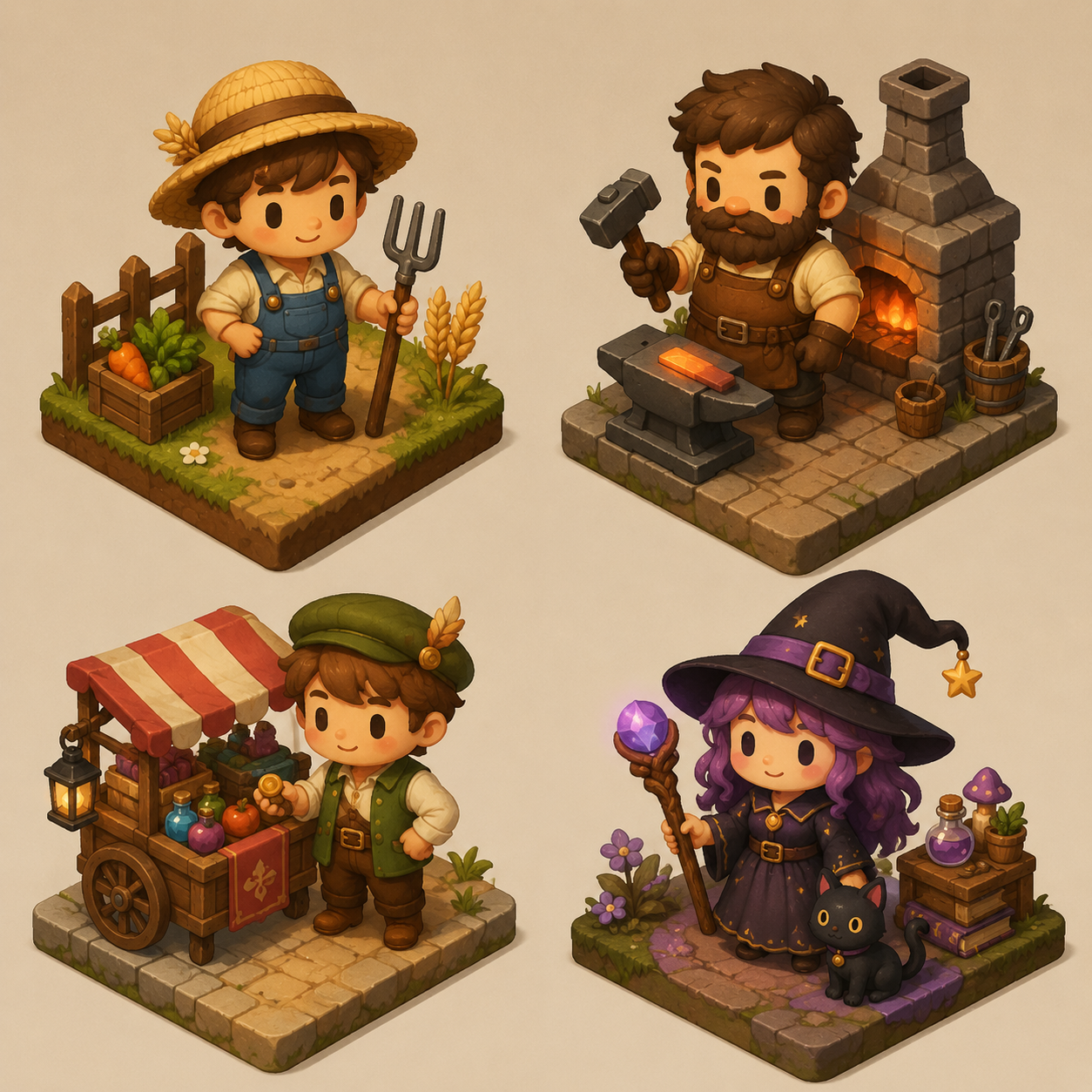
Review AI pixel art generator artwork before production use
Review AI pixel art generator concepts according to their intended production use.
Check contours and repeated details
Look for doubled outlines, blurred edge segments, and details that change scale unexpectedly. Inspect AI pixel art generator characters for unclear hands or merged accessories. Decide whether a candidate needs a new prompt or careful cleanup in a pixel-focused editing workflow.
- Review the original-size image as well as a reduced preview.
- Keep the AI pixel art generator JPEG before making external refinements.
Prepare strict grids in the appropriate editor
The workspace outputs JPEG concepts, not guaranteed grid-perfect sprites, indexed images, or aligned animation frames. Take the chosen AI pixel art generator design into a suitable editor when exact pixel dimensions matter. Check edge cleanup and palette reduction there rather than assuming they are complete.
Test tiles and sheets separately
A scene that looks repetitive is not necessarily a seamless texture, and several characters are not an aligned sprite sheet. Use AI pixel art generator artwork as a design reference. Build and test tile boundaries, frame placement, and animation behavior in your production workflow.
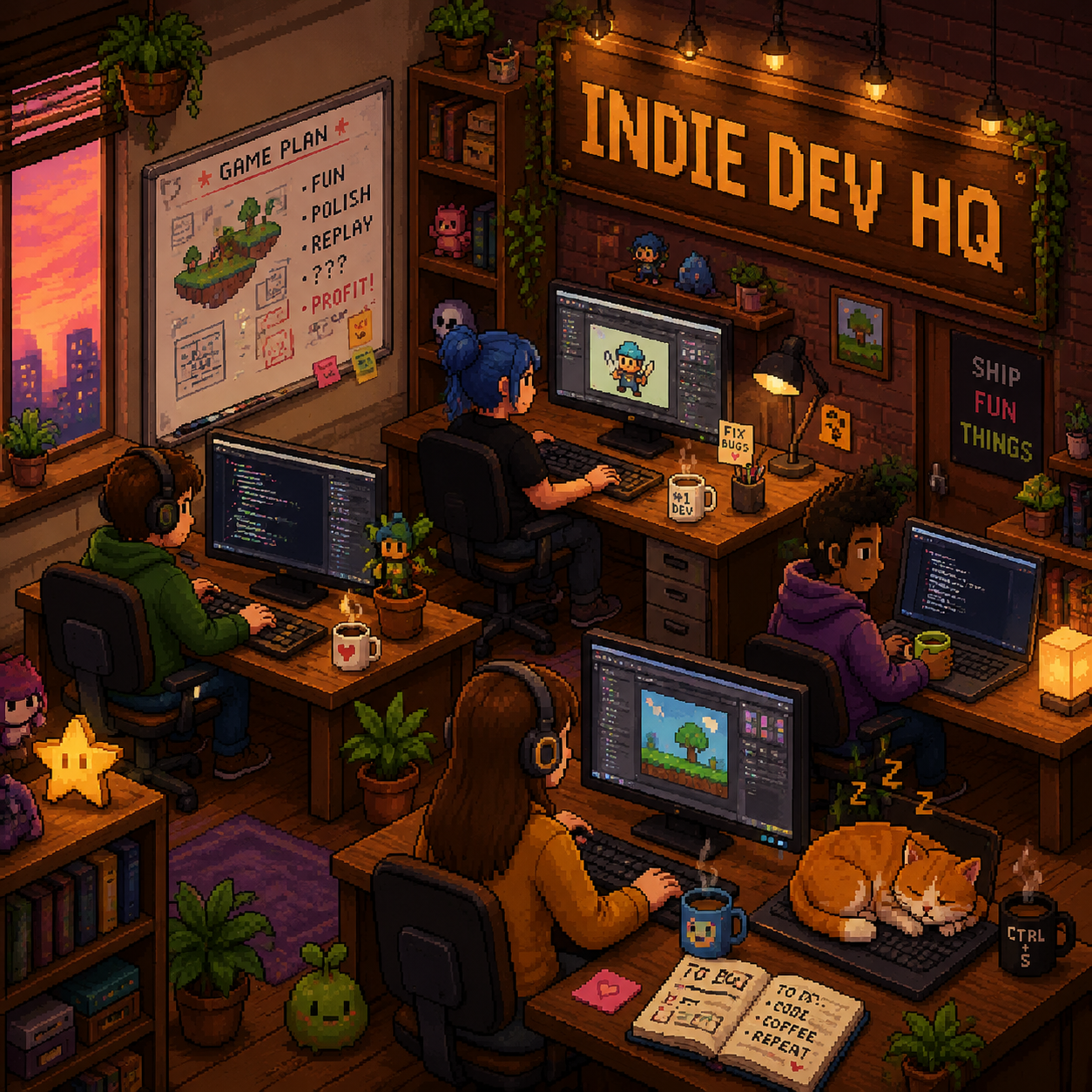
Example prompts
A quiet riverside observatory
Create one square pixel-style environment concept of a small riverside observatory at dusk. Use a clear side view, one large telescope dome, a short wooden bridge, still water, and a single amber window as the focal accent. Limited visual palette of deep navy, muted teal, cream highlights, and amber. Chunky grouped shapes, restrained stepped shading, clean silhouettes, and broad quiet areas of sky and water. No photographic gradients, text, logos, collage, asset grid, or sprite-sheet layout. Prioritize coherent scene design rather than exact production pixel dimensions.
A readable courier character
Create a square pixel-style character concept of an original adult courier standing beside one small lantern. Simple side-facing pose, short coat, one oversized canvas satchel, and a bright amber scarf. Bold readable silhouette, clearly separated legs and arms, broad negative spaces, restrained stepped shadows. Use deep blue, desaturated green, warm cream, and amber as the main visual colors. Plain quiet background, no lettering, extra poses, inventory icons, animation frames, or separate panels. Keep detail density consistent and avoid tiny scattered texture.
User reviews
EveryGen AI video creator feedback.
EveryGen AI creator reviews

I made a full character PV for my game with MiniMax H3 in one afternoon. The menu UI stayed readable in every frame and the character never went off-model. That used to cost me a contractor and three weeks.

We tested every AI video generator on the market for stylized work. H3 is the only one that held our anime style across cuts. We now use it for pitch reels and animatics on every project.

I uploaded four product photos and got a listing video with music and a voiceover the same day. My click-through rate on the new listings is up 38%. H3 even got the label text on my packaging right.

I ship five vertical videos a week for three brands. MiniMax H3 gets me from brief to draft in under an hour, with sound already synced. My old workflow needed a videographer and two review rounds.

The editing side is what sold me. A client wanted the background of an interview changed — I typed one sentence into MiniMax H3 and the lighting on the subject matched the new scene automatically.

I previsualized my entire short film in MiniMax H3 before we shot a single frame. Rack focus, match cuts, even the title cards — it understands director language, not just keywords.
EveryGen AI · MiniMax H3 Max Pricing and Credit Plans
Cancel anytime
Lite
50% off0.025 / credit
Billed $ yearly179· Save $179.8
Video Models


Image Models



- Includes MiniMax H3 and all premium models
- Up to 1 batch generation task
- Standard generation speed
- Standard generation success rate
- Standard customer support
- Commercial Use License
Standard
50% off0.017 / credit
Billed $ yearly299· Save $299.8
Video Models
Image Models
- Includes MiniMax H3 and all premium models
- Up to 4 batch generation tasks
- Priority processing speed
- High generation success rate
- Priority customer support
- Commercial Use License
Pro
50% off0.014 / credit
Billed $ yearly599· Save $599.8
Video Models
Image Models
- Includes MiniMax H3 and all premium models
- Up to 10 batch generation tasks
- Fastest generation speed
- High generation success rate
- Dedicated account manager
- Commercial Use License
Max
50% off0.012 / credit
Billed $ yearly1,199· Save $1,199.8
Video Models
Image Models
- Includes MiniMax H3 and all premium models
- Up to 10 batch generation tasks
- Fastest generation speed
- High generation success rate
- Dedicated account manager
- Commercial Use License
Pay safely and securely with























FAQ
Frequently asked questions
Does the AI pixel art generator create strict pixel grids?
Not as a guaranteed technical output. The AI pixel art generator produces pixel-style raster concepts using GPT Image 2. Review edges and color groupings yourself, then use a pixel editor when you need a precise grid, exact dimensions, or an indexed palette.
Can I make a ready-to-use sprite sheet?
Do not assume the AI pixel art generator supplies exact frame alignment or consistent animation poses. Develop a character concept first, then prepare individual production frames in the appropriate workflow. A visually convincing sheet still needs technical checks before use in a game.
How can I keep the palette restrained?
Name a few main colors and assign them to shadows, surfaces, highlights, and accents. Ask the AI pixel art generator for broad color groupings rather than photographic gradients. Inspect the downloaded image and reduce or remap colors externally when a strict palette is required.
Can I start from my own character drawing?
Yes. Switch to image mode and upload an authorized reference. Explain the silhouette and features that matter to the AI pixel art generator, then describe the desired pixel-style treatment. Review the result for changed proportions, missing accessories, and inconsistent detail before adopting it.
What file and resolution choices are available?
The shared GPT Image 2 workspace returns JPEG images with supported ratios, 1K, 2K, 4K, and one to four outputs. Begin the AI pixel art generator at 1:1 and 1K, then choose settings for your task and check the displayed credits before submitting.
CTA
Give the AI pixel art generator a strong shape and palette
Choose one subject, viewpoint, and restrained palette. Compare AI pixel art generator concepts for clarity, then prepare strict grid, color, or game-asset requirements in your production tools.
Explore a pixel-style concept