 EveryGen AI
EveryGen AI · GPT Image 1.5 for a Focused Image Creation Workflow
Keep the setup straightforward and put your attention into the picture. GPT Image 1.5 on H3 Max combines text-based creation and image editing with a fixed high quality, 1K, PNG workflow. Choose a supported canvas shape, write the brief, and use GPT Image 1.5 to develop images you can compare against a clear purpose.
Image workspace
Sample Image
 3 / 30
Introduction
What Is GPT Image 1.5?
GPT Image 1.5 is an OpenAI image generation model that accepts text and image inputs and produces images through creation and editing workflows.
GPT Image 1.5 understands a multimodal assignment
The model can work from a written description or combine your instructions with existing visual material. GPT Image 1.5 is described in official documentation as a natively multimodal model, rather than a library of preset pictures. In practice, this means the prompt and any editing inputs help define the requested image. Your job is to make the intended result concrete enough to assess.
A defined configuration on H3 Max
The H3 Max implementation uses GPT Image 1.5 at fixed high quality and 1K, with PNG output. Available aspect ratios are 1:1, 3:2, and 2:3. You can request up to four outputs and supply up to ten images for editing. These are the choices in this workspace, letting you concentrate on composition, references, and the content of the request.
How to use
How to Use GPT Image 1.5 on H3 Max
- PromptSTEP 1
Choose creation or editing
Select GPT Image 1.5. Describe a new image for text-based creation, or choose editing and add up to ten relevant input images with clearly defined roles.
- ModelGPT Image 1.51K1:1PromptSTEP 2
Set the supported canvas and count
Choose 1:1, 3:2, or 2:3 and up to four outputs. GPT Image 1.5 uses fixed high quality, 1K, and PNG settings in this workspace.
- Detail
 STEP 3
Explain the requested result
Write a focused GPT Image 1.5 prompt covering subject, arrangement, and lighting. For edits, separate the intended changes from the details to retain, then review the displayed credits.
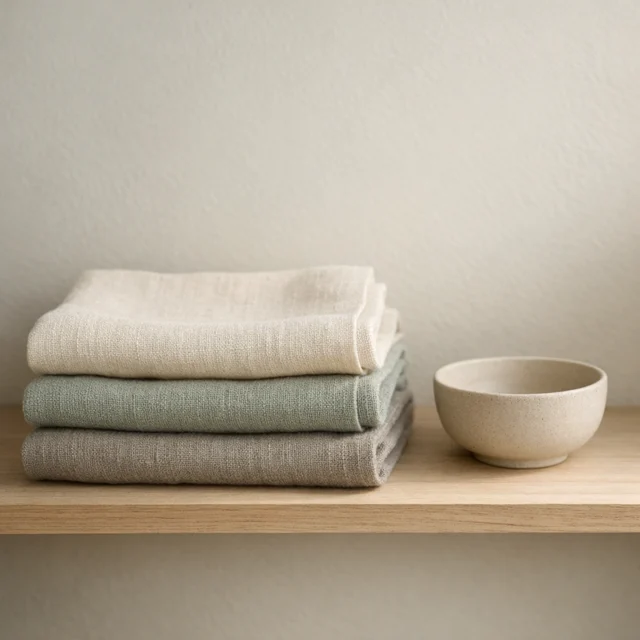
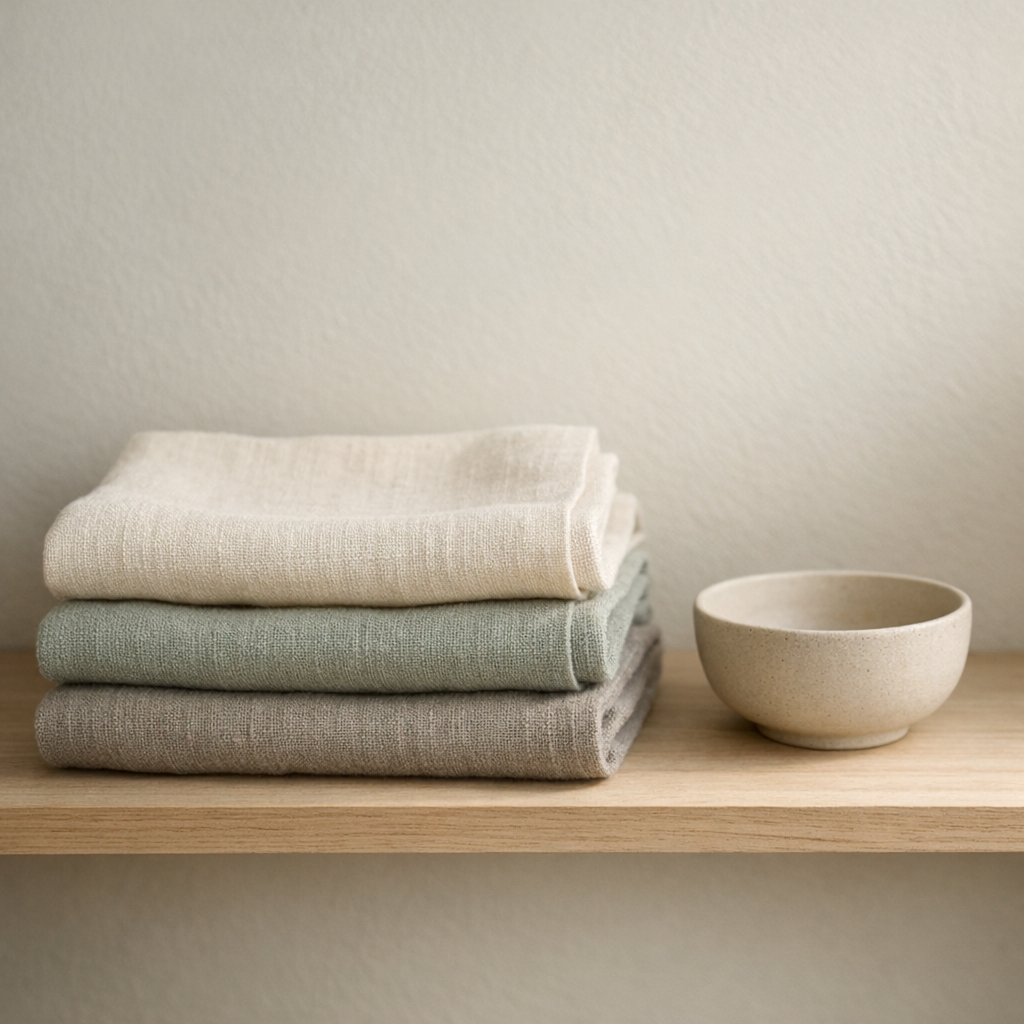
- Create a square editorial still life of three folded linen napkins on a pale wooden shelf. Use cream, muted sage, and warm gray fabric, with visible weave and softly rounded folds. One small unglazed ceramic bowl sits beside the stack. Gentle side lighting, calm shadows, no decorative clutter, no words, no logos, and no people. Keep the composition simple enough to remain readable as a small website image.DownloadSTEP 4
Inspect the returned images
Compare each GPT Image 1.5 output with the brief. Check composition and reference accuracy before selecting an image or requesting a specific revision.
Features
Start GPT Image 1.5 with a Consistent Output Profile
The fixed GPT Image 1.5 configuration removes a set of technical choices while leaving the visual direction in your hands.
Give GPT Image 1.5 a considered brief
You do not need to choose a quality tier for each GPT Image 1.5 request on H3 Max. High quality is already selected as part of the workflow. Instead, define the subject, framing, atmosphere, and purpose. A useful brief might ask for a close view of folded linen on a wooden shelf, with enough context to suggest a calm interior.
Judge detail at the size you will use
The 1K profile gives your GPT Image 1.5 workflow a known starting point, but it does not make every picture suitable for every destination. Inspect the image at its intended display size and check any fine lettering or repeated pattern. A complicated scene may benefit more from simpler composition than from another sentence requesting additional detail in the same crowded frame.
Compose GPT Image 1.5 Images in Three Canvas Shapes
Choose the GPT Image 1.5 aspect ratio around the image's destination before deciding how the subject should fill the frame.
Square and landscape with different priorities
The 1:1 option can center a compact arrangement, while 3:2 provides more horizontal space for a wider scene. Tell GPT Image 1.5 whether the subject should dominate or sit within its environment. For a landscape image, describe what belongs beside the subject instead of stretching a square idea. Review the edges as well as the center to avoid awkwardly cropped details.
Frame a vertical GPT Image 1.5 idea
The 2:3 option suits a tall composition, such as a plant study or an illustrated cover concept. Ask GPT Image 1.5 to arrange important elements along that vertical space and leave room where a title may later sit. A portrait canvas does not automatically create an effective cover. Check the relationship between the subject, margins, and any surrounding design elements.
Use GPT Image 1.5 Editing Inputs with Clear Roles
GPT Image 1.5 editing on H3 Max accepts up to ten input images, but useful references need a purpose, not just a place.
Choose the images that explain the request
One clear source image may be enough for a localized visual change. Add further inputs when they communicate something distinct, such as a material or a desired color palette. Tell GPT Image 1.5 which image defines the main subject and what the others contribute. Avoid including conflicting versions of the same object without explaining which one should guide the output.
Tell GPT Image 1.5 what to revise and retain
Ask GPT Image 1.5 to change the scene around an item, simplify a distracting element, or reinterpret an illustration while naming the features to retain. Inputs provide context, not a guarantee of exact preservation. Compare the output with the relevant references, especially around shapes, labels, and fine edges. Reject changes that would make a real object look materially different.
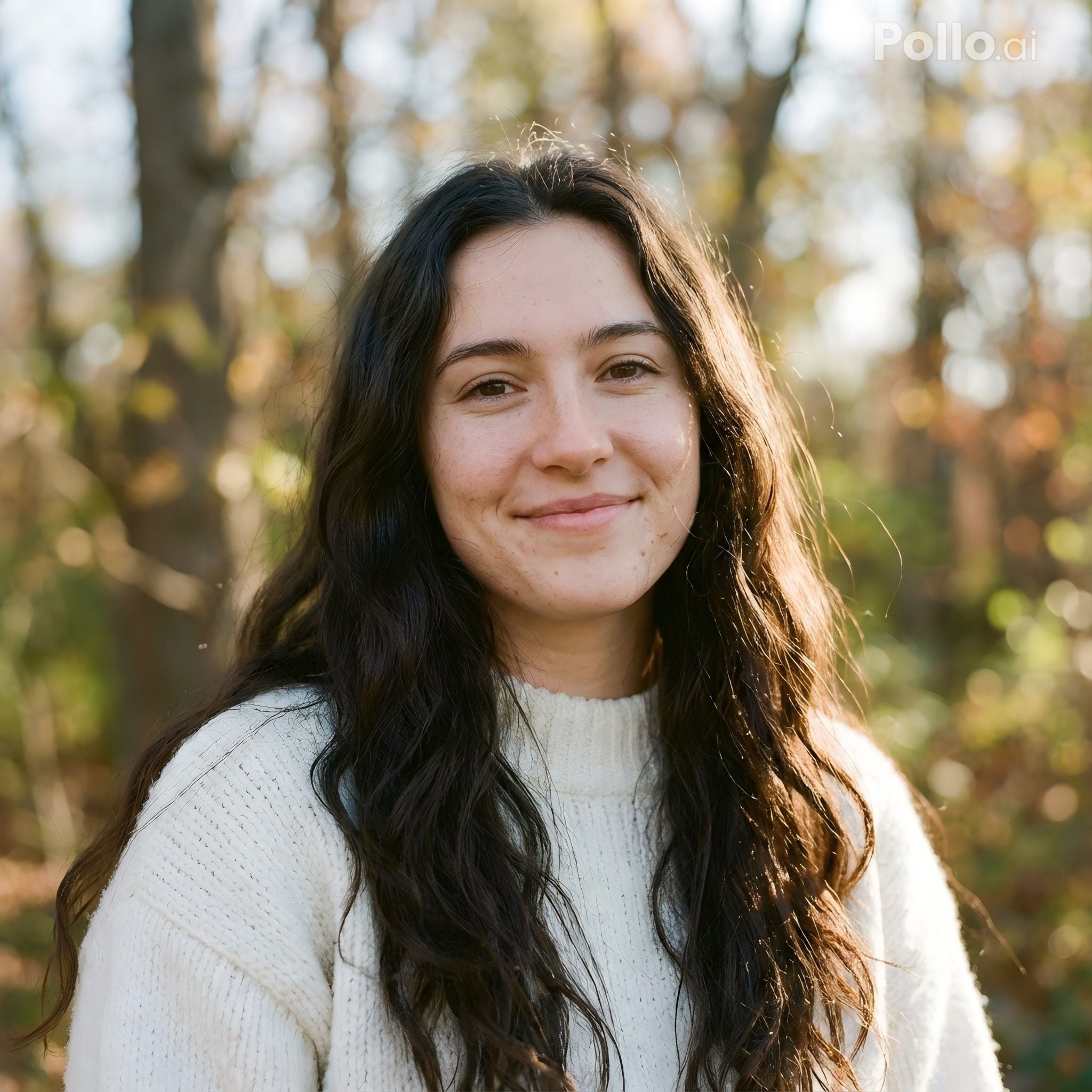
Compare Up to Four GPT Image 1.5 Outputs
A GPT Image 1.5 request can return up to four outputs in H3 Max, giving you alternatives from the same creative direction.
Make a GPT Image 1.5 batch answer one question
Use multiple outputs to compare interpretations of a single brief, not as a substitute for defining the brief. For a small illustrated scene, you might judge which GPT Image 1.5 result has the clearest silhouette and most useful spacing. Decide those criteria before generating. Alternatives become easier to review when you know what would make one picture more suitable than another.
Keep the next revision deliberate
Choose the GPT Image 1.5 output that comes closest to the intended composition, then identify the remaining problem. A crowded corner or weak contrast can become a focused instruction for an edit. Check the displayed credits before asking for another request. Requesting fewer outputs remains an option when you already know the direction and simply need to address one specific issue.
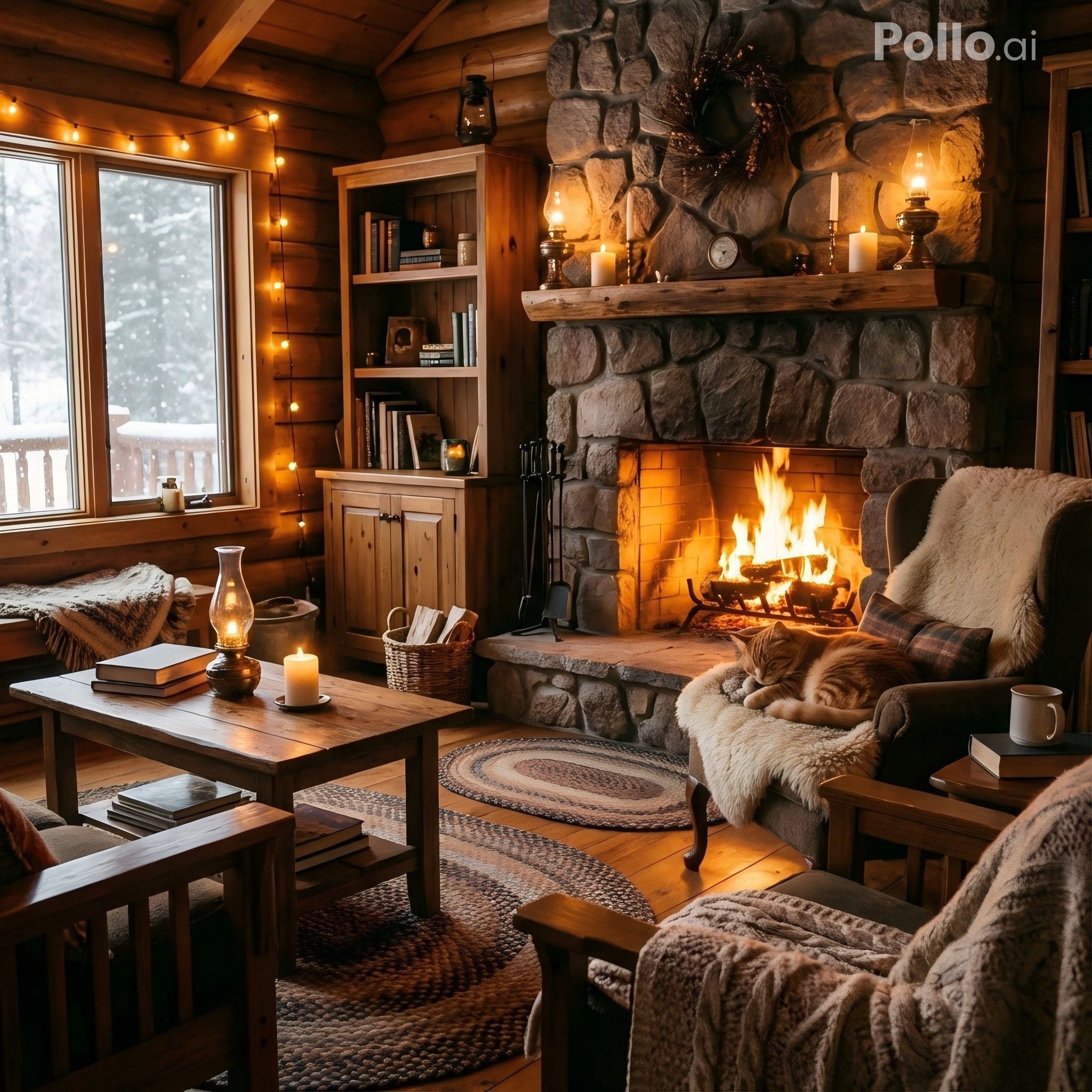
Take GPT Image 1.5 PNG Images into Your Design Workflow
GPT Image 1.5 on H3 Max produces PNG images, giving you a defined file format for the next stage of your project.
Treat the output as artwork, not a layered layout
A PNG is an image file rather than an editable document containing separate text and shape layers. Place your GPT Image 1.5 artwork into a design application when you need precise typography, alignment, or additional composition. Plan that handoff in the prompt by reserving quiet areas. This keeps the generated picture useful without asking it to perform every part of the finished layout.
Inspect the GPT Image 1.5 file before approval
Review the GPT Image 1.5 PNG for unwanted text, unusual contours, and details that disappear at smaller sizes. PNG output alone does not mean the background is transparent. Check what the image actually contains and whether its edges work in your destination. Keep the final approved file separate from experimental versions so the correct asset reaches the next stage.
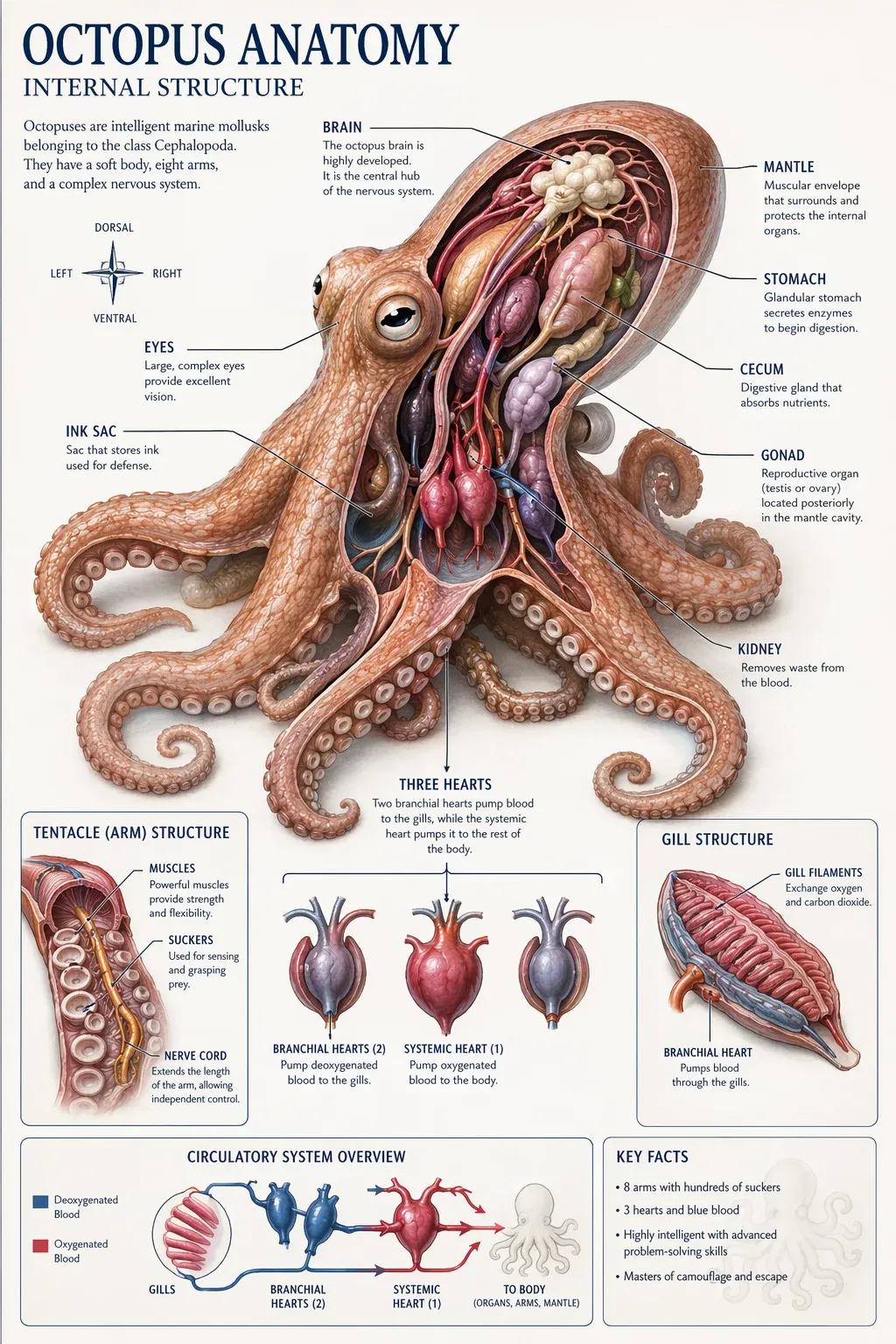
Example prompts
Text to image: square textile still life
Create a square editorial still life of three folded linen napkins on a pale wooden shelf. Use cream, muted sage, and warm gray fabric, with visible weave and softly rounded folds. One small unglazed ceramic bowl sits beside the stack. Gentle side lighting, calm shadows, no decorative clutter, no words, no logos, and no people. Keep the composition simple enough to remain readable as a small website image.
Text to image: portrait botanical cover
Create a vertical 2:3 botanical cover illustration with a single original flowering branch rising from the lower edge. Use soft blue blossoms, dark green leaves, and a warm cream background. Leave the upper quarter quiet for a title to be added later. Slightly textured painted shapes, balanced spacing, a clear main stem, and restrained detail. Do not include any lettering, border ornaments, logos, or extra plants.
Image edit: preserve a bag, simplify its setting
Use the uploaded bag photograph as the main reference. Replace the surrounding clutter with a simple warm beige tabletop and a softly lit neutral wall. Aim to retain the bag shape, handle placement, seams, closures, material, and camera angle. Keep a natural contact shadow and avoid changing the apparent color of the bag. Add no new branding, text, accessories, hands, or decorative objects.
User reviews
EveryGen AI video creator feedback.
EveryGen AI creator reviews

I made a full character PV for my game with MiniMax H3 in one afternoon. The menu UI stayed readable in every frame and the character never went off-model. That used to cost me a contractor and three weeks.

We tested every AI video generator on the market for stylized work. H3 is the only one that held our anime style across cuts. We now use it for pitch reels and animatics on every project.

I uploaded four product photos and got a listing video with music and a voiceover the same day. My click-through rate on the new listings is up 38%. H3 even got the label text on my packaging right.

I ship five vertical videos a week for three brands. MiniMax H3 gets me from brief to draft in under an hour, with sound already synced. My old workflow needed a videographer and two review rounds.

The editing side is what sold me. A client wanted the background of an interview changed — I typed one sentence into MiniMax H3 and the lighting on the subject matched the new scene automatically.

I previsualized my entire short film in MiniMax H3 before we shot a single frame. Rack focus, match cuts, even the title cards — it understands director language, not just keywords.
EveryGen AI · MiniMax H3 Max Pricing and Credit Plans
Cancel anytime
Lite
50% off0.025 / credit
Billed $ yearly179· Save $179.8
Video Models


Image Models



- Includes MiniMax H3 and all premium models
- Up to 1 batch generation task
- Standard generation speed
- Standard generation success rate
- Standard customer support
- Commercial Use License
Standard
50% off0.017 / credit
Billed $ yearly299· Save $299.8
Video Models
Image Models
- Includes MiniMax H3 and all premium models
- Up to 4 batch generation tasks
- Priority processing speed
- High generation success rate
- Priority customer support
- Commercial Use License
Pro
50% off0.014 / credit
Billed $ yearly599· Save $599.8
Video Models
Image Models
- Includes MiniMax H3 and all premium models
- Up to 10 batch generation tasks
- Fastest generation speed
- High generation success rate
- Dedicated account manager
- Commercial Use License
Max
50% off0.012 / credit
Billed $ yearly1,199· Save $1,199.8
Video Models
Image Models
- Includes MiniMax H3 and all premium models
- Up to 10 batch generation tasks
- Fastest generation speed
- High generation success rate
- Dedicated account manager
- Commercial Use License
Pay safely and securely with























FAQ
Frequently asked questions
Can I change GPT Image 1.5 quality on H3 Max?
This workspace uses a fixed high quality configuration. You can focus on the prompt, the supported aspect ratio, the output count, and any images needed for an editing request.
Which GPT Image 1.5 sizes and formats are available?
H3 Max uses the 1K profile with 1:1, 3:2, or 2:3 aspect ratios and PNG output. Pick the canvas shape that fits the intended composition.
How many GPT Image 1.5 outputs can I request?
You can request up to four outputs. Review the selected count and displayed workspace credits before submitting, then compare the images against the same creative brief.
How many images can GPT Image 1.5 editing use?
The H3 Max editing workflow accepts up to ten input images. Use only relevant references and explain the role of each rather than adding unrelated material.
Does GPT Image 1.5 require an image to get started?
No. Text based creation starts from your written description. Image inputs are relevant when you choose editing and want the request to build on existing visual material.
Does GPT Image 1.5 produce editable typography layers?
No layered document workflow is offered here. The output is a PNG image. Add approved wording in a design editor when text must remain separately editable or precisely aligned.
Where do I check GPT Image 1.5 credits?
Use the amount displayed in the H3 Max workspace for the current request. Confirm it before generation, particularly after changing the number of outputs.
CTA
Build Your Next Image with GPT Image 1.5
Choose a canvas shape, prepare your brief, and select the output count you need. Open GPT Image 1.5 on H3 Max for a fixed high quality, 1K PNG workflow, with credits visible before you generate.
Start an Image Request