 EveryGen AI
EveryGen AI · AI wallpaper generator for screens that feel considered
A wallpaper lives behind everyday controls, not only inside a preview. Use the EveryGen AI AI wallpaper generator for a considered scene, palette, and quiet areas. Start with GPT Image 2 text mode at 16:9 and 1K. Direct the AI wallpaper generator around your desktop or phone layout before refining details.
Image workspace
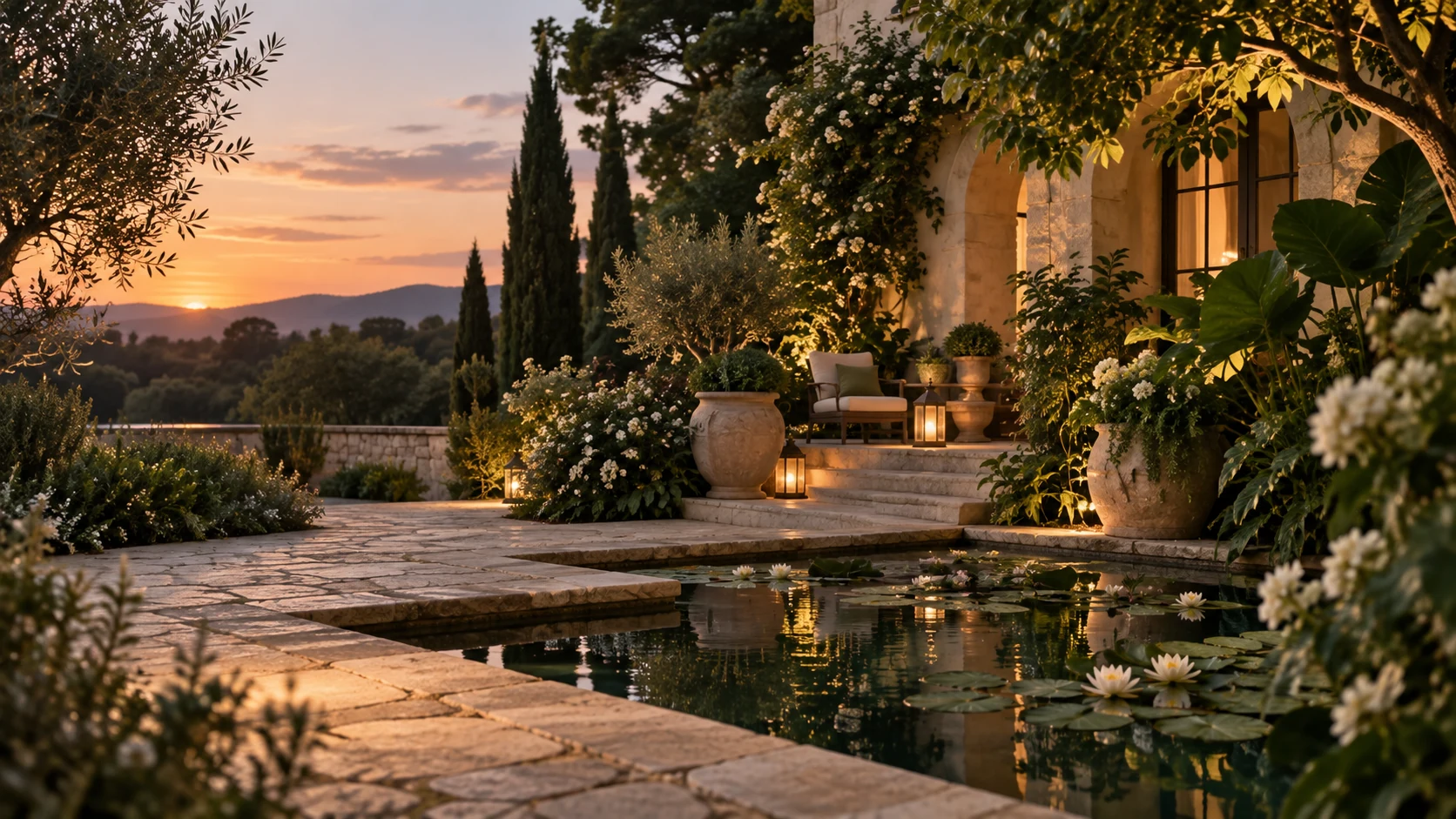
Sample Image
 27 / 30
AI-generated still-image style illustration; not a video or scannable QR code.
Introduction
Brief the AI wallpaper generator for your screen
Give the AI wallpaper generator a specific screen context: desktop, phone lock screen, or home screen.
Map the important interface areas
Notice where icons, the clock, widgets, or a dock appear on your device. Tell the AI wallpaper generator which regions should stay quiet. You do not need the interface drawn into the picture; you need a background that leaves those real controls understandable.
- Describe the areas occupied by your actual device interface.
- Keep AI wallpaper generator focal details away from those regions.
Choose the viewing mood
A misty landscape, soft geometric field, or richly colored nocturnal scene creates a different atmosphere. Give the AI wallpaper generator a small palette and a clear mood. Avoid combining every favorite visual theme into one background that competes with the screen’s ordinary content.
Decide how prominent the subject should be
A distant cabin can provide interest without dominating the display; a large face or bright moon becomes a stronger focal point. Tell the AI wallpaper generator which role you want. The subject should feel intentional when the screen is in use, not only in a gallery preview.
How to use
How to use the AI wallpaper generator
- PromptSTEP 1
Choose your screen
Select GPT Image 2 text mode in the AI wallpaper generator and choose wide desktop framing or a vertical phone composition.
- ModelGPT Image 21K16:9PromptSTEP 2
Plan quiet areas
Tell the AI wallpaper generator where icons or the clock will sit, keeping brighter detail away from those essential viewing areas.
- Layout preview
 Layout preview onlySTEP 3
Generate the atmosphere
Begin the AI wallpaper generator at 1K, describe a coherent palette and setting, review the displayed credits, and generate your background.
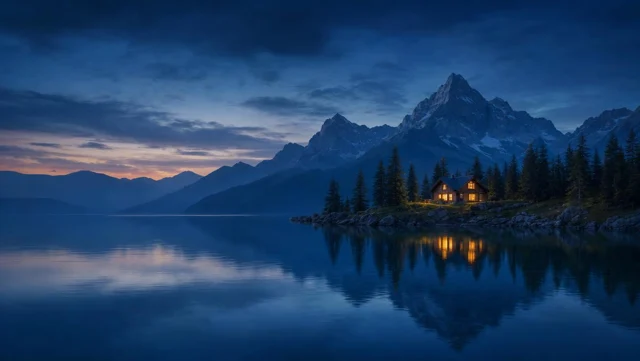
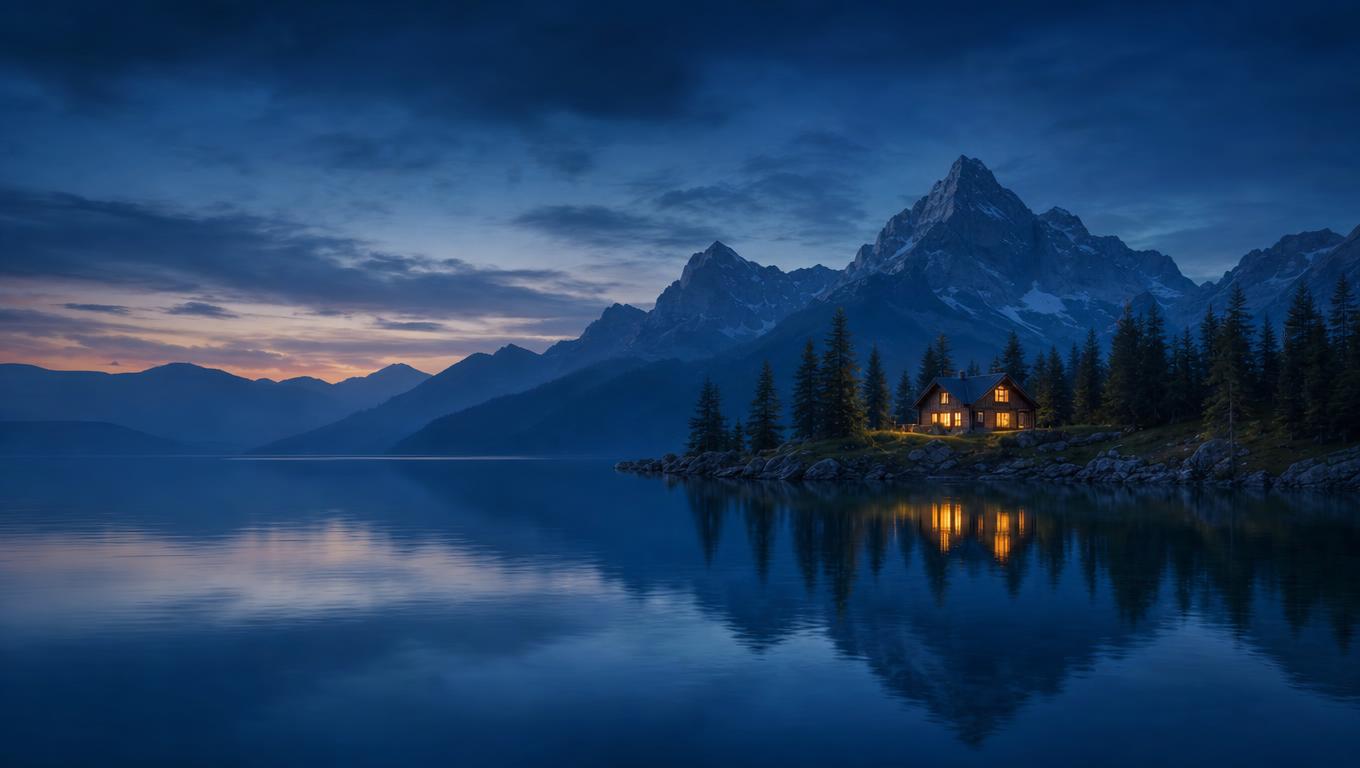
- Create a wide 16:9 wallpaper of a dark blue alpine lake at dusk, with distant simplified mountains and one small warmly lit cabin slightly right of center. Keep the left third as quiet low-detail water and sky for desktop icons. Leave the lower edge restrained for a dock or taskbar. Soft atmospheric depth, broad shapes, controlled amber accent, subtle cloud transitions, no scattered bright stars. Keep important subjects inside the central region so modest cropping remains possible. No text, logos, interface elements, borders, or device mockup.DownloadSTEP 4
Check the actual device
Preview AI wallpaper generator artwork on your screen, inspect icon contrast and cropping, then choose higher resolution when the composition works.
Features
Build a desktop scene with the AI wallpaper generator
Use the AI wallpaper generator to distribute visual detail around the desktop regions occupied by your everyday controls.
Leave an icon-friendly region
For icons arranged on the left, try a quiet sky, water, or softly shaded wall in that area. Ask the AI wallpaper generator to place stronger details elsewhere. Quiet means low visual competition, not necessarily a featureless block of one color.
- Avoid tiny bright details behind important icon labels.
- Preview AI wallpaper generator imagery with your real icon arrangement.
Keep the main scene away from the dock
A low foreground subject may be hidden behind a taskbar or dock. Tell the AI wallpaper generator where the important feature should sit vertically. A slightly raised horizon or a subject above the lower edge can preserve the composition when the interface appears.
Let the outer edges be flexible
Different screen proportions can crop a wide image unevenly. Ask the AI wallpaper generator for expendable scenery near the sides rather than essential objects at both extremes. Keep the main visual relationship inside a region that remains useful after modest cropping.
Use the AI wallpaper generator for vertical screens
Give the AI wallpaper generator a vertical visual path rather than treating a phone background as a narrow desktop crop.
Choose a vertical ratio deliberately
Switch from the 16:9 starting setup to 9:16 when developing a phone direction. Tell the AI wallpaper generator how the subject should move through the taller frame. A rising branch, distant mountain, or vertical architectural rhythm can work better than a wide group of objects.
- Reserve room for the clock and any chosen widgets.
- Keep AI wallpaper generator subjects clear of uncertain screen cutouts.
Separate lock and home screen priorities
A lock screen may support a stronger focal image, while a home screen may need quieter areas behind app icons. Ask the AI wallpaper generator for related versions with those different priorities. Matching colors can connect the pair without forcing an identical composition.
Check the crop on the actual device
Apply a preview through your device settings and inspect what is hidden or enlarged. The AI wallpaper generator cannot infer every device’s crop behavior from a ratio alone. Recompose when important details disappear instead of accepting an awkward result simply because the colors look good.

Control visual density with the AI wallpaper generator
Direct the AI wallpaper generator with clear choices about contrast, brightness, texture, and the amount of visible detail.
Use a controlled accent
A warm cabin window in a cool landscape or one coral shape in a muted abstract field can provide focus. Tell the AI wallpaper generator where the accent belongs. Scattered bright points everywhere can make it harder to locate real icons and notification marks.
- Keep the strongest contrast away from important interface text.
- Review AI wallpaper generator accents as part of the working screen.
Choose broad forms over constant texture
Soft clouds, large architectural shapes, or gradual color transitions can create depth without filling every pixel with detail. Ask the AI wallpaper generator for quieter surfaces where needed. Fine patterns may become distracting when layered behind folders, icons, and overlapping windows.
Inspect dark and light regions
Check whether a bright area competes with white interface elements or a dark patch hides a dark icon. The AI wallpaper generator can explore another tonal arrangement. Evaluate the wallpaper with the actual screen content instead of assuming an image that looks balanced alone will always work.
Iterate with the AI wallpaper generator
Give each AI wallpaper generator revision a specific screen problem to solve before requesting a more detailed rendition.
Start with the wide default
Select GPT Image 2 text mode at 16:9 and 1K, with one output. Describe the scene, palette, focal region, and quiet areas. Review the AI wallpaper generator settings and dynamically displayed credits before submitting the first direction.
- Request a clean image without drawn device controls.
- Give the AI wallpaper generator an explicit empty-space plan.
Use references for a personal palette
Switch to image mode when a photograph, approved scene, or color direction should guide the result. The AI wallpaper generator supports up to sixteen references there. Explain which features to borrow and which to change rather than asking it to combine unrelated pictures indiscriminately.
Choose resolution after the idea works
You can select 1K, 2K, or 4K, supported aspect ratios, and one to four outputs. The AI wallpaper generator does not offer arbitrary exact pixel dimensions. Choose the available configuration, then inspect the actual file and crop against your intended screen.

Review the AI wallpaper generator image in use
Assess the AI wallpaper generator result behind your actual interface, where composition and distracting details matter most.
Look closely at the actual file
Inspect smooth skies, edges, repeated patterns, and small objects in the returned JPEG. The AI wallpaper generator may create artifacts that were unobtrusive in the preview. If a detail becomes distracting across a large display, simplify that region rather than adding more texture.
- Check the wallpaper both unobstructed and behind open windows.
- Review AI wallpaper generator output at its actual displayed scale.
Keep a coordinated pair
For desktop and phone, retain a similar palette and scene idea while changing composition. Use the AI wallpaper generator to build a family of backgrounds rather than identical crops. Record the quiet regions each version needs so later revisions do not reintroduce visual clutter.
Apply the image yourself
Save the selected JPEG and set it through your device’s own wallpaper controls. The AI wallpaper generator does not automatically change device settings or publish the result. Keep the original file available so you can try another crop without treating a stretched preview as the only option.
Example prompts
A calm desktop lake at dusk
Create a wide 16:9 wallpaper of a dark blue alpine lake at dusk, with distant simplified mountains and one small warmly lit cabin slightly right of center. Keep the left third as quiet low-detail water and sky for desktop icons. Leave the lower edge restrained for a dock or taskbar. Soft atmospheric depth, broad shapes, controlled amber accent, subtle cloud transitions, no scattered bright stars. Keep important subjects inside the central region so modest cropping remains possible. No text, logos, interface elements, borders, or device mockup.
Phone setup: a vertical 9:16 botanical composition
Create a 9:16 phone wallpaper with an original gently rising botanical branch along the lower-right side, broad simplified leaves, deep muted teal background, and one restrained pale gold accent. Keep the upper central region quiet and dark for a clock and widgets added by the device, and leave other regions low-detail for icons. Elegant vertical flow, soft light, clean silhouette, generous breathing room, no tiny repeating pattern. No words, numbers, clock graphics, app icons, logos, frames, or phone mockup.
User reviews
EveryGen AI video creator feedback.
EveryGen AI creator reviews

I made a full character PV for my game with MiniMax H3 in one afternoon. The menu UI stayed readable in every frame and the character never went off-model. That used to cost me a contractor and three weeks.

We tested every AI video generator on the market for stylized work. H3 is the only one that held our anime style across cuts. We now use it for pitch reels and animatics on every project.

I uploaded four product photos and got a listing video with music and a voiceover the same day. My click-through rate on the new listings is up 38%. H3 even got the label text on my packaging right.

I ship five vertical videos a week for three brands. MiniMax H3 gets me from brief to draft in under an hour, with sound already synced. My old workflow needed a videographer and two review rounds.

The editing side is what sold me. A client wanted the background of an interview changed — I typed one sentence into MiniMax H3 and the lighting on the subject matched the new scene automatically.

I previsualized my entire short film in MiniMax H3 before we shot a single frame. Rack focus, match cuts, even the title cards — it understands director language, not just keywords.
EveryGen AI · MiniMax H3 Max Pricing and Credit Plans
Cancel anytime
Lite
50% off0.025 / credit
Billed $ yearly179· Save $179.8
Video Models


Image Models



- Includes MiniMax H3 and all premium models
- Up to 1 batch generation task
- Standard generation speed
- Standard generation success rate
- Standard customer support
- Commercial Use License
Standard
50% off0.017 / credit
Billed $ yearly299· Save $299.8
Video Models
Image Models
- Includes MiniMax H3 and all premium models
- Up to 4 batch generation tasks
- Priority processing speed
- High generation success rate
- Priority customer support
- Commercial Use License
Pro
50% off0.014 / credit
Billed $ yearly599· Save $599.8
Video Models
Image Models
- Includes MiniMax H3 and all premium models
- Up to 10 batch generation tasks
- Fastest generation speed
- High generation success rate
- Dedicated account manager
- Commercial Use License
Max
50% off0.012 / credit
Billed $ yearly1,199· Save $1,199.8
Video Models
Image Models
- Includes MiniMax H3 and all premium models
- Up to 10 batch generation tasks
- Fastest generation speed
- High generation success rate
- Dedicated account manager
- Commercial Use License
Pay safely and securely with























FAQ
Frequently asked questions
Can the AI wallpaper generator make phone wallpapers?
Yes. The AI wallpaper generator can use a vertical ratio such as 9:16 instead of the wide starting setup. Describe room for the clock, widgets, and app icons. Check the image on your device because its actual crop may differ from the generation frame.
Does the AI wallpaper generator support exact device dimensions?
It offers supported aspect ratios and 1K, 2K, or 4K, not arbitrary exact pixel dimensions. Inspect the returned file and try it in the device settings. You may need a different composition or an external crop to suit the actual display.
Can I use my photograph in the AI wallpaper generator?
Yes. Switch to GPT Image 2 image mode and upload a source you are authorized to use. Describe the palette, scene elements, or mood to retain and the screen-friendly changes you want. Image mode accepts up to sixteen references.
Why does my AI wallpaper generator result hide icons?
Its detail or contrast may compete with the interface. Request a quieter area where icons and labels appear, and move the focal subject elsewhere. Preview the result with the actual layout rather than judging only the image by itself.
Does the AI wallpaper generator create animated backgrounds?
This page creates still JPEG images, not animated or interactive wallpapers. Use the selected image through your device’s wallpaper settings. The available output count lets you explore several still candidates; it does not produce a motion sequence or change system settings.
CTA
Shape your screen with the AI wallpaper generator
Choose the mood and identify where your interface needs breathing room. Use the AI wallpaper generator to compose around those areas, then review the selected image on the screen where it will actually live.
Create a wallpaper direction