 EveryGen AI
EveryGen AI · MiniMax H3 for Video Guided by Your References
Bring the visual and audible parts of a brief together. MiniMax H3 on H3 Max starts in reference mode, where images, video, and audio can guide a new clip. Use MiniMax H3 to explain not only what the scene contains, but which supplied material should influence its subject, movement, and sound.
Video workspace
A portrait in flat cartoon colors
12/18View prompt
Use @Video 1 as the source adult woman’s portrait performance. Reinterpret the footage as flat-color cartoon animation with clean outlines, restrained shading, and a simple coherent palette. Follow the existing facial movement, head direction, framing, and background arrangement. Create a five-second interpretation without adding new gestures, extra subjects, camera changes, or written captions.
Introduction
What Is MiniMax H3?
MiniMax H3 is a multimodal video model with fal interfaces for text generation, image animation, and reference-guided audiovisual generation.
A model that can combine different inputs
MiniMax H3 can receive text alongside visual and audio references, giving a scene more than one kind of guidance. Images can describe identity or appearance, video can inform motion, and audio can help define the soundtrack. MiniMax H3 also has separate text and image modes, so the chosen workflow should follow the material available rather than forcing every idea into the same input pattern.
Reference mode as the starting workspace
This H3 Max page opens MiniMax H3 in reference mode, with 2K output available for the short-video workflow. Start by identifying what each uploaded asset contributes and make those roles explicit in the prompt. MiniMax H3 interprets the combination; it does not turn a collection of files into a guaranteed reconstruction. Review the resulting scene against the particular references that establish its important details.
How to use
How to Guide MiniMax H3 with References
- Input
 Reference image 1
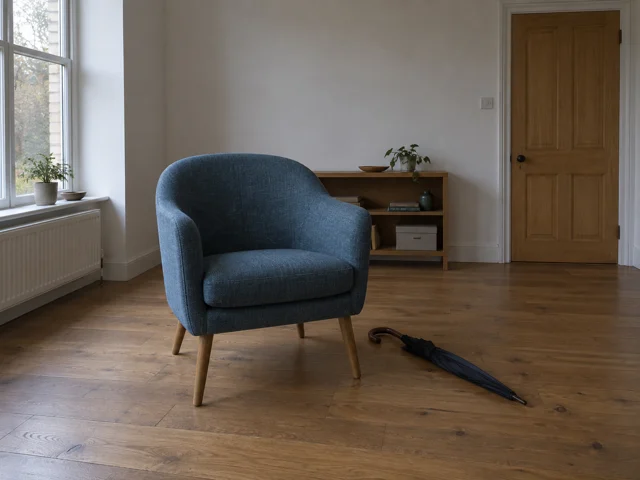 Reference image 2STEP 1
Start with the relevant input mode
Open MiniMax H3 in its default reference mode and upload the material your scene needs. Choose text or image mode instead when references are unnecessary.
- ModelMiniMax H32K10sPromptOutputSTEP 2
Name the role of every asset
Tell MiniMax H3 what Image 1, Video 1, or Audio 1 should contribute. Describe the intended action and identify details that must remain recognizable.
- First frameLast frame
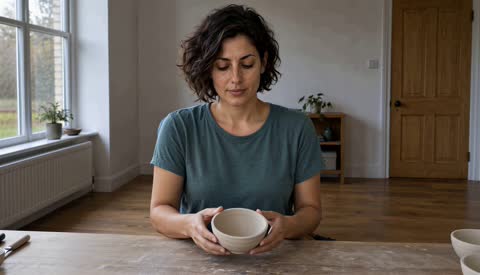 0.0s
0.0s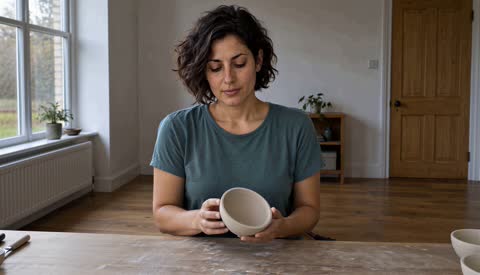 5.1s
5.1s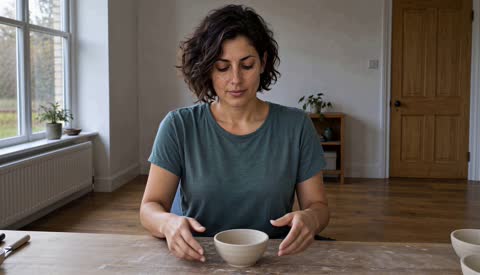 9.1sSTEP 3
Check limits, output, and credits
Review the total file count, separate video and audio duration limits, selected clip length, and 2K output setting. Check the displayed credits before submitting.
- STEP 4
Compare the result with its guidance
Watch and listen to MiniMax H3 output, then compare the subject, movement, and sound with the appropriate references. Revise the role description that needs clarification.
Features
Assign Image Roles for MiniMax H3
MiniMax H3 reference mode accepts visual material that can guide subjects, settings, or appearance when its intended role is explained.
Identify the reference that defines the subject
An image of an adult character might establish clothing and appearance, while another image describes a workshop or room. Tell MiniMax H3 which source defines each part of the scene. Address the inputs by their displayed labels, such as Image 1 and Image 2. MiniMax H3 needs a coherent brief when their lighting or perspective differs, rather than an expectation that conflicting details will automatically resolve.
Keep the image collection purposeful
The reference route supports up to nine images, subject to the overall file limit. Use MiniMax H3 with a compact selection that makes the important information easy to identify. Remove duplicate views that add no useful detail and distinguish a style reference from a subject reference. Inspect the result for transferred features you did not intend, such as background objects or an unrelated clothing pattern.
Use Video References with MiniMax H3
MiniMax H3 can take reference video clips to inform movement, timing, and the way a scene is presented in motion.
Describe the motion you actually need
A reference may contain both a camera move and a subject action. Tell MiniMax H3 which aspect should influence the new clip, and which visible content should not transfer. For example, ask MiniMax H3 to follow a gentle forward camera movement while using an uploaded image to define a different setting. This is reference-guided generation, not a guarantee of frame-for-frame copying or exact motion tracking.
Trim reference clips to the useful passage
You can supply up to three video references. Each must be two to fifteen seconds, and their combined duration must not exceed fifteen seconds. Before using MiniMax H3, select the passage that demonstrates the intended movement without unrelated cuts. Watch the output for changes in direction, speed, and subject scale that might undermine the action even when its overall rhythm resembles the reference.
Give MiniMax H3 a Defined Audio Context
MiniMax H3 generates native audio and can use audio references within a multimodal brief, alongside the visual material that defines the scene.
Explain the role of the recording
A recording might suggest the atmosphere of a room, the rhythm of an action, or a particular audible event. Tell MiniMax H3 what to take from Audio 1 and how that relates to the images or video you supplied. Give MiniMax H3 recordings you are entitled to use. Do not assume that an audio reference automatically means an unchanged soundtrack or a precisely reproduced performance.
Keep timing constraints clear
The reference route allows up to three audio clips, each two to fifteen seconds, with a combined audio duration of no more than fifteen seconds. Pair useful audio with the visual references for the scene. Review MiniMax H3 output with sound enabled and check the timing of important events. Listen for unintended speech or distracting sound before accepting a clip for a larger project.
Choose Another Starting Mode in MiniMax H3
MiniMax H3 also supports text and image starts when a multimodal reference bundle would add complexity rather than useful guidance.
Use text when the scene is still an idea
For an invented scene with no necessary source material, switch MiniMax H3 to text mode and describe the subject, environment, movement, and sound. Keep camera direction separate from the action itself. MiniMax H3 can then interpret a single coherent brief without competing reference roles. Choose the frame shape offered by the workspace and check that the main movement fits inside the composition.
Use image mode for a defined first frame
When the opening composition is already decided, image mode may be the more direct route. MiniMax H3 uses the supplied starting frame and can take an optional ending frame, with the canvas following the image. Describe the transition or movement rather than repeating everything visible. Inspect the entire clip between the endpoints, especially details that become obscured, rotate away, or change scale during motion.
Plan the MiniMax H3 Request as a Whole
MiniMax H3 settings and reference limits work together, so review the complete request before treating an individual input allowance as the whole budget.
Respect the shared reference limit
The total across images, video clips, and audio clips must not exceed twelve files. MiniMax H3 does not allow all three individual maxima to be combined into fifteen inputs. Build a MiniMax H3 reference set around the information that matters most, then remove redundant material. Check the video and audio duration totals separately, and review the workspace credits after the complete configuration is selected.
Distinguish output size from native generation
The 2K setting describes the delivered output size; the documented generation path upsamples a 768P base. Treat MiniMax H3 resolution as one part of the result, not a guarantee that small details will be accurate. Choose a clip length from five to fifteen seconds and inspect motion at normal playback. A larger delivered image cannot repair an incoherent action, altered subject, or mismatched sound.
Example prompts
A subject and a setting with separate roles
Use Image 1 to define the appearance and clothing of the adult ceramic artist. Use Image 2 only for the workshop setting and soft daylight. Create a ten-second shot of the artist examining a small plain clay bowl, turning it gently once and then setting it on the bench. Keep the camera steady and the action modest. Quiet workshop ambience, no spoken dialogue, added people, logos, or scene cuts.
A visual reference with a camera-motion example
Use Image 1 as the setting and main-object reference. Use Video 1 only for its slow forward camera movement, not for its subjects, props, or background. Create a ten-second shot in the setting from Image 1. Keep the main object stationary and recognizable while the viewpoint approaches gently. Soft natural ambience, no dialogue, text overlays, abrupt cuts, or new objects.
A room scene with an ambient recording
Use Image 1 for the composition of the quiet room. Use Audio 1 as a reference for soft rain ambience, not as a request to preserve the recording unchanged. Create a five-second scene in which only a light curtain moves gently near the window. Keep the furniture and camera still, with consistent overcast daylight. No people, speech, music, added objects, or camera cuts.
User reviews
EveryGen AI video creator feedback.
EveryGen AI creator reviews

I made a full character PV for my game with MiniMax H3 in one afternoon. The menu UI stayed readable in every frame and the character never went off-model. That used to cost me a contractor and three weeks.

We tested every AI video generator on the market for stylized work. H3 is the only one that held our anime style across cuts. We now use it for pitch reels and animatics on every project.

I uploaded four product photos and got a listing video with music and a voiceover the same day. My click-through rate on the new listings is up 38%. H3 even got the label text on my packaging right.

I ship five vertical videos a week for three brands. MiniMax H3 gets me from brief to draft in under an hour, with sound already synced. My old workflow needed a videographer and two review rounds.

The editing side is what sold me. A client wanted the background of an interview changed — I typed one sentence into MiniMax H3 and the lighting on the subject matched the new scene automatically.

I previsualized my entire short film in MiniMax H3 before we shot a single frame. Rack focus, match cuts, even the title cards — it understands director language, not just keywords.
EveryGen AI · MiniMax H3 Max Pricing and Credit Plans
Cancel anytime
Lite
50% off0.025 / credit
Billed $ yearly179· Save $179.8
Video Models


Image Models



- Includes MiniMax H3 and all premium models
- Up to 1 batch generation task
- Standard generation speed
- Standard generation success rate
- Standard customer support
- Commercial Use License
Standard
50% off0.017 / credit
Billed $ yearly299· Save $299.8
Video Models
Image Models
- Includes MiniMax H3 and all premium models
- Up to 4 batch generation tasks
- Priority processing speed
- High generation success rate
- Priority customer support
- Commercial Use License
Pro
50% off0.014 / credit
Billed $ yearly599· Save $599.8
Video Models
Image Models
- Includes MiniMax H3 and all premium models
- Up to 10 batch generation tasks
- Fastest generation speed
- High generation success rate
- Dedicated account manager
- Commercial Use License
Max
50% off0.012 / credit
Billed $ yearly1,199· Save $1,199.8
Video Models
Image Models
- Includes MiniMax H3 and all premium models
- Up to 10 batch generation tasks
- Fastest generation speed
- High generation success rate
- Dedicated account manager
- Commercial Use License
Pay safely and securely with























FAQ
Frequently asked questions
Which mode opens on the MiniMax H3 page?
Reference mode is the default. Use it when supplied images, videos, or audio contribute to the brief. Switch to text or image mode when you need a simpler starting point.
How many references can MiniMax H3 accept?
The reference route allows up to nine images, three videos, and three audio clips, but no more than twelve files in total. The individual maxima are not permission to submit fifteen files together.
What are the MiniMax H3 reference duration limits?
Each reference video or audio clip must be two to fifteen seconds. All video references together may total at most fifteen seconds; all audio references together have their own fifteen-second total limit.
Does MiniMax H3 promise native 2K generation?
The 2K setting refers to the delivered video, not native rendering at that size. These endpoints upsample a 768P base result. Inspect the actual detail and motion rather than judging quality by the output label alone.
Can MiniMax H3 start from first and last images?
Yes. Choose image mode, supply the opening frame, and optionally provide an ending frame. The canvas follows the input image. Describe a plausible movement or transition and review the frames between both endpoints.
Will MiniMax H3 reproduce my references exactly?
Not necessarily. References guide the generated scene but do not guarantee exact identity, motion, or sound reproduction. Explain each input's role and compare the output against the details that matter to your brief.
Where do I check the cost of MiniMax H3?
Review the credits displayed in the workspace after setting the mode, inputs, duration, and output configuration. Check again before submitting a changed request rather than assuming an earlier amount still applies.
CTA
Give MiniMax H3 References with a Purpose
Choose the inputs that explain your scene, assign each one a role, and review the complete request. Use MiniMax H3 to develop a short audiovisual result grounded in your brief.
Open Video Workspace