 EveryGen AI
EveryGen AI · Seedance 2.0 Mini for Focused Motion Studies
Explore how an idea should move with Seedance 2.0 Mini on EveryGen AI. Use a written scene, an opening image, or a compact collection of references to test a visual decision. Seedance 2.0 Mini provides short video generation with optional sound and a choice of 480p or 720p output.
Video workspace
A portrait in flat cartoon colors
12/18View prompt
Use @Video 1 as the source adult woman’s portrait performance. Reinterpret the footage as flat-color cartoon animation with clean outlines, restrained shading, and a simple coherent palette. Follow the existing facial movement, head direction, framing, and background arrangement. Create a five-second interpretation without adding new gestures, extra subjects, camera changes, or written captions.
Introduction
EveryGen AI | What Is Seedance 2.0 Mini?
Seedance 2.0 Mini on EveryGen AI is a distinct video selection with text, image, and reference routes in this workspace. The platform is independent of model providers; keep a motion study centered on the decision it should help you examine.
A distinct set of generation routes
Seedance 2.0 Mini on EveryGen AI takes a written scene, one opening picture and optional ending picture, or mixed references through separate starting modes. Generated audio is optional in the request. Invent the appearance, begin with a chosen composition, or assign each supplied item a role in the movement. A reference set guides a new scene without guaranteeing the original identity, exact motion, or unchanged sound.
A bounded workspace for visual exploration
Seedance 2.0 Mini on EveryGen AI starts in reference mode at requested 480p, four seconds, adaptive framing, and generated audio on. It offers 480p or 720p and integer durations from four through fifteen seconds. The required prompt accepts up to 20000 characters. All three modes offer adaptive framing plus six fixed ratios, with no seed control. Reference mode permits nine images, three videos, and three audio files within twelve overall; at least one visual input is required.
How to use
How to Use Seedance 2.0 Mini in EveryGen AI
- Input
 Reference image 1STEP 1
Define the study
Select Seedance 2.0 Mini on EveryGen AI and choose text, image, or reference mode. Decide which movement or visual relationship the clip should help you evaluate before adding more detail.
- Example settingsSeedance 2.0 Mini480p6sPromptOutputSTEP 2
Prepare the guidance
Write the action for Seedance 2.0 Mini on EveryGen AI. Add opening and optional ending frames in image mode, or assign roles to a reference collection that fits the twelve-file total.
- Illustrative preview
 BeforeAfter
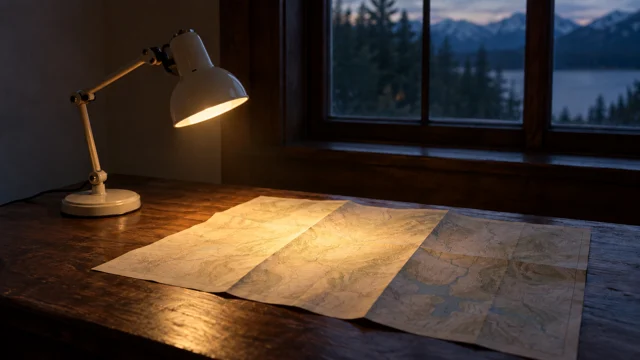
Only the lamp tilts; its pool of light moves onto the map. Keep the rest of the scene still.
STEP 3Set duration and sound
Choose four to fifteen seconds, 480p or 720p output, and the audio setting. Review the Seedance 2.0 Mini on EveryGen AI configuration and displayed credits before you submit the request.
- STEP 4
Compare against the question
Watch the Seedance 2.0 Mini on EveryGen AI study at normal speed and inspect its sound separately. Keep useful decisions, identify the main failure, and adjust that one factor in the next version.
Features
EveryGen AI | Test a Specific Movement with Seedance 2.0 Mini
A useful Seedance 2.0 Mini on EveryGen AI text brief asks a concrete visual question instead of requesting a polished production without direction.
Choose what the Seedance 2.0 Mini study should test
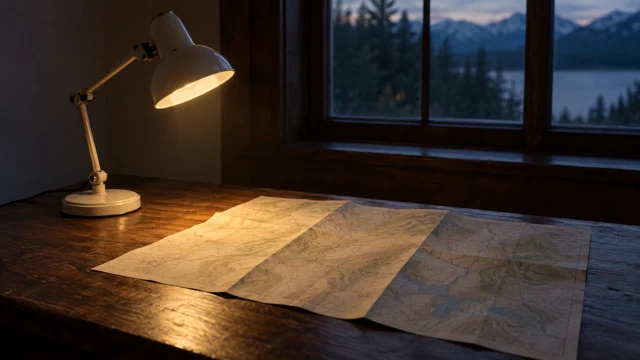
Consider a small desk lamp illuminating a folded map. One study might test whether a slow lateral move reveals the light pattern clearly; another might hold the camera while the lamp tilts. Give Seedance 2.0 Mini on EveryGen AI only the movement being tested. Tell Seedance 2.0 Mini what remains stationary, and keep the subject, surface, and lighting description stable enough for the difference to be visible.
Judge what the movement communicates
Ask whether the viewer can identify the object, follow the action, and understand its result. With Seedance 2.0 Mini on EveryGen AI, a short test can expose an overcomplicated idea before you build a longer sequence around it. Remove flourishes that obscure the intended effect.
EveryGen AI | Reuse a Clear Reference Set in Seedance 2.0 Mini
Keep the reference collection for Seedance 2.0 Mini on EveryGen AI small enough that each image, video, or audio clip has a visible purpose.
Carry the same subject into each study
Use a consistent subject image across related tests, then introduce a separate visual reference only when it adds necessary information. A lighting picture should establish lighting, not replace the main object. Seedance 2.0 Mini on EveryGen AI benefits from an unambiguous instruction about these roles. Write which features to retain and which movement to borrow, and avoid references that quietly contradict the proportions or environment you want to keep.
Count the complete Seedance 2.0 Mini reference set
The twelve-file total applies across media types. For example, eight images, two videos, and two audio clips fit the Seedance 2.0 Mini on EveryGen AI allowance; nine images plus three videos plus three audio clips do not. Audio references need at least one image or video. Remove redundant files before a Seedance 2.0 Mini request and follow the workspace checks for media compatibility as well as quantity.
EveryGen AI | Give Seedance 2.0 Mini a Beginning and Destination
Image mode lets Seedance 2.0 Mini on EveryGen AI start from an existing arrangement and, when useful, move toward an optional last frame.
Start from a meaningful composition
The opening image should already show the relationships the viewer needs: the lamp above the map, the pool of light, and the edge of the desk. Ask Seedance 2.0 Mini on EveryGen AI for motion that develops that arrangement rather than replacing it. Specify the main change and the elements that must stay recognizable. Inspect Seedance 2.0 Mini output for unintended shifts in the object or supporting surface.
Define a Seedance 2.0 Mini destination with the last frame
Choose a last frame that answers where the movement should finish. A small change in viewpoint can be enough to test a reveal without demanding a dramatic scene transformation. With Seedance 2.0 Mini on EveryGen AI, describe the connecting action rather than treating the images as self-explanatory. Check that the middle of the video remains coherent; two plausible endpoints do not guarantee a plausible transition between them.
EveryGen AI | Choose the Sound Direction for Seedance 2.0 Mini
Enable the generated-audio request when sound helps evaluate the idea, or turn it off for separate soundtrack work. Review Seedance 2.0 Mini on EveryGen AI picture and sound as distinct decisions.
Match a sound to the action under review
A quiet switch click or a gentle mechanical movement may be all the scene needs. Ask Seedance 2.0 Mini on EveryGen AI for the sound that belongs to the visible event, with a restrained background. For dialogue, keep the line short and the speaker clear. Listen for whether the sound supports the motion instead of assuming that a pleasant soundtrack makes the underlying visual concept more effective.
Review picture and sound as separate decisions
First watch whether the action reads; then listen for distracting effects, unrequested music, or words that do not match the brief. Seedance 2.0 Mini on EveryGen AI audio generation should be checked just as carefully as its imagery. A silent Seedance 2.0 Mini take may be more appropriate when the final sequence requires a consistent recorded voice or a soundtrack you will arrange outside the generation workspace.
EveryGen AI | Build a Reviewable Seedance 2.0 Mini Study
Choose a duration and output size that let Seedance 2.0 Mini on EveryGen AI answer the creative question without unnecessary scene complexity.
Use the available time deliberately
Four to fifteen seconds can accommodate a quick change of state or a slower reveal. Give Seedance 2.0 Mini on EveryGen AI enough time for the important event to register, but do not add extra actions merely to fill the duration. A brief opening pause and a settled finish can make evaluation easier. Review Seedance 2.0 Mini at normal speed before deciding that a few appealing frames represent a successful clip.
Compare a small number of clear alternatives
At 480p or 720p, inspect framing, object stability, and the action at the intended display size. Preserve the source images and prompt for comparison. Check the Seedance 2.0 Mini on EveryGen AI credits before each request, and change one factor such as movement speed or light direction. Keep the alternative that answers the original question rather than collecting variations without a decision. Sign in with sufficient credits and choose one to four independent candidate tasks. Inputs and results are saved to your account through network-dependent cloud processing. Quantity does not assemble a sequence; review the complete movement, actual dimensions, and sound before keeping a take.
Example prompts
Text: test a light reveal
Create a six-second motion study of a small cream desk lamp above a folded paper map on a dark wooden desk. The lamp tilts slightly so its pool of light reveals the map's center. Keep the camera steady and every other object still. Soft mechanical movement and quiet room ambience. No readable labels, extra props, dialogue, or scene changes.
Image: a measured change of viewpoint
Use the supplied first and last images as endpoints for an eight-second shot. Move gently from the opening viewpoint toward the ending composition, keeping the desk lamp, map, and supporting desk recognizable. Preserve the lamp shape and paper folds. Avoid new objects or dramatic lighting changes. Finish with a short still hold. Subtle room tone without speech.
Reference: carry a subject into a motion test
Use @Image1 for the lamp and desk arrangement, and @Video1 only for the slow sideways camera movement. Generate one ten-second shot with the same lamp silhouette and warm light. Do not copy the reference video's objects or location. Keep the desk stationary and the map on its surface. Quiet room ambience, no dialogue or added text.
Workflow examples
Illustrative ways to plan, generate, and review your work.
EveryGen AI workflow examples
Begin with a product photograph and a focused image-editing brief. Compare the draft with the original for shape, labels, and proportions before placing it into a listing. Add approved logos and exact copy in your design application.
Choose a video model and describe one small action, such as a careful object turn. Review the available duration, resolution, and credits. Check the completed take for object continuity and sound before using it in a larger edit.
Give the image workspace a subject, viewpoint, and visual metaphor that supports your article. Preview the result inside the intended layout. Adjust the crop or composition when it competes with the headline or obscures an important detail.
Sign in and use Compress Image when a picture has the right dimensions but a large file size. Compression runs in the browser; input and output images are saved to your account. Compare the result before downloading individual files or a ZIP.
Paste a draft into Humanize AI and select Natural, Friendly, or Professional tone. Review the rewrite for meaning, names, figures, and technical terms. Copy or download the version you have checked; detector scores and publication outcomes are not guaranteed.
Record the palette, viewpoint, lighting, and subject scale in a reusable brief. Supply relevant references where the selected image model supports them. Compare the images together, then revise specific differences instead of assuming automatic campaign-wide consistency.
EveryGen AI Pricing and Credit Plans
Cancel anytime
Lite
50% off0.025 / credit
Billed $ yearly179· Save $179.8
Video Models


Image Models



- Includes MiniMax H3 and all premium models
- Up to 1 batch generation task
- Standard generation speed
- Standard generation success rate
- Standard customer support
- Commercial Use License
Standard
50% off0.017 / credit
Billed $ yearly299· Save $299.8
Video Models
Image Models
- Includes MiniMax H3 and all premium models
- Up to 4 batch generation tasks
- Priority processing speed
- High generation success rate
- Priority customer support
- Commercial Use License
Pro
50% off0.014 / credit
Billed $ yearly599· Save $599.8
Video Models
Image Models
- Includes MiniMax H3 and all premium models
- Up to 10 batch generation tasks
- Fastest generation speed
- High generation success rate
- Dedicated account manager
- Commercial Use License
Max
50% off0.012 / credit
Billed $ yearly1,199· Save $1,199.8
Video Models
Image Models
- Includes MiniMax H3 and all premium models
- Up to 10 batch generation tasks
- Fastest generation speed
- High generation success rate
- Dedicated account manager
- Commercial Use License
Pay safely and securely with
























FAQ
Frequently asked questions
What can I provide to Seedance 2.0 Mini on EveryGen AI?
For Seedance 2.0 Mini in EveryGen AI, choose a text description, an opening image with an optional ending frame, or a reference collection. Reference mode accepts images, videos, and audio. The appropriate route depends on whether you need to invent, animate, or guide the scene.
What resolutions are available on EveryGen AI?
Seedance 2.0 Mini on EveryGen AI offers 480p and 720p. This page does not offer 1080p or 4K generation. Review the clip for usable motion and composition instead of expecting an output-size choice to repair the scene.
How long is a Seedance 2.0 Mini video on EveryGen AI?
For Seedance 2.0 Mini in EveryGen AI, choose a duration from four to fifteen seconds. Use a shorter clip for a simple action and allow more time for a gradual reveal. The prompt should describe what happens during the selected duration, not simply ask for more movement.
How does the twelve-file reference limit work on EveryGen AI?
Seedance 2.0 Mini on EveryGen AI allows at most nine images, three videos, and three audio clips, but the combined collection cannot exceed twelve files. You cannot use all three category maximums simultaneously. Audio references must accompany an image or video.
Can Seedance 2.0 Mini use two endpoint images on EveryGen AI?
For Seedance 2.0 Mini in EveryGen AI, yes. Supply a first frame in image mode and optionally add the intended last frame. Describe the transition between them. Use the separate reference mode for multiple images that define identity, materials, or style rather than start and finish.
Is generated audio compulsory?
No. Seedance 2.0 Mini on EveryGen AI starts with generated audio on but offers a switch to change the request. Describe relevant audible events when enabled, then listen to the actual result for unwanted speech or distracting effects. Supplied reference audio does not guarantee unchanged playback or precise synchronization.
How do I budget a Seedance 2.0 Mini study?
For Seedance 2.0 Mini in EveryGen AI, check the workspace credits for the current settings and inputs before submission. Keep each experiment focused on a specific question, and review its result before requesting another variation. No fixed price or completion time is promised here.
CTA
Explore One Clear Idea with Seedance 2.0 Mini on EveryGen AI
Choose the movement you need to understand, prepare the right inputs, and check the credits. Use Seedance 2.0 Mini on EveryGen AI to turn that question into a reviewable shot.
Start a Motion Study