 EveryGen AI
opus 5.5 video guide: Animate a Living Screencast with Clawd, a Terminal, and the Claude App
Study LemoLab’s Clawd interface animation with terminal typing, Claude app scenes, shared sound cues, and a source-based reproduction brief.
Start here: open EveryGen AI Opus for mascot-led interface films.
Watch Clawd Moves In, the author’s living-screencast release. Clawd leaves the terminal and enters the Claude app, acting through a walkthrough of prompting, Plan mode, diff comments, and self-checking. The author documents a 59.4-second unofficial fan film, not a captured customer session.
The creator’s code-filmmaking declaration attributes production to Claude Opus 5.5. Those model sessions have not been independently verified here. This article explains an existing author case, not a successful EveryGen AI run. Local build commands require a separately configured terminal and coding agent.
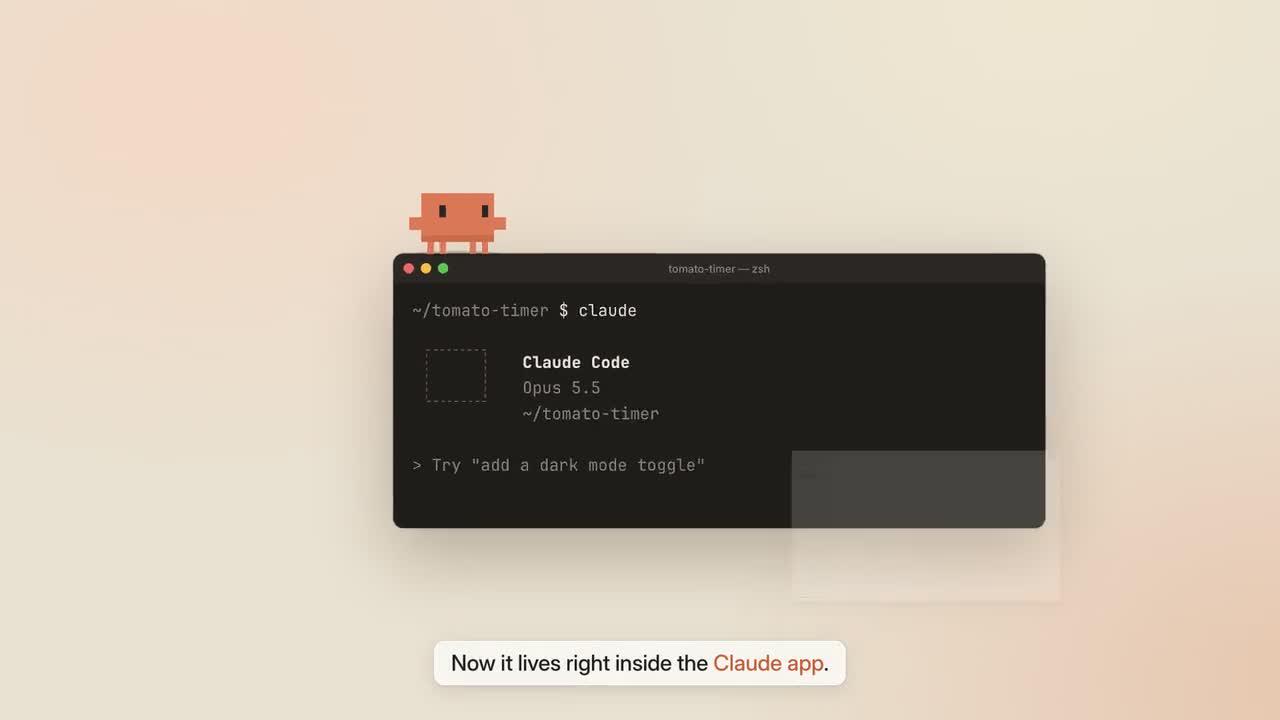
Original frame from Clawd Moves In. Credit: LemoLab. The author identifies this as an unofficial fan film.
1. Understand what “living screencast” means
The Living Screencast visual contract deliberately contrasts a low-resolution mascot with a high-resolution interface. Windows and controls are reconstructed in HTML/CSS/SVG; they are not screenshots. A cursor represents the user, while Clawd performs the software’s activity.
That distinction matters when reading the film. A displayed diff, passing check, or Plan label belongs to the authored demonstration. It does not prove that this website ran the pictured task or that every interface detail remains current. Consult current product documentation before adapting it into instructions for a live product.
In the Clawd case’s chapter notes, the mascot connects the chapters through continuous movement and cause-and-effect actions. Preserve that sequence; its test figures are demonstration content, not independently measured results.
2. Inspect the editable scene before installing extras
Read demo/film.js for timing, ui.js for interface states, clawd.js for the sprite, and main.js for camera, DOM measurements, and overlays. The mascot’s contact positions are derived from interface geometry. Hard-coded landing coordinates can drift away when a window or camera changes.
Preserve the published MP4; label separate local previews as reproductions.
Conditional Mac preparation: install Git, Node 20+, FFmpeg/ffprobe, and Python 3.11–3.13 or uv. Use a fresh clone or an existing reviewed copy:
git clone https://github.com/lemomo-ai/lemo-opuscar.git clawd-case
cd clawd-case
export LEMO_OPUSCAR_HOME="$PWD"
sh plugin/skills/lemo-opuscar/scripts/setup.sh deps voice
for BANK in salamander freepats karoryfer vcsl vsco2ce; do
sh tools/fetch.sh instruments "$BANK"
done
mkdir -p evidence
D=styles/living-screencast/demo
git rev-parse HEAD > evidence/clawd-commit.txt
npm ls --depth=0 > evidence/clawd-dependencies.txt
These banks cover the credited instruments. Retain notices and the package lock; no installation or render is claimed here.
3. Use a new reproduction prompt
This prompt is newly written for the tutorial, not recovered from the author’s original session:
Reproduce and analyze Clawd Moves In from the living-screencast demo source.
Inspect the current commit, locks, STYLE.md, DEMO.md, CREDITS, core APIs,
and demo/build.sh. Read the author MP4 and actual local files first.
Keep it an attributed unofficial fan-film reproduction. Do not claim the
reconstructed UI is a real recording or that its tests ran on EveryGen AI. Preserve
Clawd's terminal-to-app journey, the existing chapters, and coherent demo data.
Report discrepancies with current product documentation without inventing new
features. No replacement stock footage or external image/video generation.
Inspect film.js, ui.js, clawd.js, main.js, voice files, word timings, and sound.py.
Explain the dependency plan and source duration/fps before building. Use the
source's 59.4 seconds and 30 fps only after checking them.
Keep crisp pixel-grid acting, a smoothly moving cursor, and a continuous camera.
Measure DOM anchors so Clawd lands on real element edges. Reserve text-free
space for the mascot and captions. Derive all scene state from absolute time;
reverse and arbitrary seeks must reproduce the same state in this environment.
If speech is regenerated, review every line and its word times before relying
on W(id, word) cues. Preserve original credits and fan-film disclosure. Use the
actual build/export interfaces. Save model/provider/effort logs, prompts,
modifications, frame checks, and the full output. Do not publish or report
an untested reconstruction as successful.
Check the event order before building. Mascot movement should direct attention without competing with readable text.
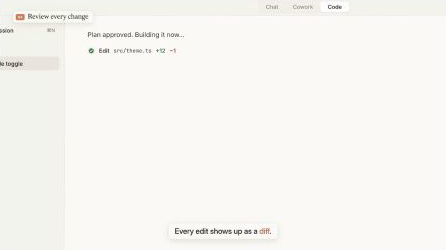
Second original-film frame. Read it as part of a reconstructed software walkthrough, not evidence of an actual coding session.
4. Build with the correct voice option
The living-screencast build entry supports --vo to regenerate and recheck narration:
sh styles/living-screencast/demo/build.sh --vo
Use this option when you need to regenerate narration. Without --vo, the script expects usable existing voice assets. It exports events, builds sound, renders at 30 fps, muxes the MP4, writes subtitles, and creates selected stills. Its checked source uses six capture workers; changing concurrency requires a documented edit, not an invented command-line flag.
Regeneration can change speech timing. Listen for the product name and keep keypress sounds away from word onsets. Check narration, caption holds, and mascot arrivals together; a transcript match does not prove the mix is intelligible. The source connects visual cues to spoken-word timing and sound events.
5. Inspect contact and reading time
node core/render/still.mjs "$D" 0 8.9 23 32 40.9 56 \
--out evidence/clawd-stills
Use these source-based sampling points, then inspect adjacent frames around each actual takeoff, landing, menu opening, and pane transition. View the whole film too: stills cannot show a teleport or an effect masking speech.
Fix only the observed contact, overlap, blur, or timing defect. Re-measure the
DOM anchor rather than nudging Clawd by eye. Preserve the product demonstration
and duration. Keep readable text sharp, clear the caption lane, and move foley
off important words. Show code changes and fresh boundary frames, then replay
the affected chapter with sound. Do not claim a fix passed without checking it.
If a scene changes after backward seeking, investigate accumulated state or missing resets. If fonts are absent, restore the credited files before judging layout. Do not cover a faulty transition with unrelated B-roll.
6. Check the export and its rights
ffprobe -v error -count_frames -show_streams -show_format -of json \
styles/living-screencast/living-screencast.mp4
ffmpeg -v error -i styles/living-screencast/living-screencast.mp4 -f null -
An unchanged 59.4-second, 30 fps picture implies 1,782 frames. Verify actual output metadata, complete narration, captions, and the closing fan-film credit. The downloadable web file may have different encoding settings from a fresh source render; do not claim a byte-identical reproduction.
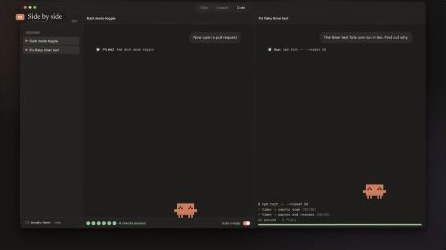
Additional frame from the published Clawd film. Preserve creator credit and the distinction between animated interface and live operation.
Save the editable source, dependency records, prompts, changes, and reviewed output. Lemo’s MIT code license does not relicense Anthropic’s character/interface identity or the music samples. The Clawd film’s attribution sheet lists OFL fonts, CC BY piano/drum samples, CC0 material, and the unofficial status. Keep the required notices rather than presenting this fan film as an official product endorsement.