 EveryGen AI
Genjutsu AI Video Studio
Bring source footage and visual references together. Explore Motion Transfer and Object Swap to create your next version.
Upload a source video of at least 4 seconds and 1–8 ordered reference images. Select a 4–30-second segment on the video card; otherwise the first 30 seconds guide the new performance.
Generation is not available yet. Browse examples, prepare references and save your draft.
Motion & swap presets
Two ways to remix a video
Start with what should stay, then decide what should change.
One source. Your own direction.
Bring a source video and visual references together. Motion Transfer reinterprets the performance; Object Swap targets selected elements in the shot. Explore both in the studio and compare the inputs behind each result.
Demonstrations and featured examples: Higgsfield. Reference results, not generations made on EveryGen AI.
Build the change, step by step
Source, references, direction and review belong in one workflow.
Start with a useful source
Choose a clear 4–30 second action or shot. Select the segment on its video card.
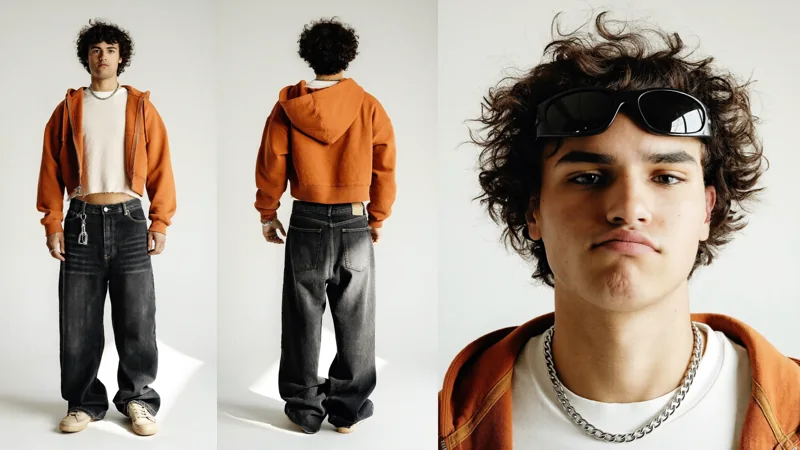
Add ordered references
Upload 1–8 images. Give each character, outfit, product or place a clear reference.
Direct the new version
Connect each image with its role. Instructions are optional; references still guide the result.
Quote, create, compare
Choose 480p, 720p or 1080p, review the credit quote, then inspect the result.
From a source to a new creative direction


Swap a location and the character Image 2 - location Image 1 - actor Image 3 - second look
Reusing inputs is free. Generation starts only after you submit in the studio.
See where the source can take you
Inspect real example inputs before loading them into your studio.
Turn one routine into another world
Umbrella Transformation · 1 source + 3 images
A different look inside the shot
Golden Gown · 1 source + 1 images
Recast a couple together
Couple Recast · 1 source + 2 images
A new face for the same walk
Selfie Walk · 1 source + 1 images
Give the product a new direction
Handbag Slide · 1 source + 2 images
Reimagine a countryside encounter
Countryside Duo · 1 source + 3 images
Find more characters, outfits, scenes and product workflows in the library.
Explore the libraryRecast the performance. Or change its focal point.
Choose Motion Transfer for a new cast or world guided by the source movement. Choose Object Swap for a selected character, outfit or product. Use the matching examples to see how the two approaches differ.
Read the workflow guideGenjutsu workflow guides
Original guides to preparing inputs, inspecting examples and understanding your request.
Before you create
A few practical details about inputs, reuse and review.
A clearer start. A better next step.
Need help with your workflow? hi@everygenai.app ↗
01What should I prepare?
One source video and 1–8 reference images. Choose a 4–30 second segment; otherwise at most the first 30 seconds are used. Duration and framing follow the prepared source. Object Swap requires at least 409,600 pixels per source frame.
02Do I have to write a prompt?
Both modes accept an empty prompt. For a more specific change, describe the target and the role of each ordered image. An example with no prompt loads an empty prompt, together with its original inputs.
03What does Use This Prompt load?
The complete source video, ordered reference images, prompt and matching mode. Compatible current settings are preserved. Loading inputs does not start generation or charge credits; review your draft and submit separately.
04What should I inspect in the result?
Compare timing, body movement, identity and camera continuity. For Object Swap examples, also inspect target edges, overlaps and the surrounding scene. References guide a result rather than guarantee an exact copy.
05How do I check the cost?
The prepared source duration is rounded up to whole seconds and priced at the selected resolution. Review the studio credit quote before submitting. Each new generation is quoted and settled separately.


Keep what inspires you. Create what comes next.
Start from a complete example, or bring your own source and references.
Open the studio