 EveryGen AI
EveryGen AI 資訊圖指南:用 GPT-Image-2 檢查準確文字
用 EveryGen AI 規劃資訊圖。明確流程、標籤、數字與比較規則,再對照來源檢查生成版面配置。
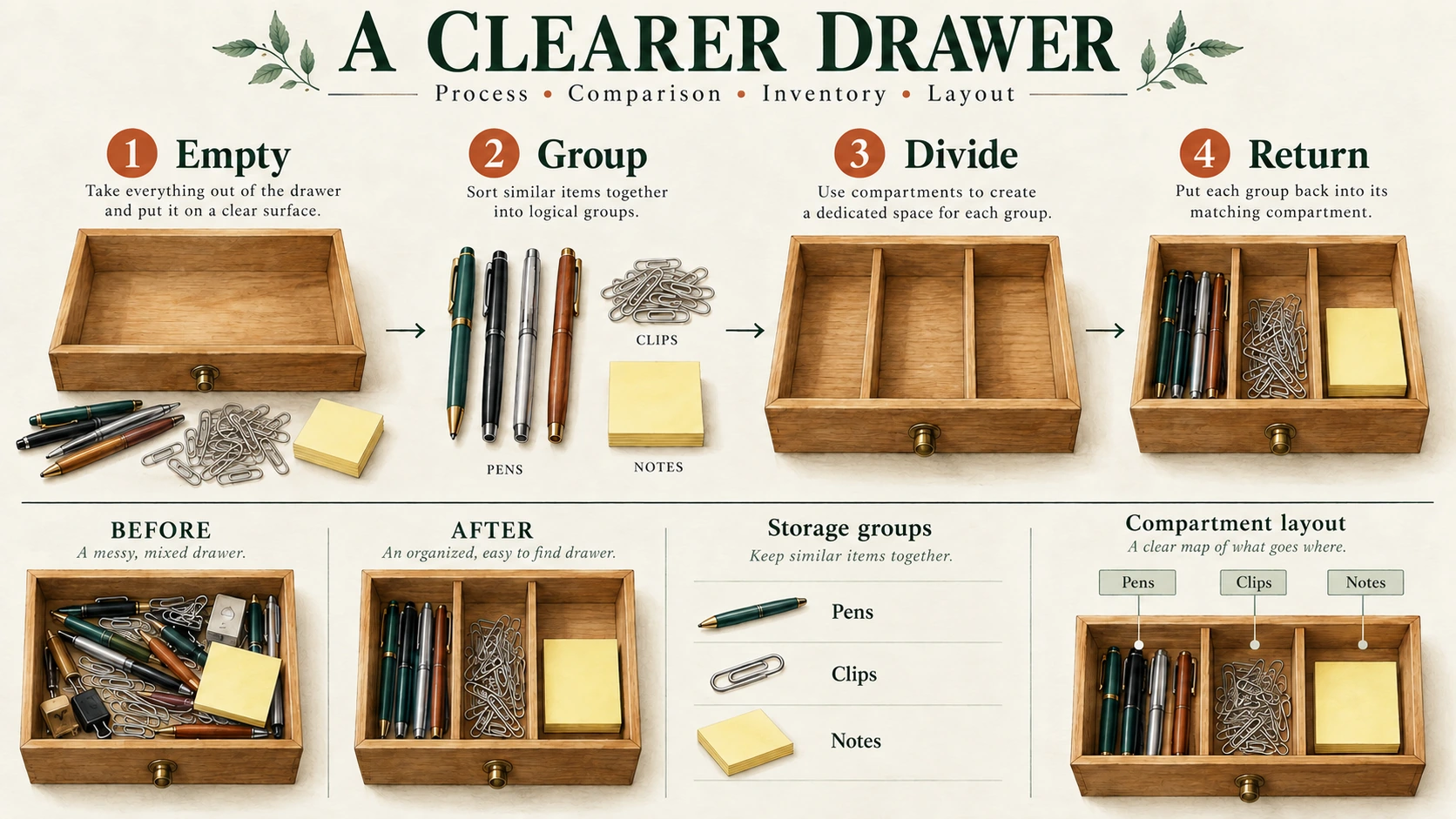
EveryGen AI 流程資訊圖需要正確文字、箭頭與圖示動作。圖表讓讀者先放回物品、後加隔板時,拼寫正確也救不了它。檢查整個解釋怎樣運作。
本教學將核對過的四步提綱——Organize a Desk Drawer——轉為直式資訊圖。你將準備內容,用 EveryGen AI 生成候選,分別檢查四種準確性,分享檔案前修正問題。
預覽預期結果
EveryGen AI 範例要求四張上下排列卡片,編號 1–4,以及三支向下箭頭。每張卡結合一條短指令與對應階段插畫。
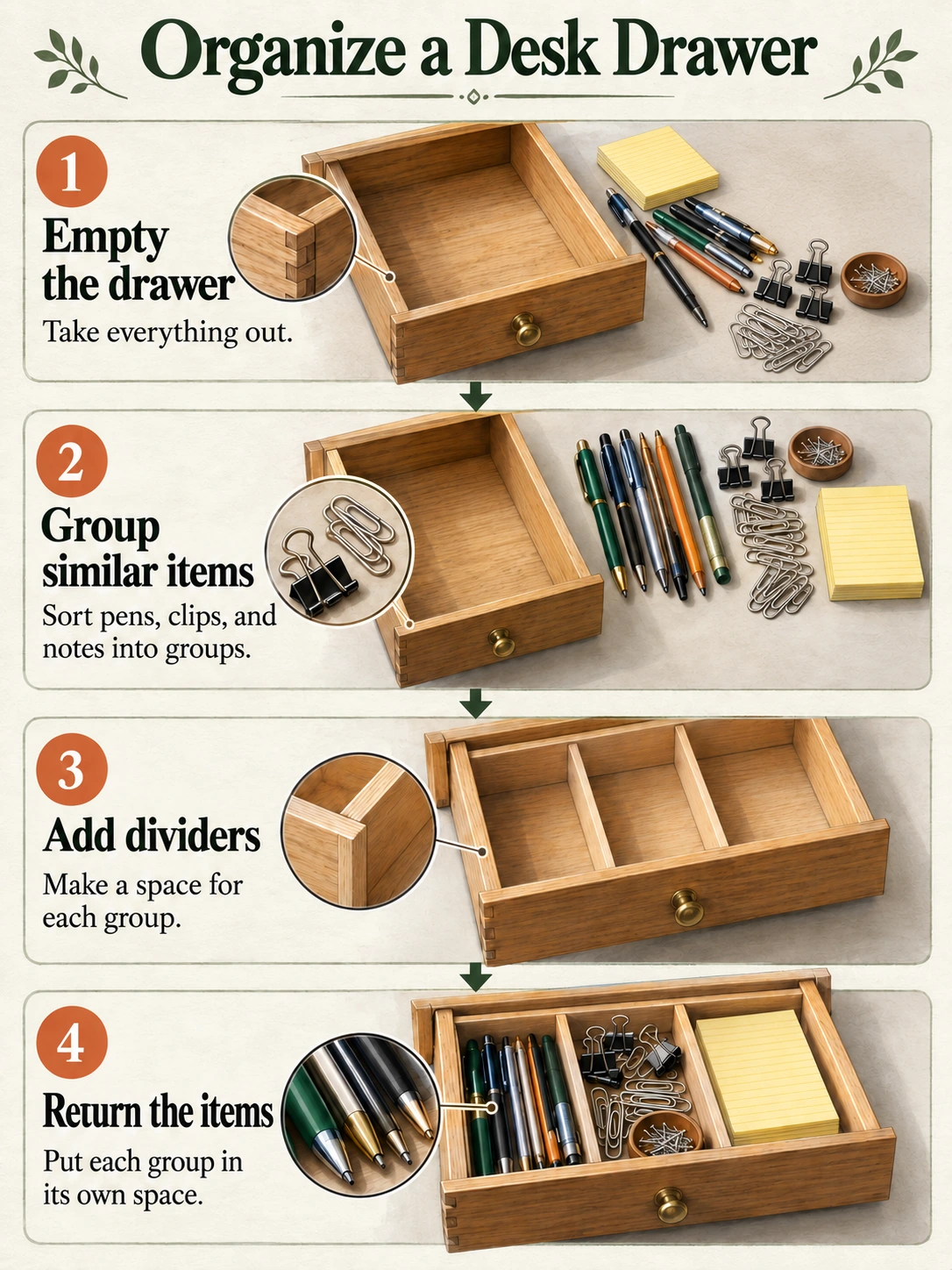
Codex 生成的教學插畫,不是 EveryGen AI 輸出。這是靜態圖片,不是包含可編輯文字、箭頭或卡片的檔案。
EveryGen AI 目標是核對過的解釋,不含統計圖或無依據省時宣稱。評估讀者能否按所供資訊跟隨方法。
1. 設計圖片前先確認內容
提交 EveryGen AI 前,在獨立文字文件保留標題與指令。按已確認來源審閱生成措辭,不要接受看似合理的改寫。
標題:Organize a Desk Drawer
-
Empty the drawer
Take everything out. -
Group similar items
Sort pens, clips, and notes into groups. -
Add dividers
Make a space for each group. -
Return the items
Put each group in its own space.
從上到下閱讀 EveryGen AI 步驟。這是範例中一種直接整理方法,不聲稱每個抽屜都需要相同安排。
給 EveryGen AI 輸出設計風格前,先檢查流程:物品取出,形成三組;空抽屜收到隔板之後,物品才放回。數字表示順序,不是資料點。
插畫需要區分這些狀態:
| 卡片 | 插畫應展示什麼 |
|---|---|
| 1 | 空抽屜,取出的物品在外面 |
| 2 | 筆、夾子與便條紙分成三組 |
| 3 | 空抽屜分成三個空間 |
| 4 | 每組物品放進對應空間 |
第三張 EveryGen AI 插畫不能展示裝滿抽屜,那是步驟 4 的結果,不是步驟 3 的動作,與旁邊指令矛盾。
給序列簡單版面配置
在 EveryGen AI 使用單一直欄,不要迴圈或分支圖。給短句足夠空間,插畫分開,讓文具不干擾文字。
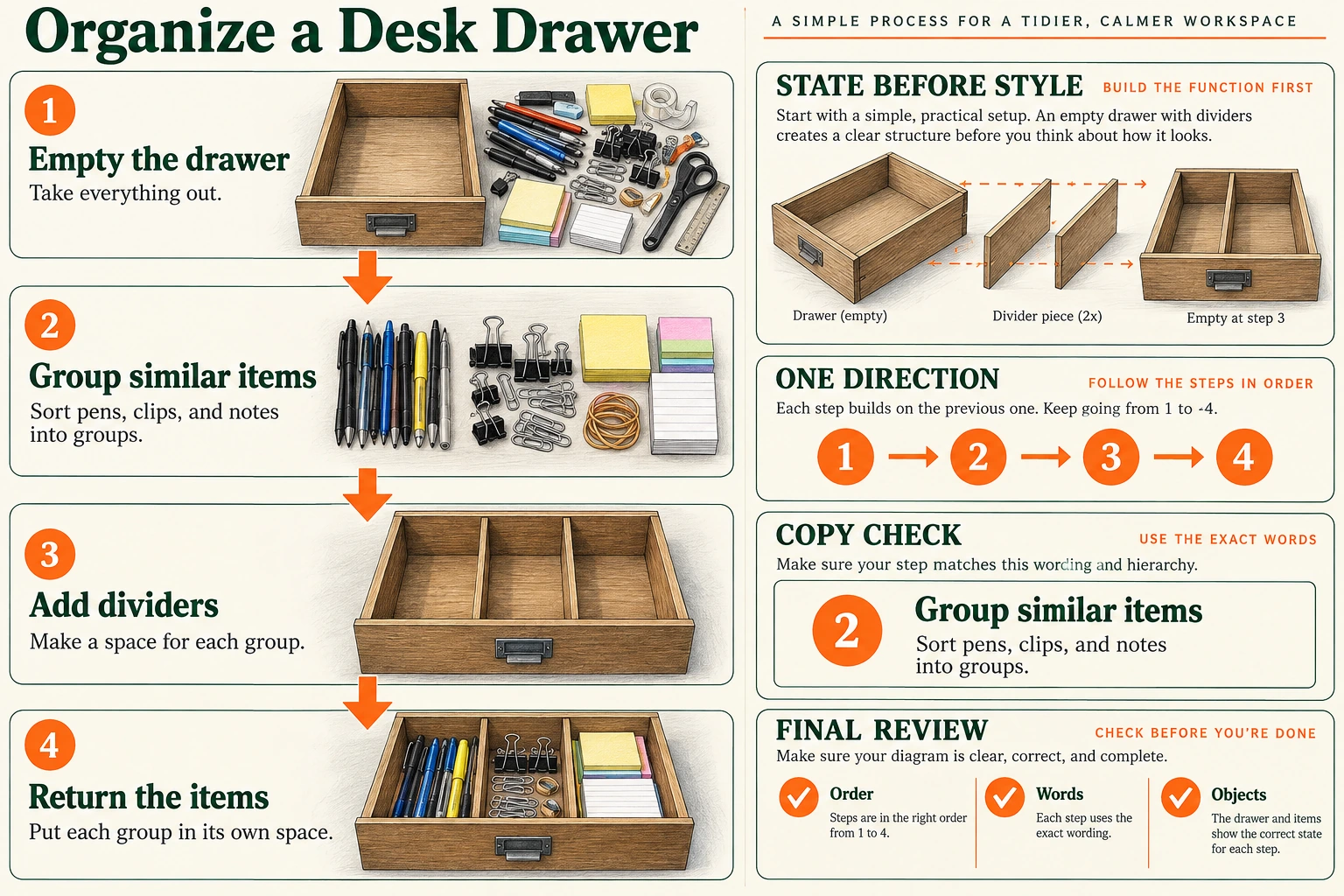
Codex 生成的規劃板。它讓從空到滿的狀態變化、閱讀方向及審閱標準可見;不是可編輯模板或 EveryGen AI 輸出。
規劃板解釋 EveryGen AI 版面配置。文生圖流程無需生成或上傳它;它作為狀態、方向及審閱標準的視覺指南。
2. 複製明確文字、關係與畫面的提示詞
此提示詞直接請求完成的資訊圖,將精確文字與視覺指令分開。
Create one static process infographic on a 3:4 portrait canvas.

Purpose:
Explain a simple four-step method for organizing a desk drawer.
Use the supplied instructions without adding statistics, time estimates, productivity claims, or extra advice.

Place this exact title at the top:
Organize a Desk Drawer

Layout:
Create exactly four cards in one vertical column.
Keep the cards equal in width, with consistent margins and spacing.
Number them 1, 2, 3, and 4 from top to bottom.
Each card must contain its number, exact heading, exact short sentence, and a separate illustration area.

Connect the cards with exactly three downward arrows:
Card 1 to Card 2.
Card 2 to Card 3.
Card 3 to Card 4.

Do not add upward arrows, branches, loops, or an arrow after Card 4.

CARD 1
Number: 1
Heading: Empty the drawer
Sentence: Take everything out.
Illustration: Show an empty desk drawer with the removed pens, clips, and notes outside it on the nearby surface. The drawer interior must be empty.

CARD 2
Number: 2
Heading: Group similar items
Sentence: Sort pens, clips, and notes into groups.
Illustration: Show the pens, clips, and notes separated into three distinct groups on a surface. Do not show everything already placed inside a finished drawer.

CARD 3
Number: 3
Heading: Add dividers
Sentence: Make a space for each group.
Illustration: Show the same drawer with dividers creating three empty spaces. Do not put stationery into these spaces yet.

CARD 4
Number: 4
Heading: Return the items
Sentence: Put each group in its own space.
Illustration: Show the divided drawer with pens in one space, clips in another, and notes in the third.

Visual treatment:
Use realistic-looking color illustrations of the drawer and stationery.
Keep the drawer design and the appearance of the item groups consistent across the cards.
Use a plain light background, dark readable text, and restrained color accents.
Keep all illustrations separate from the text.
Make the title most prominent, followed by the step headings and then the short sentences.

Text requirements:
Render the title and each supplied heading and sentence exactly once.
Preserve capitalization and punctuation.
Render each card number once.
Do not print the words Number, Heading, Sentence, Illustration, or CARD.
Do not add labels inside the illustrations.

Exclusions:
No additional steps, charts, percentages, decorative badges, logos, or background scenes.
No cropped words or illustrations.
No alternate layouts or side-by-side versions.
提示詞定義 EveryGen AI 檢查標準,不保證每個字、箭頭或圖示狀態正確;已確認提綱仍是審閱必需依據。
3. 在 EveryGen AI 生成候選
開啟 EveryGen AI,把核對過的提綱變成流程圖片。
已核驗的 EveryGen AI 介面初始 Text to Image、GPT Image 2、1:1、1K、JPEG 和 x1。開啟設定,為此範例將比例從 1:1 改為 3:4。
| 設定 | 此資訊圖的選擇 |
|---|---|
| 模式 | Text to Image |
| 模型 | GPT Image 2 |
| 寬高比 | 3:4 直式 |
| 解析度預設 | 1K |
| 輸出格式 | JPEG |
| 輸出數量 | x1 |
貼上完整提示詞,確認 EveryGen AI 設定,提交前審閱顯示點數。把選定候選與提示詞、設定一起儲存,讓後續修改有可識別起點。
兩張插畫是獨立教學素材,不確立此 EveryGen AI JPEG 流程有 PNG 匯出選項。
請求更多畫素前,先檢查 EveryGen AI 內容。更高解析度不能補缺句或反轉錯誤箭頭;先修正解釋。
4. 分開檢查四件事
開啟下載檔案,不只依賴小預覽。
文字:逐行對照已確認文案
把 EveryGen AI 主標題、四個步驟標題、四條短句及編號 1–4,與已確認文案比較。檢查完整性,也檢查拼寫。
慢慢閱讀 EveryGen AI 小字句子。檢查 Sort pens, clips, and notes into groups. 的逗號,以及四句末尾句號。留意重複詞、缺字及虛構字幕。
不要只為匹配錯誤圖片而改變已確認文字。
流程:沿每條連接走
從卡片 1 開始追蹤箭頭:
1 → 2 → 3 → 4
EveryGen AI 流程需要相鄰卡片間三支向下箭頭。向上連接、跳過卡片 2,或從卡片 4 返回卡片 1 的迴圈,都會改變方法。
既審閱實際卡片順序,也審閱 EveryGen AI 標籤。給錯誤排列插畫重新編號,即使數字整齊,動作仍可能次序錯誤。
圖片:驗證每張卡的動作
將每張插畫與步驟 1 的狀態表比較。
在 EveryGen AI 中,第一個抽屜為空;第二張卡展示外面的三組;第三張展示空的分隔空間。只有第四張把各組放回空間。
檢查 EveryGen AI 矛盾:步驟 3 抽屜已有文具、最後隔間混組,或圖片與錯誤標題配對。獨立於文字修正插畫狀態。
EveryGen AI 圖片應解釋動作,不是重複裝飾性整齊抽屜。每張卡必須展示自己階段,讓序列傳達變化。
展示尺寸:檢查實際閱讀體驗
先以 100% 縮放審閱 EveryGen AI,再以網頁或投影片計畫實際寬度檢查。按該尺寸檢查小句子;放大裁切可能掩蓋閱讀問題。
EveryGen AI 正文難讀時,給它更多空間、減少裝飾。按預期尺寸評估完整版面配置,不只放大個別詞。
匯出、縮放或修正改變最終檔案後,重新檢查 EveryGen AI 文字、流程、圖片與可讀性。先前獲認可版本不能驗證後續改動。
5. 修改一個已識別問題
儲存原 EveryGen AI 候選。切換 Image to Image,上傳該檔案,請求修正前確認預期比例及輸出設定。
獨立 EveryGen AI 編輯入口讓你基於儲存候選修改流程。使用實際檔案;教學插畫不是你生成的記錄。
如果 EveryGen AI 中卡片 2 與 3 之間連接向上,用這個聚焦修正請求:
Edit the uploaded drawer-organizing infographic.

Correct the connector between Card 2 and Card 3 so that it points downward from Card 2 to Card 3.

Keep exactly three downward arrows connecting 1 to 2, 2 to 3, and 3 to 4.
Do not add a loop or an arrow after Card 4.

Preserve the title, all four numbered cards, their exact headings and sentences, and their illustrations.
Keep the original 3:4 layout.
此 EveryGen AI 請求描述預期變化,不鎖定其他區域。之後重新檢查文字、圖片及其他箭頭,不只看修好的連接。
不同問題用不同修正:
| 問題 | 下一動作 |
|---|---|
| 句子拼錯或被改寫。 | 請求替換為精確已確認句子。仍錯誤時,在外部重建該文字。 |
| 卡片 3 有文具。 | 要求卡片 3 是空的三隔間抽屜,只在卡片 4 保留裝滿抽屜。 |
| 缺少步驟或順序改變。 | 返回已確認四步提綱。調整顏色或裝飾前先修正結構。 |
| 修改修好一支箭頭,卻改變其他內容。 | 排除它,返回儲存候選。不要從新引入錯誤的版本繼續。 |
| 文字仍太小。 | 給文案更多空間、簡化圖片,或用可編輯元素重建版面配置。 |
這些 EveryGen AI 修正路徑指導下一動作,不承諾請求成功。將每個修改檔案與已確認提綱及最後認可候選比較。
必要時在外部重建精確元素
反覆 EveryGen AI 修改後,文字或連接仍不可靠時,在外部用真實文字與形狀替換。新增替換前先去掉錯誤文字或箭頭,避免版本重疊。
需要完全可編輯備選時,可在 SmartArt 建立可編輯流程框。Microsoft 說明涵蓋輸入文字、新增、刪除或移動框。按已確認文案重建四步結構,再檢查閱讀順序。
這是獨立重建流程,不是隱藏 EveryGen AI 文字圖層功能。把生成 JPEG 當作圖片參考,不是四張已經可編輯的流程卡。
6. 交付圖片及指令
重開計畫分享的確切 EveryGen AI 檔案。檢查適合目的地的尺寸與裁切,再確認最終版本措辭、順序、圖示動作與可讀性。
把已確認文字與 EveryGen AI 圖片一起保留。網頁中將四條編號指令作為普通頁面文字,並解釋從上到下閱讀,如本文所示。
W3C 複雜圖片指南 將簡短圖片識別說明與關鍵資訊的完整解釋結合。對這個 EveryGen AI 資訊圖,應包含指令及順序,不要只寫“抽屜資訊圖”。
儲存核對過的 EveryGen AI 圖片、最終文案及外部可編輯來源。單獨標記早先候選,讓協作者認出獲認可檔案,避免誤分享未檢查版本。
讀者能從畫面或配套文字跟隨相同四步方法,無需猜順序或忽略矛盾狀態時,EveryGen AI 資訊圖才準備好。
把同一創作需求延伸到比較、資料與圖解版面配置
按讀者需要理解什麼選擇 EveryGen AI 版面配置:
| 用途 | 有用版面配置 | 檢查什麼 |
|---|---|---|
| 流程 | 四個有序階段 | 狀態變化與箭頭方向 |
| 比較 | 匹配的前後對照圖 | 同攝影機、尺度與主體 |
| 資料 | 帶標籤長條圖或簡單表格 | 已驗證數值、單位、總數與成比例刻度 |
| 圖解 | 俯視隔間或分解隔板 | 部件、標籤與物理關係 |
EveryGen AI 資料圖應提供精確資料集,獨立檢查表現。裝飾文具堆不是數量。封面對收納組分類,不測量數量,也不確立生產力宣稱。
EveryGen AI 細節在解釋裝配或狀態變化時有用。隱藏流程順序或引入無依據統計的細節,會削弱解釋,即使插畫看起來更複雜。