 EveryGen AI
AI meme generator in EveryGen AI for original scenes with a clear punchline
Let the joke arrive before someone starts decoding the picture. Use the AI meme generator in EveryGen AI to turn an everyday contradiction into an original visual gag. Begin with GPT Image 2 text mode at 1:1/1K. Give the scene one setup, a visible surprise, and minimal wording, then review how the relationship reads at the intended sharing size.
Image workspace
Sample Image
 25 / 30
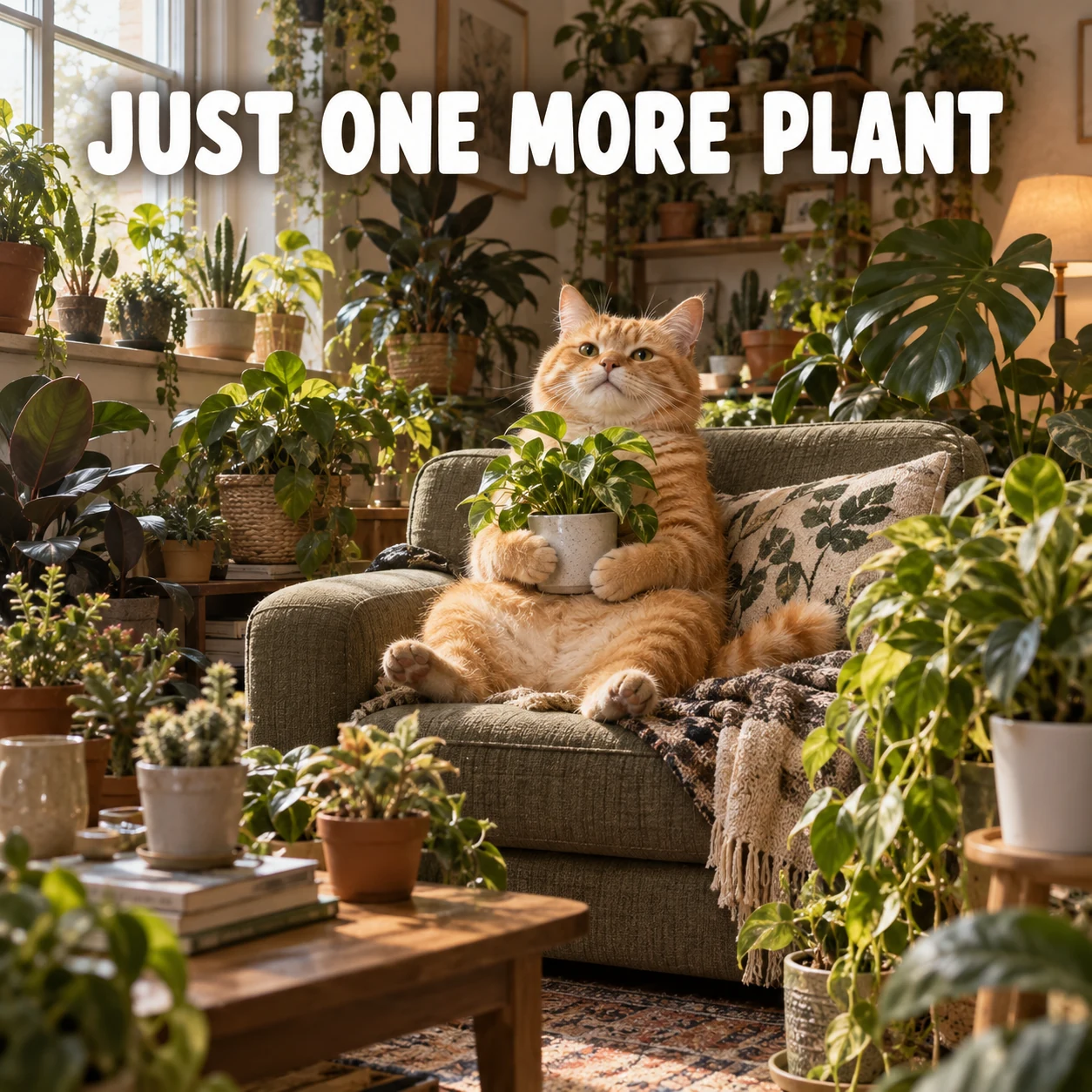
AI-generated plant-lover meme illustration with an orange cat.
Introduction
Give the AI meme generator a specific joke
Tell the AI meme generator in EveryGen AI what someone expects and what happens instead, using a situation your audience can recognize.
Start with a familiar moment
Try opening one more browser tab before finally starting work, or preparing a tiny snack with an absurd amount of equipment. Give the AI meme generator in EveryGen AI a concrete situation.
- Write the setup and unexpected turn in one sentence for EveryGen AI.
- Keep the AI meme generator idea in EveryGen AI focused on that contrast.
Choose a visual exaggeration
A mountain of notebooks beside one untouched blank page can exaggerate preparation replacing action. Ask the AI meme generator in EveryGen AI for one oversized or misplaced element. Too many absurd objects compete for attention and can make the scene feel random rather than deliberately funny.
Let the joke target a situation
An original fictional character struggling with a familiar task can carry the humor without borrowing a real person’s face. Give the AI meme generator in EveryGen AI an expressive subject and a clear problem. The audience should recognize the behavior, not need private background about someone depicted.
How to use
How to use the AI meme generator in EveryGen AI
- PromptSTEP 1
Choose the joke
Open GPT Image 2 text mode in the AI meme generator and describe a familiar situation with one clear visual exaggeration.
- ModelGPT Image 21K1:1PromptSTEP 2
Write the punchline
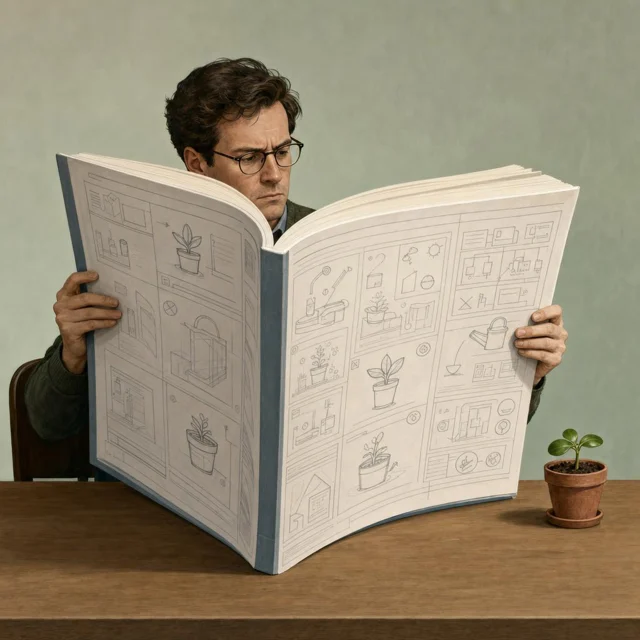
Give the AI meme generator a readable relationship, such as a tiny plant beside an enormous manual. Decide whether a short caption adds to the visual punchline.
- Detail
 STEP 3
Create the scene
Start the AI meme generator at square 1K, check the displayed credits, and generate the scene with either no text or your chosen short caption.
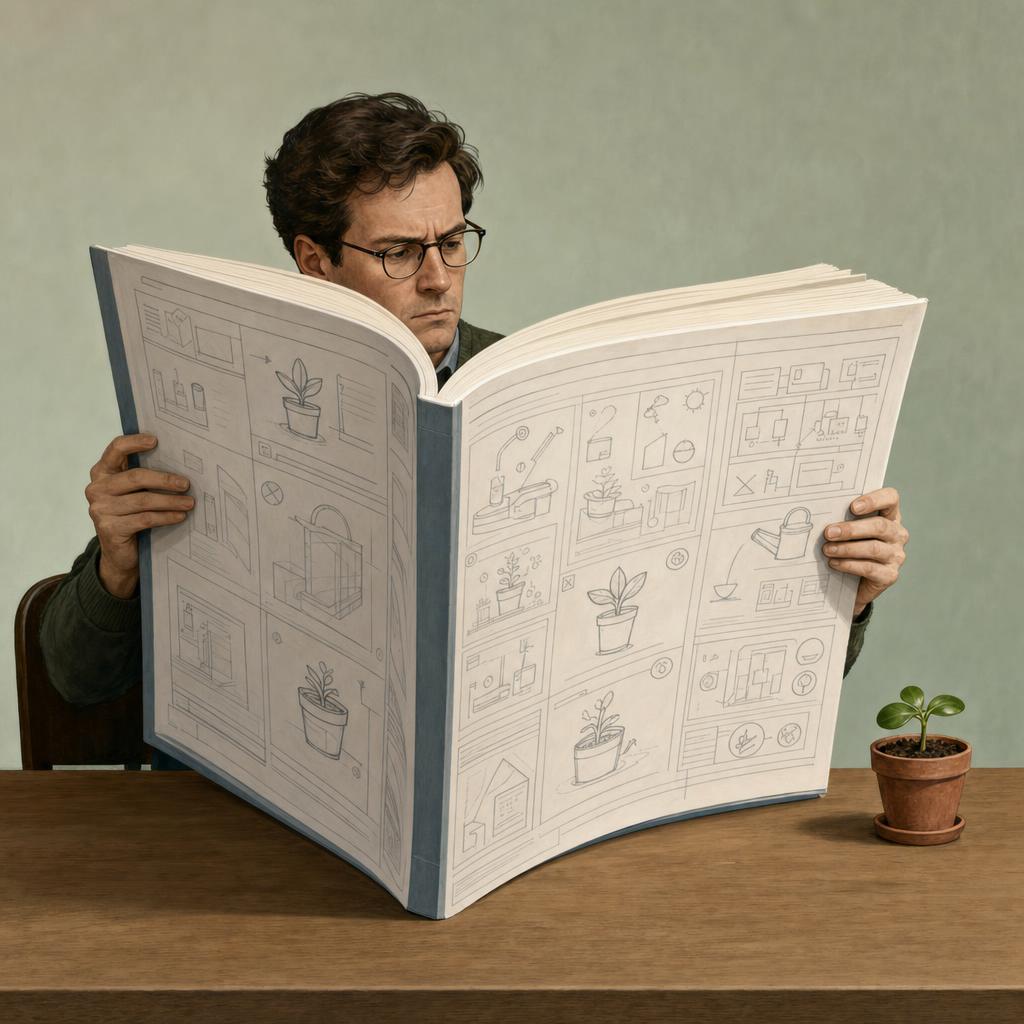
- Create an original humorous editorial illustration of a fictional adult carefully reading an enormous instruction manual beside one tiny uncomplicated potted plant. The person looks completely serious, the manual is comically oversized, and the plant is clearly visible next to it. Simple desk scene, clean composition, restrained colors, central visual relationship, square framing. No text anywhere, no readable book title, no logos, no extra people, no collage panels, and no clutter hiding the plant. The joke is excessive preparation for a very small task.DownloadSTEP 4
Check before sharing
Inspect AI meme generator spelling and expressions, preview the small crop, and correct confusing details before downloading your chosen image.
Features
Stage a readable AI meme generator scene
Ask the AI meme generator in EveryGen AI for a composition that makes the relationship between setup and surprise easy to understand.
Put the important objects together
A tiny plant beside an enormous instruction manual works only if both are easy to see. Tell the AI meme generator in EveryGen AI which objects carry the joke and how they relate. Avoid spreading the crucial information across opposite corners of a crowded scene.
- Keep the essential relationship central in your EveryGen AI composition brief.
- Inspect the AI meme generator joke from EveryGen AI without reading its caption.
Use expression as supporting information
A completely serious expression can strengthen an absurd situation, while surprise may help reveal a sudden mishap. Specify the intended reaction to the AI meme generator in EveryGen AI. An exaggerated face should support the joke rather than become a second unrelated punchline.
Remove unnecessary background stories
Choose a plain desk, simple kitchen, or quiet waiting area when the setting is not the main joke. The AI meme generator in EveryGen AI does not need a room full of hidden references. Fewer competing details leave more attention for the one visual contradiction that matters.
Keep AI meme generator wording short
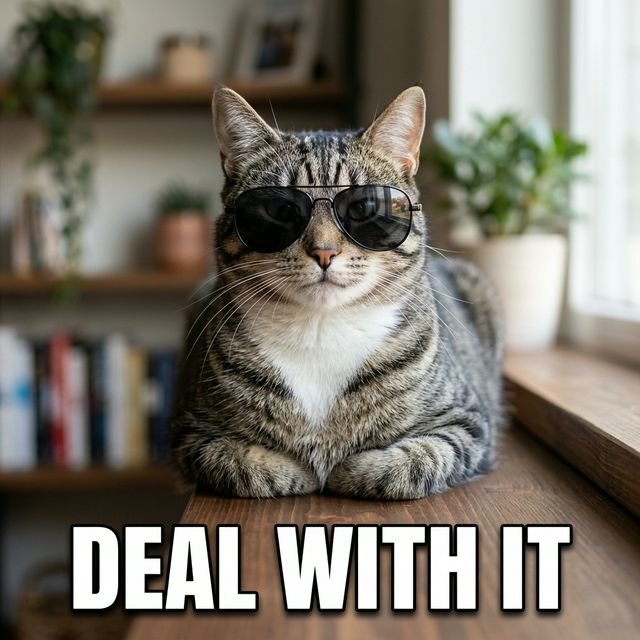
Give the AI meme generator in EveryGen AI a short line and clear placement so words sharpen the joke instead of explaining everything.
Write the line before generating
Try a compact phrase such as “ONE QUICK CHANGE” beside an obviously overcomplicated task. Put the exact wording in quotation marks for the AI meme generator in EveryGen AI. Shorter copy is easier to inspect and leaves more room for the picture to carry the humor.
- Give EveryGen AI one compact line before attempting a longer caption.
- Check AI meme generator spelling from EveryGen AI character by character.
Do not make the text fight the picture
Keep letters away from faces, essential props, and the visual reveal. Ask the AI meme generator in EveryGen AI for a calm text area with a simple background. A funny image becomes less useful when the key object sits behind a thick block of words.
Keep an editable alternative
For wording that must be exact, generate the scene without text and add the caption in a separate editor. The AI meme generator in EveryGen AI returns JPEG artwork, not editable text layers. This also lets you adjust timing or shorten the joke without rebuilding the image.
Prepare AI meme generator ideas for their audience
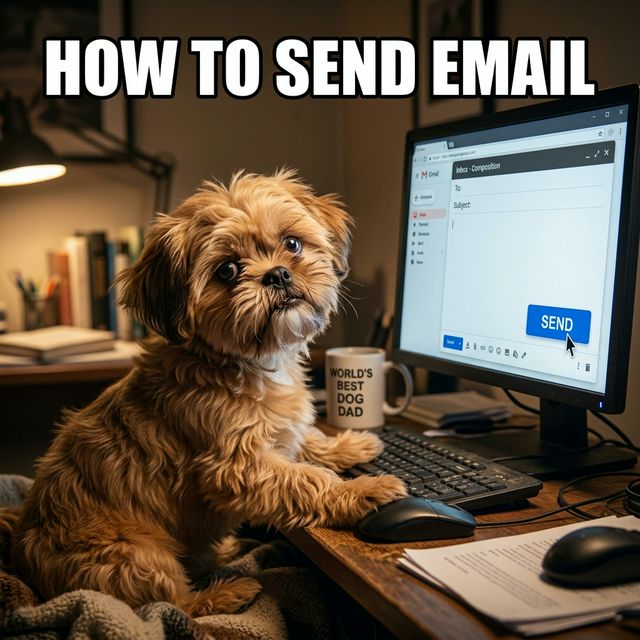
Brief the AI meme generator in EveryGen AI for the context your audience shares and the format where the joke will appear.
Use context the audience actually shares
A joke about revision requests may work for designers but need a simpler setup elsewhere. Brief the AI meme generator in EveryGen AI for that level of familiarity. Replace obscure references with visible actions when the image needs to make sense beyond a small group.
- Read the EveryGen AI draft as someone seeing the joke for the first time.
- Keep AI meme generator humor in EveryGen AI understandable without a long introduction.
Preview the smaller version
Look at the image around the size it will appear in a conversation or feed. If the punchline depends on tiny screen text, simplify it. Ask the AI meme generator in EveryGen AI for larger essential objects instead of adding more words to explain what became invisible.
Leave room around the joke
Keep wording, faces, and key props away from uncertain crop boundaries. The AI meme generator in EveryGen AI starts with a square frame, but another placement may need a different ratio. Recompose the joke when necessary rather than cutting off the very detail that makes it work.
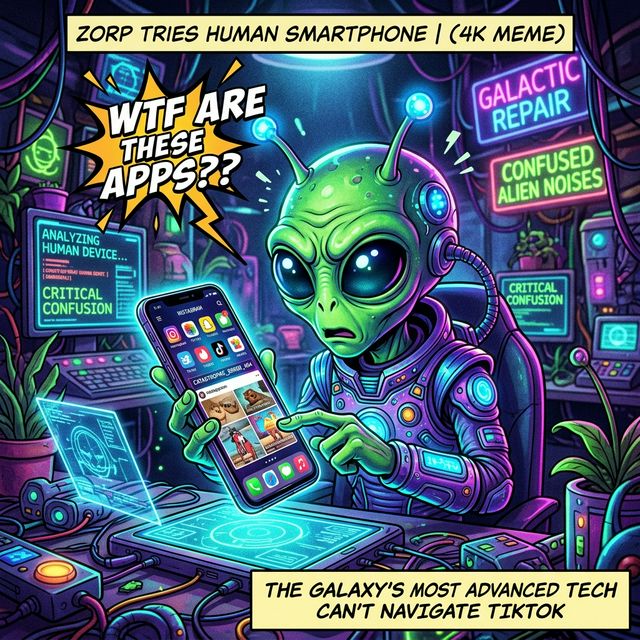
Try a focused AI meme generator request
Use the AI meme generator in EveryGen AI to test setup, surprise and reading order before comparing elaborate rendering styles.
Choose the square starting setup
Select GPT Image 2 text mode at 1:1/1K, with one output. Describe subject, situation, exaggeration and any wording in three to 20,000 characters, without needing an image. Review the AI meme generator settings in EveryGen AI, sign in with sufficient credits, and check the quote before cloud processing. Inputs and results are saved to your account.
- Specify a single scene in EveryGen AI when a collage would confuse the joke.
- Tell the AI meme generator in EveryGen AI what the viewer should notice first.
Change the joke’s timing
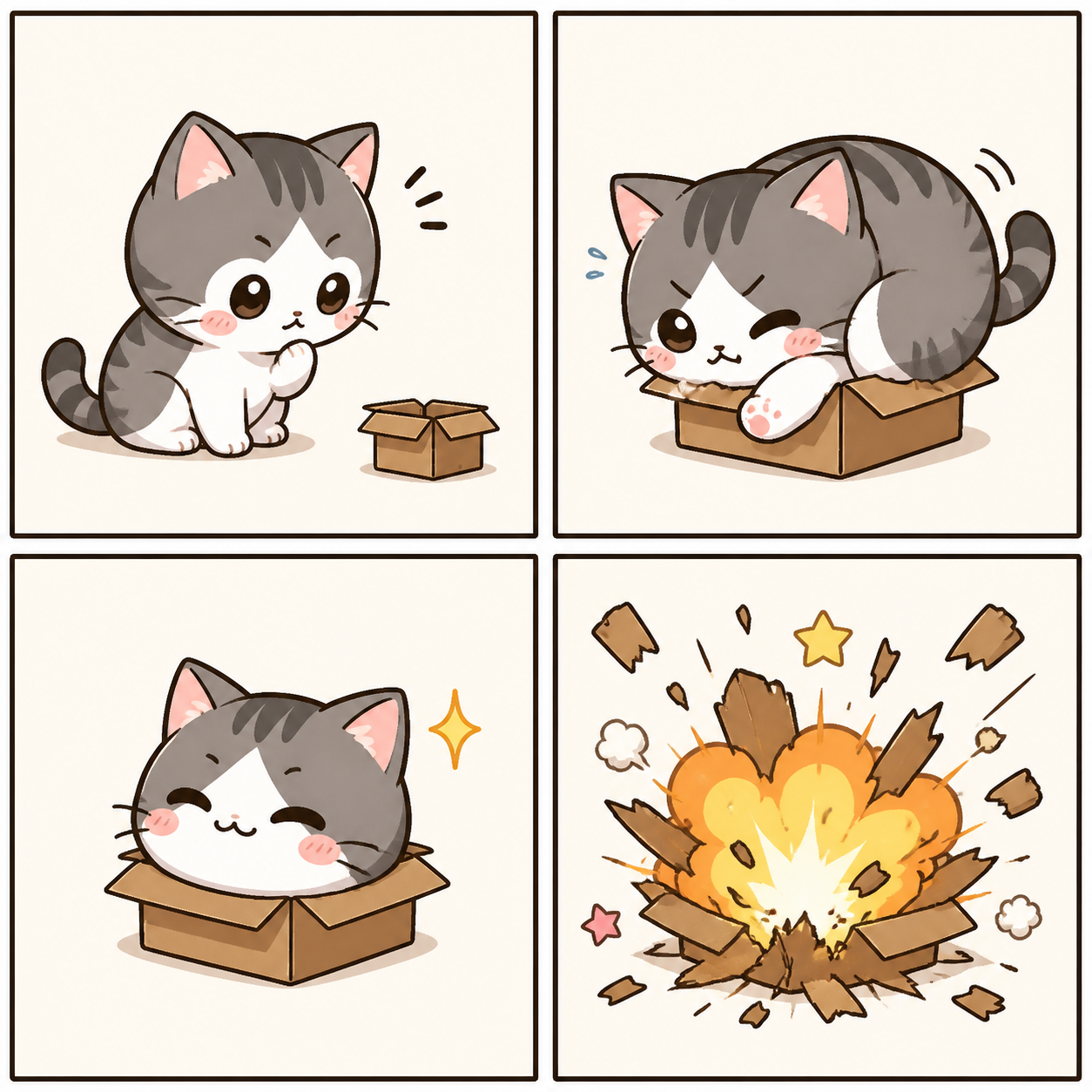
Compare showing the character just before the mishap with showing the aftermath. Keep the visual premise stable. The AI meme generator in EveryGen AI can explore either moment, but they may communicate different jokes.
Use references for a deliberate remix
Switch to image mode to reinterpret an authorized source. The AI meme generator in EveryGen AI requires one to sixteen references there and offers supported ratios, one to four outputs, and 1K, 2K, or 4K. GPT Image 2 requests JPEG/high quality. Assign each source a role and review unexpected changes; written directions do not lock source pixels.
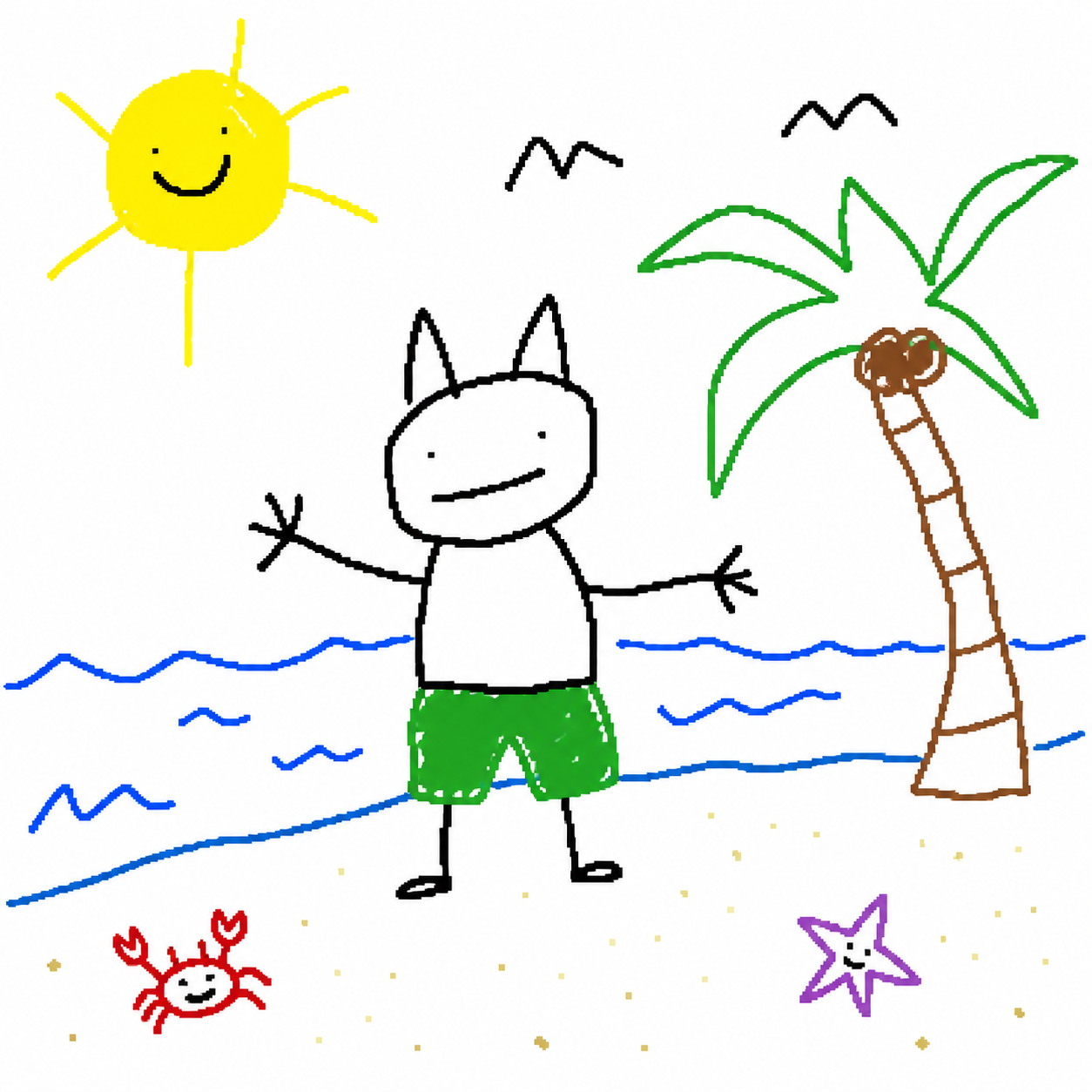
Review AI meme generator output before sharing
Check AI meme generator wording and visual logic from EveryGen AI so the image delivers the joke you intended.
Check the setup still makes sense
Count the essential objects and inspect the action. The AI meme generator in EveryGen AI may add an extra hand, merge a prop, or change the relationship that carries the joke. A deliberate impossible situation is different from an accidental defect that distracts from the idea.
- Check whether the EveryGen AI draft’s punchline survives without your explanation.
- Reject AI meme generator changes from EveryGen AI that turn the joke into confusion.
Review meaning as well as spelling
A missing word or altered expression can change the tone from playful to hostile. Read the AI meme generator in EveryGen AI result literally before sending it. With fictional scenes, avoid presenting the image as a photograph of a real event or a statement by a real person.
Keep the final crop intentional
Save the selected JPEG and check it in the destination layout before posting through your own workflow. The AI meme generator in EveryGen AI does not automatically publish it. Keep a textless version when practical so later caption changes do not require repairing lettering inside the picture.
Example prompts
The overprepared plant owner
Create an original humorous editorial illustration of a fictional adult carefully reading an enormous instruction manual beside one tiny uncomplicated potted plant. The person looks completely serious, the manual is comically oversized, and the plant is clearly visible next to it. Simple desk scene, clean composition, restrained colors, central visual relationship, square framing. No text anywhere, no readable book title, no logos, no extra people, no collage panels, and no clutter hiding the plant. The joke is excessive preparation for a very small task.
One quick change
Create a square original visual joke: a fictional adult maker sits at a plain workbench facing a tiny wooden object surrounded by an absurdly elaborate but neatly organized set of tools. The person has a calm, determined expression. Keep the small object and oversized preparation easy to understand. Add only the exact short caption "ONE QUICK CHANGE" in a clear quiet area at the top, not covering the face or central object. No other words, logos, extra characters, or panels. Clean readable illustration with one focal relationship.
Workflow examples
Illustrative ways to plan, generate, and review your work.
EveryGen AI workflow examples
Begin with a product photograph and a focused image-editing brief. Compare the draft with the original for shape, labels, and proportions before placing it into a listing. Add approved logos and exact copy in your design application.
Choose a video model and describe one small action, such as a careful object turn. Review the available duration, resolution, and credits. Check the completed take for object continuity and sound before using it in a larger edit.
Give the image workspace a subject, viewpoint, and visual metaphor that supports your article. Preview the result inside the intended layout. Adjust the crop or composition when it competes with the headline or obscures an important detail.
Sign in and use Compress Image when a picture has the right dimensions but a large file size. Compression runs in the browser; input and output images are saved to your account. Compare the result before downloading individual files or a ZIP.
Paste a draft into Humanize AI and select Natural, Friendly, or Professional tone. Review the rewrite for meaning, names, figures, and technical terms. Copy or download the version you have checked; detector scores and publication outcomes are not guaranteed.
Record the palette, viewpoint, lighting, and subject scale in a reusable brief. Supply relevant references where the selected image model supports them. Compare the images together, then revise specific differences instead of assuming automatic campaign-wide consistency.
EveryGen AI Pricing and Credit Plans
Cancel anytime
Lite
50% off0.025 / credit
Billed $ yearly179· Save $179.8
Video Models


Image Models



- Includes MiniMax H3 and all premium models
- Up to 1 batch generation task
- Standard generation speed
- Standard generation success rate
- Standard customer support
- Commercial Use License
Standard
50% off0.017 / credit
Billed $ yearly299· Save $299.8
Video Models
Image Models
- Includes MiniMax H3 and all premium models
- Up to 4 batch generation tasks
- Priority processing speed
- High generation success rate
- Priority customer support
- Commercial Use License
Pro
50% off0.014 / credit
Billed $ yearly599· Save $599.8
Video Models
Image Models
- Includes MiniMax H3 and all premium models
- Up to 10 batch generation tasks
- Fastest generation speed
- High generation success rate
- Dedicated account manager
- Commercial Use License
Max
50% off0.012 / credit
Billed $ yearly1,199· Save $1,199.8
Video Models
Image Models
- Includes MiniMax H3 and all premium models
- Up to 10 batch generation tasks
- Fastest generation speed
- High generation success rate
- Dedicated account manager
- Commercial Use License
Pay safely and securely with























FAQ
Frequently asked questions
Does the AI meme generator require an existing meme template?
The AI meme generator in EveryGen AI can create an original scene from a written setup without a starting image. Describe the familiar situation, surprising detail, and expression. The default GPT Image 2 text mode starts at 1:1/1K; a clear visual relationship gives you something specific to evaluate.
Can the AI meme generator render exact caption text?
Request short wording in EveryGen AI, then inspect every character. Exact lettering is not guaranteed. When the line must be precise or frequently revised, create a textless scene and add the caption in a separate editor. This keeps wording editable while preserving a useful illustration.
Can I upload a photo to the AI meme generator?
Switch to GPT Image 2 image mode in EveryGen AI and provide one to sixteen authorized references. Explain the reinterpretation and each source’s role. Compare the result with the source rather than assuming exact preservation. For fictional scenes, keep the presentation clear about what the image depicts.
How do I make an AI meme generator result readable?
Give EveryGen AI one main joke, large essential objects, and short wording. Preview the image at its intended display size. If someone must zoom in to discover the punchline, simplify the scene or make the important relationship more prominent. Review captions with the crop you actually plan to share.
Does the AI meme generator provide editable layers?
GPT Image 2 in EveryGen AI requests a JPEG raster image, without separate background, character, or text layers. Use another design editor for editable captions and finishing. A revised generation is a new image request, so check its configuration and credits instead of treating it as a layer edit.
CTA
Give the AI meme generator a joke worth seeing
Choose a familiar situation and one unexpected turn. Use the AI meme generator in EveryGen AI to make the visual relationship clear, then check wording and the sharing crop before posting through your own workflow.
Create an original meme