 EveryGen AI
Nano Banana Pro on EveryGen AI for structured concepts and image edits
Give the picture a clear reading order and a reason to exist. Nano Banana Pro on EveryGen AI starts in text mode with a square 1K canvas and supports image editing, 2K, and 4K selections. Develop a furniture poster, simplify a chair photograph, or place an invented reading light in context. Review the settings and credits, then inspect the image in its intended layout.
Image workspace
Sample Image
 3 / 30
Introduction
Explore Nano Banana Pro in EveryGen AI
Nano Banana Pro identifies Google’s Gemini 3 Pro Image model. EveryGen AI offers text creation and image editing for this selection, with its own supported canvas and request controls.
Start with the material that defines the task
Use text mode when the furniture poster or reading-light scene begins as an idea. Choose image mode when an existing chair photograph establishes the object to retain. Nano Banana Pro in EveryGen AI treats those as different input tasks. Text creation starts from a written prompt without references; editing needs at least one image.
Read the EveryGen AI model setup
EveryGen AI starts this Nano Banana Pro page at 1:1, 1K, and one requested output. You can request one to four images and supply up to fourteen editing references, with prompts up to 20,000 characters. The standard request specifies JPEG. Generation requires sign-in, sufficient credits, and network access for provider processing; inputs and outputs are saved to your account rather than produced as an offline browser transformation.

How to use
How to use Nano Banana Pro in EveryGen AI
- PromptSTEP 1
Choose a starting point
Open Nano Banana Pro in EveryGen AI. Use text for a new concept or select image editing and provide the references that define the existing subject to revise.
- ModelNano Banana Pro1K1:1PromptSTEP 2
Define hierarchy and reference roles
Give Nano Banana Pro a focal point, supporting elements, and lighting direction in EveryGen AI. For an edit, name the main source, intended change, and important details to retain.
- Detail
 STEP 3
Set the frame and review the quote
Choose Nano Banana Pro ratio, resolution, and requested count in EveryGen AI. Confirm the inputs and displayed credits before submitting the visual assignment for provider processing.
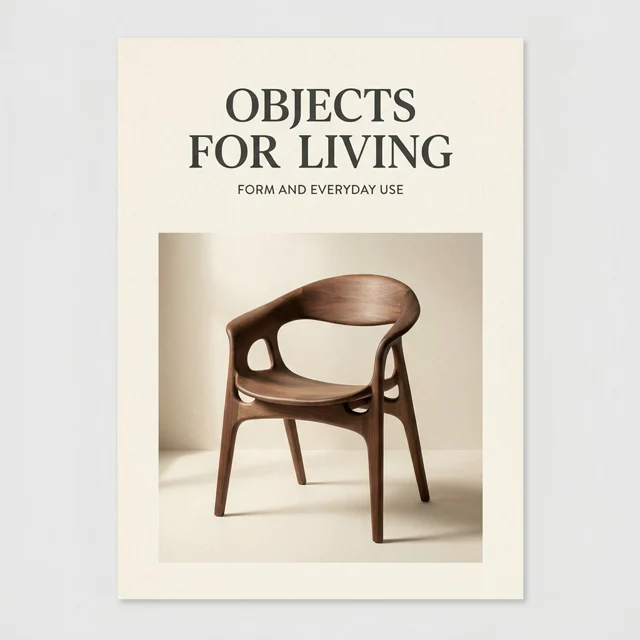
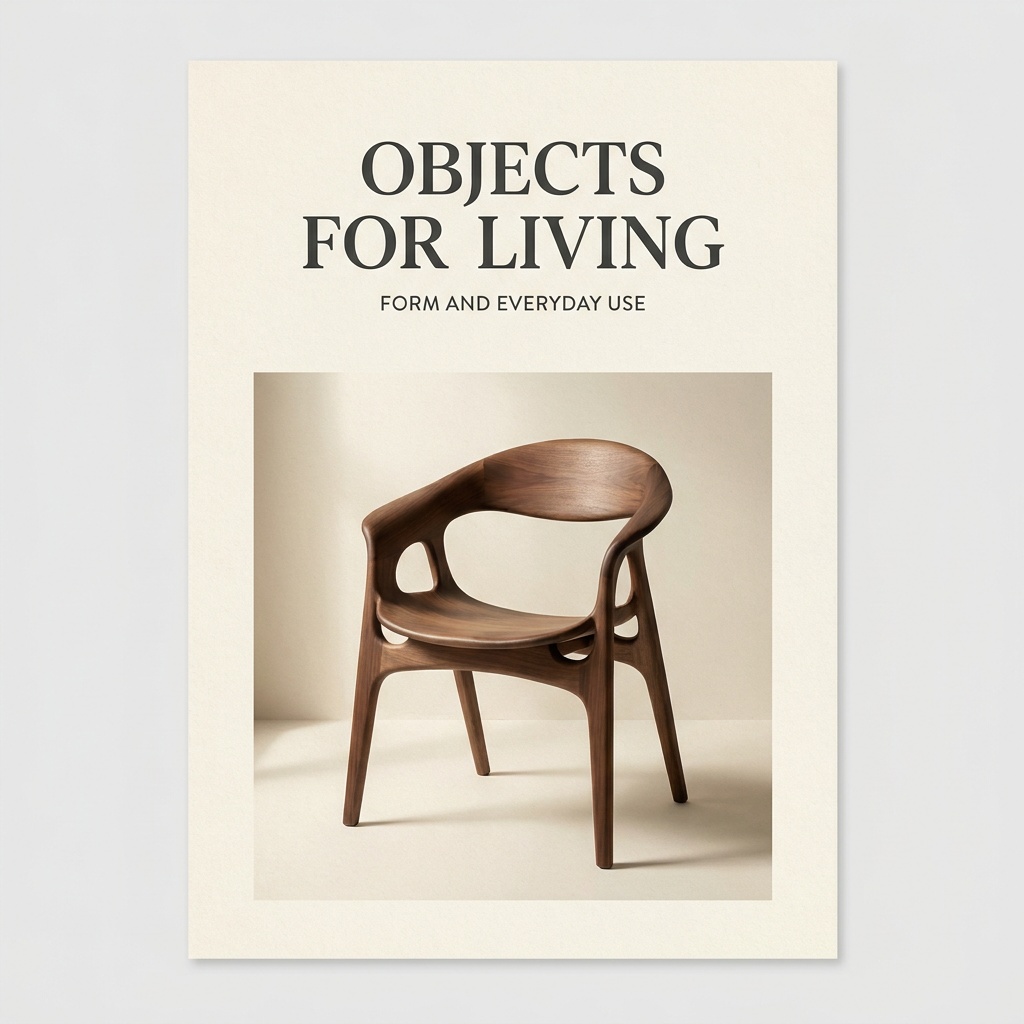
- Create a refined poster concept for a fictional furniture exhibition. Use the exact heading "OBJECTS FOR LIVING" above one sculptural wooden chair. Add only the smaller supporting line "FORM AND EVERYDAY USE" below the heading. Warm cream paper background, dark charcoal typography, soft side lighting, and generous margins. Give the chair a clear silhouette and keep the reading order obvious. No dates, prices, venue details, logos, or additional text.DownloadSTEP 4
Inspect the image in its layout
Review Nano Banana Pro output from EveryGen AI closely and at destination size. Check lettering, proportions, and reference details before approving artwork or requesting a specific correction.
Features
Give Nano Banana Pro a structured visual assignment
Define a main subject, short message, and reading order before decoration. A Nano Banana Pro brief in EveryGen AI becomes easier to assess when those priorities are explicit.
Make the poster hierarchy visible in EveryGen AI
For the fictional furniture exhibition, make the chair silhouette and title the first things to read. Ask Nano Banana Pro in EveryGen AI for generous margins, a large heading above the chair, and a quieter supporting line. Reduce the draft to its expected display size and check that the intended hierarchy remains clear before assessing decorative texture.
Keep the supplied wording short and inspectable
Provide the exact heading and supporting line, then describe their locations. Nano Banana Pro on EveryGen AI can receive that typographic assignment, but the returned lettering still needs proofreading. Inspect spelling, spacing, punctuation, and any unwanted additions. For an actual exhibition, supply approved details rather than inviting the model to invent a venue or date. Add longer or editable final copy in a design application when the project needs precise text control.
Anchor Nano Banana Pro edits to useful references
An image gives Nano Banana Pro an editing starting point; your instructions define the change. EveryGen AI lets you provide references whose roles should be explained individually.
Assign a primary image and reference roles
Choose a main chair image with visible legs, seams, upholstery, and perspective. If additional sources define lighting or a palette, explain those separate roles to Nano Banana Pro in EveryGen AI. Up to fourteen references are supported, but use only those that contribute to the requested change. Ask for a warm plaster wall and pale floor while aiming to retain construction, fabric, camera angle, and the contact beneath each leg.
Compare the EveryGen AI revision with the chair source
Compare the complete Nano Banana Pro edit from EveryGen AI with the chair source, not only the wall you asked to replace. Inspect seams, leg geometry, color, and how the chair meets the floor. A convincing new setting can still change important details. Keep the source available and identify an observed problem before requesting another revision; preservation instructions express your intent rather than proving every feature will remain identical.
Develop a product scene with Nano Banana Pro
Use the setting to clarify a subject’s scale or purpose. Direct Nano Banana Pro in EveryGen AI toward useful context instead of accessories that compete with the object.
Let the context explain the main object
A compact reading light beside a closed book can communicate scale and use without a crowded desk. Tell Nano Banana Pro in EveryGen AI how the shade, base, and book relate, and leave a quiet area where later copy belongs. Make lighting readable: the warm pool should show its purpose while ambient light keeps the desk visible. Review whether the supporting objects clarify the scene rather than becoming its subject.
Separate an EveryGen AI concept from product evidence
The reading-light prompt describes an original concept. For an actual item, provide accurate source imagery and inspect Nano Banana Pro changes in EveryGen AI against its construction and finish. A different shade shape, closure, label, or apparent material may misrepresent the object even if the scene looks polished. Keep invented designs separate from product evidence, and use a focused presentation edit when the real object itself should remain recognizable.
Choose Nano Banana Pro resolution deliberately
EveryGen AI offers 1K, 2K, and 4K for Nano Banana Pro. Select the size alongside the canvas shape and requested count, then review the displayed quote.
Choose a file profile for the destination
Plan whether the file will sit in a small website card, fill a presentation area, or support a larger composition. Nano Banana Pro on EveryGen AI provides 1K, 2K, and 4K selections plus ten supported ratios, including square, portrait, landscape, and 21:9. This model’s ratio list has no automatic option here. Choose a frame that gives the chair or light useful space before increasing the requested size.
Inspect the whole EveryGen AI frame after changing size
A new Nano Banana Pro request in EveryGen AI can reinterpret the scene, so selecting another resolution is not an identical-image enlargement workflow. Inspect fine contours and repeated patterns, then step back to review hierarchy and balance. Larger output can make a defect easier to see without fixing it. Resolve a weak arrangement or inaccurate object detail through the brief or a focused edit before deciding whether another size helps.
Hand off Nano Banana Pro artwork from EveryGen AI
A Nano Banana Pro result is image artwork to place and finish. EveryGen AI does not turn a generated poster into an editable layout with separate typography layers.
Reserve a useful place for final copy
Specify a quiet wall, open sky, or uncluttered surface where the final message should sit. A Nano Banana Pro composition from EveryGen AI can then serve the surrounding layout rather than force a heading over the main object. Add approved wording and exact branding in your own editor when placement or later changes matter. Standard output is a flat JPEG image, without separate editable text and shape layers.
Prepare the EveryGen AI artwork for a handoff
Review the main subject, hierarchy, source accuracy, and fit within the actual layout before choosing a file. Check Nano Banana Pro shadows and unwanted details from EveryGen AI alongside the intended message. Keep the selected asset with its brief and note what still needs finishing. Before another paid request, name the specific improvement you expect.
Example prompts
Text to image: a fictional furniture exhibition poster
Create a refined poster concept for a fictional furniture exhibition. Use the exact heading "OBJECTS FOR LIVING" above one sculptural wooden chair. Add only the smaller supporting line "FORM AND EVERYDAY USE" below the heading. Warm cream paper background, dark charcoal typography, soft side lighting, and generous margins. Give the chair a clear silhouette and keep the reading order obvious. No dates, prices, venue details, logos, or additional text.
Image edit: simplify the setting around a chair
Use the uploaded chair photograph as the source. Replace the surrounding room with a restrained interior featuring a warm plaster wall and a pale wooden floor. Aim to retain the chair silhouette, leg structure, upholstery texture, seams, color, and camera perspective. Keep a plausible contact shadow beneath each leg. Do not add cushions, change the construction, introduce branding, or place objects across the chair.
Text to image: a reading light in context
Create an original product scene concept showing a compact brushed-metal reading light beside a closed blue book on a simple oak desk. The light has a rounded shade and a stable circular base. Use a calm evening atmosphere with a soft pool of warm light, while retaining enough ambient illumination to see the desk. Leave the left side quiet for later copy. No logos, people, visible text, or excessive accessories.
Workflow examples
Illustrative ways to plan, generate, and review your work.
EveryGen AI workflow examples
Begin with a product photograph and a focused image-editing brief. Compare the draft with the original for shape, labels, and proportions before placing it into a listing. Add approved logos and exact copy in your design application.
Choose a video model and describe one small action, such as a careful object turn. Review the available duration, resolution, and credits. Check the completed take for object continuity and sound before using it in a larger edit.
Give the image workspace a subject, viewpoint, and visual metaphor that supports your article. Preview the result inside the intended layout. Adjust the crop or composition when it competes with the headline or obscures an important detail.
Sign in and use Compress Image when a picture has the right dimensions but a large file size. Compression runs in the browser; input and output images are saved to your account. Compare the result before downloading individual files or a ZIP.
Paste a draft into Humanize AI and select Natural, Friendly, or Professional tone. Review the rewrite for meaning, names, figures, and technical terms. Copy or download the version you have checked; detector scores and publication outcomes are not guaranteed.
Record the palette, viewpoint, lighting, and subject scale in a reusable brief. Supply relevant references where the selected image model supports them. Compare the images together, then revise specific differences instead of assuming automatic campaign-wide consistency.
EveryGen AI Pricing and Credit Plans
Cancel anytime
Lite
50% off0.025 / credit
Billed $ yearly179· Save $179.8
Video Models


Image Models



- Includes MiniMax H3 and all premium models
- Up to 1 batch generation task
- Standard generation speed
- Standard generation success rate
- Standard customer support
- Commercial Use License
Standard
50% off0.017 / credit
Billed $ yearly299· Save $299.8
Video Models
Image Models
- Includes MiniMax H3 and all premium models
- Up to 4 batch generation tasks
- Priority processing speed
- High generation success rate
- Priority customer support
- Commercial Use License
Pro
50% off0.014 / credit
Billed $ yearly599· Save $599.8
Video Models
Image Models
- Includes MiniMax H3 and all premium models
- Up to 10 batch generation tasks
- Fastest generation speed
- High generation success rate
- Dedicated account manager
- Commercial Use License
Max
50% off0.012 / credit
Billed $ yearly1,199· Save $1,199.8
Video Models
Image Models
- Includes MiniMax H3 and all premium models
- Up to 10 batch generation tasks
- Fastest generation speed
- High generation success rate
- Dedicated account manager
- Commercial Use License
Pay safely and securely with























FAQ
Frequently asked questions
Which model does Nano Banana Pro use on EveryGen AI?
Nano Banana Pro identifies Google’s Gemini 3 Pro Image model. EveryGen AI provides its creation and editing selections here. It is distinct from the Gemini 3.1 Flash Image model, so confirm the chosen model and review its available controls before submitting a request.
Can Nano Banana Pro create without an uploaded image?
Yes. Nano Banana Pro text mode starts from your written brief in EveryGen AI without image references. Editing requires at least one input image. Choose based on whether the subject is new or already established by material you want the request to revise.
How many references can Nano Banana Pro editing use?
Provide one to fourteen Nano Banana Pro editing references in EveryGen AI. Identify the main source and assign other images roles such as palette or lighting. Use only relevant material and compare the returned picture with the original rather than assuming reference upload ensures exact reconstruction.
Which Nano Banana Pro sizes and ratios are available?
EveryGen AI offers 1K, 2K, and 4K for Nano Banana Pro, with ten ratios including 1:1, portrait, landscape, and 21:9. There is no automatic ratio choice for this selection. The page opens with square 1K; review the returned file for the destination you planned.
Does Nano Banana Pro on EveryGen AI produce editable poster text?
No separate text-layer document is offered for Nano Banana Pro here. EveryGen AI requests JPEG image artwork. You can request short wording, but inspect the actual lettering and finish precise or editable final typography in a design application rather than expecting a layered layout file.
Is Nano Banana Pro automatically suitable for printing?
No. Check Nano Banana Pro output from EveryGen AI against the printer’s dimensions, placement, and file requirements. A 4K selection does not correct a misspelled heading or establish print density metadata. Prepare the final document and inspect the image at the size it will occupy.
Where do I review Nano Banana Pro counts and credits?
EveryGen AI lets you request one to four Nano Banana Pro outputs. Read the current quote before submitting, and recheck after changing the configuration. This signed-in cloud workflow uses credits; inspect the returned set before deciding another paid request addresses a remaining design problem.
CTA
Define the next image with EveryGen AI Nano Banana Pro
Choose a new concept or a focused reference edit, then review the request in EveryGen AI. Give Nano Banana Pro a clear hierarchy and inspect the actual image before taking it into the final design.
Create with EveryGen AI